

Updated August 21, 2023
Excel Insert Page Break
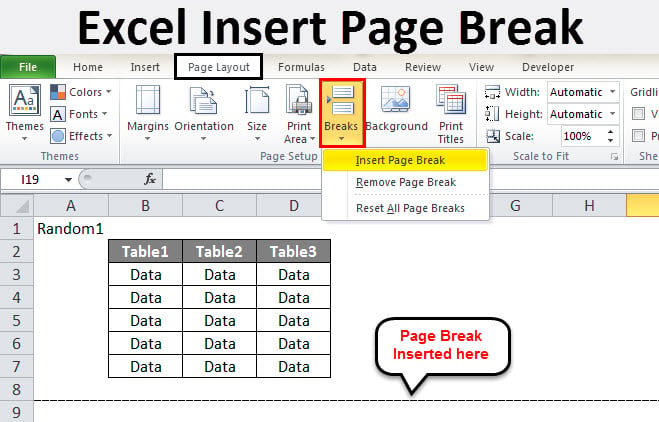
In this article, we will learn about Excel Insert Page Break. Page Breaks in Excel limit the page length to avoid misaligning data while printing it. It happens when we print any Excel sheet; due to the different Rows sizes, any row’s data may get split into 2 different pages. By this, we can get the complete data into one sheet and also be selective in choosing which and how many columns a page can accommodate. Page Breaks is available in the View menu tab under Workbook View with the name Page Break Preview. To insert a page break, select a row or column, then click on Insert Page Break from the Right-click menu list.
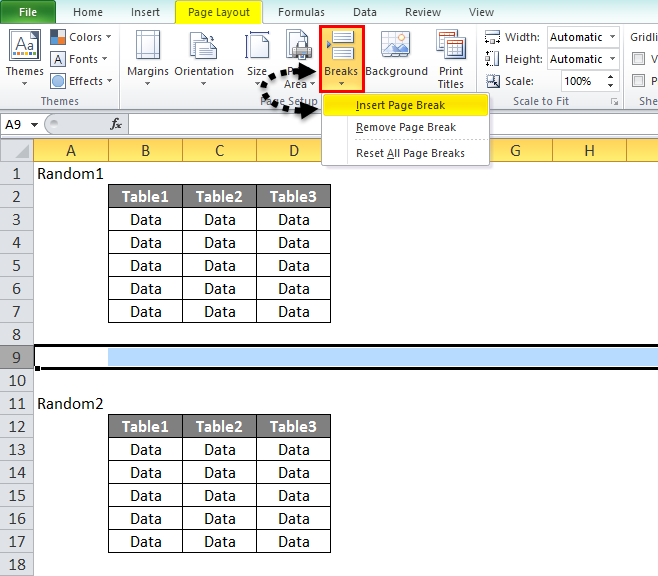
- There is an option in the page layout tab; under the page setup section, there is an option for breaks. Have a look at the screenshot below.
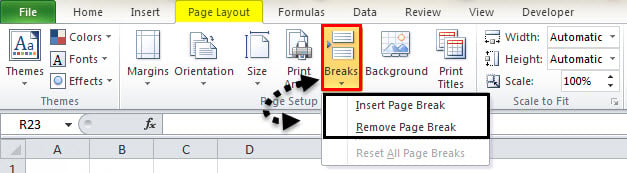
There are two options in Breaks:
- Insert Page Break
- Remove Page Break
Insert page break is to insert a new page break in any data while removing page breaks. Remove the break we gave already.
How to Insert Page Break in Excel?
To use page breaks, we need to perform the following steps:
- Select the first Row
- Click on Breaks in the page layout tab under the page setup section
- Check for print preview
Let us learn how to Insert a page break in Excel with a few examples by following the above steps.
Example #1
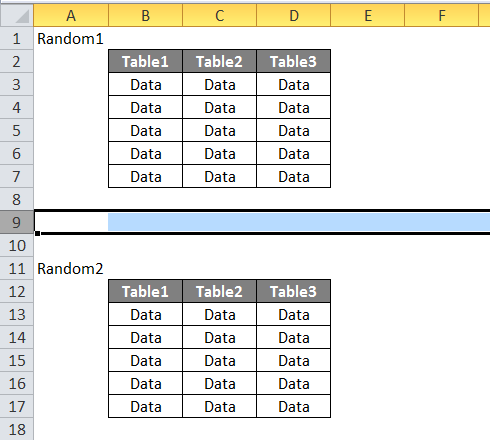
- Suppose we have the following data in our worksheet.
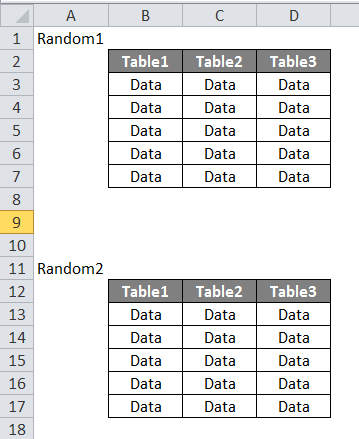
- We want both sets of tables printed separately. If we currently print the sheet, we can see that it prints the whole table together. Press the CTRL + P and check.
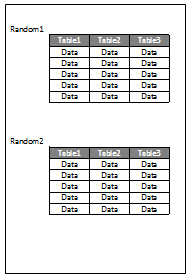
- To insert a page break, Select a row from where we want to begin a new page.
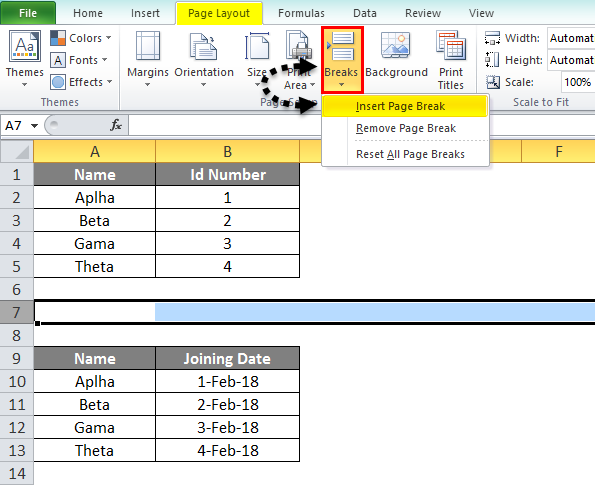
- Under the page layout section, click on Breaks in the page layout tab; three options pop up. Click on Insert Page Break.
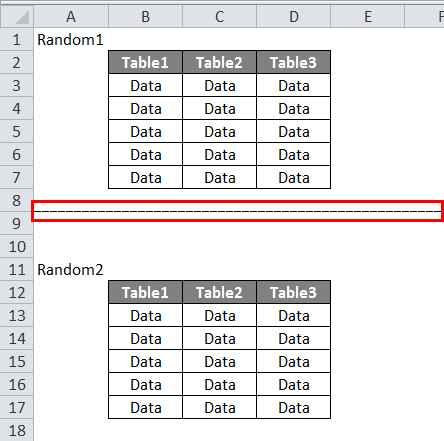
- Here’s what our data looks like now.
4. Now check for print preview.
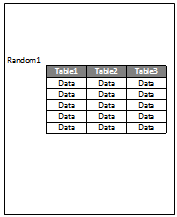
5. This is for the first page.

6. Click on the Second page to see the print preview.

7. The second data set is in the print preview.
Example #2
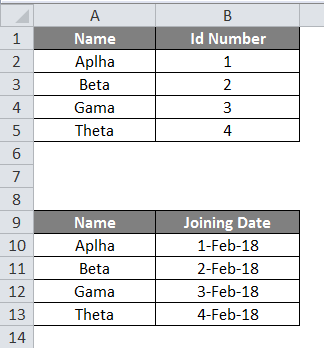
- We have a second set of data to be printed, which is as below. We want the first set printed on the first page and the second set on another.
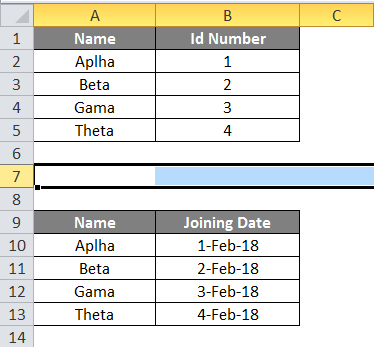
- First, we select the row where we want to insert a page break.
- Now in the Page Layout Tab, click on Breaks and Insert Page Break under the page setup section.
- Let us look at the Data First.
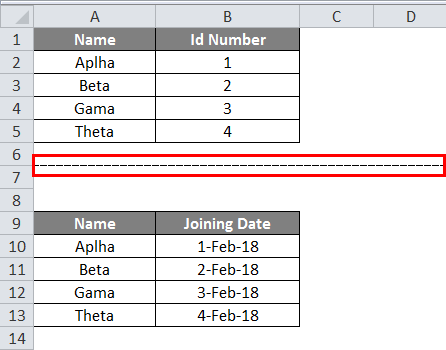
- Now we will check for the print preview and click the CTRL + P.
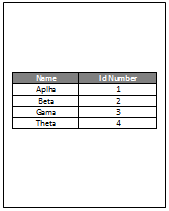
5. This is the first page, as we can see below.

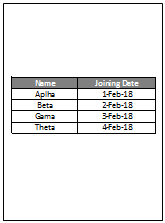
6. Now click on the second page to view the second data set.

7. We can see that our second set of data is printed in the print preview.
Example #3
- Now let us try with three sets of data. Have a look at the data below.
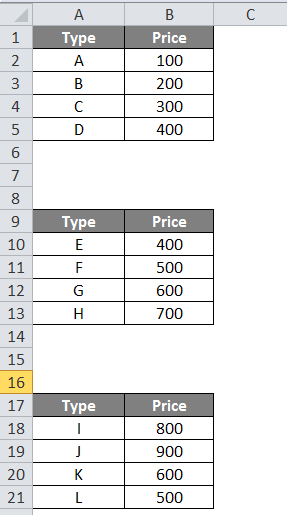
- Select the first row for the page break.
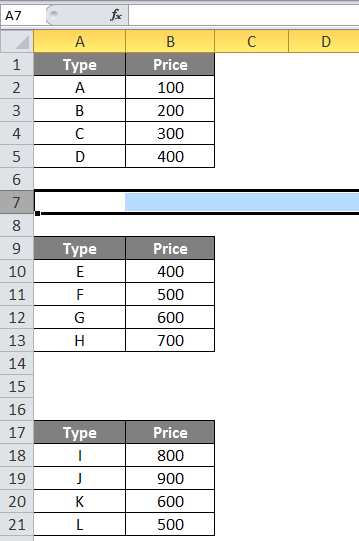
- In the Page Layout Tab, click on Breaks under the page setup section.
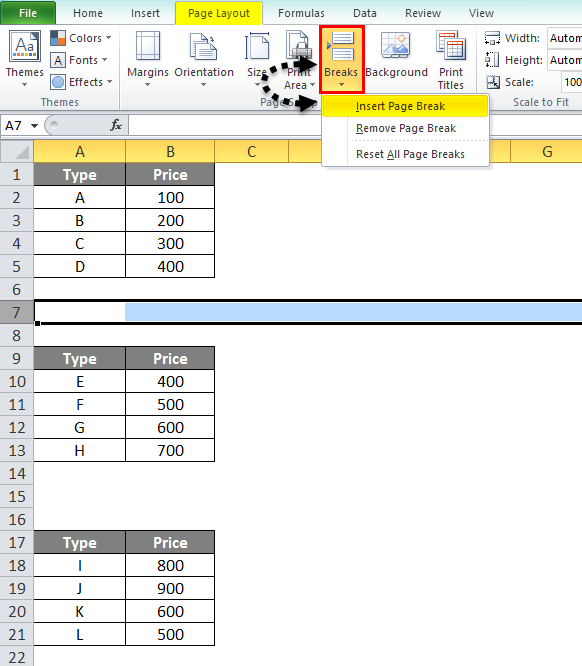
- Now click on Insert Page Break.
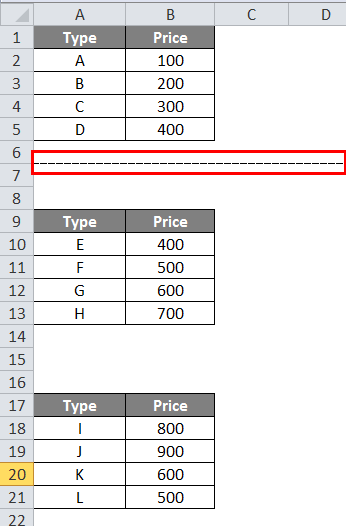
- The print preview shows that the first set is printed independently while the other two are together.
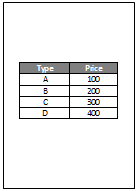
- To Confirm, we can see below that it is page 1 of the print preview.

- Now, if we click on 2, we can see the second page of the print preview.

- The second preview looks like this.
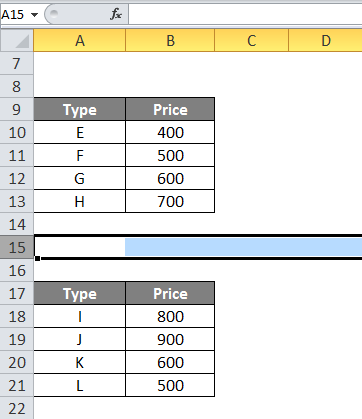
- We also want to break the rest of the two tables on different pages. So we again select the first row for the page break between the second and third tables.
- Now in the Page Layout Tab, click on Breaks under the page setup section.
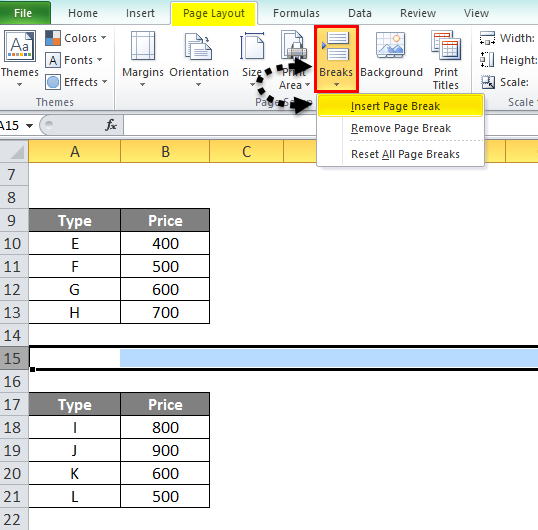
- Now click on Insert Page Break.
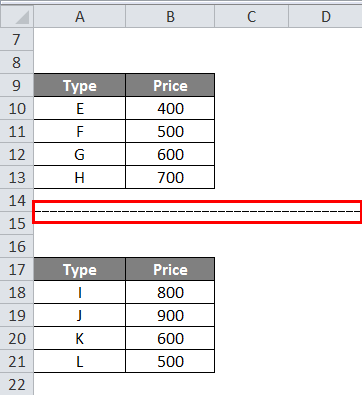
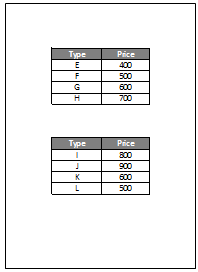
- Now, if we check for print preview, we can see that there are now three different pages.

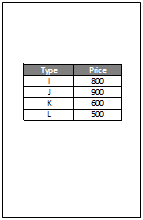
- If we directly go to the third page, we can see that the third table is also being printed independently.

- Below is the screenshot for the print preview of the third data set.
Things to Remember about Excel Insert Page Break
- Always remember to select the first row before inserting any page break.
- Also, do not forget to check for a print preview to see if the page breaks are correct.
- We have already discussed why we use page breaks in Excel. It is because we want the data to be printed separately from one another.
- There is an option in the page layout tab; under the page setup section, there is an option for breaks.
Recommended Articles
This has been a guide to Excel Insert Page Break. Here we discussed how to use Excel Insert Page Break and practical examples. You can also go through our other suggested articles to learn more –

