


Updated May 29, 2023
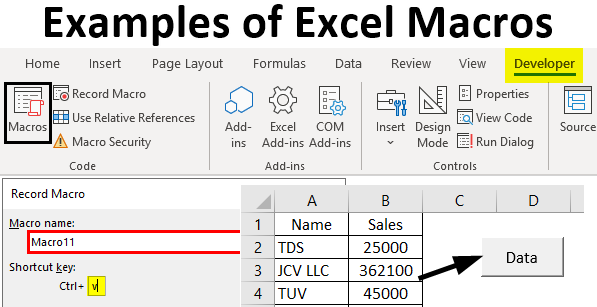
Introduction to Excel Macro
There are some tasks in Excel that we do daily. It could be our routine tasks that may include writing specific formulas, copying and pasting data, updating some columns, or writing a text several times at different locations in a sheet. To avoid this repetition of tasks and save time, we can use Macros in Excel. Macros are the tool that automates tasks, saves time, and reduces errors. A Macro program copies keystrokes or mouse actions repeated and common in the sheet. In this article, we will learn about Examples of Excel Macro.
In short, Excel Macro refers to the programming language in VBA. Macros are short programs written in VBA. Macros are written to automate tasks and save time and assure efficiency. We can record/write macros in VBA and run a macro by clicking the Macros command on the Developer tab on the ribbon. In this article, we have shown some Examples of Excel Macro.
Methods to Use Macros in Excel
Below we will discuss the different methods of using Macros in Excel.
Method 1 – Enabling Macros in Excel
To add the Developer tab in the ribbon, open an Excel workbook from the File menu.
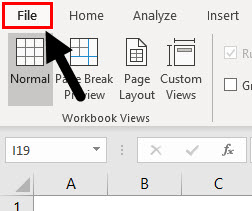
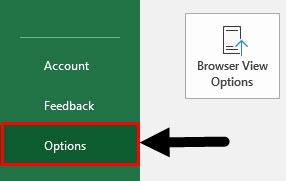
Click on Options.
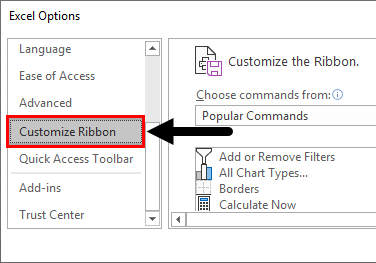
In a window opening up named Excel Options, click on Customize Ribbon to access the ribbon customization options.
Select the Developer (Custom) option and then press OK.
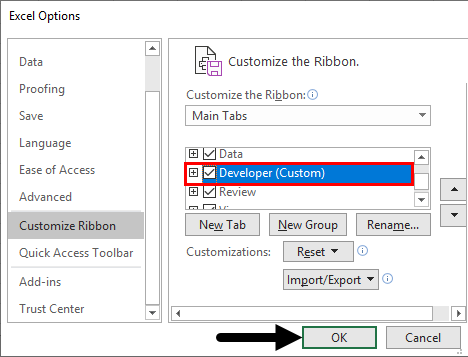
You will see the Developer tab on the ribbon.

Method 2 – Creating Macros using Record Button
We can record a macro and use it any number of times. We can record a task that we use daily or which is repetitive. Once the Macro is recorded, we can run it, and our work will be done.
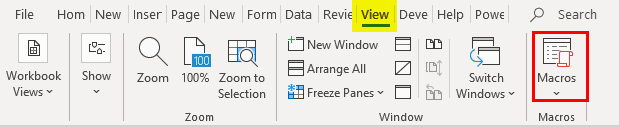
Let’s take the example of recording a Macro.
Example:
We will record the name of companies and their sales. To begin, click the View button on the tab, then move to the right-hand side, and you will see the “Macros” tab, as shown below.
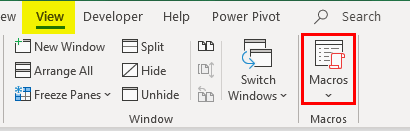
Now, click on the Macros tab to find the Record Macro option.
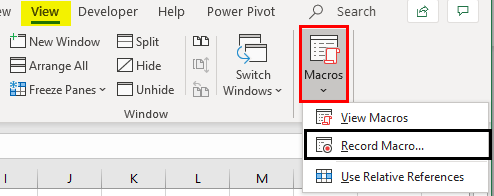
Click on it to record whatever you want, be it writing or copying and pasting something. In our example, we will create/record a table of companies and their sales.
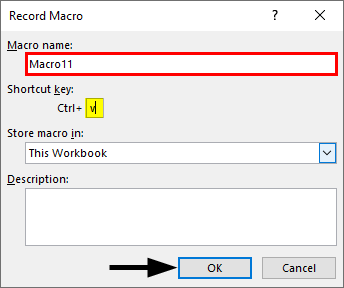
Click on Record Macros to see the below window pop up. Now we will name the macro Macro11. Ensure there should be no space and special characters in it. Then we will assign a shortcut key to run the macro; I assign CTRL+V. We will then store the macro in “This Workbook”. Click on OK, and the macro will start recording.
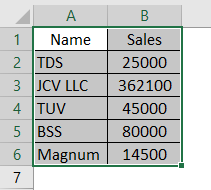
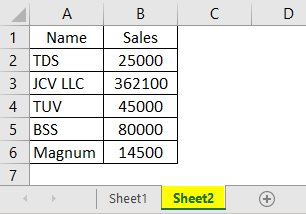
I have recorded this table.
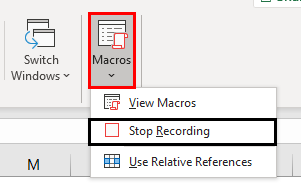
Now go to Macros and click on Stop Recording.
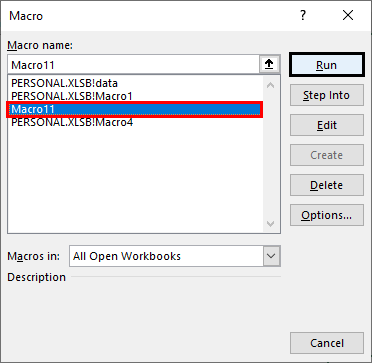
The macro “Macro11” is stored on the Macros button. Click it to see the Macro window where you can select “Macro11” and click Run.
If you want to paste the data in sheet 2, just go to sheet 2 and press Ctrl+V or view macros.
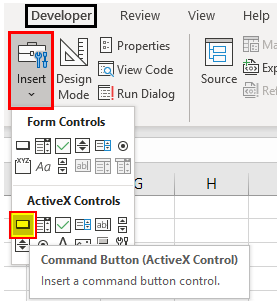
Go to the Developer tab and click on the Insert tab. Then from Active X Controls, select the Command Button.
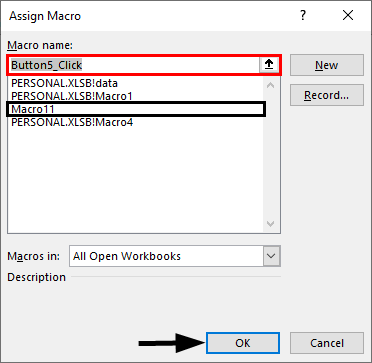
Once you click on the Command Button, you can then assign the macro as shown below. Then click on OK.
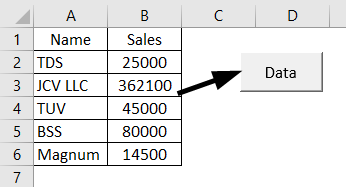
And drag the mouse to outline/create a button, and rename it to “Data”. Now click the button, and the macro will work.
Method 3 – How to Save a File with Macro?
We can only save the files with macros as Excel Macro-Enabled Template (file type).
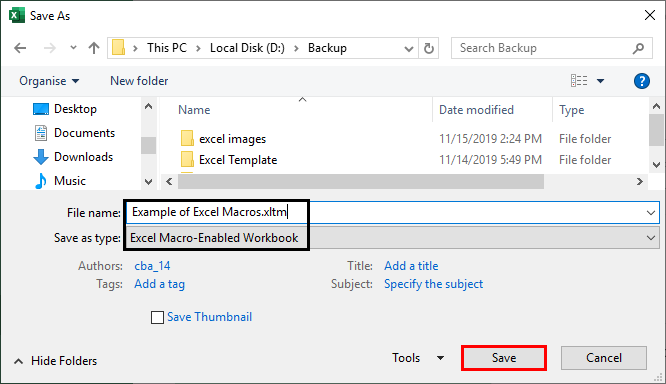
It can’t be saved as a normal Excel file.
Method 4 – Writing Macros in VBA
We cannot always record macros because they have a limited scope. Sometimes we have to write macros as per our requirements in VBA. To get into VBA, click on the Developer tab and the left-hand side, and you will see the first option, “Visual Basic”. Click on it or press ALT+ F11 to go to VBA.

Examples of Excel Macro
Below we will discuss the examples of Excel Macro
Example #1 – Write a Program to get Text Hello
- Now write a short program in VBA. We will write a program to get the “Hello “your name” text in the message box every time we enter a name in an input box.
- We will open the sheet, go to the developer’s tab in the ribbon, press Alt+F11, and get into VBA. Once we go to this page, we click on the Insert and click module.
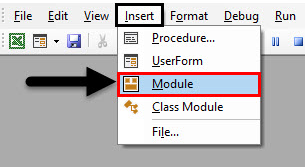
We will write our first program in Module 1. We always start our program with “Sub” and end with End Sub in VBA.
Sub hello_word ()
Dim name As String
name= InputBox ("Input your name")
MsgBox "Hello" + name
End Sub
So now we write the program as below:
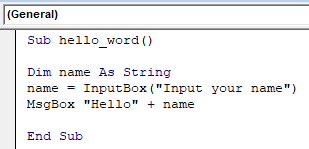
Explanation:
- “Dim name as a string” defines the name as a string.
- Then an inbuilt Inputbox function will ask for a name to be filled in, which will be stored in a variable name.
- Msgbox+name will display the name in the msg box. We will then create a command button by going to the Developer tab, then the Inset tab. Then form control, command button.
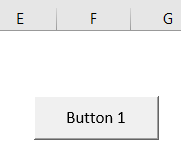
We will then assign the macro to the button and click OK.
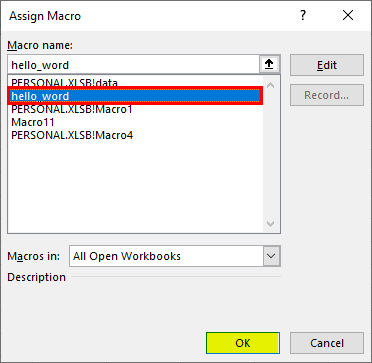
When we click on Button 1, we will see as below:
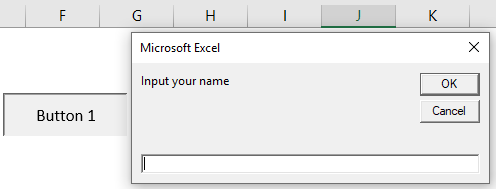
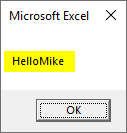
I entered my name, and it displayed.
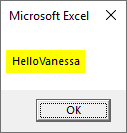
Every time you press button 1, you will see the input box, just enter the name and see the “hello+name.”
You can also run the code from the VBA window by pressing F5 if you have not created the command button.
Example #2 – Writing a Shortcode using For Inside a Loop
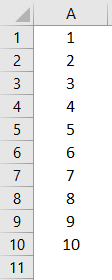
In this example, we will work with For. Suppose we want to fill cells A1 to A10 with 1,2,3…. to 10. We can do this by writing a shortcode using For Inside a Loop.
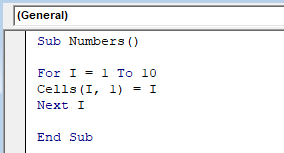
Press F5 and you will run the code. You can also run the macro by going to View -> Macros -> select “Numbers” from the list and then click Run. You will see that cells from A1 to A10 are filled from 1 to 10.
Example #3 – Display Total No.of Odd and Even Numbers
Using If, we can write a logical macro. We will write a code to create a table, and at last, there will be msg box displaying the total no. of odd and the total no. of even numbers. So we will write a code:
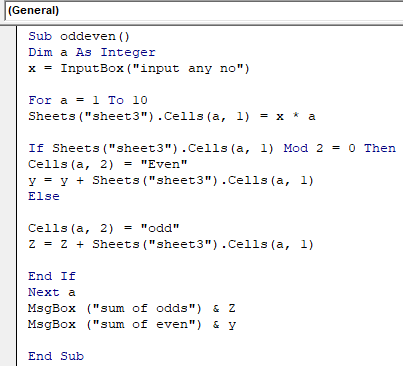
- We will start the program with Sub odd even (name).
- We will then take x as an input box to input a number. Then in variable a, we will store a loop from 1 to 10.
- In cell A1 of sheet 3, we will make a table by multiplying it with x in a loop until A10.
- We will then condition that if cell A1 is even, it will be added to a variable y that is currently 0, and odd will be added to a variable z, which is also 0. Then we will end the if statement and write the next A for the loop to work.
- In the end, we will add a msgbox to display the sum of odds and its total number and the sum of even and its total number. End the program.
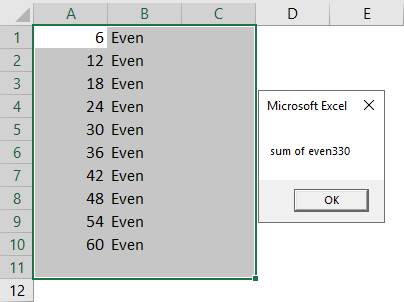
Run the program with F5. I entered 6 in the input box.
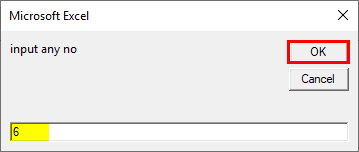
Click OK, and you will see the below result.
Example #4 – Write a Program to Pop as per the Defined Age
In this example, we will use the sentence case to give results as per some specific conditions. In this example, a message will pop up as per a defined age group of people once you select a cell mentioning age.
We will write the program as below:
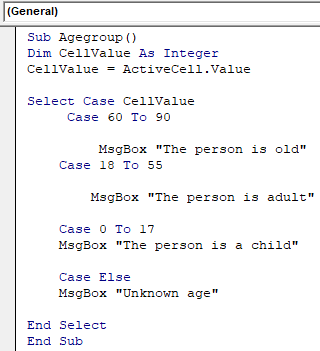
The program will start as Sub Agegroup.
- Cell value will be defined as an integer, which will be the active cell value, meaning that one is selected.
- We will then use a select case in different cases per the age group. The message box will then appear according to age.
- If the age selected is not found in the select cases, it will give the message an unknown age.
End Select
End program
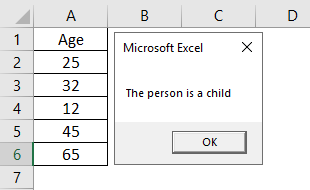
Some numbers are mentioned, and once I select 12 and run the code. It will show the result below:
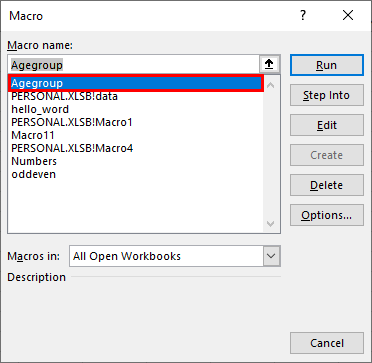
It will give the age group, as shown below.
These were some examples of VBA macros.
Things to Remember
- Always save the Excel file containing macros as an Excel Macro enabled template as the file type. Else the macros will not be saved.
- The program name should not contain any spaces.
- It is good to write programs in modules as it is not sheet specific.
- Be careful while recording macros because if you make a mistake or repeat a step, it records them as the same and does not provide the correct output.
Recommended Articles
This is a guide to Examples of Excel Macro. Here we discuss the Introduction to Excel Macro and the various Methods to Use Macros in Excel. You can also go through our other suggested articles –

