


Introduction to Income Tax in Excel
Calculating income tax can be overwhelming as there are too many rules and formulas. There are calculators and other resources that you can use. You may also take CA’s help. But, the best option is to use Excel to simplify this process. In this article, we will see tax regimes and explain how to calculate income tax in Excel. We will also provide practical examples using different tax slabs.
Moreover, for your convenience, we have also added a ready-to-use Excel template and given stepwise instructions on how to use it. This template will help you determine the exact tax amount you need to pay for the AY 2024-2025 (FY 2023-2024) as per the old and new tax regimes.
Here is the step-by-step method of calculating taxes using our ready-to-use template.
- Add your income, deductions, and exemptions values to our ready-to-use template.
- Our template will calculate your taxable income.
- The template will automatically determine the tax slabs and rates for your taxable income.
- Finally, Excel will calculate the total taxes as per both the old and new regimes.
You can choose the tax amount as per the tax regime that you follow.
Old and New Tax Regimes
There can be additions and omissions in the precious tax laws and regulations from time to time. It happens when the government provides regular amendments. Therefore, it is important to keep knowledge about the changes in the tax slabs.
The image below lists the tax slabs as per the old and new tax regimes, where the new regime is applicable for assessment year (AY) 2024-2025. The information is from the income tax government website and the press release of the Indian budget.

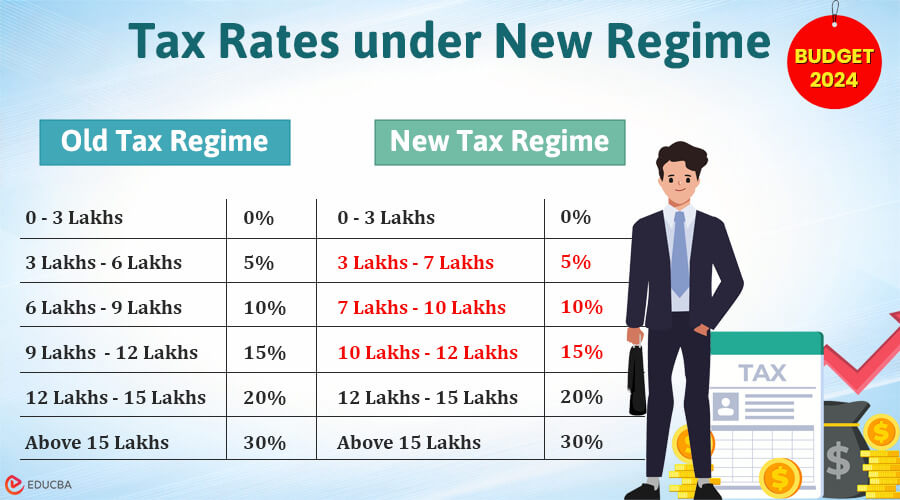
Note: These tax slabs are introduced in India’s 2024 budget and are applicable for FY 2024-2025 , i.e., AY 2025-2026.
Use Our Template to Calculate Income Tax in Excel
To help you calculate your income tax in Excel, we have added a downloadable, ready-for-use Excel template here. Go ahead and download the template.
Here is how you can use the Template.
1. Enter your income from any/all income sources in cells B2 to B6.
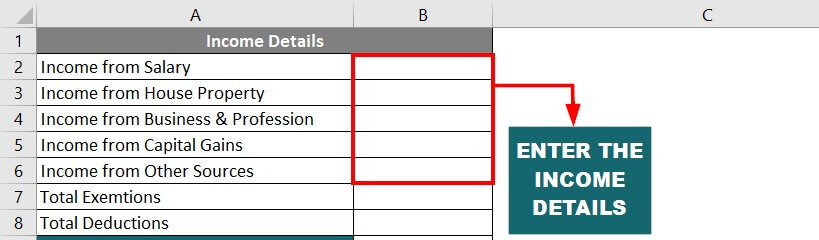
2. Add the amount for deductions and exemptions in cells B7 & B8.
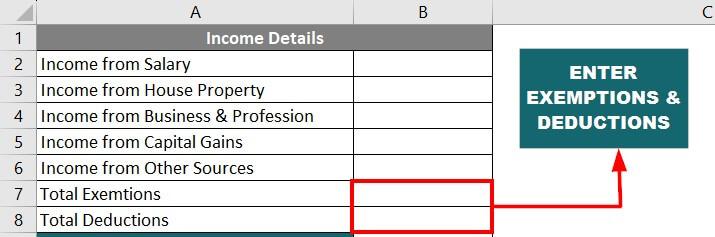
Don’t worry; our template will subtract them automatically.
3. We have provided the tax rates (old and new) and the surcharge rates in the same sheet.
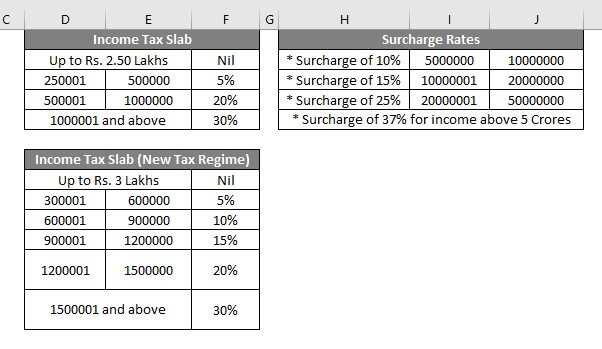
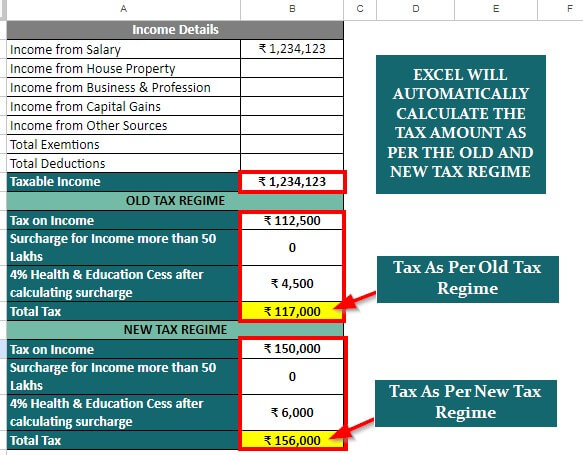
4. You can find the calculations for a hypothetical salary figure in the below image.
(We have already inserted the formulas in the Excel sheet, so Excel will automatically use these rates & formulas and calculate your taxable income and tax amount.)
How to Calculate Tax? Easy Steps for Beginners
Step #1: You must be familiar with the tax slabs and rates for the old or new regime.
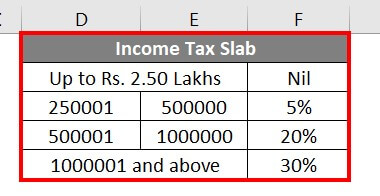
Example: Here, the tax slabs and rates are for individuals under the old regime.
- Up to 2.5 lacs: No tax
- 5 lacs to 5 lacs: 5% tax
- 5 lacs to 10 lacs: 20% tax
- Above 10 lacs: 30% tax
Step #2: Find which tax slab your income falls into.
We do this so we can find how many tax brackets and rates we need to use. If your income falls in the 2nd bracket, you should use both first and second. If it falls into the third bracket, then use the first, second, and third brackets.
Here’s a simple table to remember this:
| If Your Income Bracket is: | Then You Must Use Brackets: |
| 1st | 1st |
| 2nd | 1st, 2nd |
| 3rd | 1st, 2nd, 3rd |
| 4th | 1st, 2nd, 3rd, 4th |
| 5th | 1st, 2nd, 3rd, 4th, 5th |
Example: Let’s say you earned 9 lacs. As per the tax slabs shown in Step 1, your income falls under the third bracket (5 lacs to 10 lacs). So we need to check the three tax brackets: Up to 2.5 lacs, 2.5 lacs to 5 lacs, and 5 lacs to 10 lacs.
Step #2: Split the income that falls into each tax slab.
We split the income into each tax slab because there is a different tax rate for each tax bracket. And to find the correct tax amount, we need the right taxable income in each bracket.
Example:
- First Bracket: Up to 2.5 lacs:
Since your income is 9 lacs, the first 2.5 lacs fall into this bracket. We basically subtract the lower limit of the tax bracket from the upper limit (2.5 – 0 = 2.5).
- Second Bracket: 2.5 lacs to 5 lacs:
Since your income is 9 lacs, the next 2.5 lacs fall into this bracket.
- Third Bracket: 5 lacs to 10 lacs:
The rest of your income (remaining 4 lacs) falls within this bracket.
It should look like this:
| Income Range | Calculation (Upper bracket – Lower bracket) |
Taxable Income |
| Up to 2.5 lacs | 2.5 – 0 | 2.5 lacs |
| 2.5 lacs to 5 lacs | 5 – 2.5 | 2.5 lacs |
| 5 lacs to 10 lacs | 9 – 5 | 4 lacs |
Step #3: Calculate the tax payable in each bracket.
After splitting the income, we multiply the tax rates with the respective amounts.
Example:
Now that we have split the money as per the bracket, we only have to apply the tax rates.
First backet = 0%; second = 5%; third = 20%.
Now let us multiply the values we found for each bracket by their respective tax rates.
First Bracket = (2.5 x 0%) = 0
Second Bracket = (2.5 x 5%) = 12,500
Third Bracket = (4 x 20%) = 80,000
The final table will look like this:
| Taxable Income | Tax Rate | Calculation | Tax Payable |
| 2.5 lacs | 0% | 2.5 x 0% | 0 |
| 2.5 lacs | 5% | 2.5 x 5% | 12,500 |
| 4 lacs | 20% | 4 x 20% | 80,000 |
Step #4: Calculate the total tax payable.
Just add all the tax values that you have found, and you will find the total tax.
Example: We add the taxes we calculated for the different brackets. So it looks like this:
Total tax payable = 0 + 12,500 + 80,000 = 92,500
Therefore, if your income is 9 lacs under the old regime, your tax amount would be 92,500.
Calculate Income Tax in Excel – Examples
Let’s understand how to Calculate Income Tax in Excel with some examples. We have included all the below examples in the downloadable ready-to-use template that is given in the previous section.
Example #1: Income is 5 Lacs
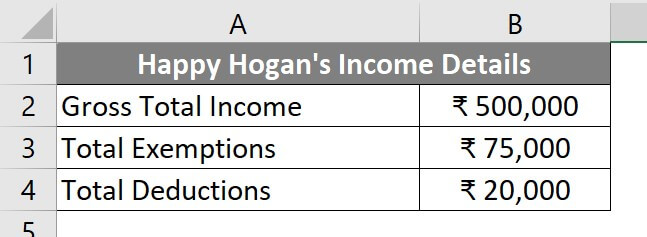
Let’s assume an employee named Happy Hogan whose annual salary is 5 Lacs, total exemptions are 75,000, and total deduction is 20,000. There will be a 5% tax on income above 2.5 Lacs and below 5 Lacs, as per the old tax regime. Let’s calculate his taxable income and the total tax that he must pay in the current financial year.
Let’s see how a user can calculate his taxable income and income tax.
Step 1: Enter your details in the Excel sheet as per the below image.
Step 2: Create two rows to calculate the “Taxable Income” and “5% Tax on Income”, as shown below.

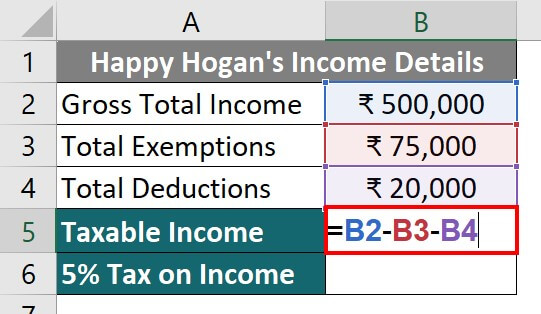
Step 3: First, we will find the taxable Income, i.e., the income on which we must pay taxes. For that, we will subtract the deductions and exemptions from the gross income
= 5,00,000 – 75,000 – 20,000 = 4,05,000
To calculate the same in Excel, you must enter this formula in cell B5: “=B2–B3–B4“.
Step 4: Press the Enter key to find the result for the added formula. In Excel, pressing enter tells the software to perform the calculation.
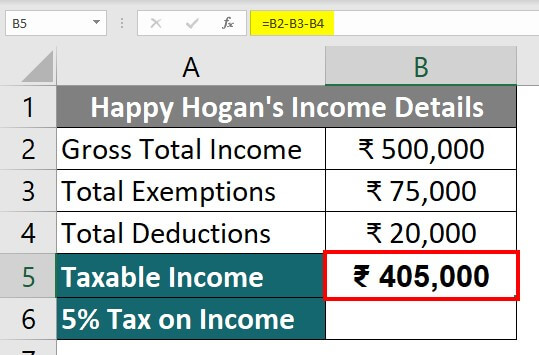
Thus, the Taxable income before considering the tax slabs is Rs. 4.05 Lacs.
Step 5: Now, let us calculate the tax that we need to pay on the taxable income.
The tax rate is 5% as per the old tax regime for income above 2.5 lacs and below 5 lacs income.
Therefore, we will not apply the 5% tax on the entire 4.05 lacs.
We will calculate 5% on the taxable income of 1.55 Lacs only (4.05 – 2.50 Lacs).
To apply this, write the formula =((B5 – 2,50,000)*5%) in cell B6.
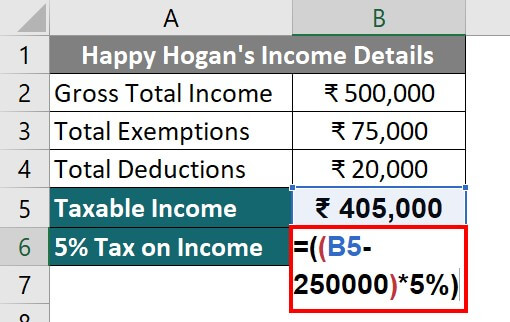
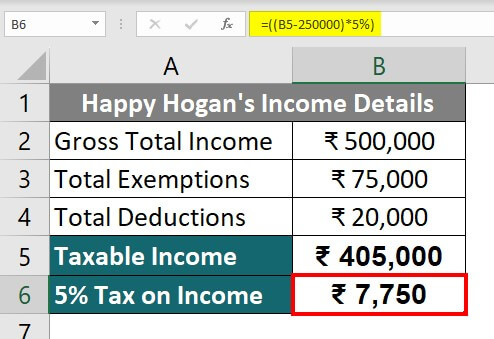
Step 6: Press the Enter key.
Excel will calculate 5% on 1.55 Lacs, i.e., 1,55,000 x 5/100 = 7,750
Example #2: Income Above 20 Lacs
Let’s say Alex’s income salary is 28 Lacs. Total exemptions are 5.5 Lacs, and deductions are 2.3 Lacs. Alex wants to use the tax slabs as per the old tax regime. Let us calculate Alex’s taxable income and the tax he must pay in the current financial year.
Step 1: Take a new sheet and enter the income details, just like in the above example.
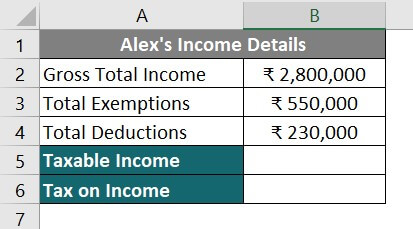
Step 2: Include an additional section for the tax slabs according to the old tax regime, as seen below.
Step 3: First, you need to calculate the taxable income in cell B5.
So, we will subtract the exemptions and deduction amount from the total income by writing the formula “=B2–B3–B4“.
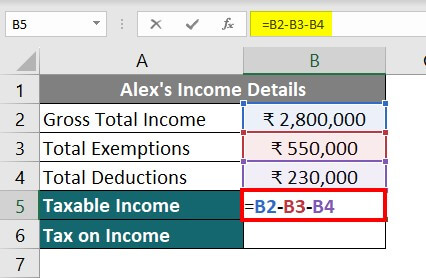
Step 4: Click the enter button.
Excel will calculate the Total Income by subtracting 5.5 and 2.3 Lacs from 28 Lacs.
Now, the taxable income is 20.20 Lacs.
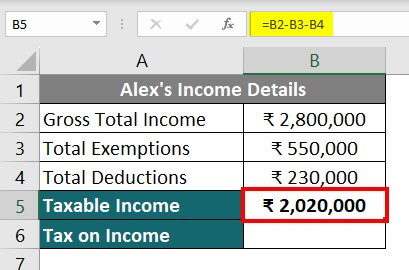
Step 5: To calculate the total taxes, we will first calculate the tax for each slab and then add them together.
The table below explains the calculation of the tax amount for all the slabs.
| Income Slab | Calculation For Each Slab | Tax Amount |
| Up to 2.5 Lacs | No Tax | NIL |
| 2.5 – 5 Lacs | (5,00,000 – 2,50,000) x 5% | +12,500 |
| 5 – 10 Lacs | (10,00,000 – 5,00,000) x 20% | +1,00,000 |
| Above 10 Lacs | (20,20,000 – 10,00,000) x 30% | +3,06,000 |
| = 4,18,500 |
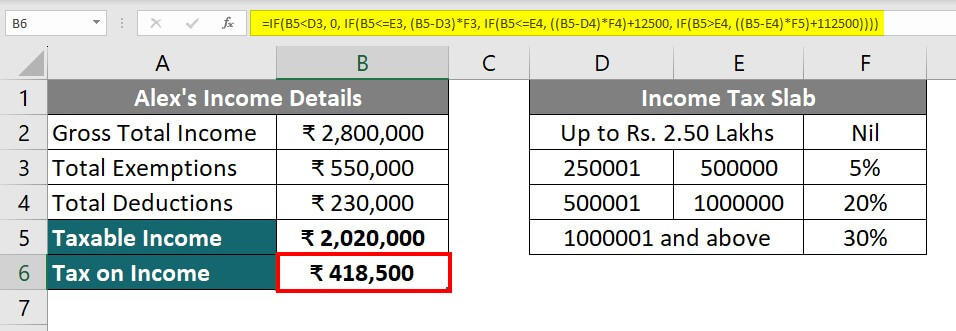
Therefore, Alex’s taxable income is 20.20 Lacs, and he needs to pay 4.185 Lacs Rupee as income tax.
Example #3: Tax Calculation Using IF Function
In the above example, we calculated taxes using the manual calculation method. However, to use the IF function to calculate the taxes, there is a slightly different method. Let us calculate the taxes using the IF function, too.
Step 1: Understand the IF Function Syntax
When we use the IF function “IF(logical_test, value_if_true, value_if_false)”, we need to provide conditions (what needs to be checked) and then actions (what Excel should do).
- The “logical_test” is the condition
- “value_if_true” is the action in case the condition is met
- “Value_if_false” is the action if the condition is false.
The IF function we use here is a bit complex. To understand its works, please read our detailed guide on “Excel IF function”.
Step 2: Add IF Condition
In the IF condition, we simply check if the income is less or equal to the upper bracket of the tax slab. We do this to find out what tax rate we should use for the income.
The upper brackets and the IF conditions for each slab are given in the table below. As we have used the Excel cell number in the IF condition, we have also mentioned what each cell contains.
| Tax Slab | Upper Bracket | IF condition | Excel Cell Data |
| Up to 2.5 lacs | 2.5 | IF(B5<D3) | B5 = Income
D3 = 2.5 lac |
| 2.5 lacs to 5 lacs | 5 | IF(B5<=E3) | B5 = Income
E3 = 5 lac |
| 5 lacs to 10 lacs | 10 | IF(B5<=E4) | B5 = Income
E4 = 10 lac |
| More than 10 lacs | – | IF(B5>E4) | B5 = Income
E4 = 10 lac |
Step 3: Add Actions
1. Value_if_true
Here, we will add the formula to calculate the taxes.
Below is the formula table for the action parameter for each slab.
| Tax Slab | IF condition | Action (as we need to consider all previous slabs and add them) | Simplified Action |
| Up to 2.5 lacs | IF(B5<D3) | 0 | |
| 2.5 lacs to 5 lacs | IF(B5<=E3) | (B5-D3)*F3 + 0 | (B5-D3)*F3 |
| 5 lacs to 10 lacs | IF(B5<=E4) | ((B5-D4)*F4) + (B5-D3)*F3 + 0 | ((B5-D4)*F4) + 12500 |
| More than 10 lacs | IF(B5>E4) | ((B5-E4)*F5) + ((B5-D4)*F4) + (B5-D3)*F3 + 0 | ((B5-E4)*F5) + 112500 |
2. Value_if_false: While calculating the tax we do not need this parameter. So, we are not going to add this.
Step 4: Combine All Parameters
In this step, we create the final IF formula that we will use. For that, just keep adding all the parameters in a bracket separated by commas, like this:
Step 5: Use the IF Function
As we have already figured out the formula now, just copy the above formula and paste it into cell B6.
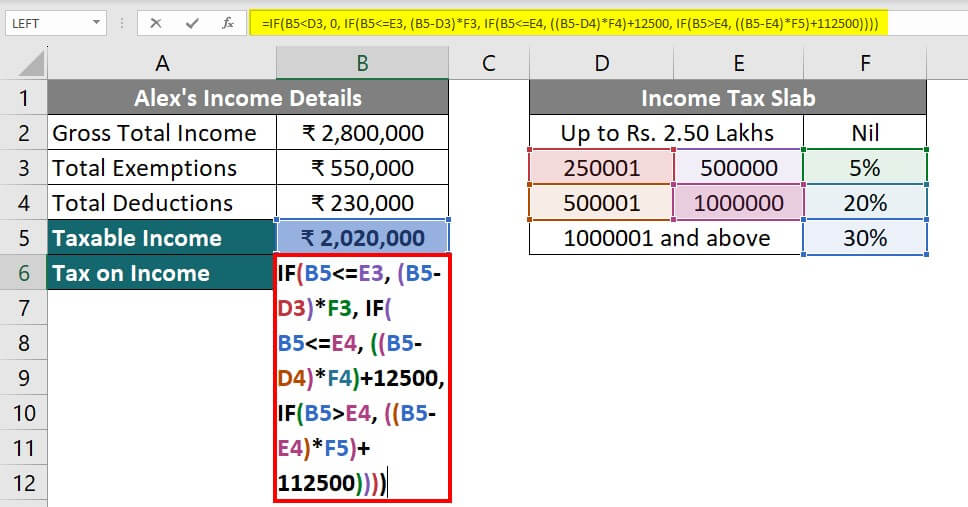
Here,
- The first IF condition [=IF(B5<D3, 0…] will return the value “0” if the total income is less than 2.5 Lacs.
- The second IF condition […IF(B5<=E3, (B5-D3)*F3…] will return the value by “subtracting 5 – 2.5 Lacs and multiplying it by 5%” if the total income is between 2.5 -5 Lacs.
- The third IF condition […IF(B5<=E4, ((B5-D4)*F4)+12500…] will return the value by “subtracting 10 – 5 Lacs, multiplying it by 20% and then adding 12,500”.
- The fourth IF condition […IF(B5>E4, ((B5-E4)*F5)+112500] will return the value by “subtracting 10 Lacs from the taxable income, multiplying it by 30% and then adding 1,12,500”.
Step 7: Press the Enter key.
Example #4: Tax Calculation as per New & Old Tax Regime + Surcharge
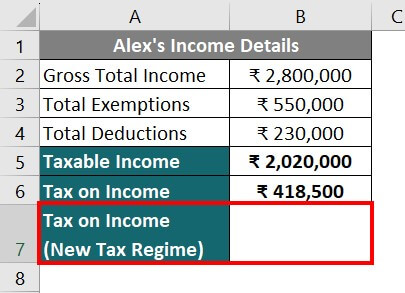
Taking the above example, the user can calculate the tax liability as per the new tax regime introduced in Budget 2023. Alex can compare the tax amount according to both tax regimes.
Step 1: Take a new sheet and add the data of the 2nd example.
Add an extra column to calculate the tax amount according to the new regime.
Step 2: Add the table showing the new tax slabs as per Budget 2023.
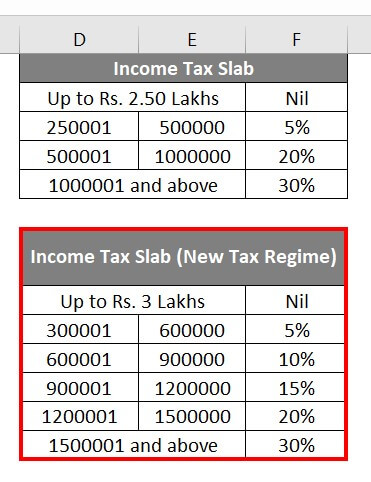
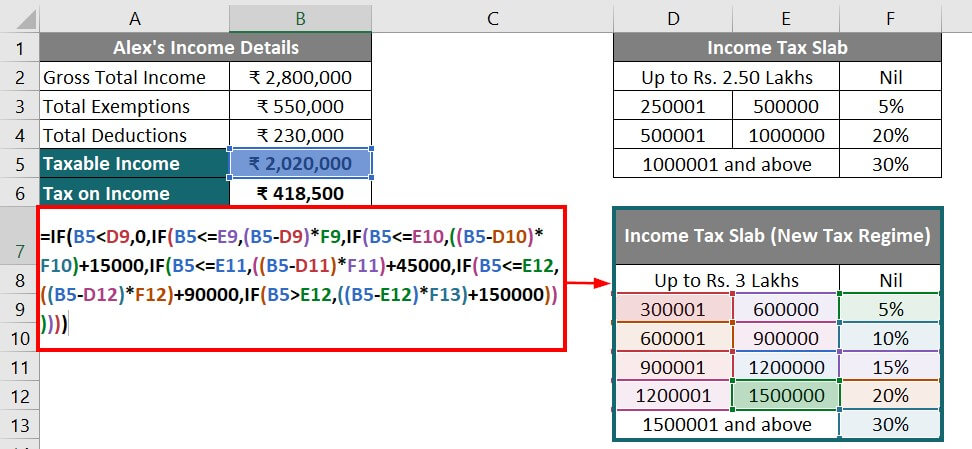
Step 3: Similar to step 5 of example 2, calculate the tax amount for every slab until you reach the last one.
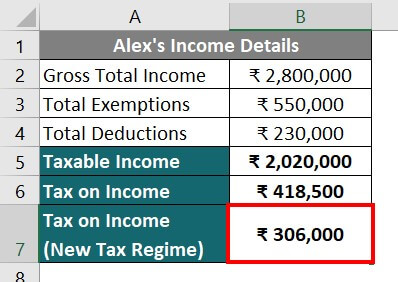
Here, the taxable amount is 20.20 Lacs, so the tax slab it falls into is 15 Lacs and above.
To calculate the total tax, enter the following formula in cell B7:
Example #5: Tax Calculation Using Different Tax Slabs + Surcharge + Cess
Let’s assume a user’s salary is 90 Lacs. Total exemptions are 15 Lacs, and total deductions are 9.8 Lacs. Tax slab and surcharge details are also available as per the old tax regime. Now, the user wants to calculate his taxable income and the tax he must pay in the current financial year.
Let’s see how a user can calculate his taxable income and income tax as Income tax to the Government.
Step 1: Arrange the income details in a new sheet similar to the above examples.
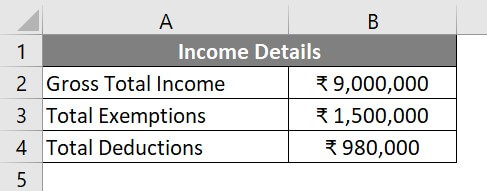
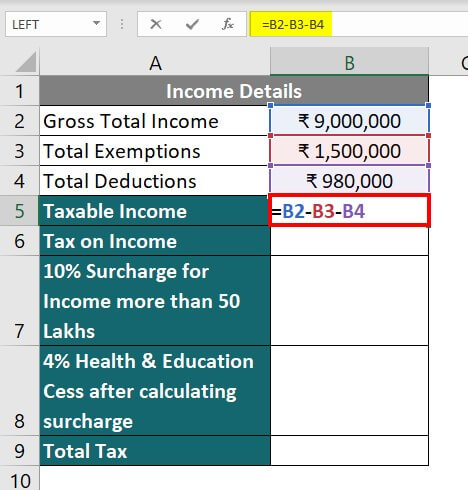
Step 2: For the additional calculations, create 5 more rows to calculate the taxable income, tax liability, surcharge, health & education cess, and total tax amount.

Step 3: To calculate the taxable income, select cell B5. Subtract the exemptions and deduction amount from the total income.
Write the formula in B5 =” B2–B3–B4“.
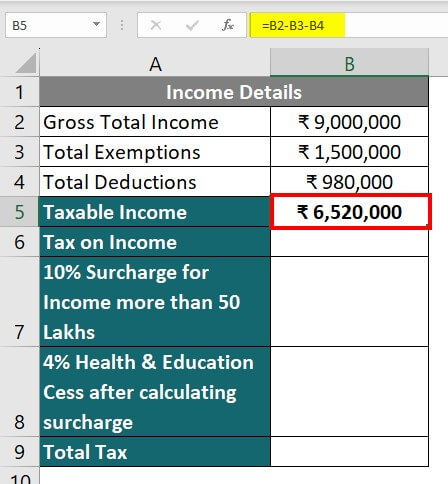
Step 4: Click the enter button.
Now, Taxable income will come to 65.20 Lacs.
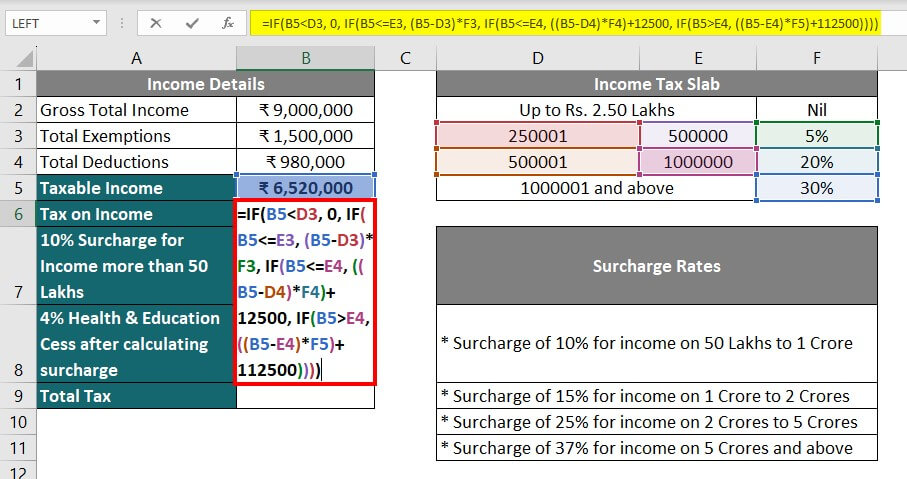
Step 5: Enter the tax slab rates and surcharge rates information to calculate the tax on 65.20 Lacs.

Here, the taxable income exceeds the last tax slab of 10 Lacs.
Step 6: Calculate the tax liability using the IF function as per the above example, using the following formula in cell B6.
Step 7: Press the Enter key.
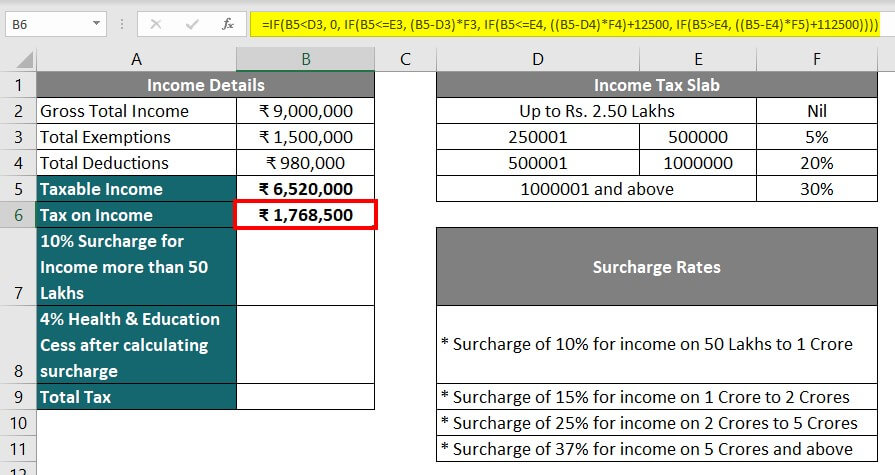
Tax liability on Rs. 65.2 Lacs is 17.685 Lacs.
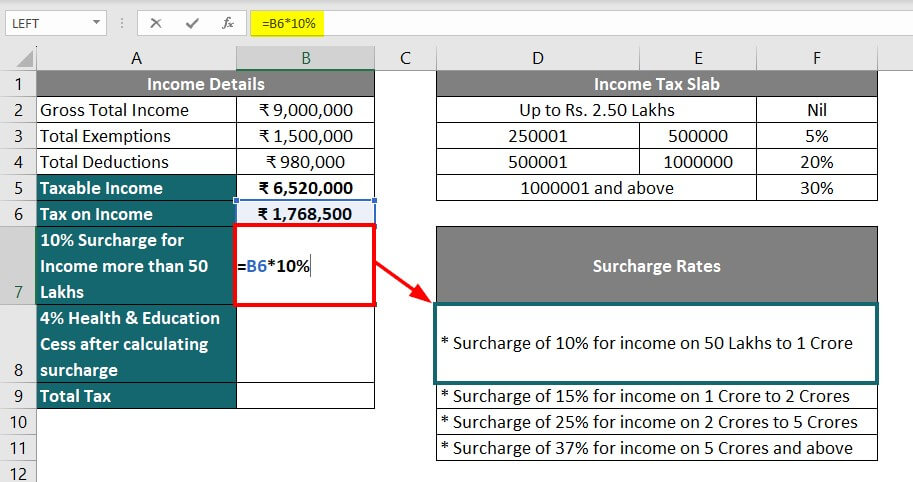
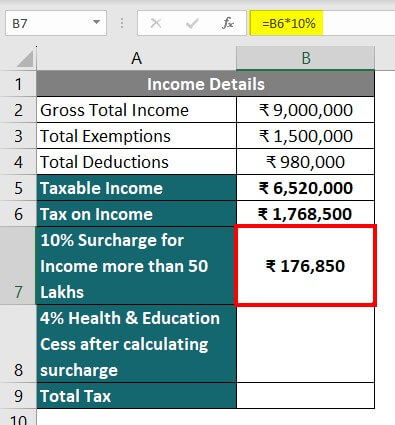
Step 8: As the income is more than 50 Lacs, there will be a 10% Surcharge on the Tax Amount in cell B6.
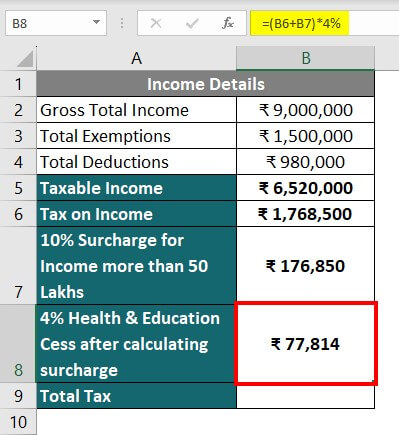
Step 9: Now, calculate the Health and Education Cess of 4% in cell B8 after adding the surcharge amount to the taxable income, i.e., B6+B7.
Therefore, the calculation for cess will be “=(B6+B7)*4%”. The amount of cess is Rs. 77,814.
Step 10: Now, calculate the total tax liability in cell B9 after adding the surcharge and cess to the gross tax liability.

Add all three amounts in B6, B7, & B8 to calculate the total tax amount.
Things to Remember About Calculate Income Tax in Excel
- The new tax regime is applicable for tax calculation of income and expenses that occurred this year (23-24) after the financial year ends on March 31st, 2024.
- The new tax regime will be applicable for the tax calculation of income and expenses that occurred this year (22-23) after March 2024.
- If the tax deducted by the employer was more than the actual tax, then the user will receive a refund. If the tax deducted by the employer was less than the actual tax, then the user will need to pay the remaining amount. However, you must check the official income tax website for regular updates or consult a Chartered Accountant.
- Gross total income is the combination of all five types of income, viz., from Salary, Property, Profits & Gains of Business/Profession, Capital Gains, and Other Sources.
- Exemptions are calculated under each income head separately as per Sections 10 & 54 of the Income Tax Act.
- Deductions are included after determining Gross Total Income, depending on Section 80.
- The taxable income step might be different from FORM 16 provided by the employer. Cross-checking both calculations is very important to avoid over/undervaluation of total income.
Frequently Asked Questions (FAQs)
Q1. What is the difference between the assessment year (A.Y) and the previous year (P.Y)?
Answer: The previous year is the year when you earn your income. It’s like the year when you work and make money through your job, business, or other sources.
On the other hand, the assessment year is when you calculate and pay taxes based on the income earned in the previous year. It’s like the year when you settle your tax dues and file your income tax return.
Q2. What is the new tax regime introduced in the 2023 budget?
Answer: The new tax regime of Budget 2023 has changed the tax exemption limit from 2.5 Lacs to 3 Lacs. The new regime applies to the A.Y. 2024-25, i.e., P.Y. 2023-24 that has started since 1st April 2023. Citizens who calculate their incomes and expenses in April 2024 for this financial year will follow this new regime.
Recommended Articles
This is a guide to Calculate Income Tax in Excel. Here, we discuss How to Calculate Income Tax in Excel, practical examples, and a downloadable Excel template. You can also go through our other suggested articles –