
Updated May 16, 2023
Introduction to Adobe Illustrator for Students
Adobe Illustrator is a vector-based program designed by Adobe Systems in 1985. Adobe Illustrator for Students is more suitable for creating graphics from scratch. Illustrator is extremely useful for designing icons, logos, typography, digital art, isometric designs, and much more.
Adobe Illustrator for students is a very straightforward program, so even if you are a beginner, you can design anything you would like to. Vector editor programs are based upon mathematical measurement, whereas pixel-based editor programs, like Photoshop. Bitmap editors are more useful in photo retouching and photo manipulation.
The graphics industry has evolved magnificently in the last few years. The graphics in our virtual world has sprawled their wings in ample ways. Adobe Illustrator is one of the main software used, and with the help of this, we can design anything.
Adobe Illustrator for skilled students
We have discussed earlier how these vector editor programs are beneficial for creating designs. Now, let’s discuss more on Adobe Illustrator for students’ applications to excel in our design knowledge to improve our skill level. It is said that learning is a never-ending process, so even if you are working in the design industry.
Here are a few specific tools/topics which I like. They are Typography, Flat Illustration, Character Design, Cartography, and Pattern Design for the textile industry.
Typography – Art of Writing
It’s used everywhere, e.g., in books/newspapers, websites, and everyday life, like street signs, boards, product packaging, posters, and stickers.
Let’s take a look at some different fonts which can be used.
- Serif: This font is very commonly used because of its classic look. This is a good choice in magazines and newspapers.
- San Serif- In French, ‘san’ means without; hence, these fonts don’t have the small stroke like in Serif. This font is used more on computers, smartphones, and tablets.
- Display– Display fonts come in various fonts like Script, BlackLetters, All Caps, and a plain simple fancy look.
These fonts are helpful in posters, title headers, or Graphic Designing.
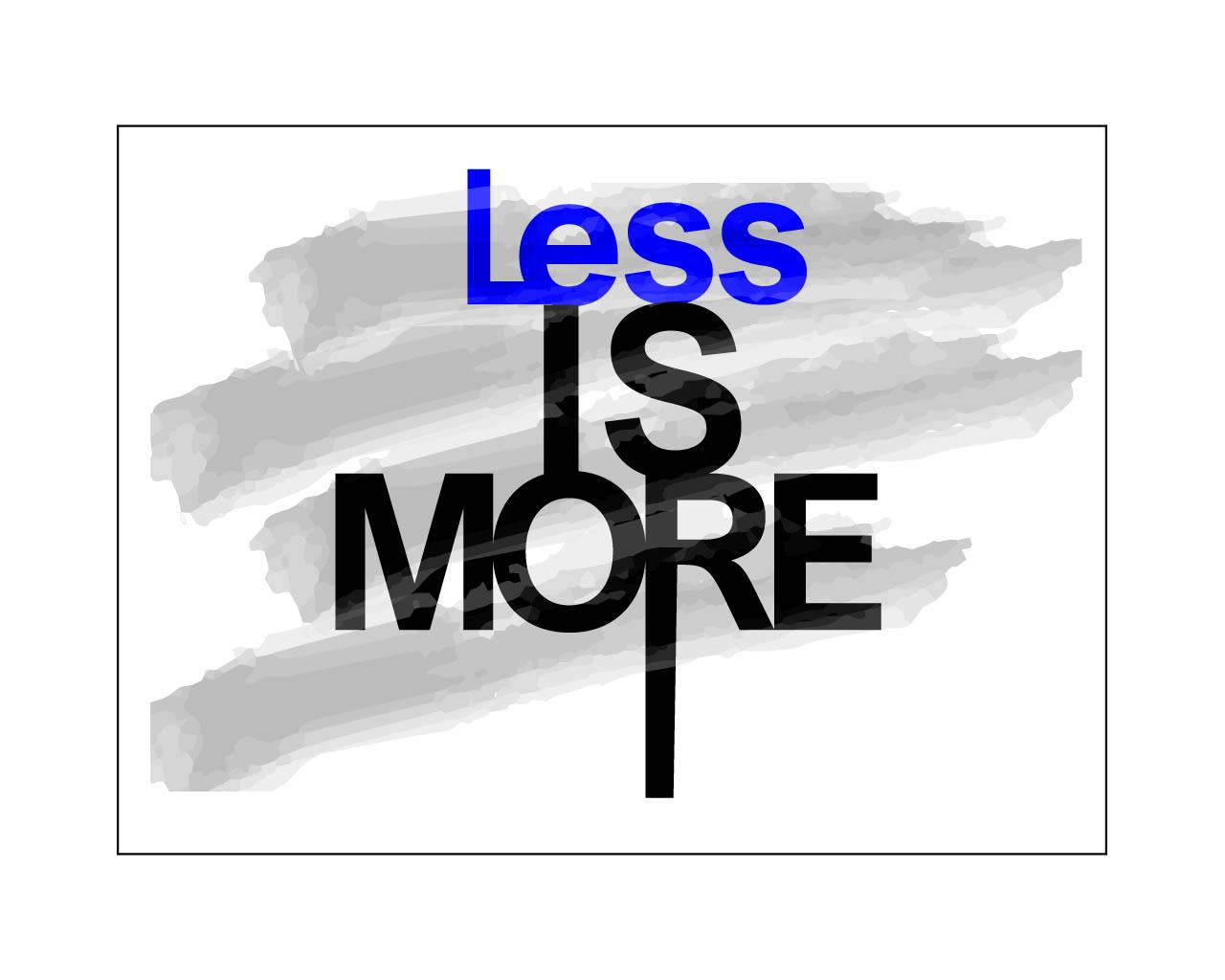
So now, hopefully, you have a little idea about fonts. It is better to follow the simple policy while making font selections, “Less is more.”
TYPOGRAPHY DESIGN
Character Design
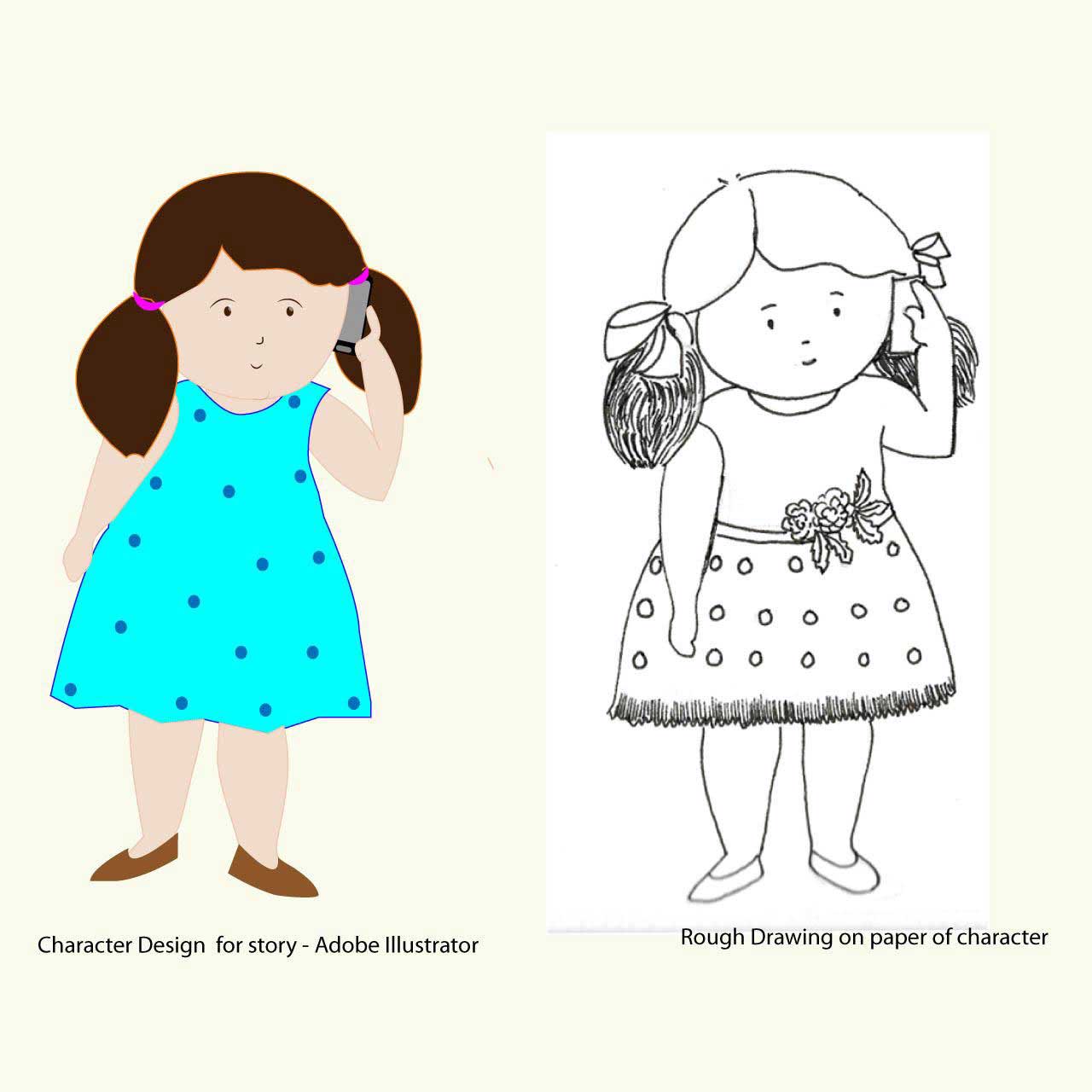
For any creative project, you need characters/objects/shapes to convey your ideas, thoughts, and feelings to the audience. Only then will everyone be able to connect with it quickly. Unfortunately, we see many cartoon characters daily on television, computers, and websites.
My design process of designing in Adobe Illustrator
Cartography
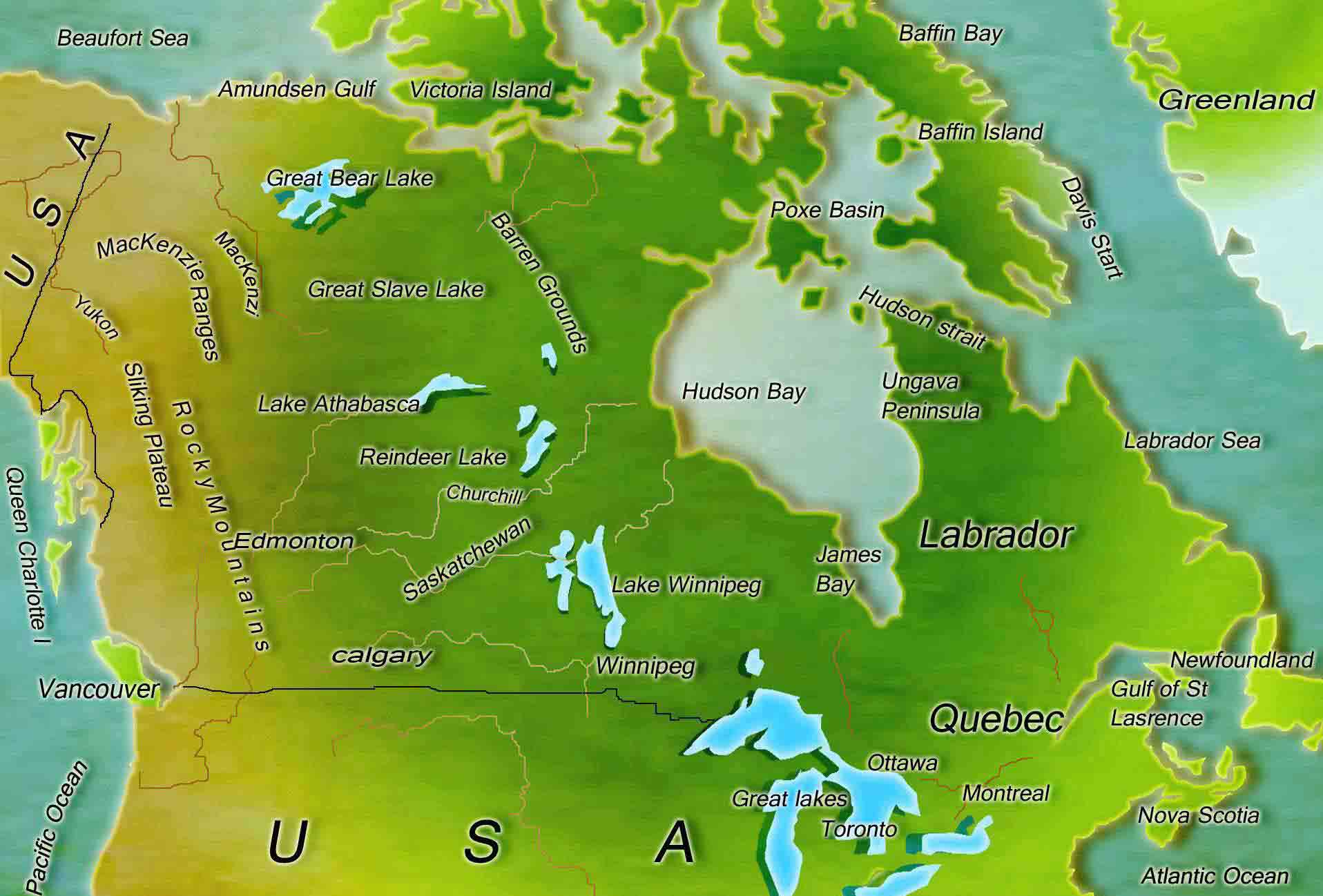
Map illustration plays a vital role in deciding the territory of different countries. Cartography studies map with all related aspects, such as weather, forests, rivers, cities, etc. There are different types of maps. Some of them are political, physical, and thematic.
Pattern Design
Seamless patterns help create designs in the textile industry. Adobe Illustrator for students can do this task very quickly and efficiently as vector editor programs speed up the design workflow. In addition, geometric shapes or objects are easy to make and create with a tool available in Illustrator.
Pattern Design watercolor hand drawn edited in Adobe Illustrator

Top Five Tools In Adobe Illustrator for Students
Below are the five tools:
1. Pen Tool
The pen tool is one of the most potent tools in Photoshop. This tool is one of my favorite tools. However, it’s tricky to use, mainly if you use it for the first time. With this tool, you can make any shape or object; the Pen tool can select an object with sharp edges.
2. Magic Wand
Magic Wand is a potent tool in Photoshop as well. Therefore, it has a very significant role while making the selection. Generally, in panoramic photographs, if a picture is not as good of a quality as you want, press the Magic Wand Tool and hit the delete button.
3. Healing Brush
This tool is helpful for retouching photographs, especially old or damaged ones. Press the Healing Brush button with the Content-Aware option turned ON if you want to remove any objects.
4. Refine Edge/Quick Selection Tool
The Quick Selection Tool makes a selection very quickly, whereas Refine Edge is beneficial for creating detailed masks of objects, especially where there are feathery areas like hair.
5. Clone Stamp Tool
The clone tool works like an actual stamp. It creates a carbon copy of an area; you can select and copy or clone those pixels onto another area. This feature of Photoshop helps retouch or photo manipulation.
Overview tips of Adobe Illustrator for students
Adobe Illustrator for students is a vector graphic software designed for professional designers and artists. It has a wide variety of filters, gradient effects, shape builders, and pen tools – which are effective tools for designing.
It is used primarily to design graphics for websites, logos, isometric designs, 3D designs, posters, and advertisement materials for print media.
This editor program works very well for illustration, sketches, typography, and the fashion industry. Adobe Illustrator for students also helps designers and artists quickly and efficiently create artwork.
Features of Adobe Illustrator
It has many powerful tools to design, which can create excellent graphics. However, here I am, only explaining a few of them.
- Shape Builder tool: It allows you to combine simple, complex shapes/objects as a single object. It saves much time making icons, logos, or even geometric shapes.
- Image Tracing – Image tracing is one of the best features of an illustrator for making any patterns. You can do any raster image tracing in Illustrator.
- Draw inside – You can depend on this draw inside mode feature if you do a lot of masking in your project. Even if you draw something beyond the bounding box, it will automatically correct it if you are in this mode.
- Perspective tool – It is one of the essential tools in Adobe Illustrator if you are frequently working in construction, architecture, or even the design industry.
Conclusion
Adobe Illustrator for students is a perfect program for designing creative artwork. It gives you pixel-free precise results with crispy edges. In addition, the flexibility of drawing tools assures you better details in your project, using the Illustrator multiple windows features. Adobe Illustrator for students also has several new features and improvements that make it easier to draw and edit.
I hope this article Adobe Illustrator for Students, has given you enough guidance and information to start with vector designing, which will help you succeed in your professional career.
Recommended Articles
This has been a guide to Adobe Illustrator for Students. Here we have discussed the concept of Adobe Illustrator for Students, types, features, etc. You may also look at the following article to learn more –

