

Full Form of PDF
Full Form of PDF is Portable Document Format. PDF is one of the most widely used file formats for sharing documents digitally, from resumes and invoices to e-books and business reports. It’s used for resumes, invoices, e-books, and business reports. But what does PDF stand for, and why is it so popular? Understanding its full form, features, advantages, and limitations can help you choose the right format for your documents.
Table of Contents
- Full Form of PDF
- What is PDF?
- Why is PDF Used?
- Key Characteristics
- History of PDF
- History of PDF: Timeline
- Types of PDF Files
- Advantages
- Disadvantages
- How to Create a PDF File?
- How to Edit a PDF?
- How to Open a PDF File?
What is PDF? Definition and Full Form
In the digital age, technology helps keep files safe. People often use the terms PDF, PNG, DOCX, and JPG, but few care about their full forms or the benefits they offer. Let us explore some classic information regarding PDFs! PDF is a file format for presenting documents. It helps people capture, transfer, view, and print documents from any machine. A PDF can include words, images, spreadsheets, and more.
Millions of individuals and corporations worldwide also trust it. The full form of PDF is Portable Document Format. Depending on how a PDF is created, it may also contain tables, hyperlinks, forms, and interactive elements. For example, saving a resume as a PDF helps preserve its fonts, spacing, images, and formatting when an employer opens it on another computer.
Why is PDF Used?
PDF files are useful when people need to share documents without changing their original appearance. Some common uses include:
- Business Documents: Sharing invoices, contracts, reports, and proposals.
- Education: Distributing notes, assignments, study materials, and e-books.
- Professional Applications: Sending resumes, cover letters, and certificates.
- Digital Forms: Creating application forms, registration forms, and other documents.
- Printing: Maintaining consistent page layouts when printing documents.
- Document Storage: Keeping records in a format that is easy to share and access.
Key Characteristics
PDF is a popular file format for creating, sharing, and storing digital documents while preserving their original layout and formatting.
- Consistent Formatting: Users can also print them without unexpected changes to the document’s appearance.
- Accessibility: Properly structured and tagged PDF files can support assistive technologies, such as screen readers.
- Easy Viewing and Navigation: Users can open PDFs with free readers, search for specific words, use bookmarks, and navigate directly to specific pages.
- Security and Protection: PDF files support password protection, encryption, and permission settings to help control access, printing, copying, and editing. Digital signatures can also help verify a document’s authenticity and detect changes.
- Searchable Content: The built-in search feature lets users quickly find specific words or phrases. Bookmarks and metadata also make large documents easier to organize and navigate.
- File Compression: Users can reduce PDF file sizes by optimizing images, fonts, and other content. This makes documents easier to store, upload, and share while preserving visual quality.
- Wide Compatibility: PDF files work across computers, smartphones, tablets, and various operating systems, making them convenient for sharing documents with different users.
History of PDF
In 1993, Adobe Systems developed the PDF format. It was popular in desktop publishing workflows and competed with DjVu, Envoy, Common Ground Digital Paper, Farallon Replica, and PostScript formats. PDF 1.7, the 6th PDF edition, included proprietary technologies such as Adobe XML Forms Architecture (XFA) and a JavaScript extension, which ISO referenced. Over the past few decades, PDF has become the worldwide industry standard.
The Full Form of PDF (Portable Document Format) was developed to make sharing and printing documents easier across different computers and operating systems. Over time, PDF technology evolved from a document-sharing solution into a widely used format for digital publishing, electronic forms, and secure document exchange.
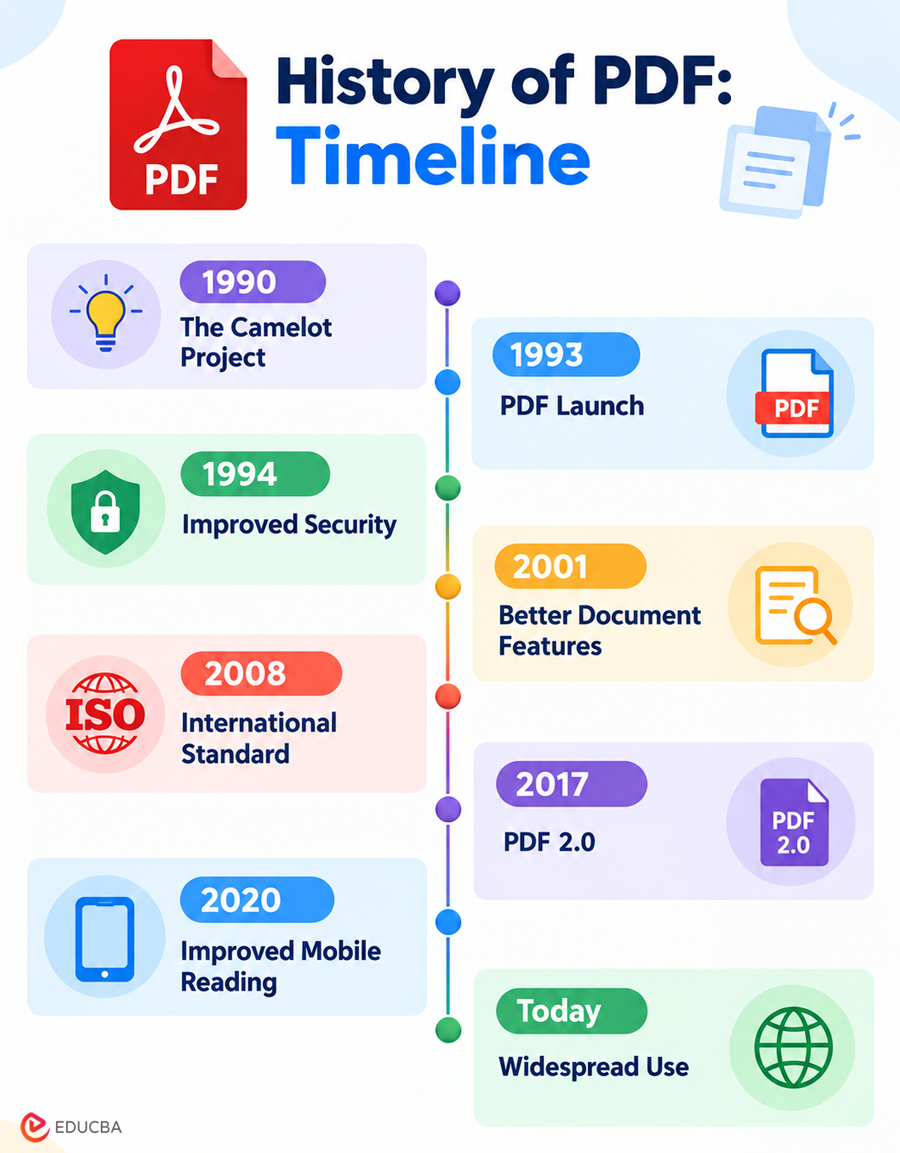
Here is a timeline highlighting the major milestones in the history of PDF.
| Year | Milestone | Description |
| 1990 | The Camelot Project | Adobe co-founder John Warnock introduced an idea to make it easier to share digital documents across different systems. |
| 1993 | PDF Launch | Adobe officially introduced PDF and released Acrobat software on June 15, 1993. |
| 1994 | Improved Security | PDF gained password protection and encryption features to help secure documents. |
| 2001 | Better Document Features | Updates introduced transparency and improved accessibility features, making PDFs more useful for different purposes. |
| 2008 | International Standard | PDF 1.7 became an international standard under ISO 32000-1, allowing broader industry support. |
| 2017 | PDF 2.0 | ISO published PDF 2.0 (ISO 32000-2), updating the standard and improving its technical specifications. |
| 2020 | Improved Mobile Reading | Adobe introduced Liquid Mode to improve the reading experience on mobile devices. |
| Today | Widespread Use | PDF supports document sharing, digital signatures, interactive forms, archiving, and online workflows. |
It has become a standard choice for sharing, storing, and printing digital documents while preserving their original appearance.
History of PDF: Timeline
Here is an image illustrating the history of the PDF timeline.
Types of PDF Files
PDF files fall into three main types based on how they are created and how users interact with their content.
- True PDF: It is a digital PDF created using software like Microsoft Word or Excel, or the ‘print’ option within the application. It consists of text and images.
- Scanned PDF: Also known as an ‘Image Only’ PDF, it contains scanned or photographed images of pages without underlying text. The text here cannot be modified or marked.
- Searchable PDF: It contains text you can search, select, copy, and mark. The characters and document structure can be analyzed and read.
Advantages of PDF
Millions of files are stored, uploaded, and circulated every day. Various benefits contribute to its extreme popularity for both personal and professional use.
- Enables mobility and portability: PDFs offer essential mobility and portability. You can read the file anywhere with free tools like Adobe Acrobat Reader.
- Maintains the visual elements: One can easily convert the visual effects created in a document to PDF. You can edit and preserve all text, graphics, and images in the file.
- Highly safe and secure: PDF provides a secure, easy way to preserve, transfer, and share data. Customizable user access levels are also a benefit.
- Supports interactive functions: PDF can include interactive features that help with importing and exporting data as needed.
- Allows file compression: PDF enables easy compression of raw data files while ensuring no quality loss. Data can be exchanged faster than with traditional means.
- Eco-friendly: Since PDF is an electronic way to share files, it eliminates the need for bulky paper printouts. Hence, it saves paper and promotes eco-friendliness.
Disadvantages of PDF
- Difficult to Edit: Editing text, images, or layouts in a PDF may require specialized software.
- Formatting Issues During Conversion: Converting PDFs into Word or Excel files can sometimes change the original layout.
- Large File Size: PDFs containing high-resolution images or graphics may take up significant storage space.
- Limited Collaboration: Editing and reviewing PDF files together can be less convenient than working with online documents.
- Accessibility Challenges: Scanned PDFs without selectable text can be difficult for screen readers to interpret.
- Software Requirements: Some advanced features, such as editing, converting, or adding digital signatures, may require paid software.
- Difficult to Extract Content: Copying text, tables, or images from certain PDFs may not preserve their original structure.
- Compatibility Issues: Some PDFs with complex layouts, fonts, or interactive elements may not display correctly in every PDF viewer.
How to Create a PDF File?
The following methods explain how to create PDF files.
Method 1: Save or Export a Document as a PDF
- Open your document in an application such as Microsoft Word or Excel.
- Select File and choose Save As or Export, depending on the application.
- Select PDF as the file format.
- Select the folder where you want to save the file and give it a name.
- Save or export the document.
- Open the resulting PDF to check its formatting.
Method 2: Use the Print to PDF Option
Many operating systems and applications include a virtual PDF printer.
- Open the document, webpage, or file you want to convert.
- Select Print from the application menu.
- Choose a PDF printer, such as Microsoft Print to PDF, if available.
- Select the required page range and other settings.
- Select Print and choose the location where you want to save the PDF file.
Method 3: Use an Online PDF Tool
Online converters can convert compatible file types, including DOCX, JPG, JPEG, and PNG, to PDF. Upload the file, select the conversion option, and download the result. For editing existing documents, you can use the Adobe Acrobat online PDF editor. Another option is Wondershare PDFelement, which offers tools to create, edit, convert, and secure PDF files.
How to Edit a PDF?
You can edit a PDF using a compatible desktop application or online editor. The available options depend on the document and the software. For example, Adobe Acrobat’s online PDF editor provides tools for making supported changes to PDF files. Another option is Wondershare PDFelement, which offers PDF editing, conversion, and document management features.
To edit a PDF:
- Open the PDF in a compatible editor.
- Select the editing tool you need.
- Modify the text, images, links, or other supported elements.
- Review the formatting and check that the changes appear correctly.
- Save the edited document as a PDF.
If you only need to add a comment, highlight text, or fill in a form, you may not need a full PDF editor.
How to Open a PDF File?
You can open PDF files using various applications on your computer or mobile device.
Common options include:
- Adobe Acrobat Reader
- Google Chrome
- Microsoft Edge
- Mozilla Firefox
- Preview on macOS
- Built-in PDF viewers on smartphones
You can open and read PDF files directly in most modern web browsers without downloading extra software.
Final Thoughts
Understanding the Full Form of PDF, its features, types, advantages, and limitations helps you manage digital documents more effectively. Its compatibility, security features, and support for text and images make it useful for personal, educational, and professional purposes. Although editing and converting PDF files can be challenging, the right tools make these tasks easier.
Frequently Asked Questions (FAQs)
Q1. What is the full form of PDF?
Answer: PDF stands for Portable Document Format. It is a file format used to display and share documents while preserving their layout.
Q2. What is the extension of a PDF file?
Answer: The file extension is .pdf. It appears at the end of a file name, such as report.pdf.
Q3. Can I protect a PDF with a password?
Answer: Yes. Compatible PDF software allows you to apply password protection and restrict certain actions.
Q4. Can I convert a scanned PDF into searchable text?
Answer: Yes. Optical Character Recognition (OCR) software can recognize text in scanned pages and make it searchable.
Q5. Can I merge or split PDF files?
Answer: Yes. PDF editing tools allow you to combine multiple files into one document or separate a PDF into individual pages or smaller files.
Recommended Articles
We hope this comprehensive guide to the Full Form of PDF helps you understand its meaning, features, types, and uses. Check out these recommended articles for more insights into digital file formats and document management.