


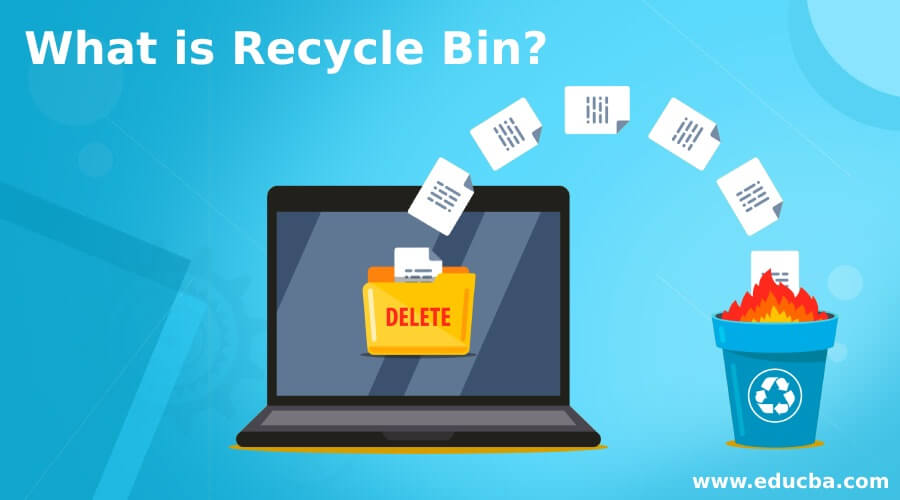
The Recycle Bin in Windows 11 temporarily stores many files and folders that you delete from your computer. Instead of removing them immediately, Windows allows you to review and restore deleted items if you change your mind.
You can restore files from the Recycle Bin to their original locations or permanently remove them by emptying the Recycle Bin. Microsoft includes the Recycle Bin icon on the Windows desktop by default.
What is the Recycle Bin?
The Recycle Bin is a special Windows system location that temporarily holds deleted files and folders.
When you delete a supported item from local storage, it may be moved to the Recycle Bin rather than permanently erased. This allows you to recover files that were accidentally deleted.
The Recycle Bin icon also changes depending on whether it contains deleted items.
How Does the Recycle Bin Work?
The basic process is:
When an item is in the Recycle Bin:
- It can usually be restored.
- It continues to use storage space.
- It can be permanently removed by emptying the Recycle Bin.
- Its original location is retained so Windows can restore it to the correct folder.
If you restore an item, Windows returns it to its original location.
Where is the Recycle Bin in Windows 11?
The Recycle Bin icon normally appears on the Windows desktop.

To open it:
- Go to the desktop.
- Double-click Recycle Bin.
- View the deleted files and folders stored inside it.
What If the Recycle Bin Icon Is Missing?
If all desktop icons are hidden:
- Right-click an empty area of the desktop.
- Select View.
- Make sure Show desktop icons is enabled.

If other desktop icons appear but Recycle Bin is missing:
- Open Settings.
- Select Personalization.
- Select Themes.
- Open Desktop icon settings.
- Select the Recycle Bin checkbox.
- Click OK.
Microsoft currently recommends the following steps to restore a missing Recycle Bin icon.
How to Use Recycle Bin in Windows 11?
Recycle Bin allows you to restore deleted files, permanently remove individual items, or clear all deleted content.
How to Move a File to Recycle Bin?
To delete a file or folder:
- Select the file or folder.
- Press the Delete key or right-click the item and select Delete.
- If the deletion is eligible for Recycle Bin storage, Windows moves the item to the Recycle Bin.
The item remains available for recovery until it is permanently deleted or automatically removed by a configured cleanup feature.
How to Restore a File From Recycle Bin?
To recover an accidentally deleted file:
- Open Recycle Bin.
- Find the file or folder you want to recover.
- Right-click it.
- Select Restore.
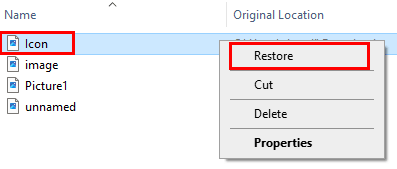
Windows restores the item to its original folder.
For example, if you delete a document from the Documents folder and later restore it, Windows returns it to the Documents folder.
How to Permanently Delete an Item From Recycle Bin?
If you no longer need a particular item:
- Open Recycle Bin.
- Select the file or folder.
- Right-click it.
- Select Delete.
- Confirm the deletion if prompted.
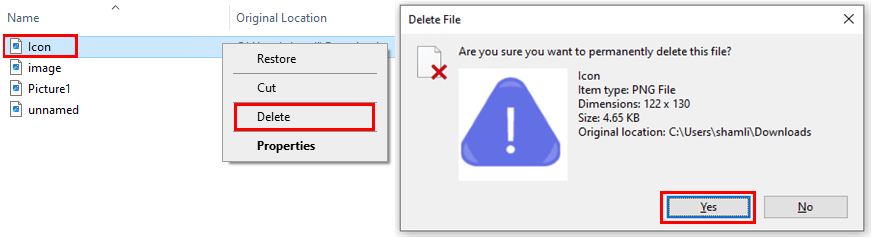
After an item is permanently removed from the Recycle Bin, you can no longer restore it using the normal Recycle Bin Restore option.
How to Empty Recycle Bin?
To permanently remove all items:
- Right-click the Recycle Bin icon.
- Select Empty Recycle Bin.
- Confirm the action.
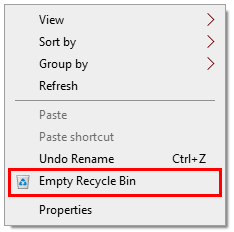
Emptying the Recycle Bin can free storage space used by deleted items.
How to Delete Files Without Sending Them to the Recycle Bin?
Windows also allows users to bypass the Recycle Bin.
Select the file or folder and press:
Shift + Delete
This performs a permanent deletion instead of using the normal Recycle Bin workflow.
Use this option carefully because the file will not be available for normal restoration from the Recycle Bin.
How to Change Recycle Bin Settings?
Windows provides several options for controlling how the Recycle Bin handles deleted files.
To access them:
- Right-click Recycle Bin.
- Select Properties.
- Select the drive you want to configure.
- Adjust the available settings.
- Click Apply, followed by OK.
Recycle Bin properties can control whether files are stored or removed immediately and whether Windows displays a deletion confirmation dialog. Windows can also maintain Recycle Bin behavior on a per-drive basis.
Custom Size
You can specify the maximum storage allocated for deleted items on a selected drive.
Delete Files Immediately
The Don’t move files to the Recycle Bin option causes deleted files to be removed immediately rather than stored in the Recycle Bin.
Enable this only if you are certain that you do not need the Recycle Bin as a recovery safeguard.
Display Delete Confirmation Dialog
You can also configure Windows to display a confirmation message before deleting items.
How to Automatically Empty Recycle Bin With Storage Sense?
Windows 11 includes Storage Sense, which can automatically free disk space by removing unnecessary files, including items that have remained in the Recycle Bin for a specified period.
To configure it:
- Open Settings.
- Select System.
- Select Storage.
- Open Storage Sense.
- Turn Storage Sense on.
- Under the Recycle Bin cleanup option, select how long deleted files should remain before Windows automatically removes them.
Storage Sense primarily works on the system drive, usually the C: drive.
This feature is useful for users who want Windows to automatically manage old deleted files.
Windows Recycle Bin vs OneDrive Recycle Bin
The Windows Recycle Bin and OneDrive Recycle Bin serve similar purposes but manage different types of deleted content.
| Windows Recycle Bin | OneDrive Recycle Bin |
| Primarily handles applicable deleted files on Windows storage | Handles files deleted from OneDrive cloud storage |
| Accessible from the Windows desktop | Accessible through OneDrive |
| Restores files to their original Windows folders | Restores files to their OneDrive locations |
| Managed through Windows settings | Managed through OneDrive retention policies |
For personal Microsoft accounts, items in the OneDrive Recycle Bin are automatically deleted after 30 days. For work or school accounts, the normal retention period is 93 days, although administrators can change it.
Deleted OneDrive files do not always appear in the Windows Recycle Bin. For example, Microsoft notes that deleted online-only files do not appear in the computer’s Recycle Bin and may instead need to be restored from the OneDrive web Recycle Bin.
What Happens to Files Deleted From USB or External Drives?
You should not assume that every file deleted from an external drive or USB device will be recoverable through the Windows Recycle Bin.
Deletion behavior can depend on the device, file system, configuration, and method used to delete the file.
If an important file from an internal drive, external drive, or USB device cannot be restored from the Recycle Bin, Microsoft’s Windows File Recovery tool may be able to attempt recovery.
Why Are Deleted Files Not Showing in Recycle Bin?
A deleted file may not appear in the Recycle Bin for several reasons.
The File Was Permanently Deleted
Using Shift + Delete bypasses the normal Recycle Bin workflow.
Recycle Bin Settings Were Changed
If the option to remove files immediately is enabled, deleted items will not be stored in the Recycle Bin.
The Recycle Bin Was Emptied
Once you empty the Recycle Bin, its normal Restore function is no longer available for those files.
The File Was Stored in the Cloud
OneDrive and other cloud services may use their own recovery systems.
Microsoft specifically notes that online-only OneDrive files deleted from the cloud may not appear in the Windows Recycle Bin.
Storage Sense Removed the File
If Storage Sense is configured to automatically clean the Recycle Bin, older deleted files may be removed after the selected period.
How to Recover Files Not Found in Recycle Bin?
If an important file is missing from the Recycle Bin, first check whether you have:
- A Windows backup
- File History
- A OneDrive backup
- Another cloud backup
- A copy on another device.
Windows File History can preserve previous versions of personal files when configured in advance.
Microsoft also provides Windows File Recovery, a command-line recovery utility available through the Microsoft Store.
It can attempt to recover deleted files from:
- Internal drives
- External drives
- USB devices.
Microsoft recommends minimizing computer use after losing an important file because new data can overwrite the disk space previously used by the deleted file.
Advantages of Recycle Bin
- Protection Against Accidental Deletion: The Recycle Bin allows users to recover files deleted by mistake.
- Easy File Restoration: Files and folders can be restored to their original locations with a few clicks.
- Temporary Storage of Deleted Files: Users can review deleted items before deciding whether to permanently remove them.
- Better Storage Management: Emptying the Recycle Bin can free disk space occupied by files that are no longer required.
- Automatic Cleanup: Storage Sense can automatically remove older Recycle Bin items based on the selected cleanup settings.
Limitations of Recycle Bin
Recycle Bin is useful, but it should not be considered a backup system.
Some limitations include:
- Not every deleted item is necessarily stored in Recycle Bin.
- Permanently deleted files cannot be restored through its normal Restore command.
- Emptying Recycle Bin removes the built-in recovery option for those files.
- Cloud services may use separate Recycle Bins.
- Recycle Bin does not protect against drive failure or data corruption.
For important files, use a proper backup solution in addition to Recycle Bin.
Final Thoughts
The Recycle Bin in Windows 11 provides a convenient safety layer for many deleted files and folders. It allows users to restore accidentally deleted items, permanently remove unnecessary files, manage deletion settings, and use Storage Sense for automatic cleanup.
However, Recycle Bin should not be treated as a backup solution. Important files should also be protected using File History, OneDrive, Windows Backup, or another reliable backup method.
Understanding how Recycle Bin works can help you manage storage more effectively while reducing the risk of accidentally losing important files.
Frequently Asked Questions (FAQs)
Q1. Where is Recycle Bin in Windows 11?
Answer: Recycle Bin normally appears on the Windows desktop. If it is missing, go to Settings → Personalization → Themes → Desktop icon settings and enable Recycle Bin.
Q2. How do I restore a deleted file from Recycle Bin?
Answer: Open Recycle Bin, select the deleted file, right-click it, and choose Restore. Windows returns the item to its original folder.
Q3. Does Recycle Bin use disk space?
Answer: Yes. Files stored in Recycle Bin continue to occupy storage space until they are permanently removed.
Q4. What happens when I empty Recycle Bin?
Answer: Items stored there are permanently removed from the Recycle Bin and can no longer be recovered using its normal Restore option.
Q5. Does Shift + Delete bypass Recycle Bin?
Answer: Yes. Shift + Delete permanently deletes the selected file instead of sending it to the standard Recycle Bin.
Q6. Can I recover files after emptying Recycle Bin?
Answer: Possibly, but recovery is not guaranteed. You can check backups, File History, cloud storage, or try Microsoft’s Windows File Recovery tool. Microsoft recommends limiting use of the affected drive to reduce the possibility of deleted data being overwritten.
Q7. Is OneDrive Recycle Bin the same as Windows Recycle Bin?
Answer: No. OneDrive maintains its own Recycle Bin for deleted cloud files. Some synchronized files may also interact with the Windows Recycle Bin, but online-only files deleted from OneDrive may need to be recovered from OneDrive’s web Recycle Bin.
Q8. Can Recycle Bin delete files automatically?
Answer: Yes. Windows 11 Storage Sense can automatically delete items that have remained in the Recycle Bin longer than the period you configure.
Recommended Articles
This is a guide to What is Recycle Bin?. Here we also discuss the introduction and how to use the recycling bin? along with advantages. you may also have a look at the following articles to learn more –

