


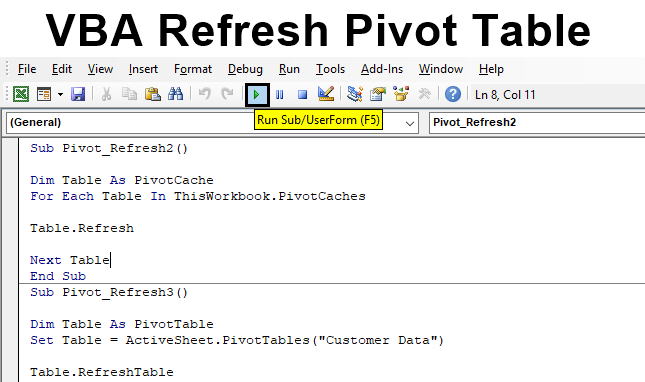
Refresh Pivot Table in VBA
We usually create a pivot table when we need to create some kind of plots or charts, or we need to perform some analysis over it. By preparing the Pivot table, we can get the overall view and idea about what is actually inside the data. This is the best way to find way to get into data. And each time when we make any changes in the data, we need to refresh the pivot table as well. So that it will populate the updated data count as well. Refreshing any pivot table is very easy, but what if we have 10s of pivot tables in a single excel file which we need to update. So, instead of refreshing all the pivot tables one by one, we can directly refresh all the pivot tables in one go with the help of the VBA Refresh Pivot Table.
How to Use Refresh Pivot Table in Excel VBA?
Below are the different examples to use Refresh Pivot Table in Excel using VBA code.
VBA Refresh Pivot Table – Example #1
For refreshing the pivot table, first, we need to create a pivot table. Below we have a data of 1000s line item by which we will be creating a pivot table.
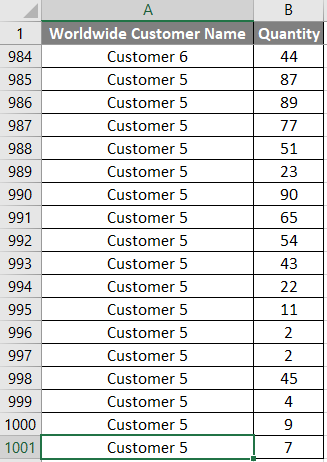
In the above screenshot, we can see the last line at 1001 and this data has customer information against the quantity sold to them.
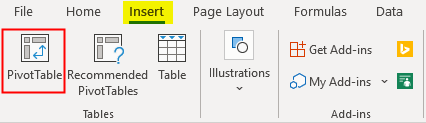
Now go to Insert menu tab and click on PivotTable option.
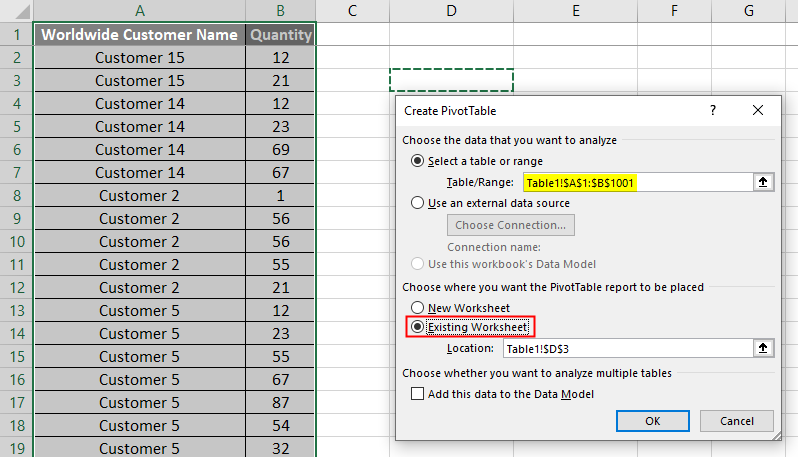
We will get a Create PivotTable box. From there, first, select the range of table which we want to include in a pivot table. Then select any location in the current sheet for Pivot table. We can choose New Worksheet as well.
Once done, click on Ok.
We will get the pivot table created. Now drag the required fields into different areas to get the actual pivot table. Here, we are dragging Customer name into ROWS and Quantity into COLUMNS as shown below.
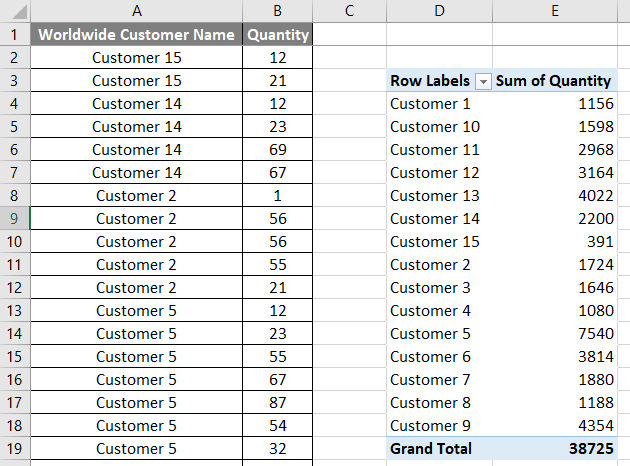
This completes the creating of a PivotTable. But we need to update the pivot table after changing anything in Data, this could be done by simply refresh option from Right-click drop-down menu list as shown below.
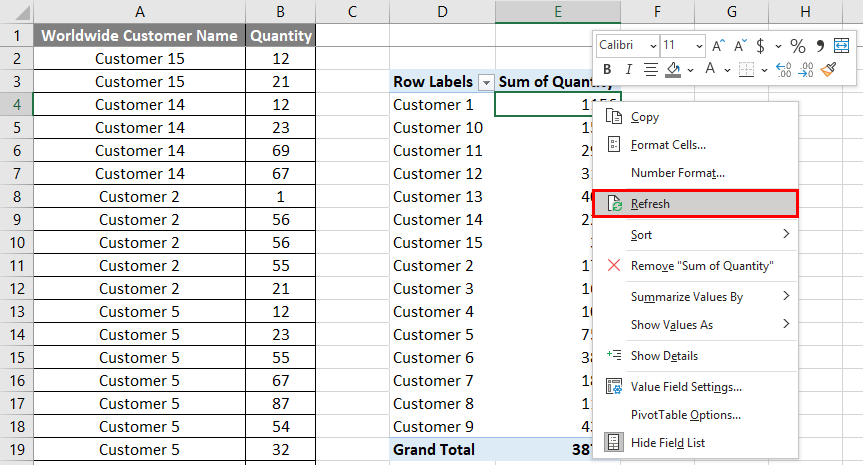
But the same process can be automated through VBA as well. For this, we would need a Module. So,
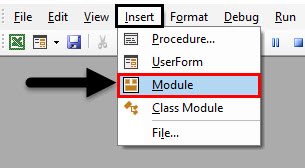
Step 1: Go to Insert menu tab and select Module option from the drop-down list as shown below.
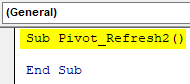
Step 2: In the newly opened Module, write the sub category of VBA Pivot Refresh or we can choose any name as per our choice.
Code:
Sub Pivot_Refresh2()

End Sub
Step 3: First, define a variable as PivotCache as shown below. PivotCache uses the Pivot cache not the data used for creating the Pivot table.
Code:
Sub Pivot_Refresh2()

Dim Table As PivotCache

End Sub
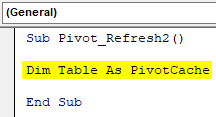
Step 4: Now we will use the For-Each Loop. So open a For-Each loop as shown below.
Code:
Sub Pivot_Refresh2()

Dim Table As PivotCache
For Each

Next Table
End Sub
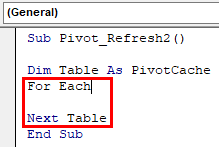
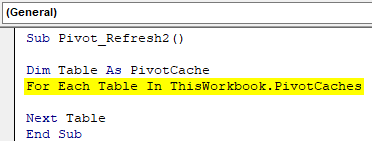
Step 5: Now inside the For-End loop, we will write the condition where we will select the currently opened worksheet which has a Pivot table with PivotCache.
Code:
Sub Pivot_Refresh2()

Dim Table As PivotCache
For Each Table In ThisWorkbook.PivotCaches

Next Table
End Sub
Step 6: Now we will use Refresh command assigning it the defined variable Table.
Code:
Sub Pivot_Refresh2()

Dim Table As PivotCache
For Each Table In ThisWorkbook.PivotCaches

Table.Refresh

Next Table
End Sub
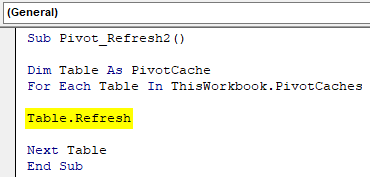
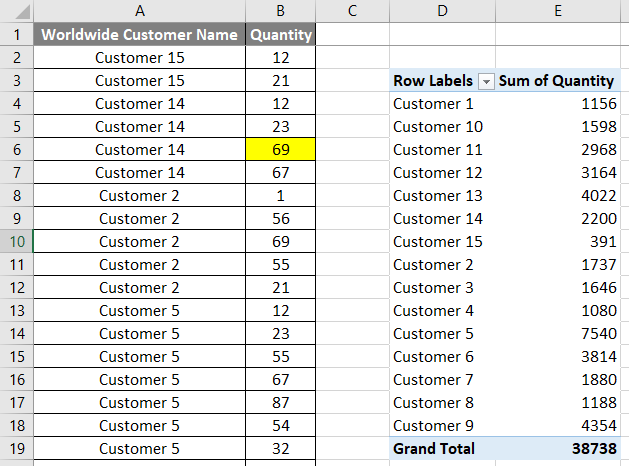
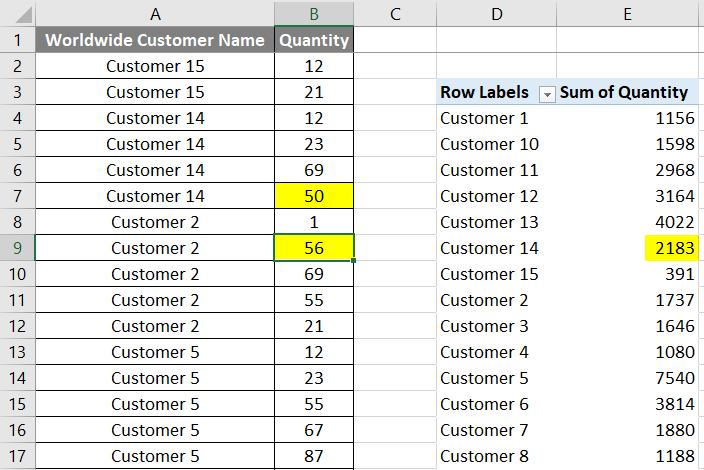
Step 7: This completes the code, now compile the code to file error by pressing F8 functional key. Now to test, whether the written code works on not, we have changed the quantity of Customer14 to 69.
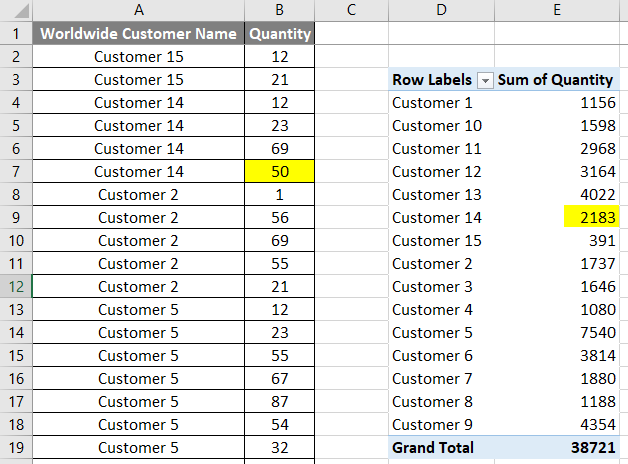
Step 8: Now run the code. We will see the total count against Customer14 is updated to 2183, which is highlighted in Yellow color.
VBA Refresh Pivot Table – Example #2
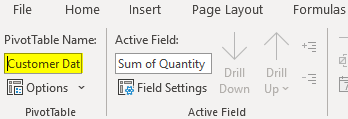
There is another way to Refresh Pivot table through VBA. Before we move ahead, we can consider changing the name of a pivot table or we can use the default name as well. Let us try to give a new name to the Pivot table. For this, select the pivot table and go to Analyze menu tab as shown below.
In the first section of PivotTable Name, we can see, the default name as PivotTable1.

Now we will change this name. Consider writing the new name as Customer Data as shown below.
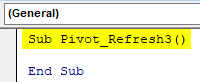
Step 1: After that, open a new module and write the sub category of VBA Refresh as shown below.
Code:
Sub Pivot_Refresh3()

End Sub
Step 2: Now define a variable as PivotTable. Here, with the PivotTable, we will consider the complete source data.
Code:
Sub Pivot_Refresh3()

Dim Table As PivotTable

End Sub
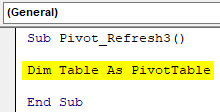
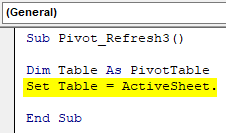
Step 3: Now use Set with defined variable and select the sheet which is currently opened.
Code:
Sub Pivot_Refresh3()

Dim Table As PivotTable
Set Table = ActiveSheet.

End Sub
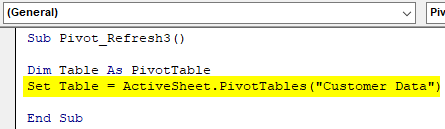
Step 4: Select the name of the Pivot table which we want to refresh along with the variable data type we have used as PivotTable.
Code:
Sub Pivot_Refresh3()

Dim Table As PivotTable
Set Table = ActiveSheet.PivotTables("Customer Data")

End Sub
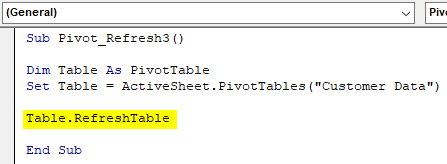
Step 5: At last, use the variable with RefreshTable function to execute it.
Code:
Sub Pivot_Refresh3()

Dim Table As PivotTable
Set Table = ActiveSheet.PivotTables("Customer Data")

Table.RefreshTable

End Sub
Step 6: Let’s make some more changes in the data, to give the real visuals of applied code.
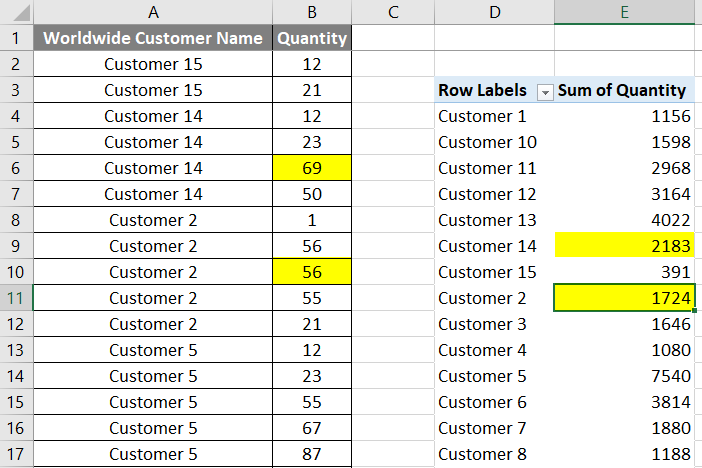
We have changed the count of Customer2 as 56. Now if we run the code, in the pivot table of Customer Name, there should be the changes in the sum of quantity for Customer2.
Step 7: Now go to the VBA window and compile the code. If no error found then run it by clicking on play button which is below the menu bar as shown below. We will notice that a sum of quantity sold for Customer2 is now going up to 1724 by making the changes in the source table.
By this, we can include more than one source data and create a different pivot table. And automating those pivot tables as well is easy as we just need to include the pivot table name and sheet where the table located.
Pros of VBA Refresh Pivot Table
- It takes very less time in refreshing the pivot table by VBA code.
- It is very easy to implement.
Things to Remember
- We can add multiple data sources table and automate them by VBA code.
- To see the changes happened, keep VBA window and Excel sheet parallel to each other.
- It is better to name each and every pivot table if you are dealing and handling multiple data sources and pivot tables.
- Code with pivot table name is easy to understand, track and locate.
Recommended Articles
This is a guide to VBA Refresh Pivot Table. Here we discuss how to use Excel VBA Refresh Pivot Table along with practical examples and downloadable excel template. You can also go through our other suggested articles –

