
Updated June 9, 2023

Introduction to RStudio
RStudio is a powerful and easy way to interact with R programming, considered as Integrated Development Environment (IDE) that provides a one-stop solution for all the statistical computing and graphics. The RStudio is a more advanced version of R that comes with a multi-pane window setup that provides access to all primary things on a single screen (such as source, console, environment & history, files, photos, graphs, etc).
Why do we need RStudio?
There are several reasons for which we should go for RStudio instead of R software.
We are listing down some real-life reasons here with examples.
1. A text-editor that is full-proof and full-featured.
You know having a text editor that allows you to have a colored syntax for different aspects (code, parentheses, brackets, etc.), matches parentheses automatically, autodetecting the syntaxes, and more. It is more future-proof for a user.
2. Allows to write scripts easily with tab-completion.
The tool is so intelligent that it can automatically detect the components of the function/file/dataset you are looking at.
Example:
See the screenshot below where we are not aware of the variables the “cars” data set contains. However, hitting tab gives me the exact list of variables from the dataset.
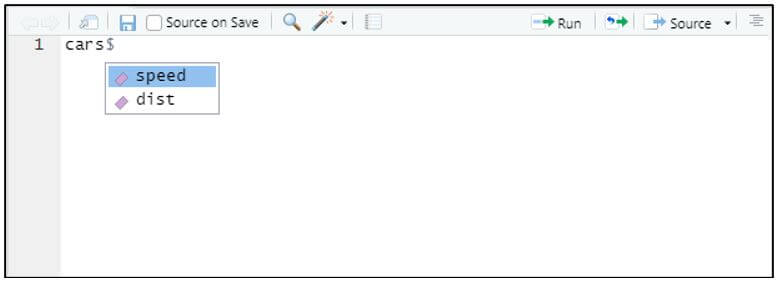
An image that shows how easy the tab-complete the code.
3. Objects stored in your environment are easy to access through the “Environment” tab.
This is an interesting feature. The Environment tab gives you access to all of the objects (variables, datasets, etc.) that are created in it for the session.
Example:
See the below screenshot where we could see all the objects stored in the local environment of my RStudio workspace.
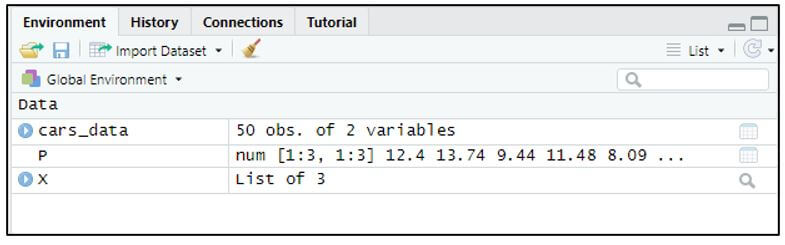
Objects stored in the RStudio environment for the session.
4. Accessing your computer files/folders and setting a working directory is a walk on the cake.
It is a hectic job to set your working directory when you are working with R Software. However, with the RStudio, things become easier and you can access all the files and folders from your computer through a dropdown and then set the working directory with ease.
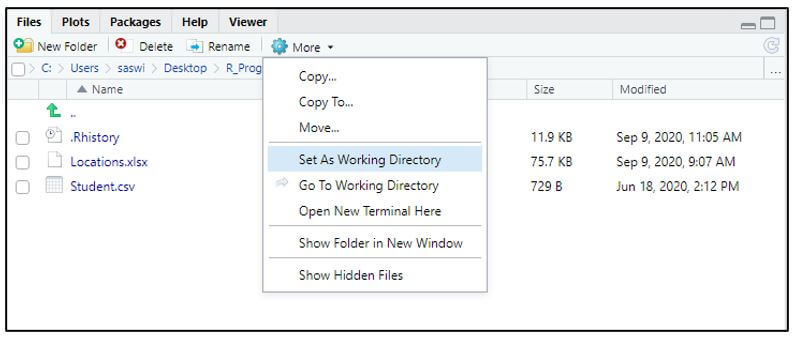
Accessing files/folders and setting working directory is so easy.
How to Install RStudio?
To install, follow the steps below.
1. Go to the website https://rstudio.com/products/rstudio/. Hower down and you can see the DOWNLOAD RSTUDIO DESKTOP button. Click on that button.
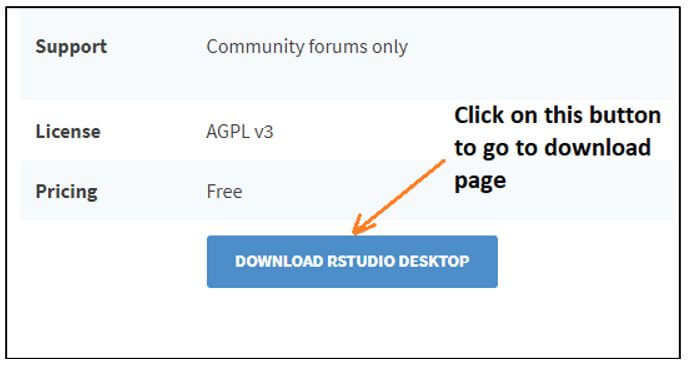
Download window for RStudio.
2. After clicking on the page, you will navigate to the download page, Ans select the RStudio Desktop option. Hit the Download button. It will allow you to download the RStudio desktop application.
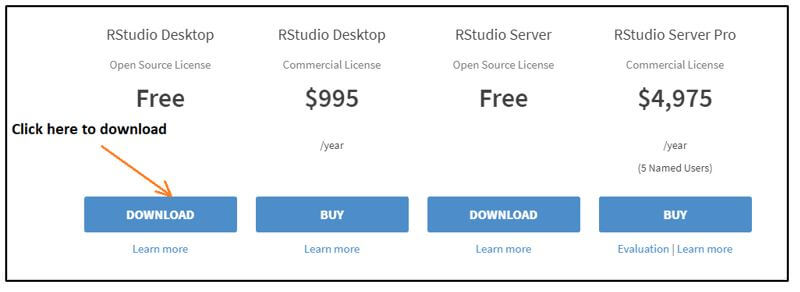
Click this button to download.
3. The download will start and you can see the “.exe” file getting downloaded.
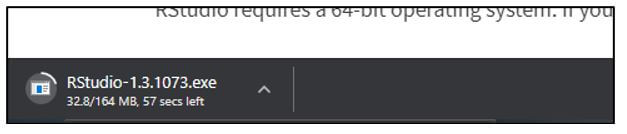
Downloading the “.exe” file.
4. Once the download is done, you need to double click the setup you have downloaded and follow the instructions to get the RStudio downloaded.
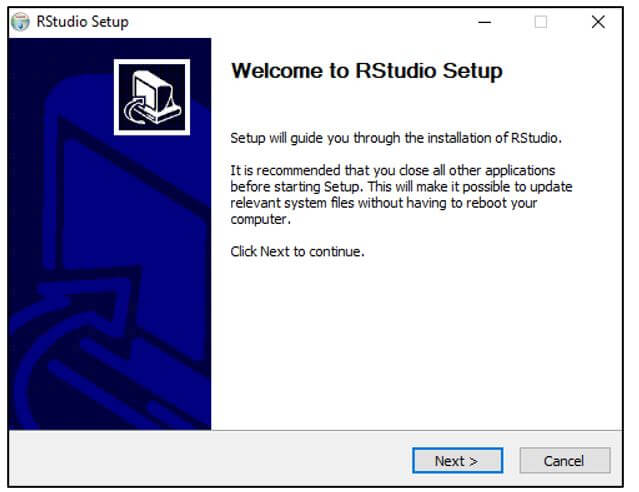
5. In the RStudio setup window that appears, hit the Next button as shown below.
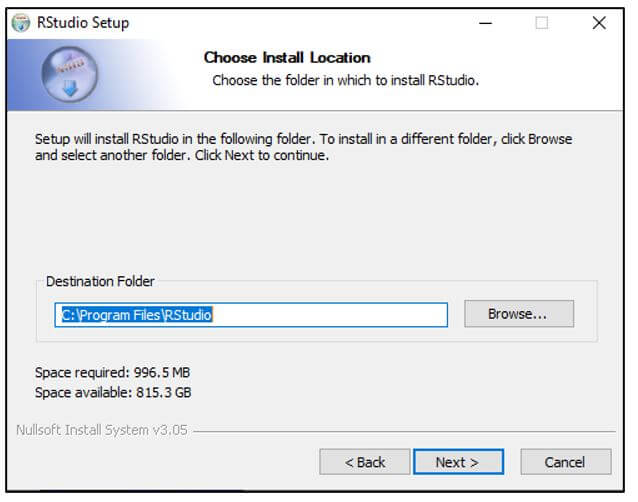
6. You can Browse a path where you wanted the setup to be installed. A better way, keep a default one that the system selects. Hit the Next button. After that, hit the Install Button.
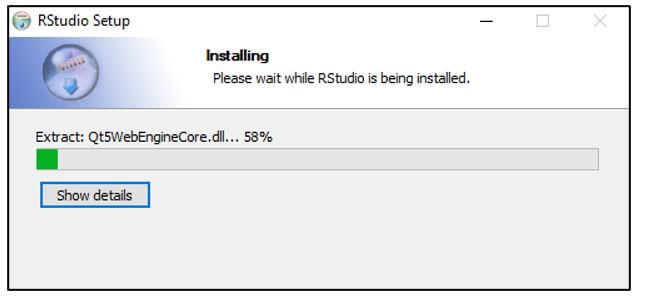
7. The setup will start installing as shown below.
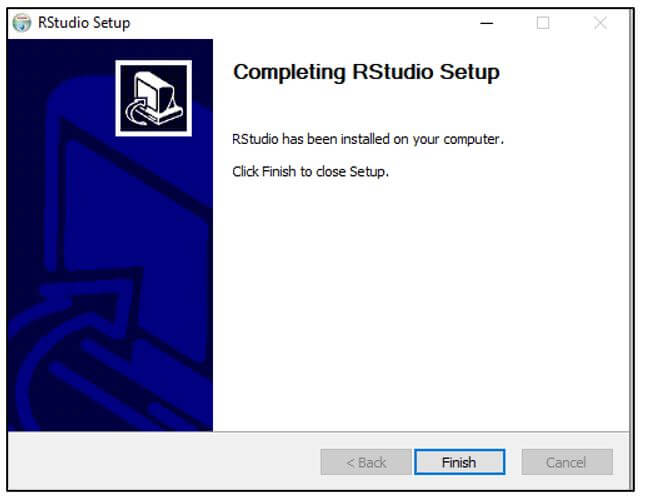
8. Finally, once the setup is installed, hit the Finish button.
How to use RStudio?
Once the RStudio is installed, you can use the same for doing the coding and analysis.
1. You can use the RStudio to load the datasets you are about to work.
See an example below where we are loading the “cars” data into the console of RStudio.
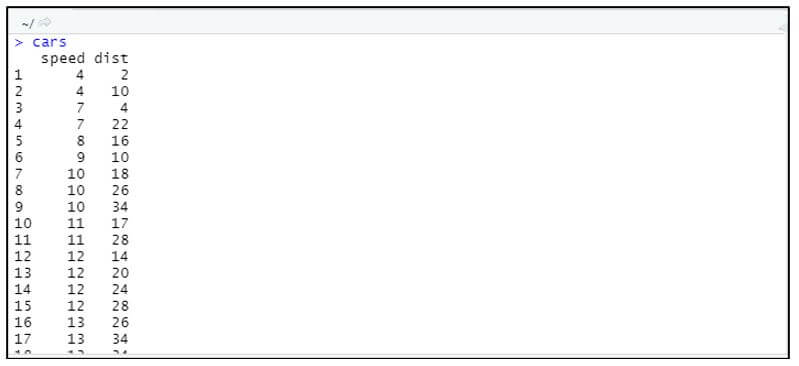
Loading the “cars” data into R.
You can see all we need to do is just write the name of the dataset and hit enter. The data will load on the console screen after you hit the Enter button.
2. You can use the RStudio for generating a graph based on the data provided.
See an example below where we are using the hist function to draw a histogram for the “speed” variable from the “cars” dataset.
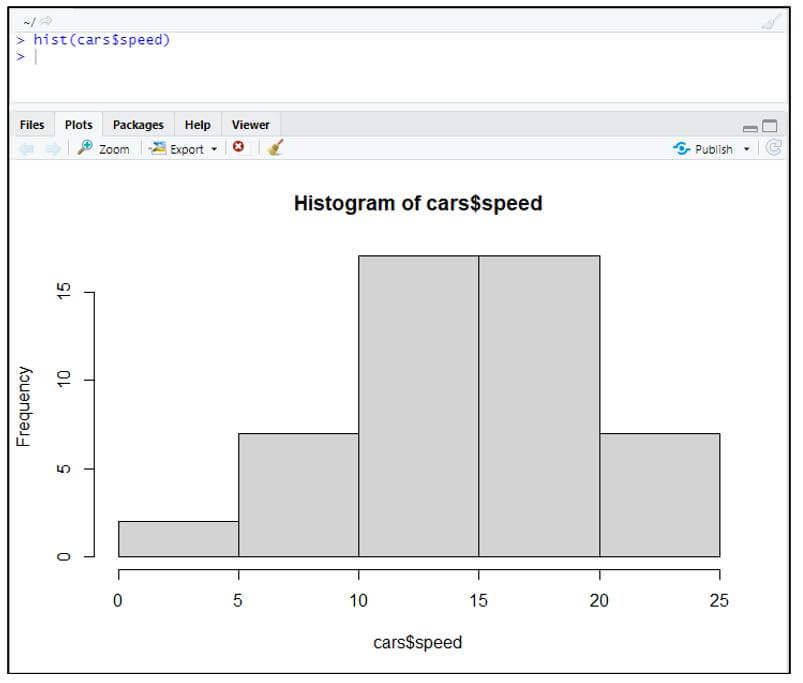
Using RStudio to make extensive graphs.
Like this, there are many other things, we can do using the RStudio. All we need is this beautiful tool installed on our systems.
Advantages
It is a versatile Graphical User Interface(GUI) that provided you with a more compact and user-friendly R environment.
The following are the advantages listed:
- R is an Integrated Development Environment (IDE). This means you have all the benefits of having visual panes with the tool. Having all those visual panes makes life easy, aren’t they?
- The software runs on almost every Operating System. The tool will run on any platform, be it Windows, Linux, anything.
- It has tons of features. May it be package manipulation, version control, thousands of datasets, what else you need?
- It has the code completion feature. This allows us to complete the code by providing multiple suggestions to complete the code. It has all the features a decent text edition should have. Parentheses matching, function completion, automatic indentation, and whatnot.
- Rich source of support family it has. Now and then the support community for this is with the development purpose.
- RStudio is an open-source programming language. You don’t need to make a purchase out anytime.
- The programming language is constantly under development but still stable while using. I mean, you couldn’t see any programming language as stable as R.
- Rich source of the package libraries. You can do almost everything you are expecting as an analytical task.
- It has a Graphical User Interface (GUI), which means you can do a lot of tasks by just using menu-driven dropdowns.
Conclusion
RStudio is an open-source tool for working on R programs. It is a tool that allows you to do all tasks R software does but more simply. Coding in RStudio is much simpler than coding in R software due to a text editor that comes with tons of features. Ex. Auto-complete code, parentheses matching, auto-indentations, etc. RStudio is a must-have tool for future data scientists.
Recommended Articles
This is a guide to What is RStudio? Here we discuss the introduction, why do we need it, how to install and use RStudio? and advantages respectively. You may also have a look at the following articles to learn more –

