


Definition of Keyboard
A Keyboard is a peripheral input device designed to manually input alphanumeric and textual data into a computer or other compatible devices. In general, it’s just a configuration of buttons or keys, each representing a different command, function, or character. Users interact with a keyboard by pushing or hitting the keys to insert text, commands, or other desired tasks. Certain keystrokes convert keyboard input into electrical impulses transmitted to the attached device. Keyboards are essential for computers because they provide a user-friendly interface for user-machine communication.
It allows you to connect to the computer and ask it to perform what you want by hitting the appropriate keys. When you press a key, the keyboard transmits a signal to the device. The device then interprets the signal and takes the necessary action. For example, if you click “A,” the computer will show the inputted character “A” on the screen.
Table of Contents
Components of Keyboard
Many key component types make up a standard keyboard:
1. Keycaps: Visible keycaps have individually labeled detachable coverings for keyboard keys, each with a distinct character or symbol. They offer a tactile surface for users to push, allowing them to enter data into a computer or gadget.
2. Switches: These devices sit under specific keys and capture pressed keystrokes. Different kinds of switches provide additional tactile feedback and actuation forces. Examples of these switch types are membrane, scissor, and mechanical.
3. Circuit board: The circuit board, sometimes called the printed circuit board or PCB, is the structural component that joins switches. Making it easier for electrical impulses to be transferred from the keyboard to the computer when keys get pressed is essential to the keyboard’s functionality.
4. Backplate: Some keyboards use plate-mounted switches or a backplate to provide additional stiffness and stability to the keyboard building, which makes the design more sturdy and secure.
5. Cables and connections: Keyboards are outfitted with connections and wires, forming a technical tapestry that connects them to computers. Whether they are USB, PS/2, or wireless connections, these wires create an art form of smooth communication. Advanced wireless keyboards might include additional features like Bluetooth modules that are ethereal.
Categories of Buttons on a Typical Keyboard
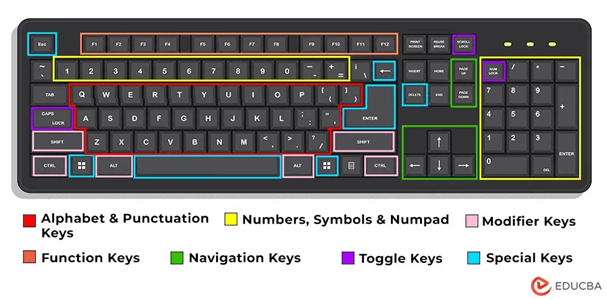
1. Alphabet and Punctuation Keys: The QWERTY layout of the keyboard includes all 26 Latin letters: period, colon, and comma punctuation keys located next to the letter keys.
2. Number, Symbol Keys, and Numpad: The keyboard’s ten numerical keys (0–9) can also be symbols using the “shift” button. The right side contains the arithmetic symbols (+ and -). There’s also a separate numpad on the right of many keyboards.
3. Special Keys: These keys, such as space, enter, backspace, windows, escape, and delete, provide unique functions.
4. Function Keys: The top section of the keyboard has 12 function keys, each serving specific purposes like refresh or developer tools and capable of combining with other keys.
5. Toggle Keys: Three toggle keys can lock down specific functionalities when pushed. For instance, “Caps Lock” will input every letter in uppercase. “Scroll Lock” removes the ability to scroll, whereas “Num Lock” turns off the numpad’s numerical capability.
6. Navigation Keys: The arrow keys act similarly to a mouse by enabling us to travel across any computer area. When the Num Lock is on, the digits 8, 4, 6, and 2 on the numpad also function as directional arrows.
7. Modifier Keys: Modifier keys are dependent keys that may accomplish various tasks when combined with other keys. These keys are called “Shift,” “Control,” “Alt,” and “AltGr.” For instance, typing “shift” with any letter will result in the text typed in uppercase.
The table below lists additional information about the categories:
| Key Type | Examples | Additional Information |
| Alphabet & Punctuation | A, B, C, !, ?. | Letters of the Latin alphabet and punctuation symbols |
| Number, Symbol & Numpad | 1, 2, @, #, Numpad +, Numpad Enter | Numerical keys, symbols, and additional functions on the Numpad |
| Special | Space, Enter, Backspace, Delete, Escape | Keys with specific functions like spacing, entering, and deleting |
| Function | F1, F2, F3,….F12 | Top-row keys designed for specific functions in various software |
| Toggle | Caps Lock, Num Lock, Scroll Lock | Keys that lock or unlock specific features when pressed |
| Navigation | Arrow keys, PgUp, Numpad numbers
(2, 4, 6, 8) |
Keys facilitating navigation within documents or interfaces |
| Modifier | Shift, Ctrl, Alt | Keys that, when hit simultaneously, change how other keys work |
Different Key Layouts in Keyboards
There are various typical layouts, each with its unique arrangement of keys. The primary varieties consist of:
1. QWERTY
This keyboard layout is the most commonly used and is present on nearly all computers and typewriters. Initially created in the 1870s for the first typewriters, it is now the norm for most keyboards. The QWERTY layout consists of a grid with four rows and ten columns, with the most used letters in the most accessible places.
2. AZERTY
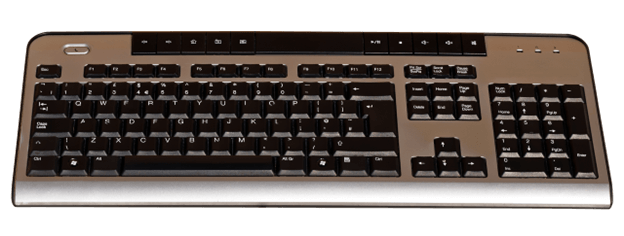
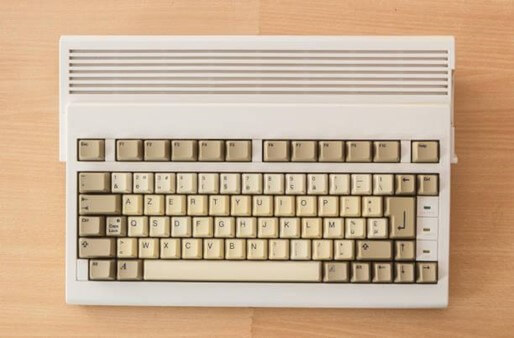
People in France and Belgium primarily use a layout similar to the QWERTY layout but with a few changes. For instance, the M key shifted to the right of the L key, and the characters A and Q switched. The layout, mainly used in French-speaking areas, is comparable to QWERTY but has different key placements.
3. QWERTZ
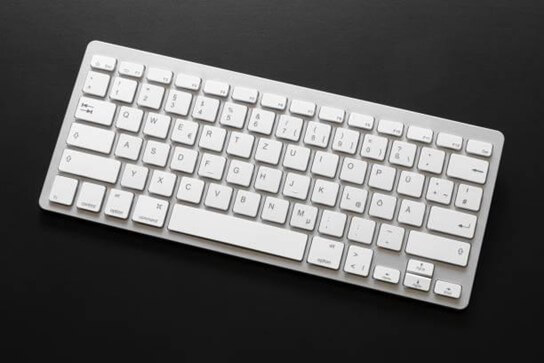
This style is used mainly in Germany and Austria and is similar to the QWERTY layout, with a few exceptions. For instance, they add Umlaut keys (Ä, Ö, and Ü), and they switch the positions of the Y and Z keys.
4. Laptop Keyboard
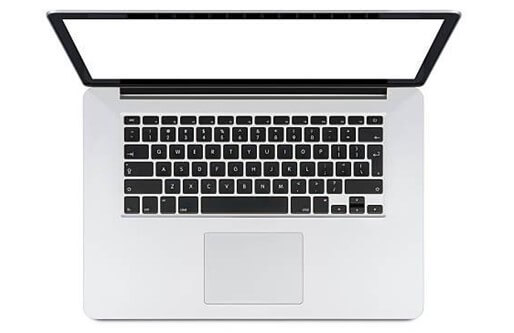
A laptop keyboard is an integrated input device exclusively for portable computers. It is small and integrated into the laptop’s body. It has functions, alphanumeric, and special keys. It provides a convenient interface for text entry and various other uses.
5. Colemak Keyboard
Learning should be more accessible for those familiar with the QWERTY layout, similar to the Dvorak pattern. Additionally, it arranges the most utilized letters in the center row.
6. Magic Keyboard
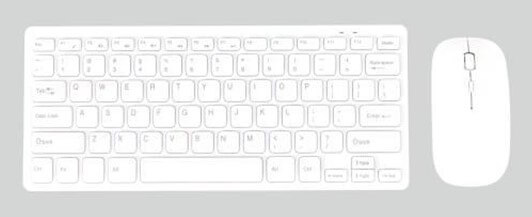
Apple explicitly designed the sleek, wireless Magic Keyboard for Mac computers and iPads. It has a scissor-switch mechanism for comfortable typing and is renowned for its small appearance. With its integrated trackpad, the iPad version becomes a multipurpose device with features akin to a laptop’s.
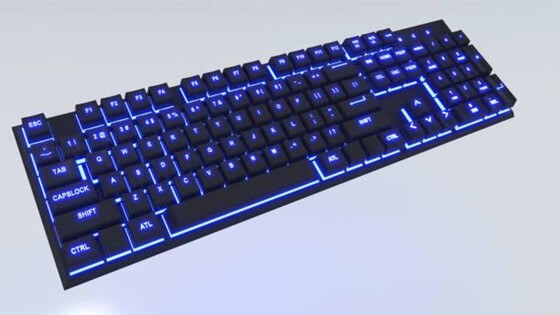
7. Gaming keyboard
A keyboard explicitly designed for gaming enthusiasts is called a gaming keyboard. It offers a tactile and engaging gaming experience with its dedicated macro keys, adjustable RGB illumination, and mechanical switches that respond quickly. With ergonomic designs and anti-ghosting technologies, gaming keyboards enhance precision and responsiveness for competitive and immersive games.
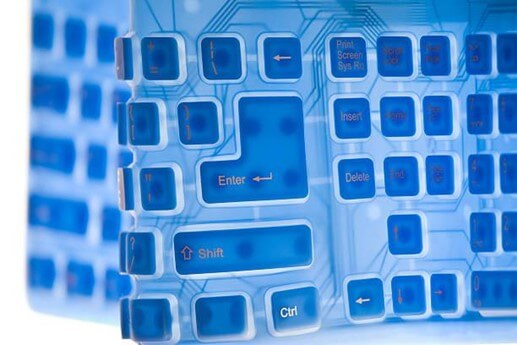
8. Flexible Keyboard
An adjustable keyboard is an adaptable and portable input device that is easy to carry. It could be easily traveled, folded, or rolled up because of its soft, flexible construction. Convenience and functionality are combined in a tiny, flexible form factor, making an adjustable keyboard perfect for professionals who are often on the road or have limited room.
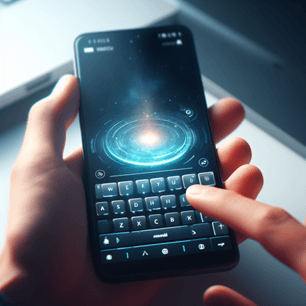
9. Virtual Keyboard
A virtual keyboard is a multipurpose text entry and command entry tool in digital applications. It is a digital interface that mimics a real keyboard. Although it is the default on cellphones, it may be adjusted to work with a mouse on personal computers, but physical keyboards might be less effective.
Today’s virtual keyboards come in two varieties:
- Touch-screen Keyboard: Users interact with these virtual keyboards, which are standard on tablets and smartphones, by tapping or swiping on the screen.
- Projector Keyboard: These display a keyboard layout on a flat surface using laser or infrared technology. Users may type by touching the projected keys, and the gadget uses sensors to record their input.
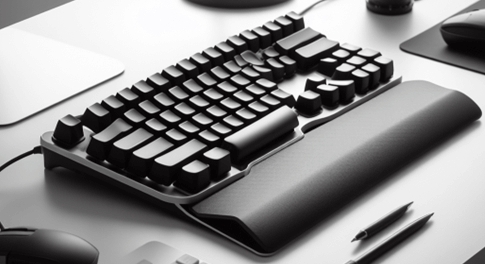
10. Ergonomic Keyboard
The user-friendly layout of an ergonomic keyboard intends to improve comfort and reduce strain on the user. It provides a natural and pleasant typing experience with a split design and customizable angles, reducing the risk of pain or repetitive strain injuries.
Keyboard Shortcuts: Swift Mastery
These key combinations improve the productivity of activities, which saves time. Learn about quick instructions and smooth navigation as we dive into the world of keyboard shortcuts.
Some of the familiar and useful shortcuts:
| Functions | Commands |
| Copy | 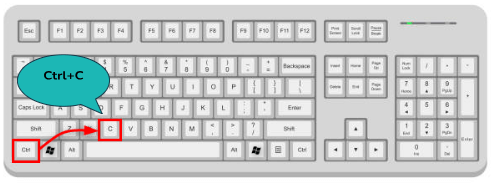 |
| Paste | 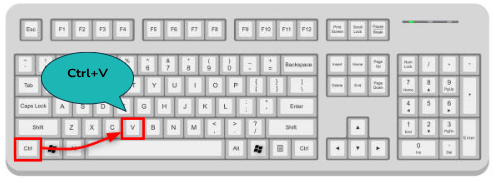 |
| Undo | 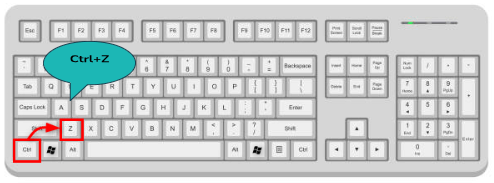 |
| Redo | 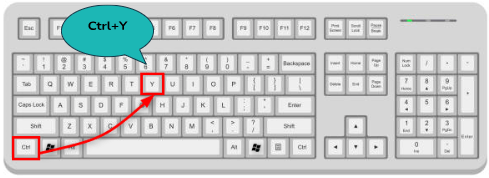 |
| Select all | 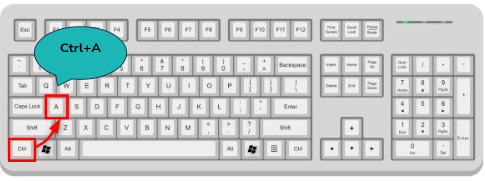 |
| Save | 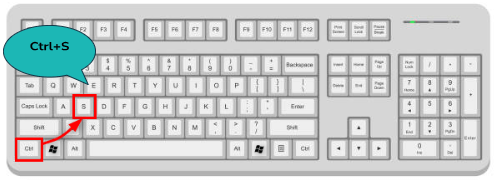 |
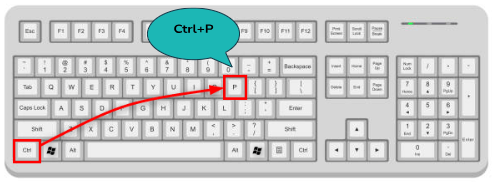 |
|
| Find | 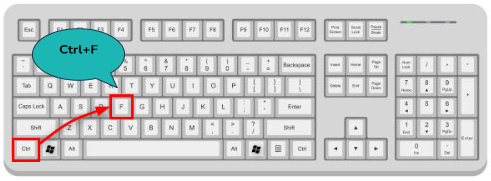 |
| Open | 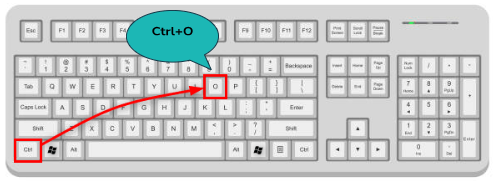 |
| Close window | 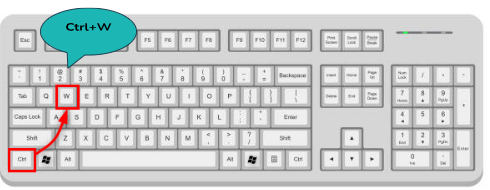 |
| Switch between apps | 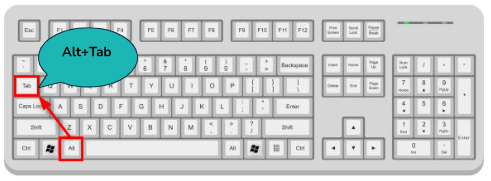 |
| Refresh page | 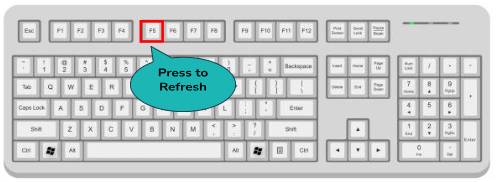 |
| Zoom in | 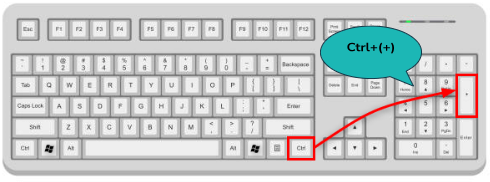 |
| Zoom out | 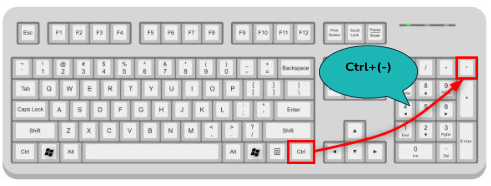 |
| New tab | 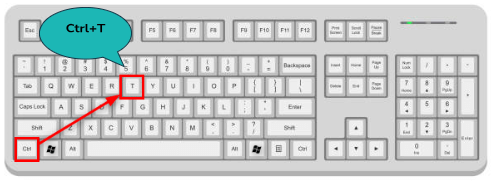 |
| Close tab | 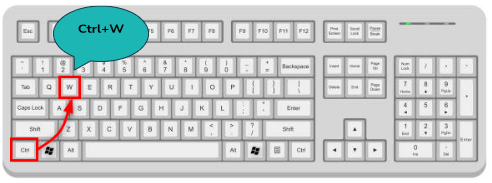 |
| Switch between tabs | 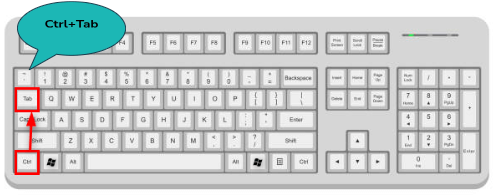 |
| Full screen | 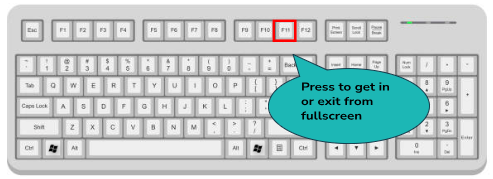 |
| Open task view | 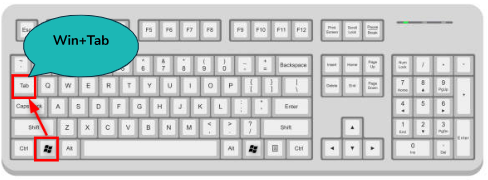 |
| Display and hide windows desktop | 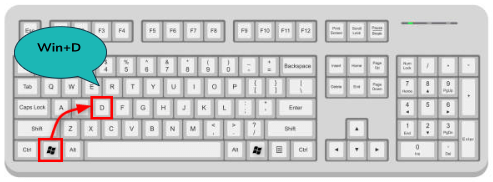 |
| PC lock | 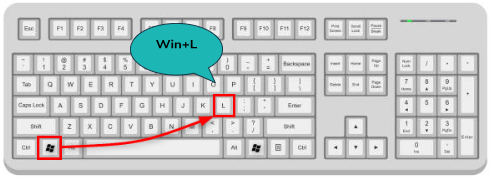 |
| Screenshot | 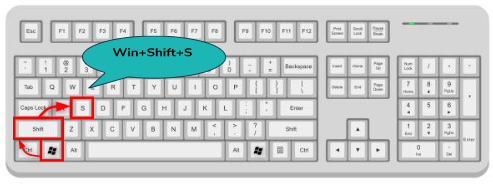 |
| Access clipboard | 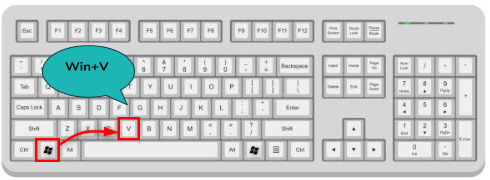 |
| Selected app properties display | 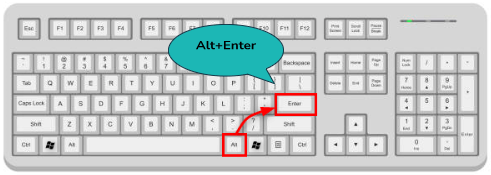 |
| Permanent delete | 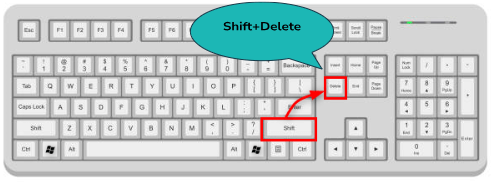 |
| Open task manager | 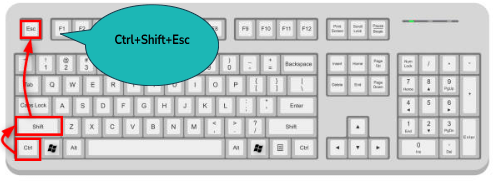 |
Windows Key Shortcuts
| Functions | Commands |
| Display and hide desktop | 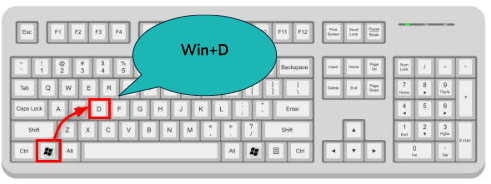 |
| Display and hide the date and time | 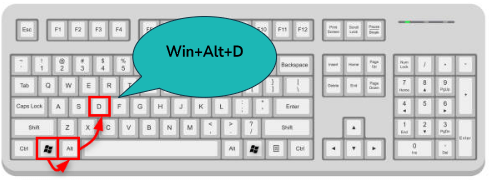 |
| Open file explorer | 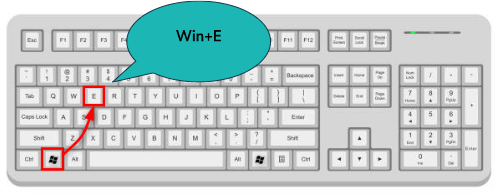 |
| Open game bar | 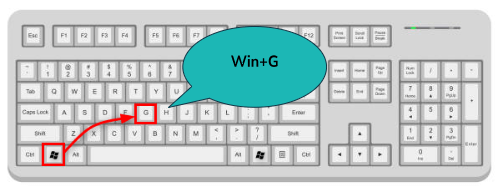 |
| Open settings | 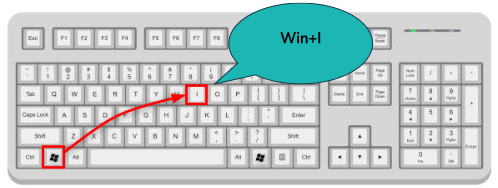 |
| Minimize all windows | 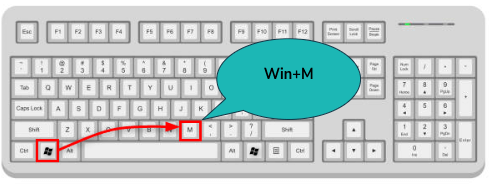 |
| Open run dialog box | 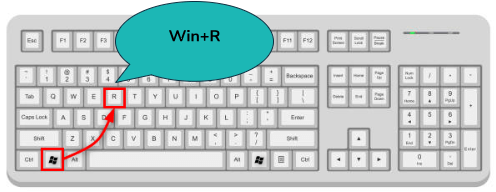 |
| Open emoji panel | 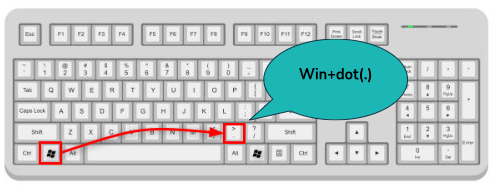 |
| Restore minimized windows | 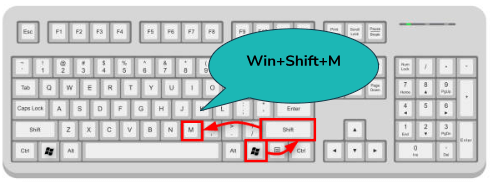 |
| Switch input language | 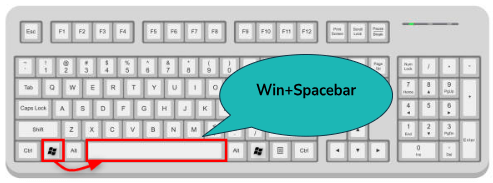 |
Virtual Desktop Keyboard Shortcuts
| Functions | Commands |
| Add virtual desktops | 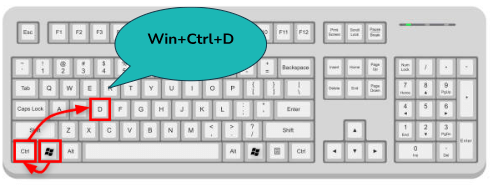 |
| Switch between virtual desktops (Left or Right) | 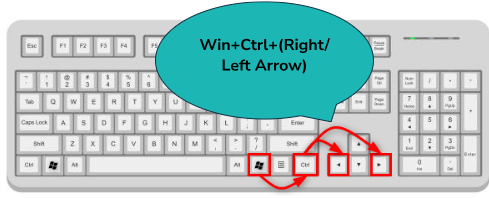 |
| Close virtual desktops | 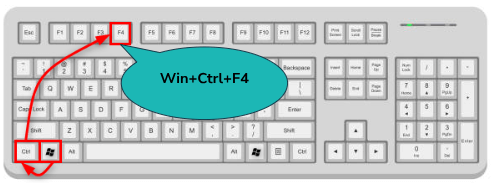 |
Conclusion
A keyboard is a necessary supplemental input device that allows you to manually enter alphanumeric and textual data into computers or related devices. Users can interact with it by typing commands, text, or performing other tasks, thanks to the configuration of its keys.
Keystrokes producing electrical impulses establish an essential interface for user-machine communication, transmitting signals to the linked device. For jobs ranging from simple text entry to advanced instructions, keyboard tactile input is necessary, making them required to provide a smooth human-computer interface.
FAQs
Q1. Which parts are essential for a keyboard?
Answer: Keycaps, switches, circuit boards, backplates, and cables are essential for a keyboard. When users press keys, these critical components convey electrical impulses to communicate smoothly between the user and the linked device.
Q2. Which button categories are there on a standard keyboard?
Answer: Keyboard categories include function keys, modifier keys, number and symbol keys, alphabet and punctuation keys, toggle keys, navigation keys, and special keys. Every category fulfills specific purposes, giving users a flexible tool for various jobs. A variety of categories on the keyboard increase its usefulness in a range of applications, from simple text entering with alphabet keys to carrying out particular instructions with function keys.
Q3. What do a keyboard’s toggle keys do?
Answer: When pressed, toggle keys that lock or unlock particular functions include Caps Lock, Num Lock, and Scroll Lock. Caps Lock, for instance, raises all letters to capital letters.
Q4. What is the purpose of a gaming keyboard?
Answer: Gaming keyboards are designed for gaming enthusiasts, offering features like mechanical switches, dedicated macro keys, RGB illumination, and ergonomic designs for an enhanced gaming experience.
5. In what ways do keyboards enhance overall productivity?
Answer: Keyboards are:
- The foundation of productivity.
- Facilitating quick data entry.
- Command execution.
- Smooth device connectivity.
Their user-friendly layout and rapid shortcuts enable users to convert tedious jobs into productive ones, increasing overall productivity in the digital sphere.
Recommended Articles
This is an EDUCBA guide to understanding what is a keyboard. You can view EDUCBA’s recommended articles for more information

