


Updated January 19, 2023
Excel VBA Variable Types – Definition & Explanation
Variables Types in VBA are used to assign a small number of memory spaces which is then used to define the script. In the process of declaring variables in VBA, we eventually give different data types to them. And each data type in VBA has a different role and function of execution.
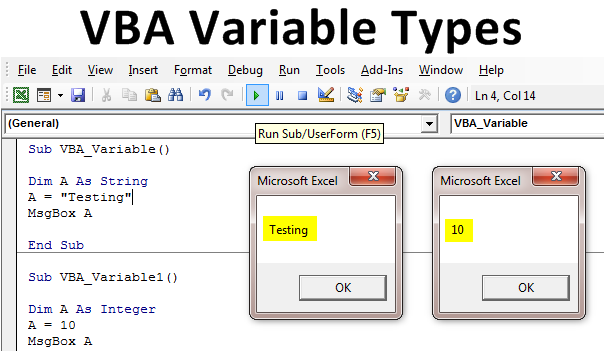
Variable, as the name says, does not store the fixed values. When defining any variable, we keep the values in different ranges. However, we can start by defining one value to it. But even a small byte of memory can store large amounts of data. Every Variable has its memory size, which is its limit for storing the data. To make this happen, we have different data types in VBA. Suppose a data type Integer is used for storing whole numbers integers. But it can only retain values up to 32768. For the numbers more significant than can be stored using data type Long. Below is the syntax of Variable declaration;
Dim (Variable Name) As (Variable Data Type)
Types of Data Variable
There are two types of Data Types in VBA:
- Numerical Data Type
- Non-Numerical Data Type
Numerical Data Type
Numerical Data types are used where we need to store the numbers. Numbers can be of any kind, such as integers, decimal numbers, currency, date, and time. And for each of these, we have different data types depending on the kinds of numbers we want to feed.
- Byte: It has a minimal capacity. It can hold values from 0 to 255. This is very rarely used.
- Integer: An integer can hold values more than a Byte could. But it also has some limitations as Byte. The range of Integer is from -32768 to 32768. Beyond this, it will give an error. If we try to use decimal values in Integers, then it will again convert them into the nearest possible whole number.
- Long: The values or numbers which cannot be held by Integer data type. For those, we have a Long data type. This can contain values that are greater than 32768. And the range Long is from -2,147,483,648 to 2,147,483,648.
- Single: Single data type is used for storing the decimal values. But it can only hold the values with two-digit of decimals. The range of Single is from -3.402823E+38 to -1.401298E-45 for negative values and 1.401298E-45 to 3.402823E+38 for positive values.
- Double: Whereas Single can store the values to 2 digits of Decimal, there Double data type stores more than two digits of decimals. Like other data types, Double ranges from -1.79769313486232e+308 to -4.94065645841247E-324 for negative values and 4.94065645841247E-324 to 1.79769313486232e+308 for positive values, up to 14 decimal places.
- Decimal: Decimal can hold values up to 28 digits which is way more than that Single and Double data types. So the size of the Decimal is also more significant than the rest of the variables. The range of Decimal data type is from +/- 79,228,162,514,264,337,593,543,950,335 if no decimal is used +/- 7.9228162514264337593543950335.
- Date: It is used for data type values.
- Currency: Storing range of Currency data type is from -922,337,203,685,477.5808 to 922,337,203,685,477.5807.
Non-Numerical Data Type
This considers the values which are not taken and considered by Numerical data types. Such as Boolean, Text, and Alphabets.
- String: It is used for text. It has two types, Fixed and Variable-length.
- Boolean: This logical data type is used when we need to get the answer as TRUE or FALSE.
- Object: Object variables such as Worksheets, Workbooks, Sheets, and ranges in Excel, come under it. Other Objects are MS Word, PowerPoint, and Outlook.
- Variant: It is used for both numerical and non-numerical values.
How to Declare Types of Variables in Excel VBA?
We will learn how to declare different types of variables in Excel by using the VBA Code.
VBA Variable Types – Example #1
We will first see the fundamental example of Variable and data types. For this, follow the below steps:
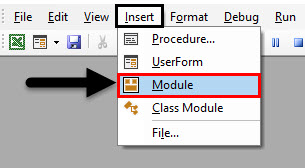
Step 1: We need to open a module from the Insert menu, as shown below.
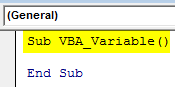
Step 2: Write the subprocedure of the VBA Variable. Or we can choose any name to define our code.
Code:
Sub VBA_Variable()

End Sub
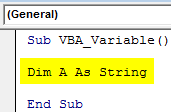
Step 3: Define a variable with any name, say “A,” and if we want to use text, then we could use the popular data type String, as shown below.
Code:
Sub VBA_Variable()

Dim A As String

End Sub
Step 4: Let’s assign any text to variable A. Let it be Testing.
Code:
Sub VBA_Variable()

Dim A As String

A = "Testing"

End Sub
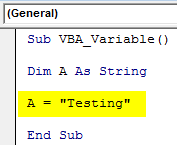
Step 5: To get the output, we would use MsgBox, as shown below.
Code:
Sub VBA_Variable()

Dim A As String

A = "Testing"

MsgBox A

End Sub
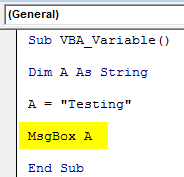
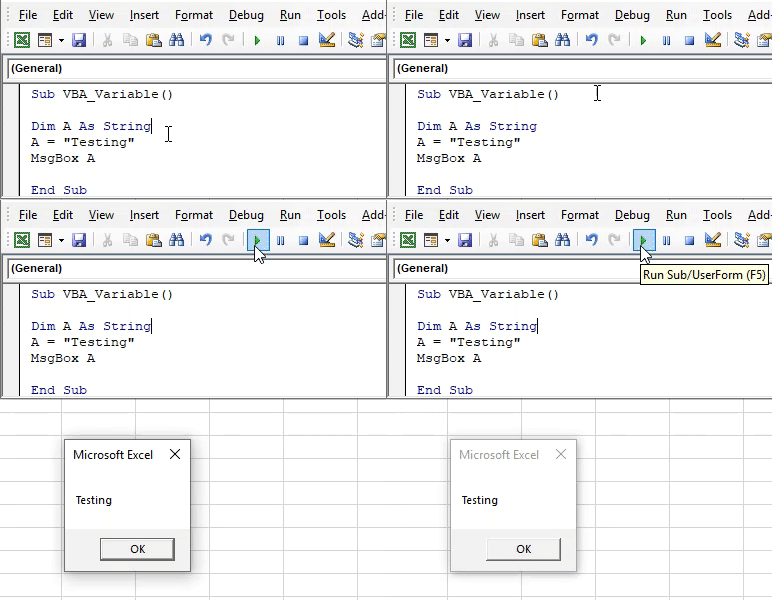
Step 6: Now compile the code and run by clicking on the Play button Or F5 function key. We will get the message box with output Testing.
VBA Variable Types – Example #2
Similarly, we would apply another data type Integer. Follow the below steps to use Excel VBA Variable Types.
Step 1: We would use the same code we have seen above and use an Integer instead of a String.
Code:
Sub VBA_Variable1()

Dim A As Integer

MsgBox A

End Sub
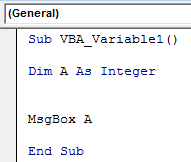
Step 2: Assign a number to variable A. Let’s say it is 10.
Code:
Sub VBA_Variable1()

Dim A As Integer

A = 10

MsgBox A

End Sub
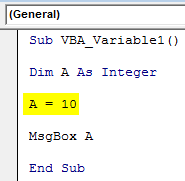
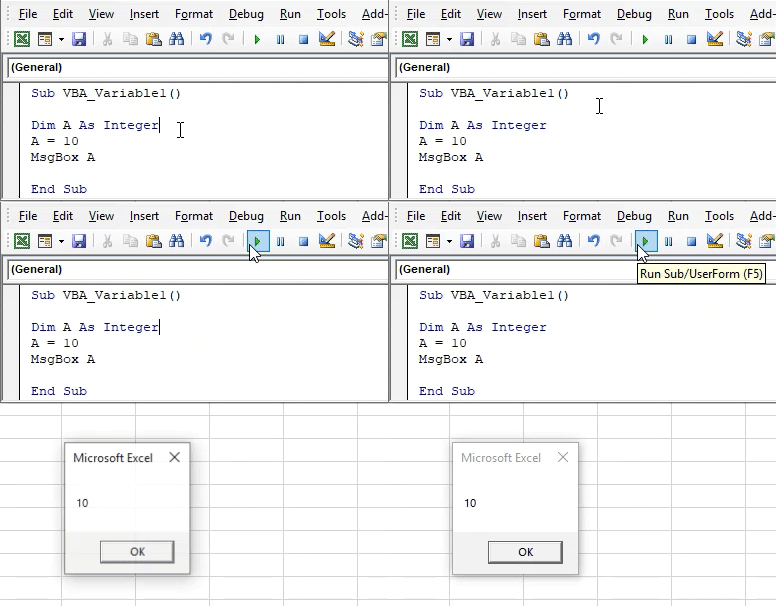
Step 3: Run the code by pressing the F5 or clicking the Play button. We would get the message box with the value 10.
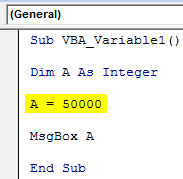
Step 4: Let’s try to change the value from 10 to some higher number, such as 50000 in variable A.
Code:
Sub VBA_Variable1()

Dim A As Integer

A = 50000

MsgBox A

End Sub
Step 5: Now again, if we try to run this code, we will get the error with the message Run-time error Overflow.
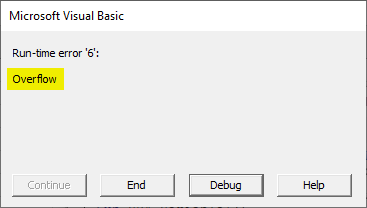
This means we have exceeded the capacity limit of data type Integer.
Pros of Excel VBA Variable Type
- With the help of variables, we can write any structured VBA Code.
- Variables help us to use different types of data types as per our needs.
- Each Variable has its capacity limit and property of the application.
Things to Remember
- Always define a variable using the DIM word.
- Make sure that it is fixed for which Variable we need to define so that the required data type can also be selected.
- If we assign the value more than the capacity of any data type, we will get the error message of OVERFLOW, as we got in example 2.
Recommended Articles
This is a guide to VBA Variable Types. Here we discuss how to declare different types of Variables in Excel using VBA code, practical examples, and a downloadable excel template. You can also go through our other suggested articles –

