

Updated August 21, 2023
Time Difference in Excel
- In this article, we will learn about Time Difference in Excel. Time is a numeric value formatted as time, but subtracting one value from another gives a decimal number, and again we have to format it as time.
- The mathematical formula is End Time – Start Time.
- We can subtract the start and end times to get the time difference.
Today, we will work in various ways to calculate the difference between two-time values.
How to Implement Time Difference in Excel?
In MS Excel, we can implement the Time value in a cell in 3 methods:
Method 1
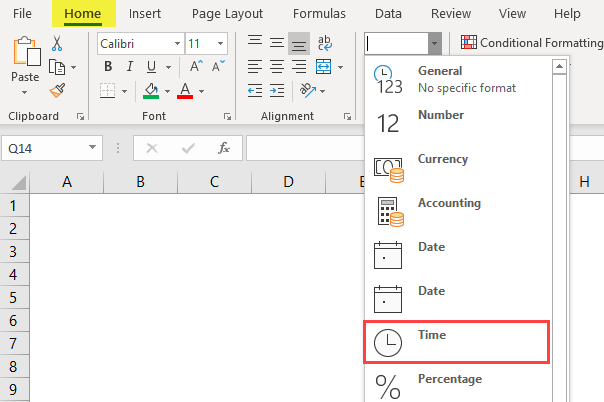
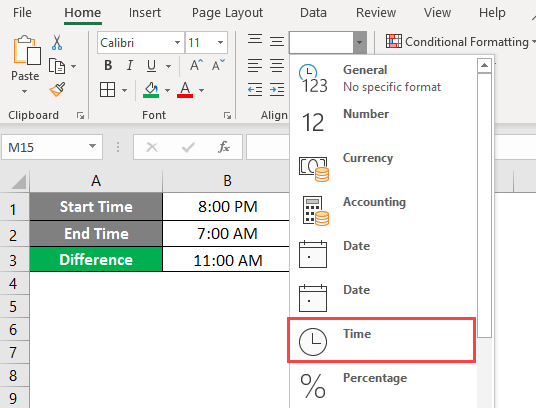
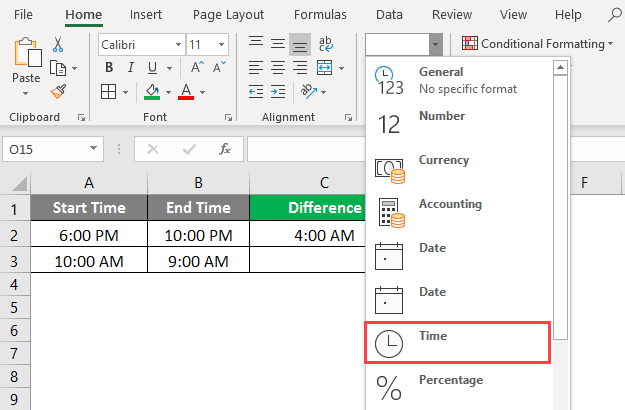
Go to the Home tab, and in Number Group, select Click on Time from the drop-down menu to change the cell value into a Time value.
Method 2
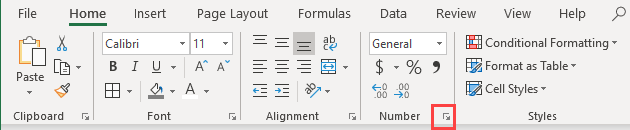
Go to the Home tab in Number Group and Click on the dialog box launcher icon as shown below.
A dialog box of “Format Cells” will open. We need to select the Time option.
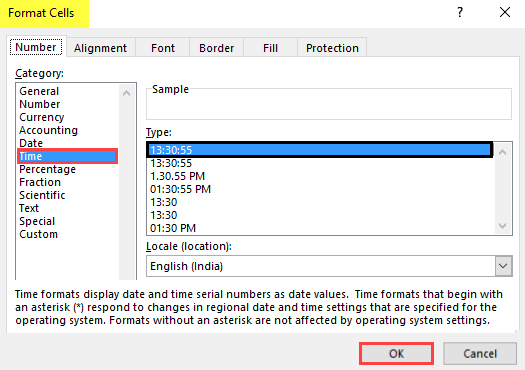
Select the type of time format as required. By default, it is 13: 30: 55. Click OK.
Method 3
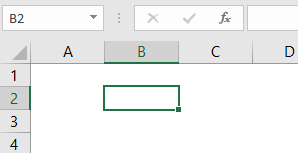
Select the Cell.
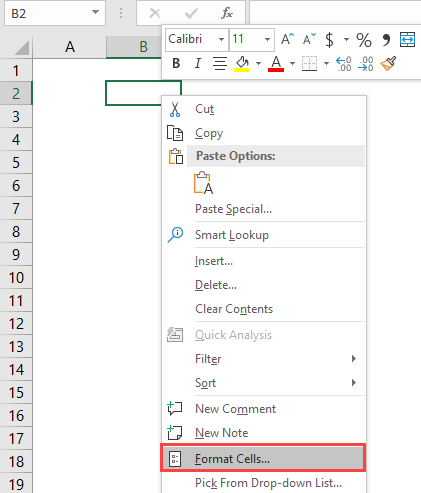
Press the right-click button on the mouse. Click on the Format Cells Option.
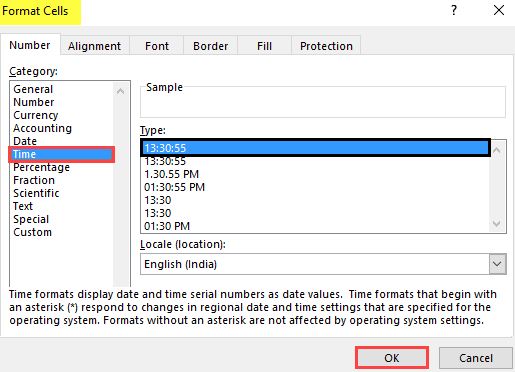
A “Format Cells” dialog box will open. We have to click on the Time option.
Select the type of time format as per requirement. Then Click on OK.
Calculating the Time Difference – Example #1
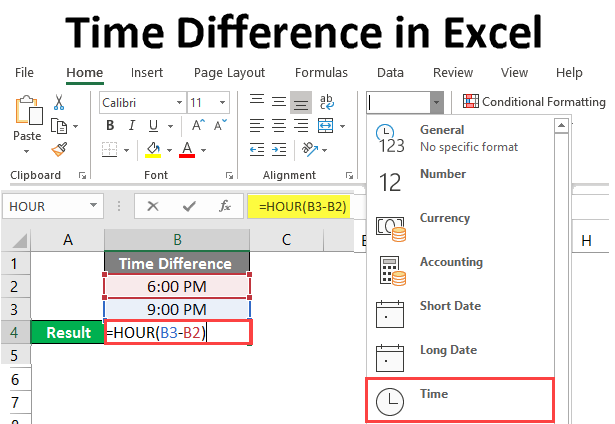
If we want to calculate the time difference between 6.00 pm and 9.00 pm, deduct 9.00 pm and 6.00 pm.
In the figure below, we will find out the time difference.
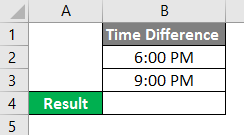
Select Cell B4.
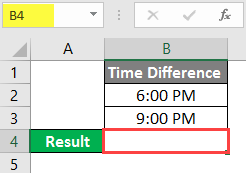
Write the formula as “= B3-B2 “.
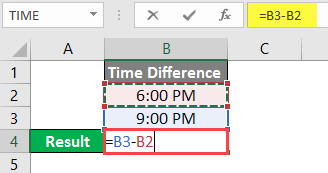
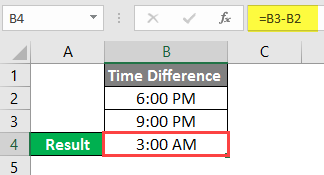
Press Enter button, and the result will show as 3:00 am.
Go to the Home tab and select the Drop-Down menu in Number Group. Click on time to change the cell value into a Time value.
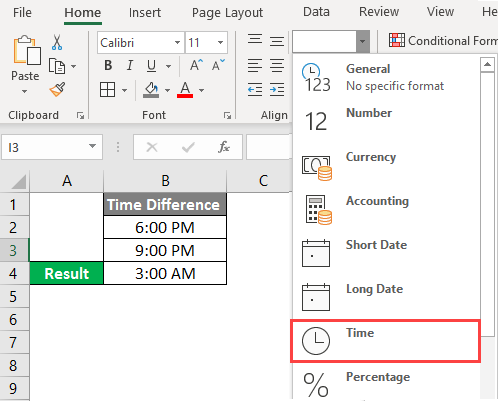
The result will show as 3:00:00.
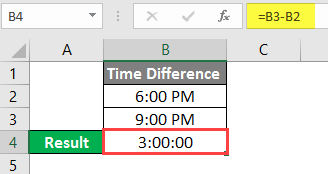
This can be done alternately:
Select cell B4.
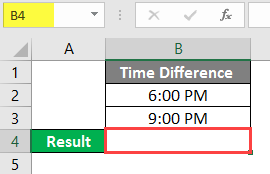
Write the formula as “= HOUR(B3 – B2).
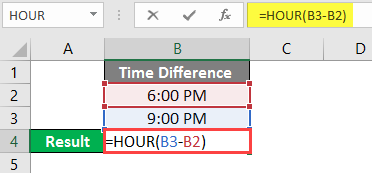
Press Enter button, and the result will show as 3.
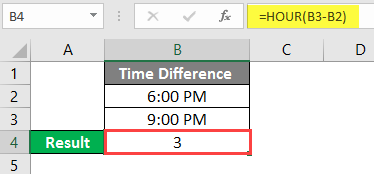
- Suppose the time difference is in an hour: minute format, and we want to see the hour and minute difference in separate cells.
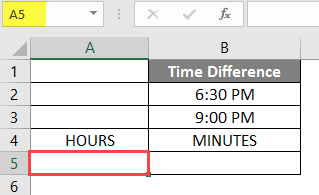
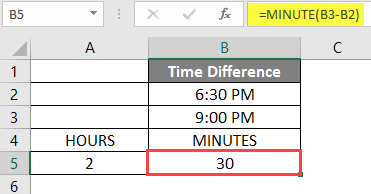
- We want to calculate the time difference between 6.30 pm and 9.00 pm
Select Cell A5.
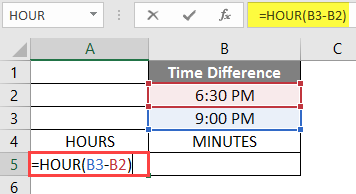
Write the formula as “= HOUR( B3-B2) “to calculate the exact hours irrespective of the minutes and seconds.
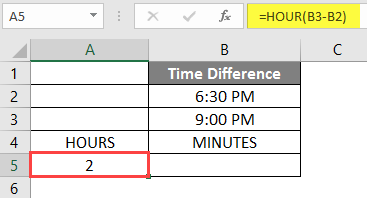
Press Enter button, and the result will show as 2.
Select Cell B5.
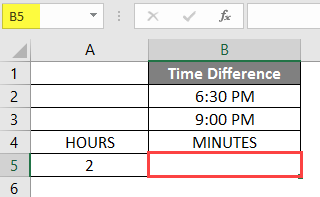
Write the formula as “= MINUTE (B3-B2)” to calculate the exact minutes irrespective of the hours and seconds.
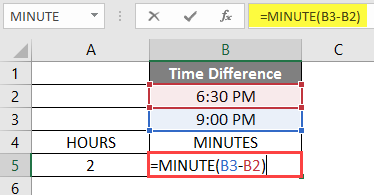
Press Enter button, and the result will show as 30.
Adding Time Value to Time – Example #2
- In Excel, one day means 1, which is 24 hours. This represents as times and hours are fractions of 1.
- Now the problem is when the time crosses midnight. That means the day changes. In that case, the calculation is to be done differently.
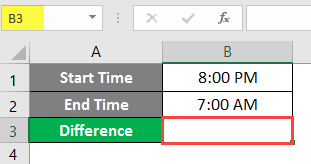
- For example, if the start time is 8:00 pm on Day 1, and the end time is 7:00 am on Day 2, the start time becomes greater than the end time, then the (end time – start time) formula will give a negative value.
- It will show an error with the value of hash characters (#) in the cell.
- So, to avoid this issue, we can use the following formula for times that cross a day boundary:
=1-start time + end time
- If we deduct the start time from 1, we find the time value on day 1. Then we will add that value to the time value( End time ) on day 2.
Select Cell B3.
Write the Formula as “= 1 – B1 + B2 “
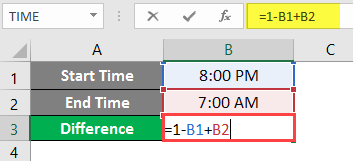
Press Enter button, and the result will show as 11:00 am.
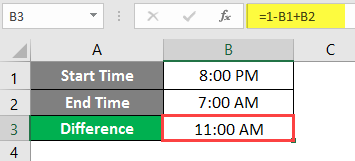
Go to the Home tab and select the Drop-Down Menu in Number Group.
Click on time to change the cell value into a Time value.
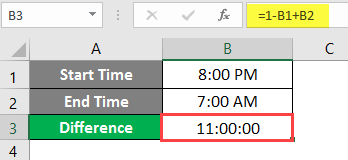
The result will show 11:00:00.
Generalized Format of Formula – Example #3
The previous formula will only work if the day changes. So we need to use a generalized format of formula.
For this reason, we can also use the following formula:
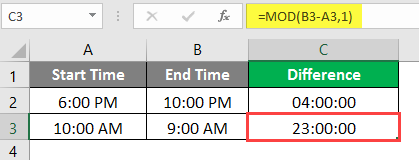
= MOD (End Time – Start Time, 1)
Select cell C2.
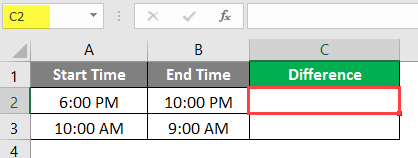
Write the formula as “= MOD ( B2-A2, 1) “.
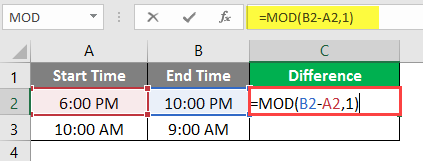
Press Enter button, and the result will show as 4:00 am.
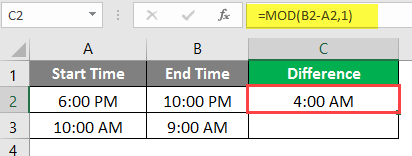
Go to the Home tab, and click on the drop-down menu in Number Group.
Click on time to change the cell value into a Time value.
The result will show as 04:00: 00.
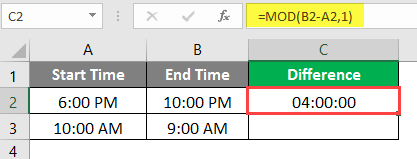
Drag or Copy the Formula of C2 to C3, and the result will show as 23:00:00.
Things to Remember About Time Differences in Excel
- The formula will work only with the data within a 24-hour time frame. It does not work if the end time and start time difference are more than 24 hours.
- We might need to customize the cell format of time like Hours: Minutes, that is, hh: mm.
Recommended Articles
This has been a guide to Time Difference in Excel. Here we discuss How to Implement Time Difference in Excel, practical examples, and a downloadable Excel template. You can also go through our other suggested articles.

