


Updated July 5, 2023
SUM in Excel (Table of Contents)
SUM Function in Excel
The sum function is another mathematical function used to sum up the selected numbers, whether decimals or whole numbers. We can either select the cells containing numbers one by one or directly select the complete range of cells whose sum we need to find.
SUM Formula in Excel:
The Formula for the SUM function is as follows:
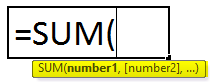
WHERE ‘num1’, ‘num2’, and ‘num_n’ denotes numeric values or numbers which you wish to add
It can accept up to 255 numbers or individual arguments in a single formula.
How to Use the SUM Function in Excel?
This SUM is very simple and easy to use. Let us now see how to use the SUM function with the help of some examples.
Example #1
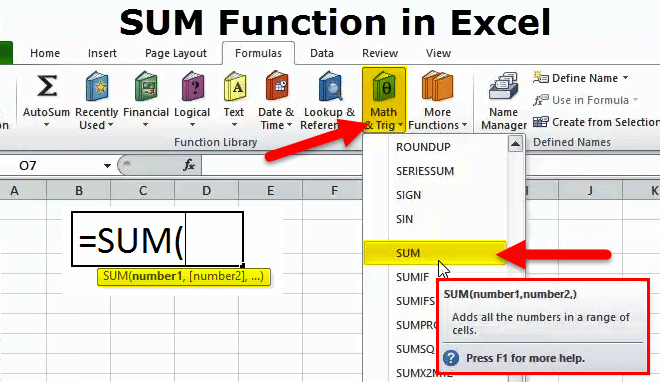
Using the SUM Function will find out the total sales for the four-quarter, i.e., yearly total sales. In the Excel sheet, go to the ‘Math & Trig’ option under the Formulas Section in the Menu Bar; a drop-down menu will open up; select SUM, and fill up the argument for an output.
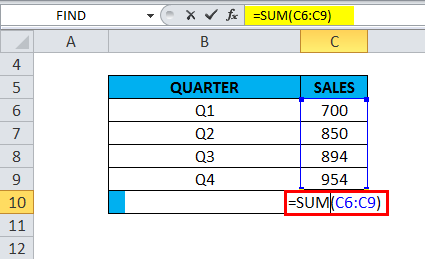
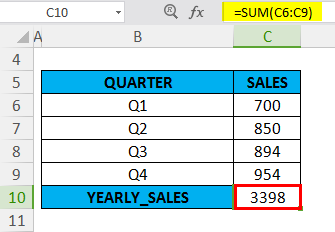
Column C contains quarterly sales values; here, we have to specify the first and last cell in a range of cells to be added up. Here the sum function adds up all the cells from C6 to C9. In the C10 cell, the SUM formula is used, i.e., =SUM (C6:C9); we need to select a range from C6 TO C9 to get total sales data.
It returns the total quarterly sales value as 3398
Example #2
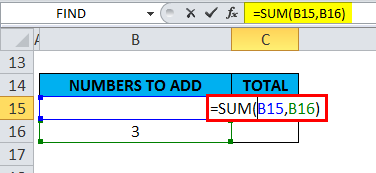
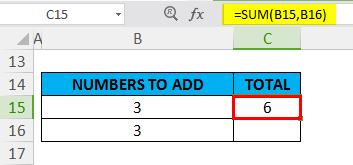
In this example, an Excel sheet with the cell references ‘B15’ and ‘B16’ contains the value ‘3’. SUM formula is applied in cell “C15”, i.e., =SUM(B15, B16); here, We have to select the cells that contain the values we want to add together. In the argument, the cell references ‘B15’ and ‘B16’ need to be added & are separated by a comma.
The SUM function returns the value 6
Example #3
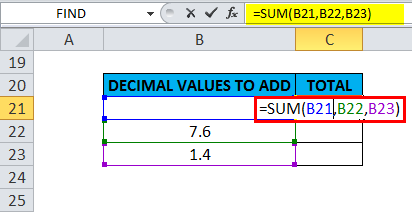
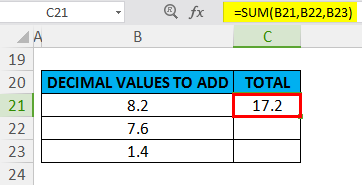
SUM formula is applied in cell “C21”, i.e., =SUM(B21, B22, B23); here, We have to select the cells that contain the decimal values we want to add together. In this example, an Excel sheet with the cell references ‘B21’, ‘B22’, and ‘B23’ contains the decimal values. In the argument, cell references ‘B21’, ‘B22’, and ‘B23’ need to be added & are separated by a comma.
The SUM function returns the value 17.2
Example #4
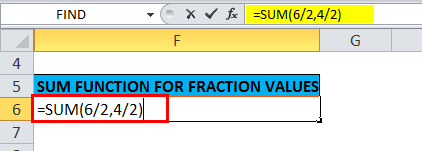
In this example, I want to apply the sum function for fraction values “6/2” & “4/2”. SUM formula is applied in cell “F6”, i.e., =SUM(6/2,4/2).
In the argument, fraction values “6/2” & “4/2” need to be added & are separated by a comma.
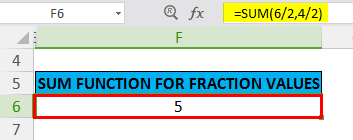
The SUM function returns the value 5
Example #5
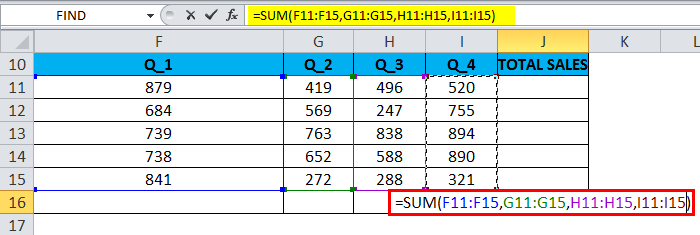
In the earlier examples of the SUM Function, we have only added up to one range at a time. The below-mentioned example will add up several or multiple ranges of cells at once. All the cells in all the ranges are added together to give a total. The Excel sheet shows the company’s quarterly sales data in each column. There are four quarters of sales data.
Here, we need to determine the total sales from four-quarter sales data. We have to specify the first and last cell in a range of cells to be added up for each quarter or column. In the SUM formula, we need to specify four separate ranges in the argument & which are separated by a comma i.e.
=SUM(F11:F15,G11:G15,H11:H15,I11:I15)
Where the F11:F15 range represents first-quarter sales data
G11:G15 range represents second-quarter sales data
H11:H15 range represents third-quarter sales data
The I11:I15 range represents fourth-quarter sales data
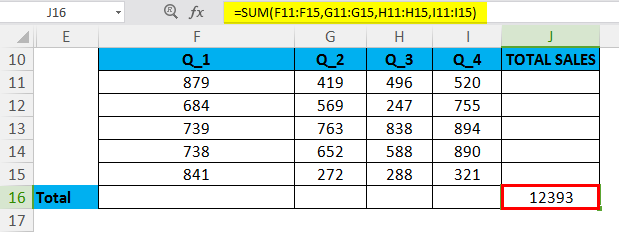
The SUM function returns the value or total sales data, i.e. 12393
Example #6
Numbers in a range of cells can be quickly added by using AUTOSUM Option in Excel.
The keyboard shortcut for AUTOSUM: Alt + =
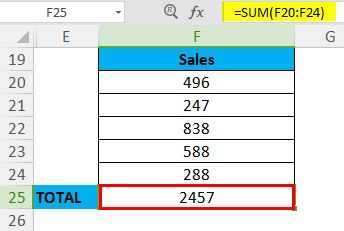
In a range of cells, it contains sales data between cells F20 to F24; I need to apply an auto sum function for that range.
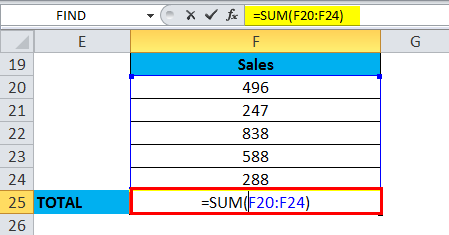
In a cell “F25”, click “Alt + =” Excel SUM formula will be appearing in the active cell along with cell reference. Then we need to press the Enter key to complete the SUM function.
Things to Remember
- The sum Function can also do the addition of fractions & decimal numbers
- In the SUM formula, i.e., =SUM( num1, num2, … num_n ) and in place of ‘num’, if it contains or you have entered a non-numeric content, then the Sum function will return an #Name? error, whereas in case if SUM formula is applied for a range, the Sum function will ignore this value
- If in a range of cells, one or more is blank or empty or contains text rather than a number, Excel ignores those values when calculating the result.
- In the SUM Function, Mathematical operators like (+,-, /, and *) can also be used.
- Suppose if, in a range of cells, values that cannot be interpreted as numbers (e.g., Text Representations of numbers & Dates, logical values) are ignored by the SUM function.
Recommended Articles
This has been a guide to SUM Function. Here we discuss the SUM Formula and how to use SUM along with practical examples and downloadable Excel templates. You can also go through our other suggested articles –

