

Updated June 8, 2023
Excel Subtract Date (Table of Contents )
Overview of Excel Subtract Date
Working with dates in Excel is common for someone being a data analyst, isn’t it? You might have worked on a lot of those. However, while working with a large set of dates, the possible chances are that you may encounter a situation where you want to determine the difference between the two dates. Maybe you want to get the number of days between two date values. I might be interested in finding out the number of months that fall between those two dates or also being interested in years. It is an easy task at first when you look at it.
Examples to Subtract Date in Excel
This article will see how to subtract two dates based on certain criteria to get the desired result. Follow the article as well as the steps for each example below:
Example #1 – Two Dates in a Number of Days
Consider data as shown below, where we have two columns named First Date and Second Date:
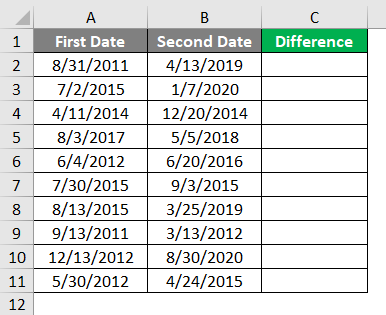
Step 1: In cell C2, use a usual subtraction method to subtract the First Date from the Second Date. Use the formula as =B2-A2.
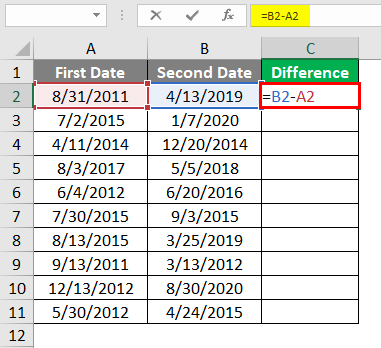
Press the Enter key, and you’ll get the difference between the two dates as shown below:
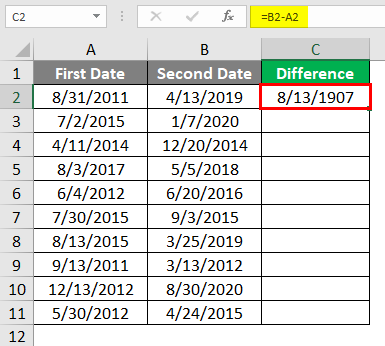
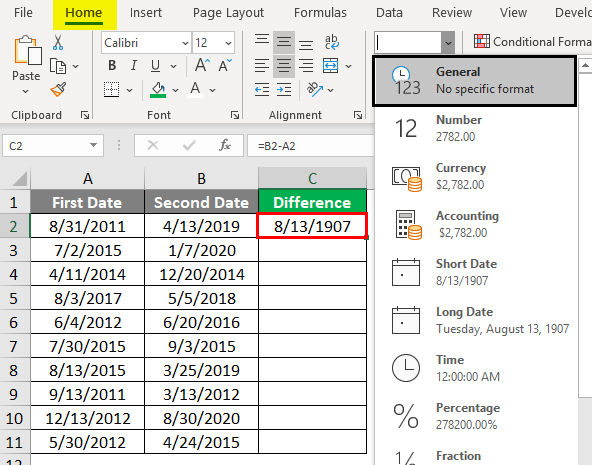
Step 2: Select the entire column C and click on the Home tab under the Number group section; select General or Number formatting through the dropdown list to convert it into numbers.
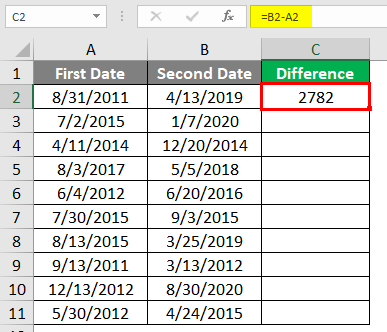
You now can see the difference between the two dates as a number of days as shown below:
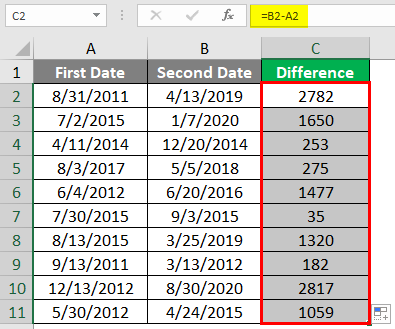
Step 3: Drag the formula until the last working row, and you can see the difference between all dates in a number of days, as shown below. After selecting all the working cells, you can hit keyboard strokes Ctrl + D.
Example #2 – Two Dates in Number of Years
Now, we will be looking to figure out how to find a difference between two dates in a number of years.
Since we need to determine the difference between the years of the Second Date and the First Date, we’ll use the YEAR() function in Excel to determine the difference in years.
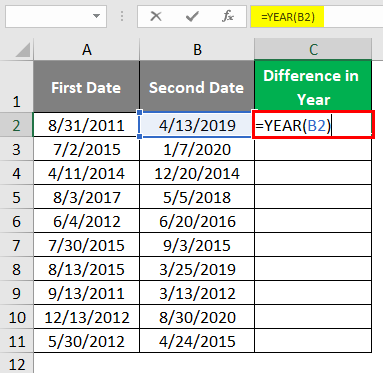
Step 1: In cell D2, use the =YEAR(B2) formula. It will extract the year from the date present under cell B2.
Step 2: Now, use the subtract operator to subtract between two date years.
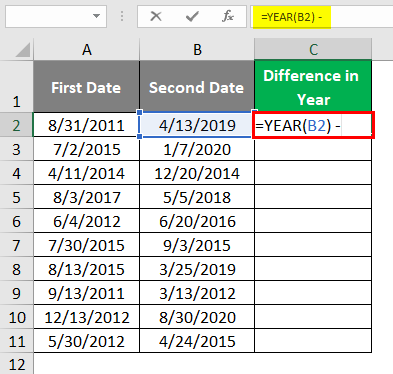
Step 3: Again, use YEAR(A2) to extract the year from the date present under cell A2.
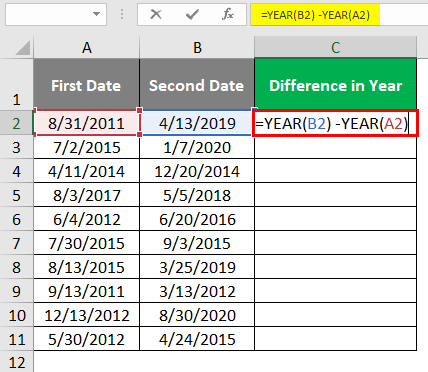
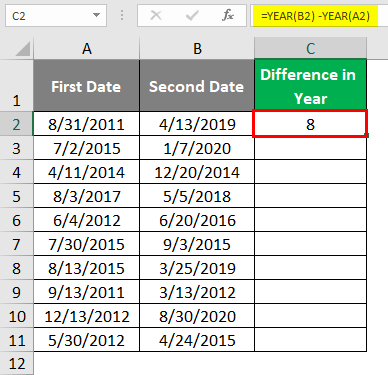
Press Enter key, and you’ll get the number of years as a difference between Second Date and First Date, as shown below.
Step 4: Drag the formula across cells to get the difference in the number of years for dates present across the cells.
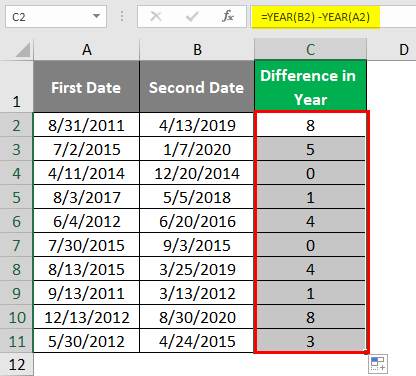
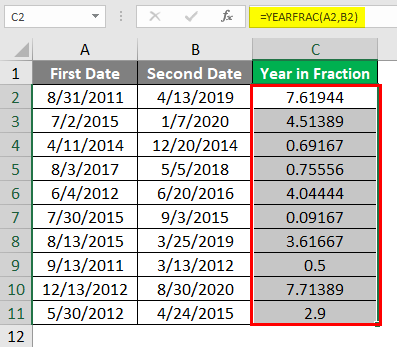
If you can see column D, you will figure out that for rows 4 and 7, the number of years difference is zero. Since both the dates are associated with falling in the same year, with getting a fraction of the year value, we can use the other function called YEARFRAC() to get the number of years, including a fraction of the years well.
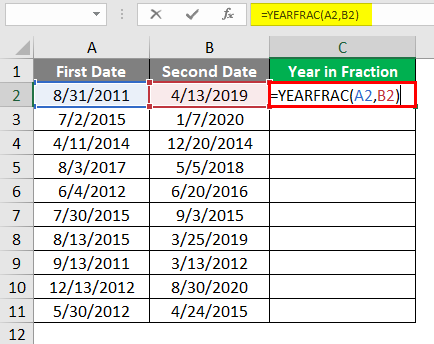
In cell E2, use =YEARFRAC(A2, B2) as a formula to get the year value with the fractional part included in it.
Note that the YEARFRAC function has three parameters, start_date is the First Date, and end_date is the Second Date. These two parameters are required arguments and need to be provided. The third parameter is [basis], which is optional.
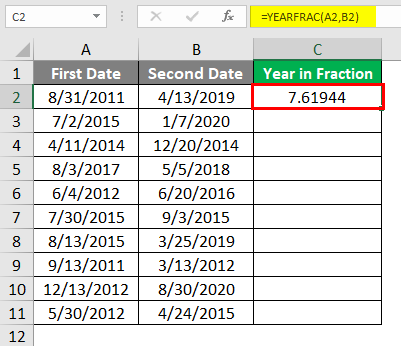
Now, drag the formula until cell E11; you can see all the differences in fractional years. Pay more attention to rows 4 and 7; you will not see zero there.
Example #3 – Two Dates using DATEDIF Function
We are about to see a function not listed in any of the Excel formulas. In cell F2, use the formula for DATEDIF and initiate the formula for the same.
Step 1: Use A2 as a first argument (start_date) and B2 as a second argument (end_date) under the DATEDIF formula.
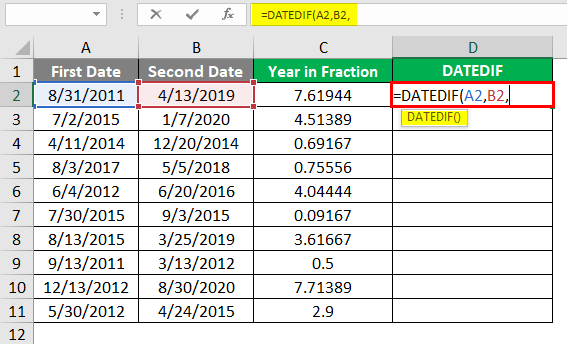
Step 2: For the third argument (unit), use either of the units available to get the difference in the desired format. I will use M to get the difference in the number of months.
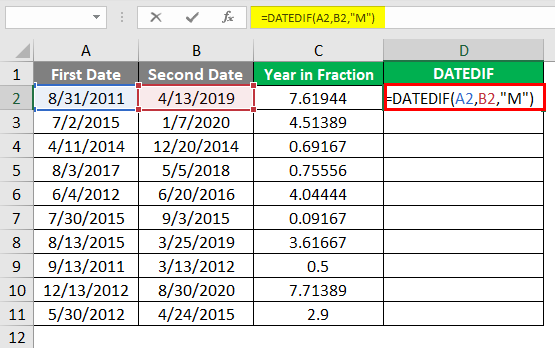
Please look at the double quotes we have added for unit value. Enclosing the value for the unit argument in double quotes is mandatory to get the formula working.
Step 3: Drag the formula until cell F11 to get the desired result as a difference between the number of months for given dates.
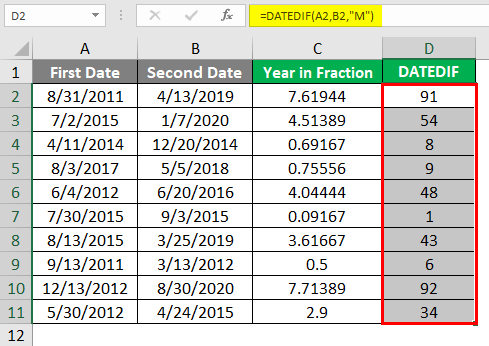
We subtract two dates in Excel to determine the number of days, years, or months. Let’s wrap things up with some points to be remembered:
Things to Remember
- The DATEDIF function is not a part of any of the Excel formulas. However, it can use within Excel.
- Ensure that while using the YEARFRAC and DATEDIF functions, the end_date should always be greater than the start_date. Otherwise, you’ll be encountered with #NUM! Error.
- The unit “M” extract the number of complete months between two date values. The same is with unit “Y” which returns the year between two dates.
Recommended Articles
This has been a guide to Subtract Dates in Excel. Here we discuss How to Subtract Dates in Excel, practical examples, and a downloadable Excel template. You can also go through our other suggested articles –

