
Updated February 21, 2023
Introduction to SSRS Report Builder
Microsoft’s SSRS report builder is a robust tool for data visualization and creating dashboards and visual presentations with little effort. Microsoft’s SQL Server Reporting Services (SSRS) is a functionality framework for creating reports. Using the Report Structured approaches in conjunction with reporting services is like icing on top, as it speeds up the delivery of reports.
What is an SSRS Report Builder?
The SSRS Report Builder is a reporting and analysis tool for SQL Server Reporting Services that enables people to create, modify, and generate reports. We can immediately set up and customize the Report Builder because it is an independent installation. The builder allows you to create reports in Table/Matrix, Chart, and Map styles. Reports can be published on a web portal instantly. Depending on the organization’s requirement, the SQL server administrator can create accessibility for every public to click various information and analysis.
SSRS Report Builder Install
To install Report Builder via the command prompt, follow these instructions.
- We may also install Report Builder from the command line, with options to tailor the setup. In addition to the standard MSI intrinsic parameters, Report Builder offers two unique parameters: RBINSTALLDIR and RBSERVERURL. RBINSTALLDIR specifies the base installations directory for Report Builder. The standard reporting server that Reports Builder utilizes to save reports on the server is specified by RBSERVERURL.
- Click Download on the Microsoft Download Centre’s Report Builder page.
- Click Save after Report Builder has finished downloading.
- Select Run from the Start menu.
- Type cmd in the Open box. Navigate to the folder where you saved ReportBuilder.msi in the Command Prompt window.
msiexec /i ReportBuilder.msi OPTION=OptionValue [OPTION=OptionValue]
- RBINSTALLDIR and RBSERVERURL are the two parameters specific to installing Report Builder. These arguments do not need to be included in the command line. However, the standard command is as follows:
ReportBuilder3 x86.msi /quiet msiexec
- Press ENTER to run the command.
SSRS Report Builder Services
There are two tools for creating reports in Reporting Services:
Report Designer can build reports of any complexity supported by Reporting Services, but it requires knowledge of the data’s structure and the ability to traverse the Visual Studio user interface.
Report Builder is a user interface for creating ad hoc reports geared more toward business users than coders. Before consumers realize it may produce reports, a designer or administrator must set up a data architecture in Report Builder.
SSRS Report Builder Project
Report Builder is designed for business analysts and end-users and provides a reduced perspective of the report-building process. Report Builder is a press-one Windows Forms program in and of itself. That is, it is a Desktop app that lets consumers launch from a web browser and is never deployed on their machine; thus, they do not require local administrator credentials to use it. Go to the Reporting Services home page to get started with Report Builder.
Creating SSRS Projects and Reports
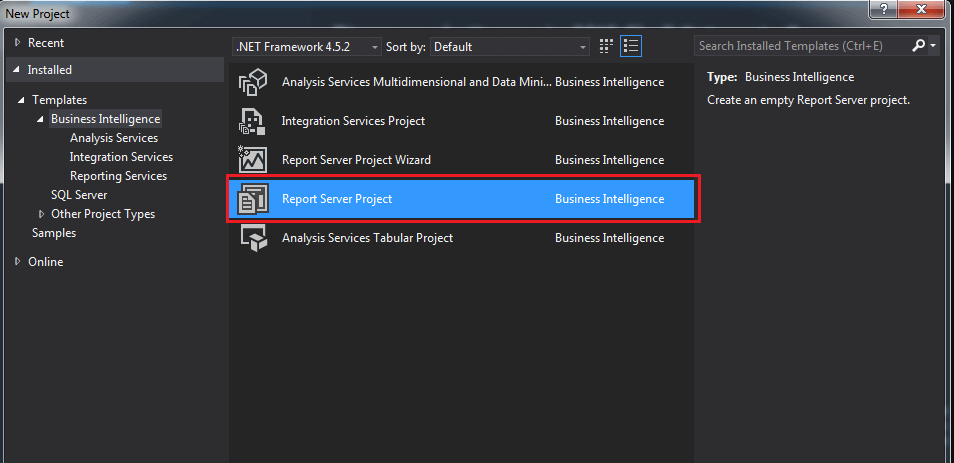
Reports, datasets, and data connectors are all included in SSRS projects. Everything is required to properly communicate a report with a SQL database and its proper operation. Following the debut of SSDT, users have two possibilities. We can either work on an existing project or start one from scratch. Therefore, we start a new project and choose the Report Server Project as the next step.
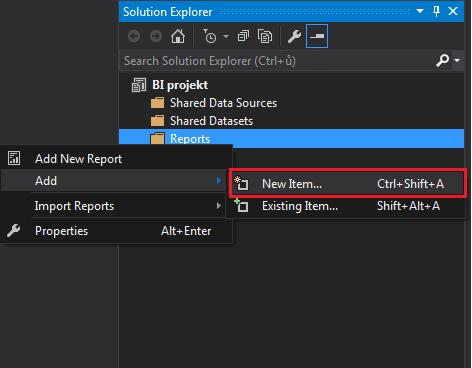
Report creation is required to create and select a project. Right-clicking the folder mentioned above report in Solution Explorer will accomplish this. Then choose one of these options:
Add a new report – the wizard is launched in this instance. It will walk us through the process of connecting reports to datasets.
Add a new item, then choose it. In this scenario, we don’t need to use the Report Wizard. Instead, we can customize everything to meet your requirements. As a result, prepare a product sales report and check that the reporting services files contain the rdl extension.
The following stages will be completed in this example:
- First, make a connection to a data source.
- Next, create a dataset and then use the report builder to write a report.
- Finally, create a report builder and save it to the My Folder directory.
Data Source Connection:
We’ll now set up a connection between Azure SQL and the report builder. Next, click Add Data Source from the Data Sources folder by right-clicking it.
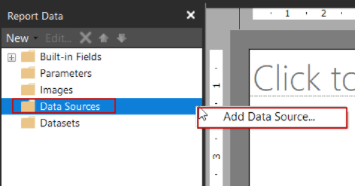
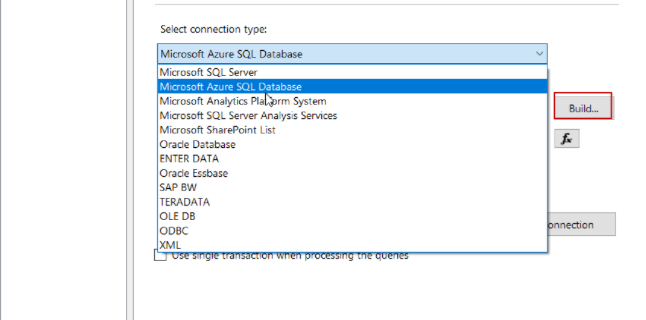
Next, use connection types.
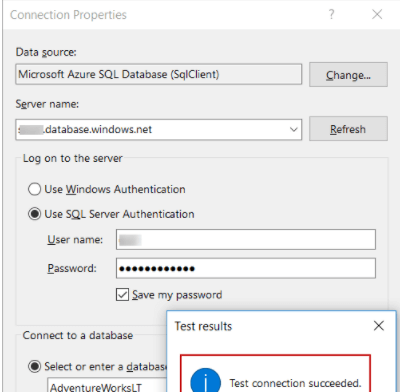
Next, fill in the Data source and server name; finally, we will see if the connection Succeeds.
Make a data set:
We will construct a dataset in this stage and use datasets to retrieve data from the target data source. First, select Add Dataset… from the context menu of the Datasets folder.
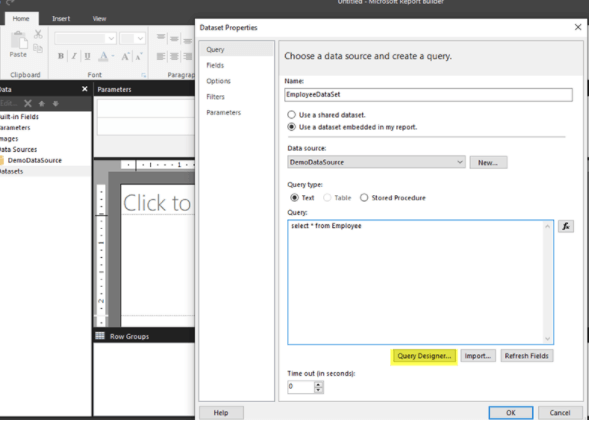
Depending upon that dataset, the Data attributes page includes various settings and setup tabs. The Query tab allows us to have a data source and manage query kinds and text. We can run queries by clicking Query Designer.
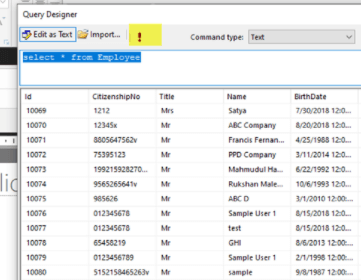
And now it’s time to start putting the report together. To begin, provide a report with a title. Then, give this report name by clicking on the Add Title Area button. Next, the Filter tab allows us to define a dataset using a filter expression; nevertheless, this filter has no bearing on the dataset query. After a query has been executed, it only affects dataset entries, as the query generates the dataset with all data and the filter expression refines it.
Creating a report:
The Matrix aids in the creation of data summaries, such as excel pivot tables. One may group and summarise data in various formats using the matrix. Our document design should resemble the example below at the end of this section.
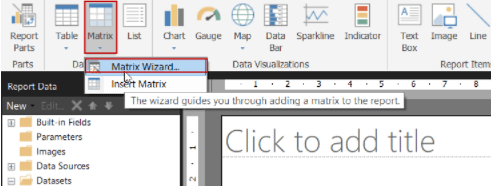
Finally, when we execute a report,
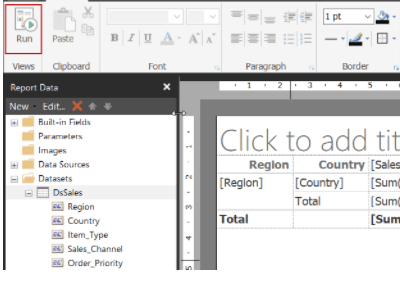
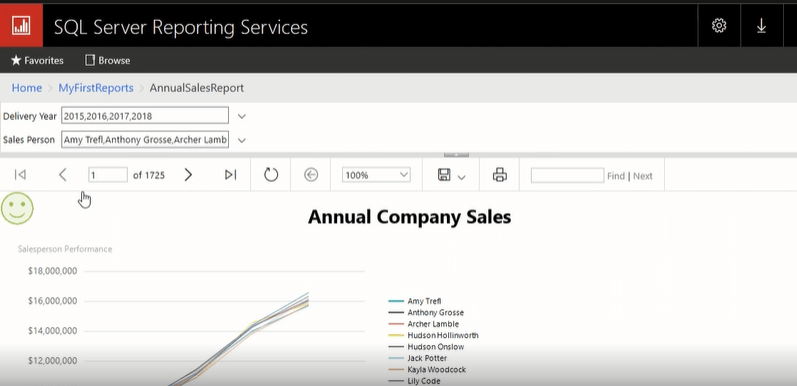
Report Builder has easy-to-use wizards for managing data formats. After completing reports, they can be individually uploaded or immediately published and made publicly available. The completed relevant reports for users are shown in the screenshot above.
Conclusion
This tutorial covered the SSRS report development process from start to finish. We have a convenient way to dive directly into procedures (installation, security, authentication, and so on) and methods utilized to execute a task. Report Builder is the most effective tool for completing the task significantly.
Recommended Articles
This is a guide to SSRS Report Builder. Here we discuss the definition, installation, services, projects, and how to create SSRS projects and Reports. You may also have a look at the following articles to learn more –

