


Updated August 9, 2023
Simple Formula in Excel
Simple Formula in Excel and their amazing results bound the functionality of Excel. If you are new to Excel spreadsheets and need to learn how formulas work in Excel, this is the platform for better understanding the formulas.
At the end of this article, you will have a fair knowledge of the basic understanding of working with formulas. Formulas are dynamic and recalculated when the cell values change in Excel.
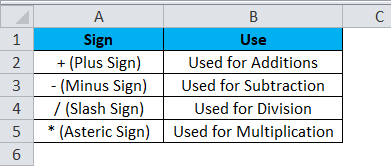
According to the table below, all the formulas in Excel work exactly with the mathematics rule.
How to Use a Simple Formula in Excel?
It is very simple and easy to use. Let’s understand it with some examples.
Example #1
In this example, I will show you a simple addition example. I have two numbers one is 10, and another one is 15. In simple mathematics, we will do the calculation like this.
10 + 15 = 25.
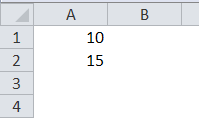
Now, look at the Excel image below. In cells A1 and A2, I have 10 and 15, respectively.
Now I want to add these two numbers. I can do this calculation in two ways. All the formulas in Excel will start with an equal sign (=).
Either I can enter the numbers directly into the cell, or I can give a cell reference. Look at the below image. I have passed the two numbers to the addition directly.
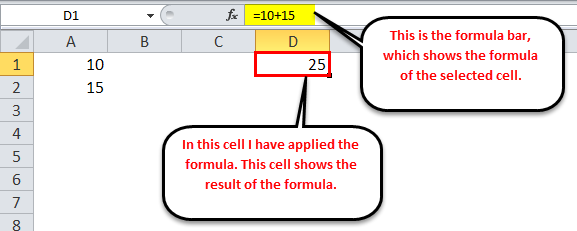
In cell D1, I have entered the formula as =10+15. This is not the dynamic formula because I have not given any cell references here. Suppose I want the formula to show 30. As a result, I need to edit the formula and change the values.
Now, look at the below dynamic formula.
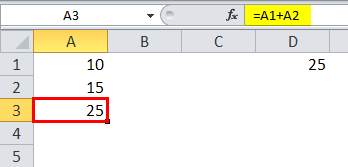
Now, look at the above image. Instead of supplying the values directly to the formula, I have referenced cells A1 and A2. In cell A3, I have mentioned the formula as =A1+A2.
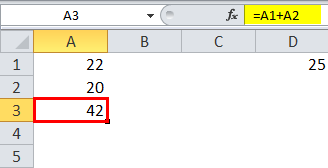
This is the dynamic formula because to change the result of the formula, I need not change the formula; rather, I can change the values in cells A1 and A2.
Example #2
We can do the summation by using the built-in function called SUM. SUM function has one mandatory argument and many optional arguments.
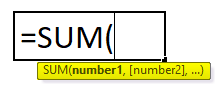
- Number 1: This is the first and mandatory argument.
- [Number 2]: This is the optional argument.
Now we will see how to use mandatory and optional arguments together.
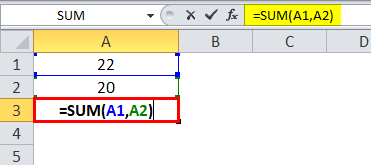
See the above image; firstly, I have selected cell A1 then after the comma (,), I have selected cell A2; this is the optional argument.
Since I selected the cells individually, I also needed to mention the optional argument.
Now, look at the below image.
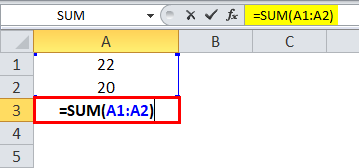
I have selected both cells as a range, so there is no need for an optional argument here. In this way, we can apply the basic formula.
Example #3
This is the extension of the previous example. In cell B1 and B2, I have entered two numbers, 25 and 20.
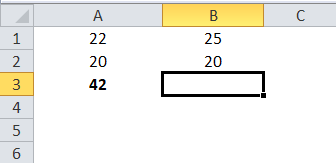
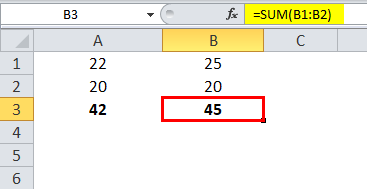
In cell B3 again, I want to summate two numbers. Here we need to understand the logic of Excel. I need not apply the SUM function again here. I can copy and paste the previous formula here.
The previous formula reads =SUM (A1:A2). If I copy-paste this formula to the right reference, it will change to =SUM (B1:B2).
In this way, we can work with the same formula again and again.
Things to Remember About Simple Formula in Excel
- To work with Excel formulas, we need to understand the logic of Excel.
- Once the formula is applied and the same calculation is required somewhere else with the same range, we copy-paste the same formula.
- All the calculations in Excel work the same as in mathematics based on the BODMAS rule.
- We can give individual cell references as well as range references. If the cells are more than, we can give range references instead of individual cell references.
Recommended Articles
This has been a guide to Simple formulas in Excel. Here we discuss using a simple formula in Excel and practical examples, and a downloadable Excel template. You can also go through our other suggested articles –

