


How to Execute SD Memory Card Data Recovery?
Your small memory card might stop working or show a strange error message. Sometimes these SD cards stop working or get damaged for no clear reason. When you lose your favorite photos or important files, it can feel like a total nightmare. This usually happens when the tiny card is old or damaged.
Learning about SD memory card data recovery will help you recover everything. So, this guide shows you how to fix cards that seem totally broken now. You can follow these basic steps to save your memories without any stress.
Part 1. Understanding SD Memory Card Data Recovery and Its Importance
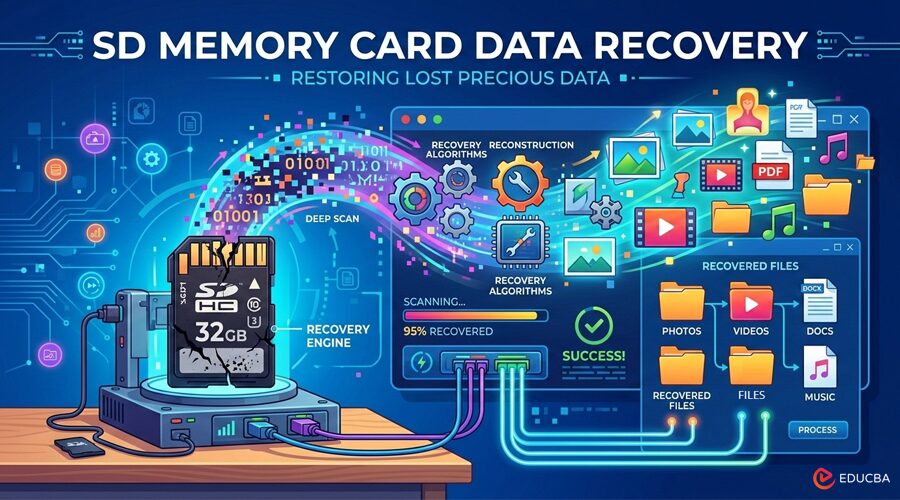
SD memory card data recovery involves recovering lost photos, videos, or documents from a damaged card. It helps preserve special memories, like family photos or work papers, that you cannot replace. Data recovery tools scan a broken SD card to find hidden file fragments and recover accidentally deleted files. Common problems include quick deletes, wrong pulls from cameras, or power cuts during saves.
SD card recovery scans the card deeply to rebuild files without overwriting them. Saving new things can overwrite old information, making it disappear forever. You must stop using the card immediately to keep all your files very safe. Save found files to another drive, not the same broken one, to avoid more mix-ups.
Common Reasons Behind Data Loss Problems in SD Memory Cards
- Wrong removal: Pulling the SD card out while it is saving data can cause severe file corruption.
- Power cuts: Sudden power loss during saves can mess up file paths, causing the card to appear blank or raw.
- File corruption: System errors can make the card appear empty or unreadable.
- Virus attack: Dangerous computer viruses can hide your folders or delete every single saved file.
- Physical damage: Dropping or bending the small card can damage its tiny internal components.
Part 2. SD Memory Card Data Recovery Tools and Software Overview
Sometimes users struggle to format a corrupted SD card on a Mac and recover lost files. Below are key features and software details every SD memory card tool should offer:
| Aspect | Free Tools | Paid Tools |
| Cost | No license fee; sometimes ad‑supported | One-time or subscription cost; no ads |
| Data Limit | Often capped (e.g., 500 MB–2 GB) or limited files | Usually, no data cap; unlimited recoveries within license |
| Features | Basic undelete, shallow scans; fewer file types | Deep scans, RAID/partition support, photo/video repair, disk imaging |
| Speed & Success | Slower, less reliable in complex or badly damaged cases | Optimized scanning; higher success on formatted/corrupted media |
| Support | Little or no technical support; rely on forums | Vendor support, documentation, and sometimes remote assistance |
| Safety | Some free tools from unknown sites may include malware | Reputable paid tools are safer and regularly updated |
Top 5 Features to Look for in the Best SD Memory Card Data Recovery Tool
- Preview tool: You should be able to see your data before you start the recovery.
- Format support: A good tool must support a wide range of file types, including video and audio.
- Deep scan: This feature scans for broken sectors to find hidden or lost files.
- System support: The software must work perfectly on both Windows and Mac systems.
- Safe results: Choose a program that will not damage your original data during the scan.
Part 3. Step-by-Step SD Memory Card Data Recovery from Broken Cards
Many people want a simple, safe way to restore files from a lost SD card. Therefore, you should try Recoverit to restore all your lost data from broken cards. This dedicated tool recovers lost files with an advanced AI-powered engine, without effort. Additionally, it supports more than 1,000 file formats, including media and documents. This tool performs a quick 5-minute scan to locate hidden or lost files.
Recoverit Data Recovery handles 10,000+ data-loss scenarios, such as power loss and physical damage. Its latest V14 version is compatible with macOS 10.13 through macOS 26 and M1, M2, M3, and M4 Chips. This platform lets you recover up to 500 MB of data for free. This platform automatically gathers and matches scattered file fragments to restore complete files.
Key Features
- Large file recovery: Restores large files, such as HD videos and high-quality RAW images.
- Safe recovery: Recovers data without overwriting originals or harming the SD card.
- Deep scanning: Uses advanced techniques to locate lost files on damaged storage devices.
Detailed Guide to Recovering Missing Data from Broken or Formatted SD Cards
You need to explore the steps below to get back all lost files using Recoverit:
Step 1. Access the SD Card Recovery Feature of Recoverit
Open the tool, select the “SD Card Recovery” option, and connect your SD card to your system.
Step 2. Perform a Quick Scan to Find Lost Data
Select the “SD Card” storage option to retrieve your data. The tool will then automatically perform a quick scan to locate your lost or hidden files.
Step 3. Preview and Restore Lost Files from SD Card
After the scan finishes, preview your preferred files and click ‘Recover’ to restore them.
Why Choose Recoverit to Recover Lost Data from SD Cards?
- File preview: This helpful tool lets you view your files before saving. It ensures you select only the correct files to get back your data.
- Safe recovery: Your original data remains safe because the tool never overwrites files. This careful process protects the memory chip from any further digital data damage.
- Chip compatibility: Modern software works perfectly with the latest Apple M1 through M4 chips. It runs smoothly on all new computers, providing a very fast experience.
- Wide formats: You can restore over 1,000 different file formats. This includes all your favourite photos, high-quality videos, and important schoolwork documents.
- Powerful engine: The smart AI system can find hidden files on very badly damaged cards. These advanced algorithms search every nook and cranny to detect your lost private media.
Final Thoughts
Losing your memories is a stressful experience that many people face daily. However, using the right methods for SD memory card data recovery can help you recover your files. You should stop using the card immediately to prevent permanent data loss. If you want a reliable, fast solution to restore your photos, you definitely need a professional tool. Therefore, you should download Recoverit to restore your lost media.
Recommended Articles
We hope this guide on SD memory card data recovery helps you safely restore your lost files and memories. Explore the recommended articles below for more insights on data recovery tools, file restoration tips, and protecting your digital storage.

