

Updated May 9, 2023
PRODUCT Function in Excel (Table of Contents)
Introduction to PRODUCT Function in Excel
Being an Excel user, you might have fallen into a situation where you must multiply two or more numbers. While Excel has different ways to do so, one popular way among all is using the PRODUCT function. Using this function, you can do a product of (or Multiply) two or more numbers spread along with different Excel sheet cells. PRODUCT function in Excel is categorized under Math/Trigonometric function. This function takes at least one argument as an input and gives a multiplication of the numbers as an output. If only one argument is provided, it multiplies that number by 1 and gives the output as a product. It is helpful when you have data scattered along with the ranges.
The syntax for PRODUCT Function:
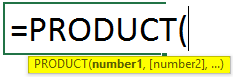
Arguments of PRODUCT Function:
- number1 – This is the required/mandatory argument that specifies the number to be multiplied.
- number2 – [optional] The second number or range to multiply.
Examples of PRODUCT Function
Let’s look at some examples of the Excel PRODUCT function and see how to use the PRODUCT function in Microsoft Excel.
Example #1 – Multiplication of Three Numbers Using PRODUCT Function
Suppose we have numbers to be multiplied in column A of the current working sheet, as shown below:
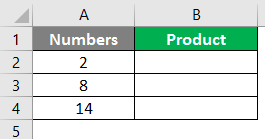
We only need a product (multiplication) of these three numbers under cell B2 of the current working sheet.
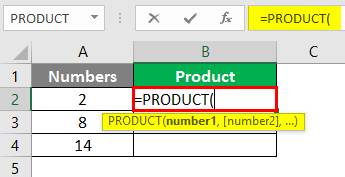
Step 1: Start typing the PRODUCT formula in cell B2 of the current working sheet.
Alternatively, you can add this formula using the Formulas tab in the uppermost ribbon of your Excel sheet.
Go to “Formulas”> “Math & Trig”> “PRODUCT”> Enter.
Step 2: Provide an argument for the PRODUCT function. In this case, you want the product/multiplication of numbers in cells A2, A3, and A4. Therefore give A2:A4 as an argument under the PRODUCT function.
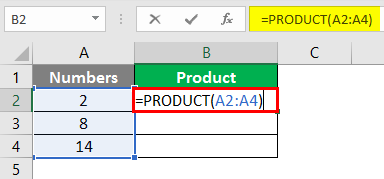
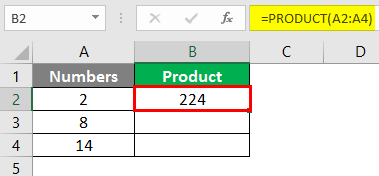
Step 3: Complete the formula by entering the closing parenthesis and pressing the Enter key. You’ll see the multiplication of three numbers as an output under cell B2.
Example #2 – Difference Between PRODUCT and General Multiplication
In this example, we will see how the PRODUCT function is more versatile than the general multiplication. Suppose we have data as shown in the screenshot below:
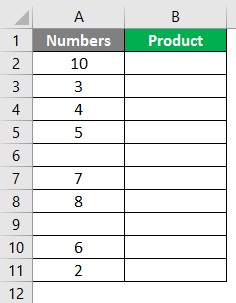
We can see some blank cells between the numbers in column A. We do use an asterisk (“*”).
Step 1: In cell B2, try to do multiplication of all the cells with each other (including blank cells) with the help of the multiplication operator, a.k.a. asterisk (“*”).
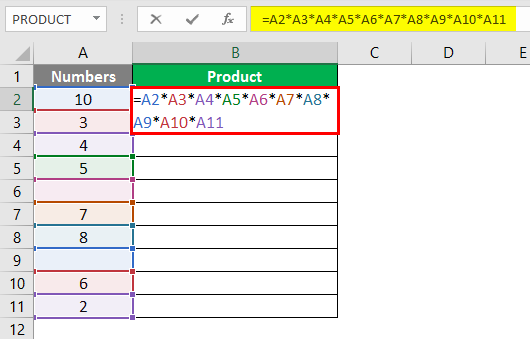
Step 2: Press the Enter Key to see the output. You’ll get Zero under cell B2 of the current working sheet. See the below screenshot for your reference.
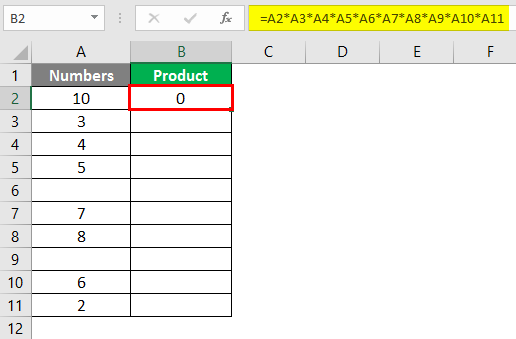
If we leave the cell empty, the multiplication operator considers the value zero for that cell and multiplies it with other numbers, ultimately giving zero as output.
Step 3: Now, use the PRODUCT function over the same range of data (A2:A11). Use the following formula under cell B3.
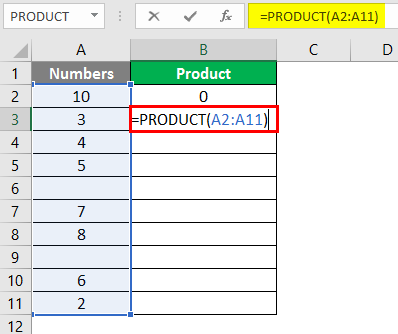
Step 4: Press the Enter key to see the output of this formula under cell B3. You’ll see a work as shown below.
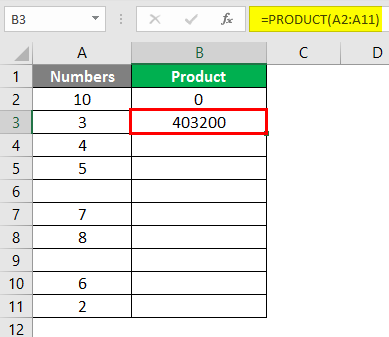
This is because the PRODUCT function ignores the cells with blanks, texts, or non-numeric data and gives the product/multiplication of those cells with numeric data.
Example #3 – PRODUCT Function in Combination with SUM Function
We can also use the PRODUCT function with different mathematical/trigonometric functions. Let’s see how the SUM function can be used within the PRODUCT function. Suppose we have two offices across the city and employees are working in both offices altogether with some work-from-home facility available.
We wanted to check the product of hours an employee worked under offices A & B (Sum of Office & Work From Home Hours). This can be done using the combination of the function SUM and PRODUCT. See the data below:
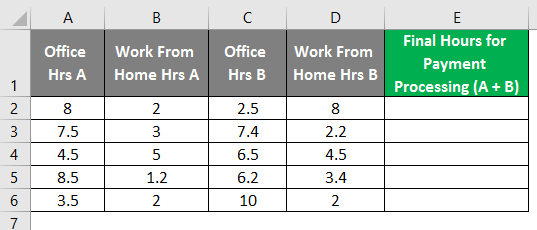
Step 1: In cell E2 of the active worksheet, start typing the formula for the PRODUCT function, which is =PRODUCT.
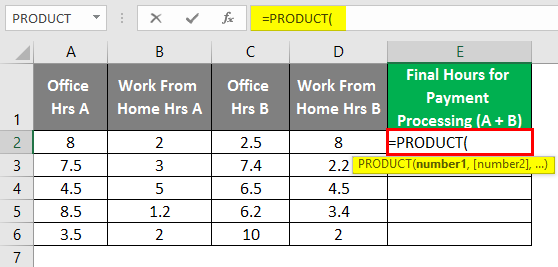
Step 2: Now, use SUM(A2, B2) as a first argument under the PRODUCT function and SUM(C2, D2) as a second argument under the PRODUCT function.
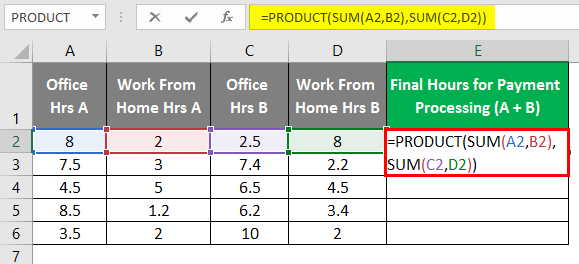
After using the PRODUCT, the Formula output is shown below.
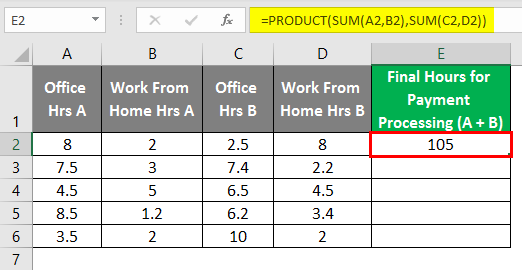
Step 3: Close the parentheses and press Enter key to see the output of this formula. Also, drag the formula across the different rows to get the final output below.
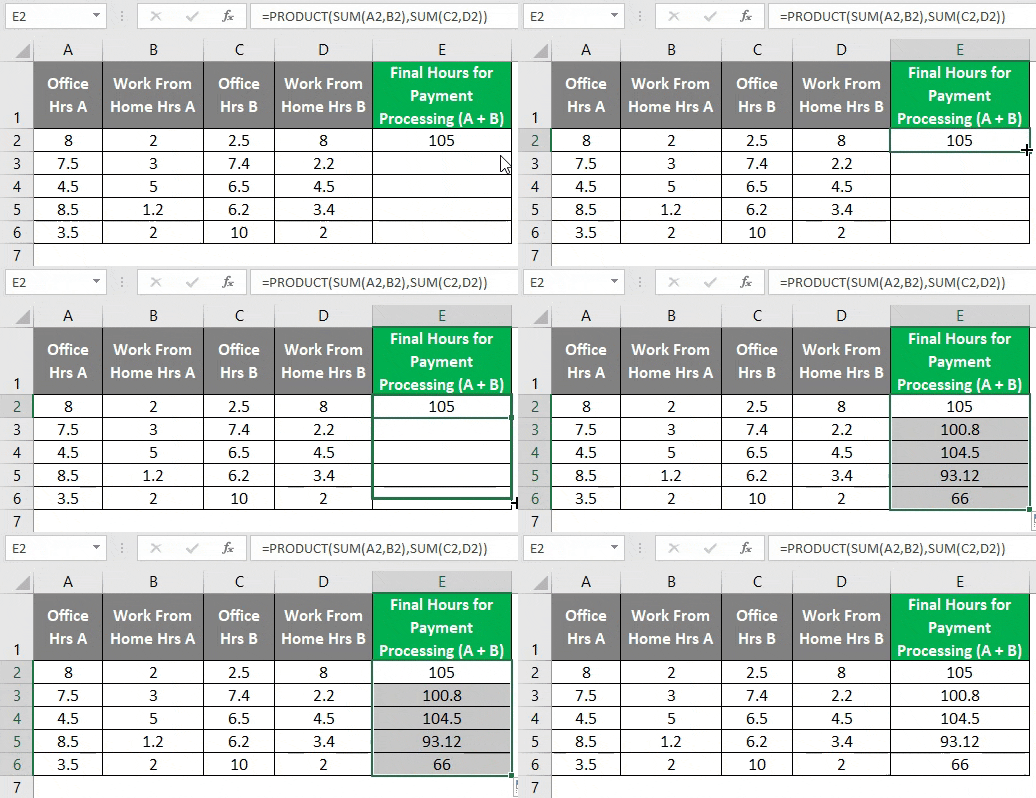
This might not look like a convenient way to capture the final hours. But this example is created to make you understand how the SUM can use PRODUCT functions can be combined.
Example #4 – PRODUCT Function Inside Some Other Function
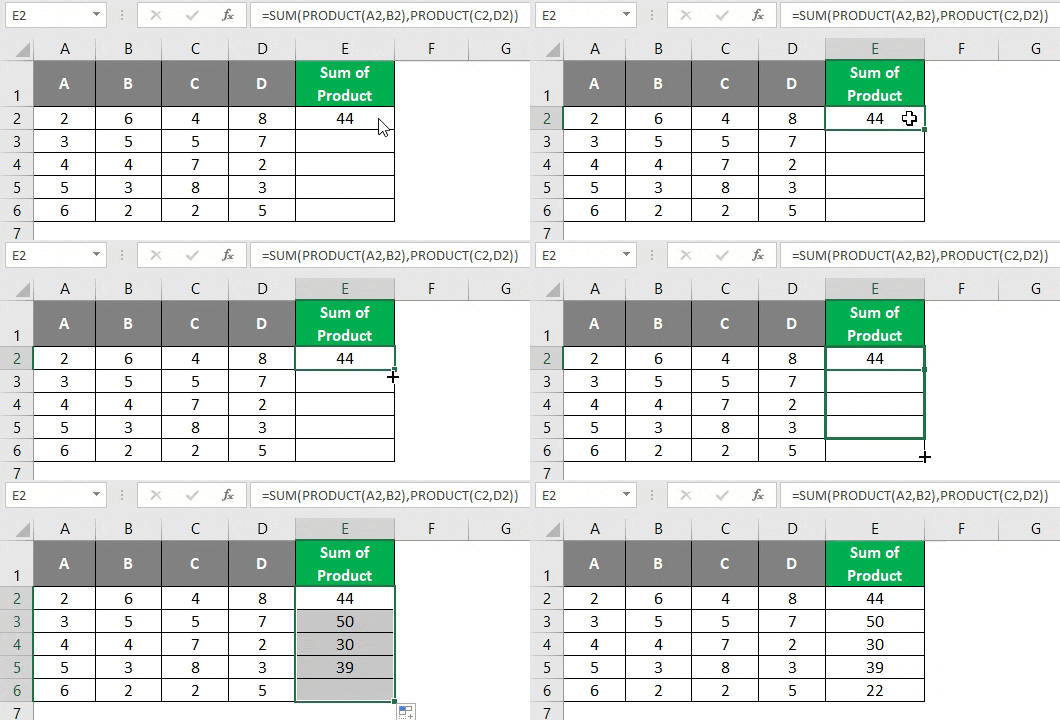
We can also use the PRODUCT function inside any other function. Suppose we have data as shown in the table below, and all we wanted is to make the sum of the product of A2, B2, and the product of C2, D2.
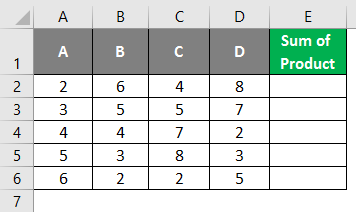
Step 1: In cell E2 of the Active worksheet, start typing the formula for SUM.
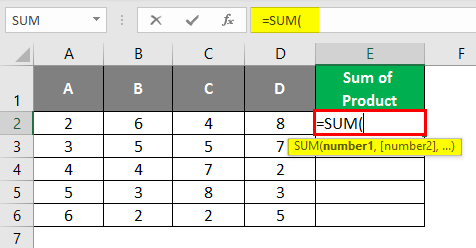
Step 2: Use PRODUCT(A2, B2) as the first argument and PRODUCT(C2, D2) as the second argument inside the SUM function, as shown below.
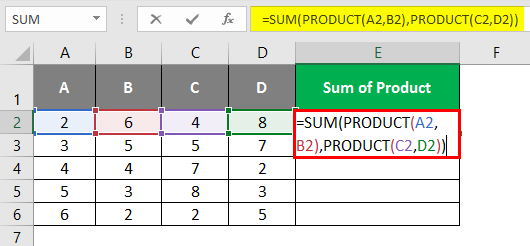
Step 3: Close the parentheses and press Enter key to see the output under cell E2. You’ll see an output as shown below.
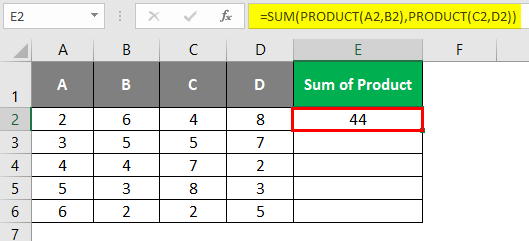
First, the product of A2, B2 is 12, and that of C2, D2 is 32. Thus, 12 and 32 would be the two arguments under the SUM function. In the end, the SUM function adds both of them and gives the output as 44.
Drag the formula across the cells to see the output for all working cells as below.
This is from this article. Let’s wrap things up with some points to be remembered:
Things to Remember About PRODUCT Function in Excel
- PRODUCT function accepts a maximum of 255 arguments at a time.
- The PRODUCT function is superior to conventional multiplication as it ignores blank cells. One can add the numbers separately or store them under cells and use those cells as a reference.
- If the cells are left blank, stored with numbers as text, logical texts, etc., the PRODUCT function ignores such cells while performing calculations.
- If the cells contain other text values, such as a person’s name, the PRODUCT function gives #VALUE! Error.
- The product function only takes numeric arguments and works on those. Suppose the cells given as arguments to the PRODUCT function contain either text. This formula ignores blank cells, which can be considered an advantage over conventional multiplication.
Recommended Articles
This is a guide to PRODUCT Function in Excel. Here we discuss How to use the PRODUCT Function in Excel, practical examples, and a downloadable Excel template. You can also go through our other suggested articles –

