


Updated May 3, 2023
POWER in Excel (Table of Contents)
POWER in Excel
My math teacher beat me almost daily for not remembering the SQUARE ROOT of numbers. I cried when the math period was on the way. There were many instances where I bunked the math class to escape those beatings from my math teacher.
Now I need to remember only some of those SQUARE ROOTS; instead, I can rely on a beautiful POWER function.
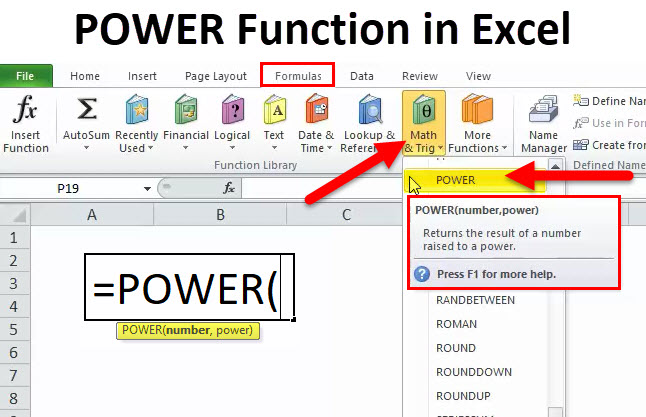
POWER function helps raise the number to another number of times the power.
For example: What is the value of 5 to the square of 3? The answer is 5*5*5 = 125.
POWER Formula in Excel
Below is the POWER Formula:
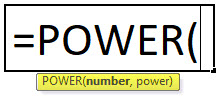
The Power Function includes two parameters, and both are required arguments.
- Number: The number you need to raise the power, i.e., the base number of any real number.
- Power: The number of times you need to increase the base number. It is the exponent to raise the base number.
The symbol or operator ^ (caret operator) acts as an exponent. For example, 6^2 = 36. It is not 6 multiplied by 2. Rather, 6 * 6 = 36. Six is multiplied by the six itself twice.
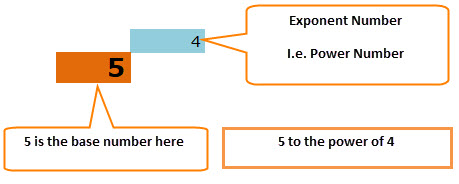
The simple equation is 5 * 5 * 5 * 5 = 625
How to Use the POWER Function in Excel?
This POWER function is very simple and easy to use. Let us now see how to use the POWER Function with the help of some examples.
Example #1
Assume you have base numbers from A2:A6 and the power number (exponential numbers) from B2:B6. Show the power of values in column A using power numbers in column B.
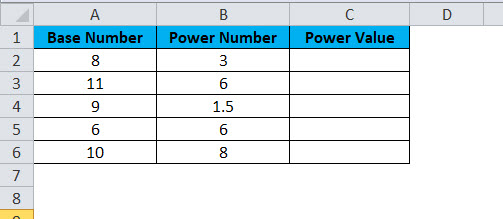
Apply the Power formula in the cell C2
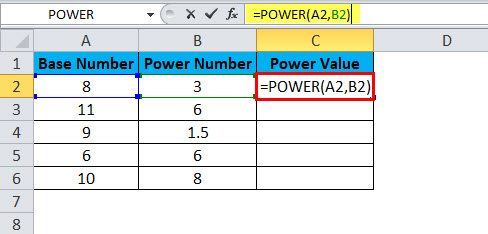
The answer will be:
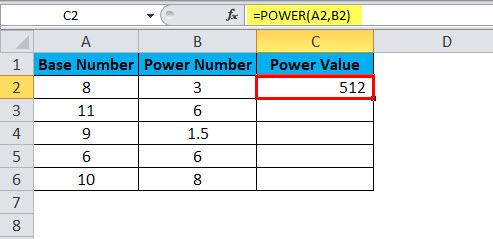
Drag and drop the formula to other cells.
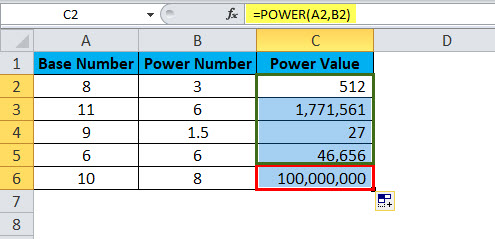
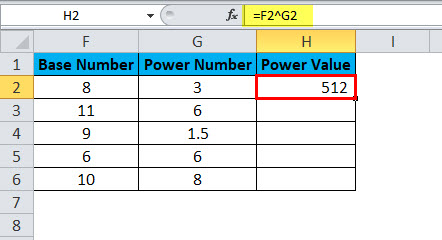
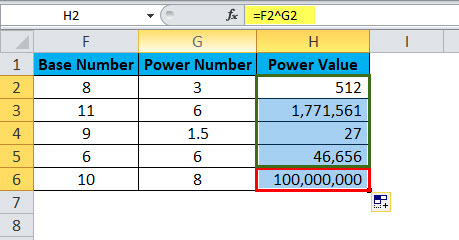
- The first value is base number 8 is raised to the power number 3. i.e. 8 cubes. =8*8*8 = 512.
Secondly, base number 11 is raised to the power number 6, i.e., 11 is multiplied 6 times by the 11 itself. =11 * 11* 11* 11* 11* 11 = 17, 71,561. Similarly, all the values have resulted in that way.
Example #2
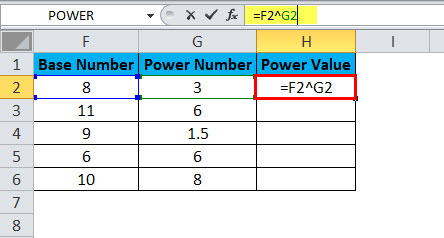
Use the same data from the above example. Instead of using the POWER Function, we use the caret operator (^) to calculate. The results will be the same, though.
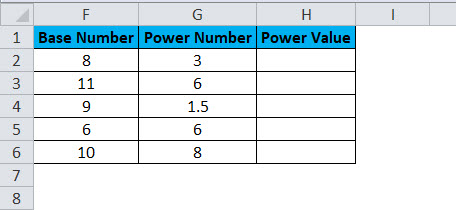
Apply the formula in the cell H2
The answer will be:
Drag and drop the formula to other cells.
Example #3
Using POWER Function along with other functions. From the below data, raise all the even number’s power by 2; if the number is not even, then raise the power by 5.
Here, first, we need to test whether the number is even or not. If the number is found, raise the power by 2; if not, raise the power by 5.
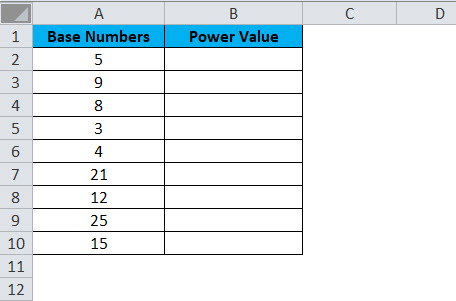
This type of problem can be addressed by using the IF condition to test whether the number is even or not.
Apply the formula in cell B2.
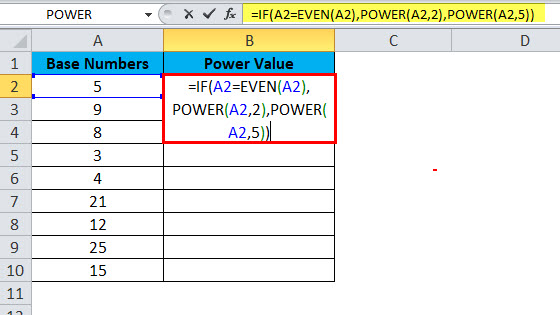
The answer will be:
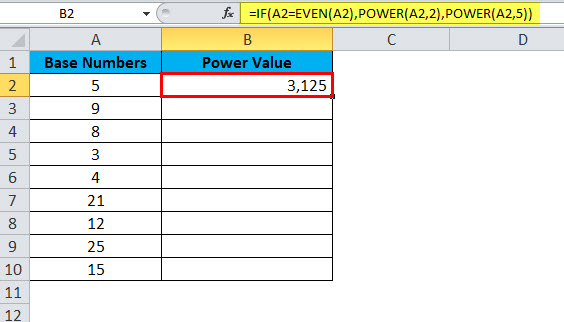
Drag and drop the formula to other cells.
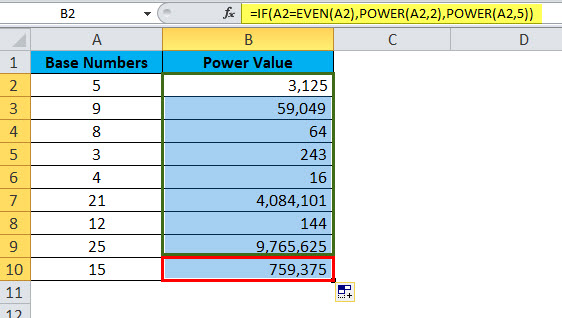
- IF condition tests whether the supplied number is equal to an even number. =IF(A2=EVEN(A2),
- If the IF logic is true, then the POWER function will raise the power by 2. =POWER(A2,2),
- If the IF logic is false, the POWER function will raise the power by 5. =POWER(A2,5),
POWER Function in VBA
In VBA, we can also use the POWER function. However, the thing is, we only get to see a few of these live examples in our day-to-day life.
Step 1: Open your VBA editor (ALT + F11).
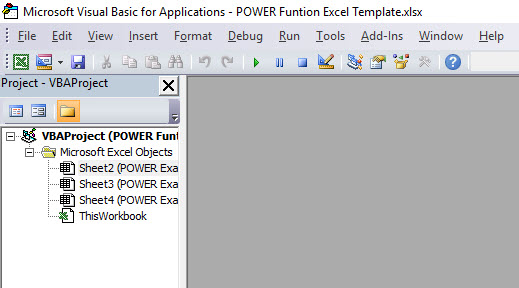
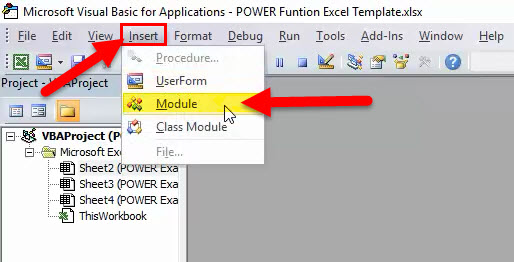
Step 2: Go to insert and insert Module. It would instantly create a new module to write our code for the POWER function.
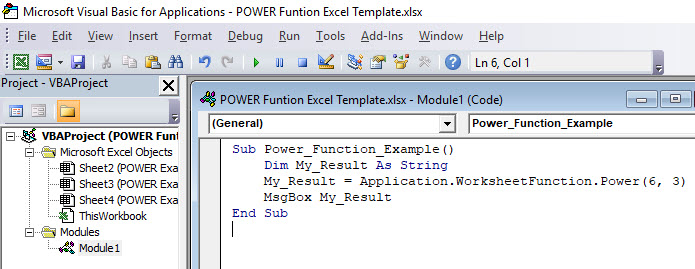
Step 3: Copy and paste the below code inside the new module.
Sub Power_Function_Example ()

Dim My_Result As String

My_Result = Application.WorksheetFunction.Power(6, 3)

MsgBox My_Result

End Sub
Now your window should look like the one below one.
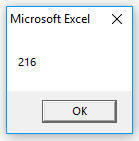
If you run the code, you will get the below result.
Things to Remember about the POWER Function
- For a better understanding, we can represent the power function in this way. POWER(X, Y) or POWER(X^Y) are the same.
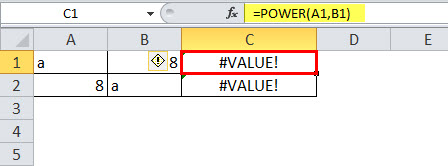
- The POWER function is applied only for numerical values. Anything other than numerical values will throw the error as #VALUE! We will get the error if any of the parameters contain non-numerical values. The below image shows an example of the error.
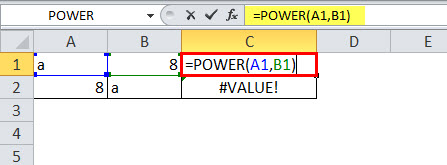
It will show an error.
Recommended Articles
This has been a guide to POWER Function. Here we discuss the POWER Formula and how to use the POWER Function along with practical examples and downloadable Excel templates. You can also go through our other suggested articles –

