


Updated August 25, 2023
Introduction to Photoshop Straighten Image
Photoshop is raster graphics editing software that was developed by adobe systems as its raster image editing software. Image editing professionals widely use it for their professional work. We have many different types of features in this software for handling different types of work in this software. Straighten image is one of the procedures through which we can make our image straight in the horizontal direction or in the vertical direction if it has any incline portion at any angle by using some tools and features of this software. So in this article, we will discuss all the important parameters we use to make our image straight, and we also look at the tool used in this procedure. So let us start our discussion about this topic in a very exciting way.
How to Straighten Image in Photoshop?
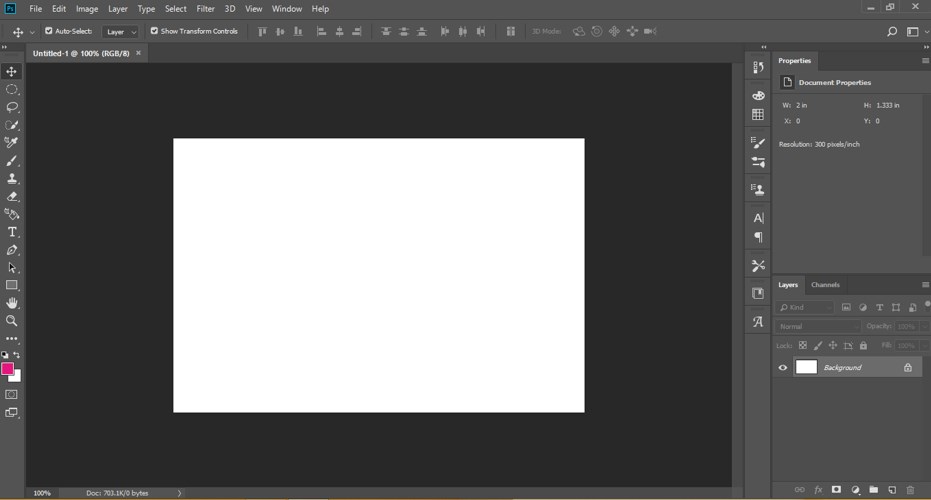
We can straighten the image as per our requirement, but before starting, let us look at the working screen of this software to better understand this topic.
Step 1: At the top of the working screen, there is a Menu bar which has a number of menus for making our work easy in this software such as File menu, Edit menu, Image menu, and many others; below this menu bar, we have a property bar of our active tool for handling the parameters of that particular tool during using that tool, below this bar we have three sections at the left side we have a tool panel which has the number of tool for doing a different type of task, at the center of this section we have a display window in which we can see our current work, at the right side of this section we have some tab such as color tab, layer section and some other which help in our work. You can reset all these sections according to your requirement.
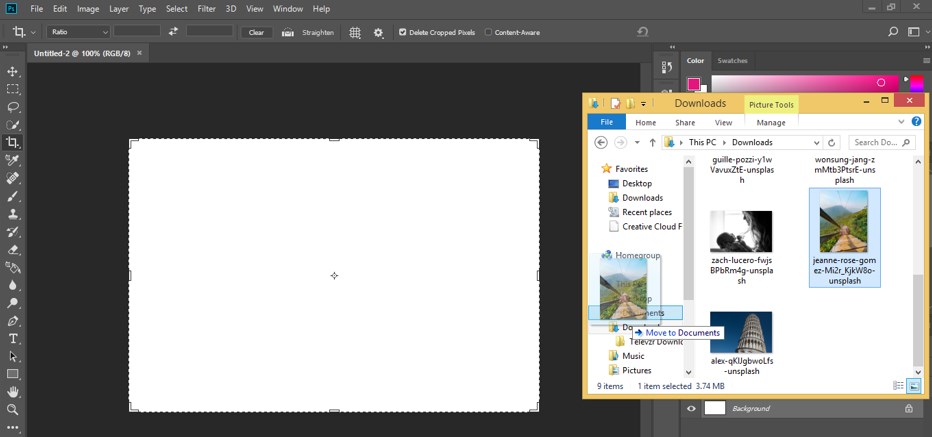
Step 2: Now, let us have an image for our learning. For placing an image in this software, go to that folder of your personal computer where you have saved this image, then pick it from there and drop it in the display window area of this software with the help of the mouse button. You can take your own image or download it from the internet for understanding this topic.
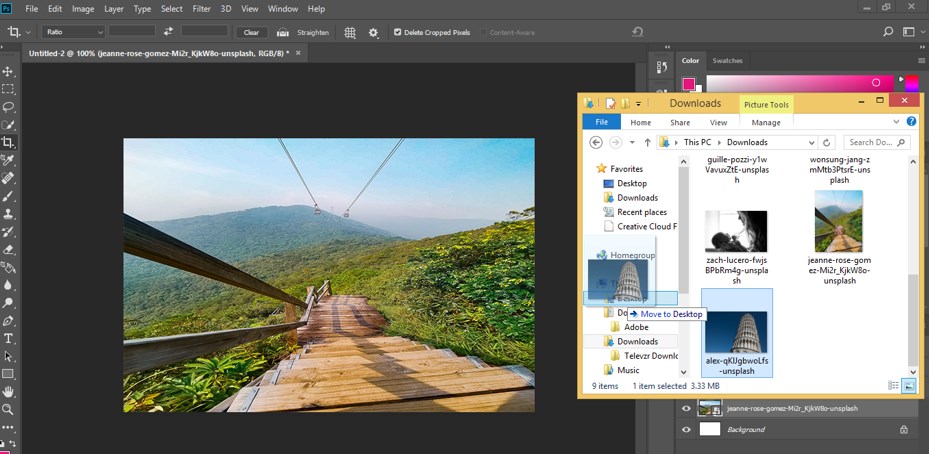
Step 3: You can place more than one image in this software with the same method for your learning which has incline portions.
Step 4: Now, once you place your image properly in this software in the display window area make click on the Tick Mark, which is at the property bar of this image, for placing this image with your desired settings.
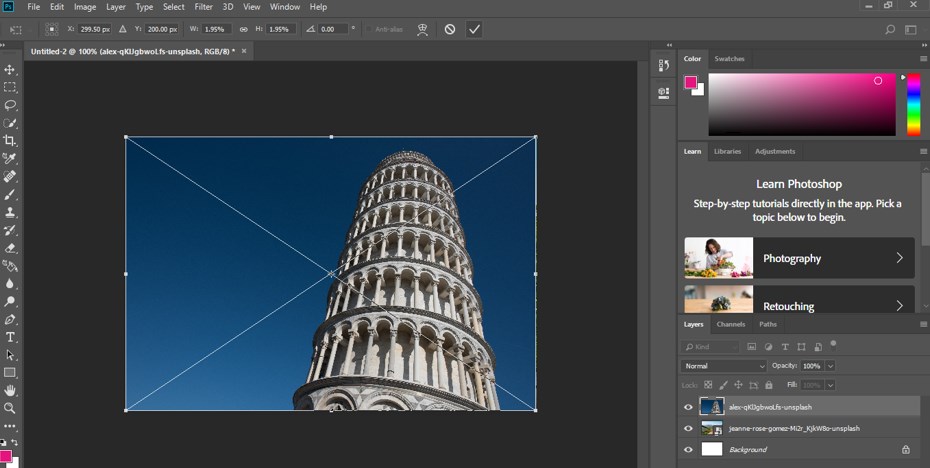
Step 5: Now go to the tool panel of this software, which is at the left side of the display window and click on the Crop tool icon for having it with the mouse left button.
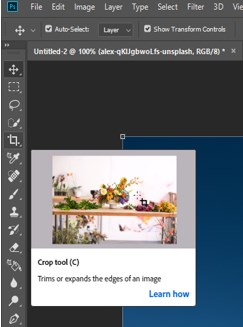
Step 6: Now go to the property bar of this crop tool which is below to the Menu bar of this software, and click on the ‘Straighten the image by drawing a line on it’ option with the mouse button of this crop tool.

Step 7: Now, draw a line on that portion of your image which you want to make a guide for straightening your image. You can draw a line for making it straight in a horizontal direction or in a vertical direction. Here I will draw a line like this for making this building straight in a horizontal direction.
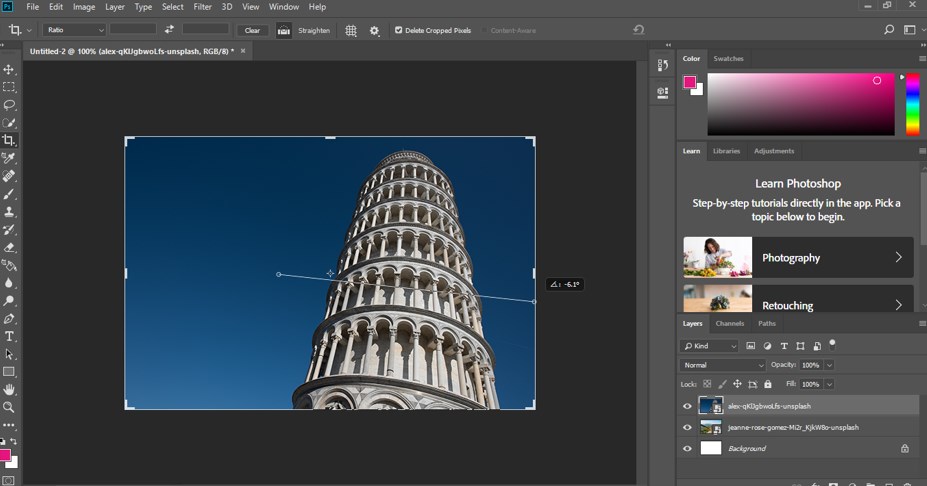
Step 8: And once you leave the mouse click, it will straighten your image in your chosen direction like this. Now you can press the enter button of the keyboard for applying this change, or you can make click on the Tick Mark of crop tool, which is at the property bar of this tool.
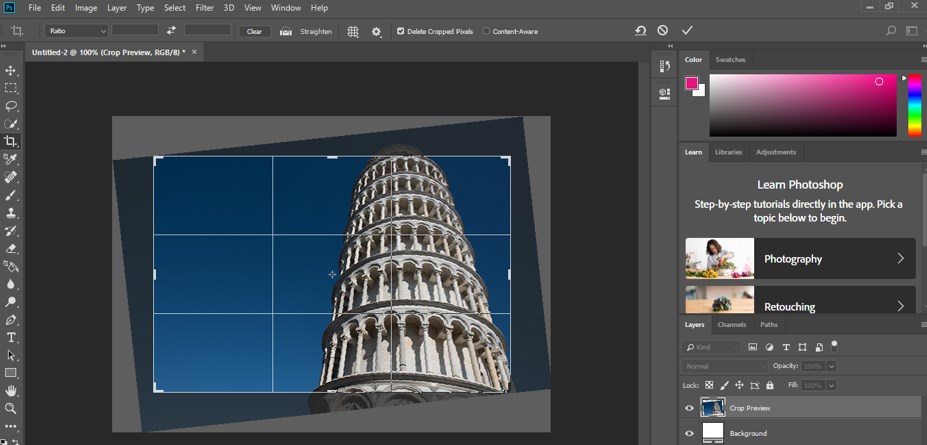
Step 9: You can increase or decrease the area of the bounding box of the crop tool by dragging it with the help of the mouse button if you want to make some other change in the selection area of your image for your desired result.
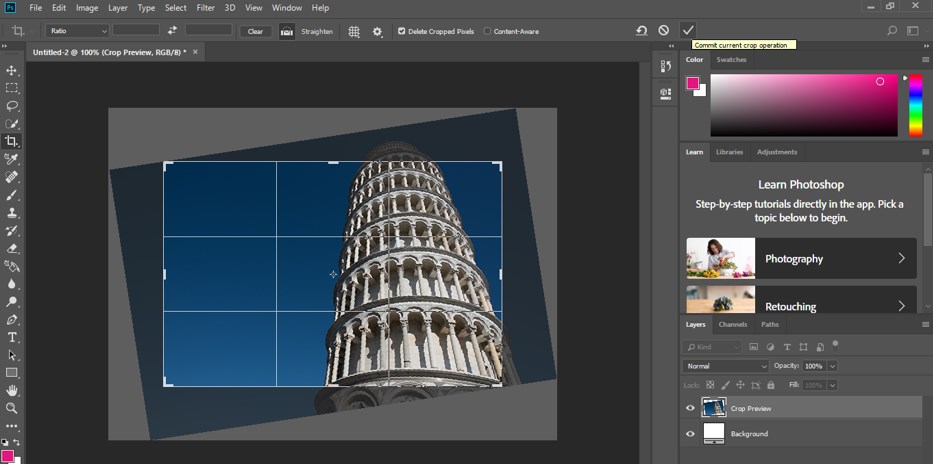
Step 10: Now, once you press the enter button of the keyboard for applying the change in your image crop tool will straight your image like this and crop an extra portion of your image. You can manage crop area as per your requirement.
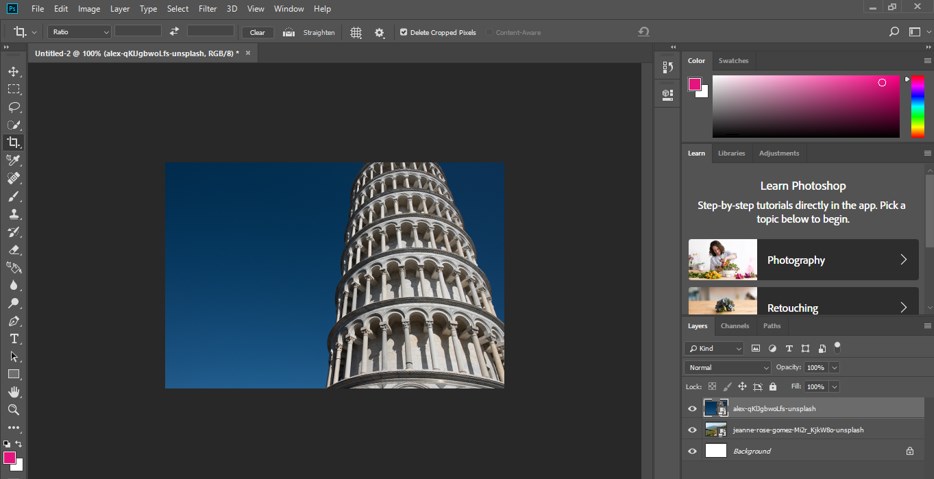
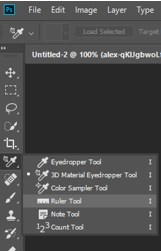
Step 11: Now, let us make straight our image with the help of the Ruler tool of this software. For the ruler tool, go to the tool panel and make right-click on the icon of the Eyedropper tool of this software. A drop-down list will be open like this. Click on the Ruler tool icon for having it.
Step 12: Now draw a line with this tool as we did with the crop tool. I will draw a line like this for making this image straighten in a horizontal direction.
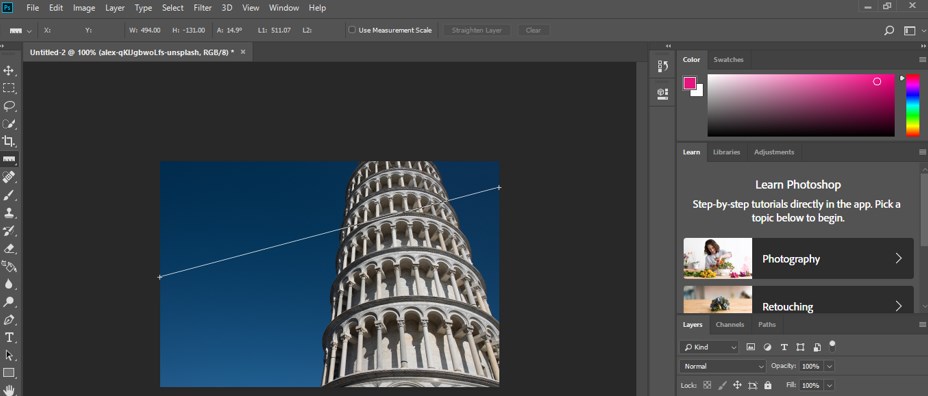
Step 13: Now go to the property bar of the ruler tool, which is below the Menu bar of this software and click on the ‘Straighten layer’ option of this tool with the mouse left button.

Step 14: Now, it will change your image like this.
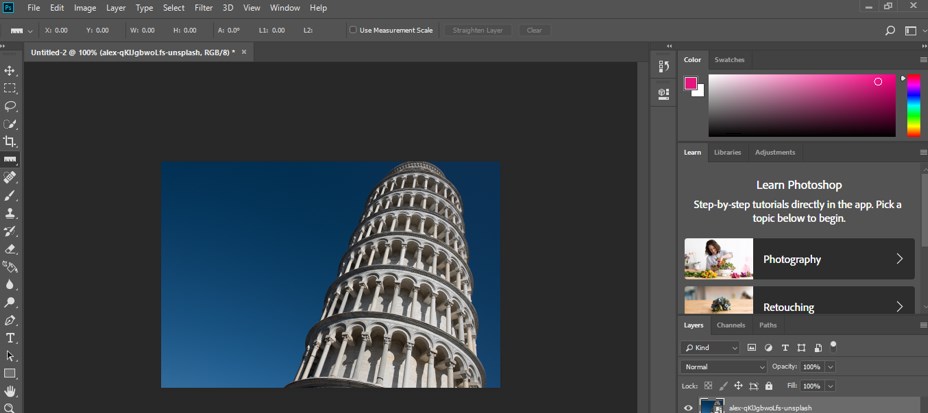
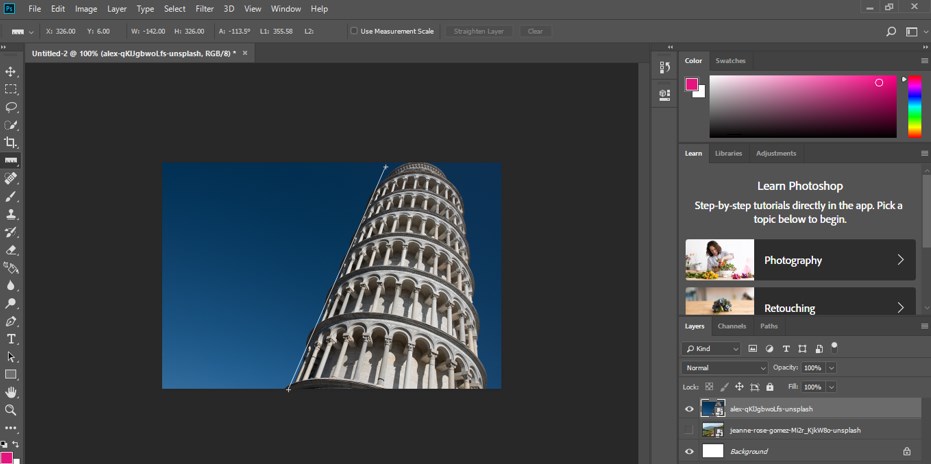
Step 15: Now, let us make it straighten in a vertical direction. For vertical direction, draw a line like this with a ruler tool. You can take a crop tool also for the vertical direction.
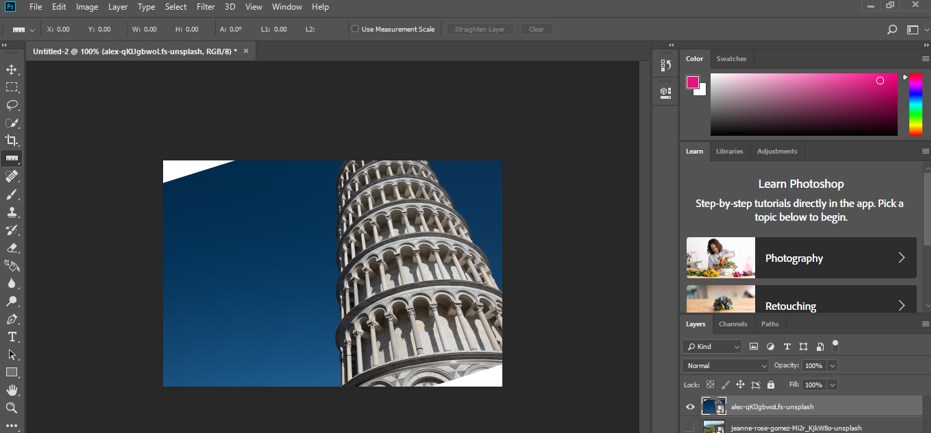
Step 16: And once you click on the ‘straighten layer’ option of this ruler tool, it will make it vertically straight like this, but with the ruler tool, you cannot get a cropped image. If you want to crop it, you can use the crop tool again for your desired portion of your straighten image.
In this way, you can straighten your image in a horizontal or in the vertical direction with the help of a crop tool or ruler tool of this software for your desired purpose.
Conclusion
Now, after this article, you can understand what image straightening is in Photoshop and how you can straighten your image in a horizontal direction or in a vertical direction. You can have a good command of this technique of Photoshop software after practicing on it.
Recommended Articles
This is a guide to Photoshop Straighten Image. Here we discuss the Introduction and how to use Straighten Image in photoshop in a step by step manner. You can also go through our other related articles to learn more –

