


Definition of Matlab Sort
This function sorts the elements of the vector, array, or variable in ascending lexicographical order. This function sorts the elements of the matrix and sorts each column and rows independently. This function sorts the elements along the first array dimension whose size does not equal when the Matlab sort function sorts a multidimensional array.
Syntax:
- Y = sort(X)
- Y = sort(___,direction)
- Y = sort(X,dim)
How Sort Function Work in Matlab?
There are simple steps to sort the elements, and the steps are as follows.
Step 1: Load the data into a variable or into an array.
Step 2: Use a function with proper syntax to sort the input data.
Step 3: Execute the Matlab code to run the program.
Examples
Lets us discuss the examples of Matlab Sort.
Example #1
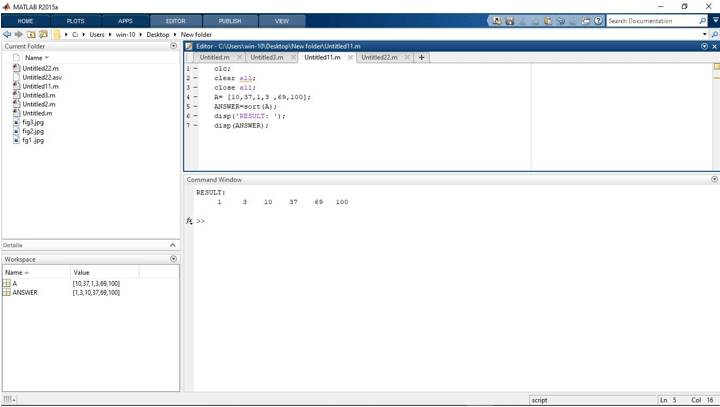
This example shows how to sort arrays in ascending order in Matlab. For that, we first create an array. Here we create an array A where numeric data is stored. “10, 37, 1, 3, 69, and 100” these numbers are assigned to an array A. After that, we sort the array ‘A’ using the Matlab sort function. “ANSWER = sort (A);” this syntax of the Matlab sort function is used for sorting array ‘A.’ By default, this function is in ascending order direction. So to sort any number that may be real and complex Numbers or any Symbolic Vector in Ascending Order in Matlab using the Matlab sort function is very simple. After that, we display the result using the Matlab display function. ‘disp(ANSWER);’ this line displays a sorted array.
Code :
clc;

clear all;

close all;

A= [10,37,1,3 ,69,100];

ANSWER=sort(A);

disp('RESULT: ');

disp(ANSWER);
Output:
Example #2
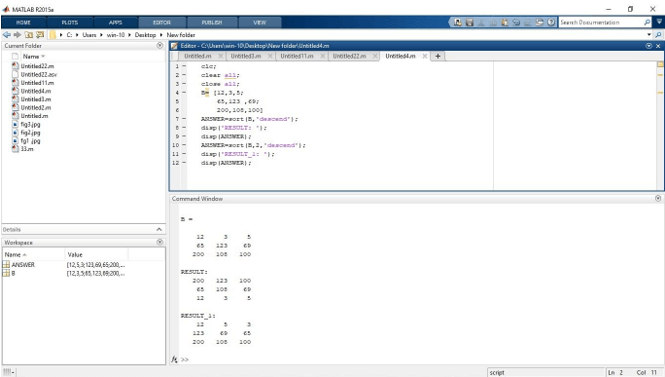
This example shows how to sort the input data into ascending and descending order. So we first create a matrix. Here we create a matrix ‘B.’ Matrix B is a 3×3 matrix with numeric input arguments. “B= [12, 3, 5; 65,123, 69; 200,108,100];” this line is used to create 3×3 matrix B. Then we Sort the matrix B. By default, the function sorts the elements of the matrix by ascending and descending direction. By default, the function sorts the elements of the matrix in ascending order. In this example, we can sort the matrix by descending order. “ANSWER = sort (B, ‘descend’ );” this syntax is used to sort the sorts the elements of the matrix by descending direction. After that, we display the result using the Matlab display function. ‘disp(ANSWER);’ this line displays a sorted array.
Code:
clc;

clear all;

close all;

B= [12,3,5;

65,123 ,69;

200,108,100]
ANSWER=sort(B,'descend');

disp('RESULT: ');

disp(ANSWER);

ANSWER=sort(B,2,'descend');

disp('RESULT_1: ');

disp(ANSWER);
Output:
Example #3
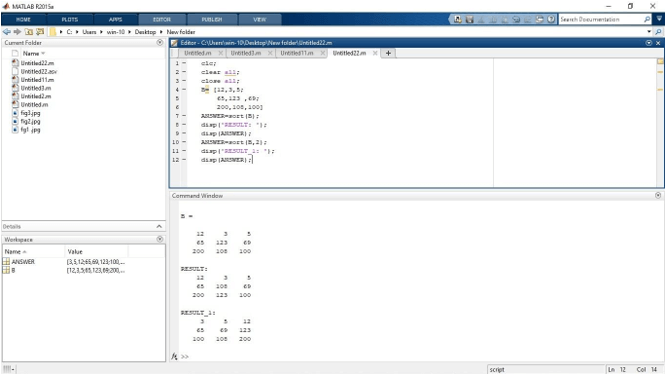
This example shows how to sort the matrix along with its columns and rows, as we know that we used the Matlab sort function for sorting the numeric expressions and functions in Matlab. So we first create a matrix. Here we create a matrix ‘B.’ Matrix B is a 3×3 matrix with numeric input arguments. “B= [12, 3, 5; 65,123, 69; 200,108,100];” this line is used to create 3×3 matrix B. Then we Sort the matrix B. By default, the function sorts the elements of the matrix as per each column. “ANSWER=sort(B);” this syntax is used to sort matrix B as per each column. After that, we display the result using the Matlab display function. ‘disp(ANSWER);’ this line displays the sorted matrix as per each column. Now we can see how to sort the matrix as per row. Using this function, we take the same matrix B and sort matrix B as per row. “ANSWER=sort(B,2);” this syntax is used to sort matrix B as per row. Here 2 indicated sorting dimensions. After that, we display the result using the Matlab display function. ‘disp(ANSWER);’ this line displays the sorted matrix as per each row. Execute the Matlab code to get the output.
Code:
clc;

clear all;

close all;

B= [12,3,5;

65,123 ,69;

200,108,100]
ANSWER=sort(B);

disp('RESULT: ');

disp(ANSWER);

ANSWER=sort(B,2);

disp('RESULT_1: ');

disp(ANSWER);
Output:
Conclusion
In this article, we saw the concept of the Matlab sort function. Basically, this function is used for the internal sorting of different elements. Then we saw the effective use when we sort the matrix along with its columns and rows.
Recommended Articles
This is a guide to Matlab Sort. Here we discuss the Definition of Matlab Sort, How Sort Function Work in Matlab? along with the examples respectively. You may also have a look at the following articles to learn more –

