
Updated March 14, 2023

Introduction to Matlab comment
We use ‘Comment’ in coding languages to provide narration to our code or block some lines of codes from getting executed. In MATLAB, we can provide narration that ranges from a few lines to hundreds of lines as per our requirement. It is a good coding practice to add narration or comments to a code that ensures the code’s smooth and easy understandability. But to prevent these lines from being executed by the compiler, we must ‘comment’ these lines. “Commenting” these comments or narration lines prevents the compiler from executing them and throwing run time errors. In this topic, we are going to learn about Matlab comments.
Syntax to provide comments in MATLAB:
There are 3 ways in which we can provide comments in MATLAB and prevent them from getting executed by the compiler:
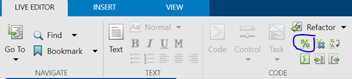
- Utilizing the “Comment” button present in the MATLAB Editor (Labelled as “%”)
- Utilizing the ‘%’ sign present in our keyboard
- Utilizing the “Ctrl + R” short cut keys
Examples of Matlab comment
Let us now understand how to provide comments in MATLAB.
Example #1
In the first example, we will make use of MATLAB’s “Comment” button present in the Live Editor. But, first, let us write a dummy code and provide a narration that will explain our code. Our purpose is to prevent our narration lines from getting executed by the compiler, for which we will “comment” the narration lines. Below are the steps to be followed:
- Write the code along with the narration to describe it
- Select the narrative lines which we want to comment (the lines written to explain the code)
- Click the “Comment” button (labeled as “%” sign) present in MATLAB’s “Live Editor” tab, as shown in the image below
Code:
I = [12 14 16 12 16 3]
E = exp (I)

[Step 1: Initialize the array]
[Step 2: Pass the array above as an argument]
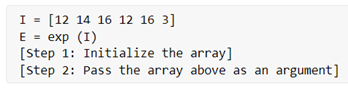
This is how our input and output will look like in MATLAB:
Input:
Output 1 (After commenting on the narration lines):
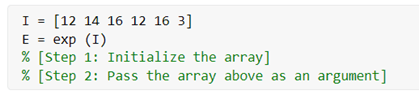
If we try to execute our code directly, we will get a run time error in lines to lines 3 & 4 as these lines are not understandable by MATLAB’s compiler. Therefore, we must use these lines as comments, i.e. “comment” these narrative lines, to avoid any error. In this example, we have used the “Comment” button present in the Live Editor for this purpose.
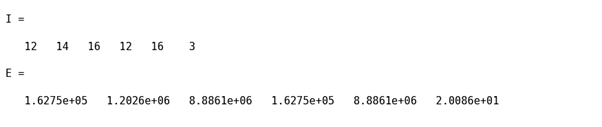
Output 2
Example #2
In the second example, we will be using our keyboard’s “%” key to comment on our narrative lines. In this example also we will be writing a dummy code with some narrative explaining the code. Our purpose is to prevent these narrative lines from getting executed by the compiler. Below are the steps to be followed:
- Write the code along with the narration to describe it
- Select the narrative lines which we want to comment (the lines written to explain the code)
- Prefix “%{“ before the narrative lines which we need to comment
- Suffix “%}” at the end of the narrative lines
Code:
I = [3 5 3 13 6 6]
E = expint (I)

[Step 1: Initialize the array]
[Step 2: Pass the array above as an argument]
This is how our input and output will look like in MATLAB:
Input:
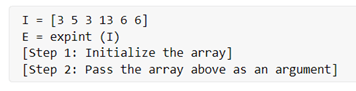
Output 1 (After commenting on the narration lines):
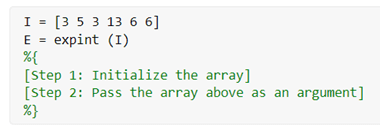
If we try to execute our code directly, we will get a run time error in lines to lines 3 & 4 as these lines are not understandable by MATLAB’s compiler. Therefore, we must use these lines as comments, i.e. “comment” these narrative lines, to avoid any error. In this example, we have used the “%” key present on our keyboard.
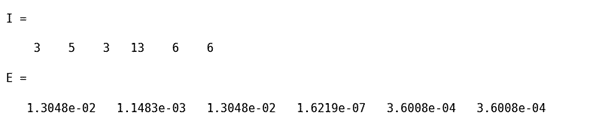
Output 2
Example #3
In the third example, we will be using our keyboard’s shortcut keys to comment on our narrative lines. For this, a combination of “Ctrl” plus “R” is used. For this example, we will use the same code as in the above example. Below are the steps to be followed:
- Write the code along with the narration to describe it
- Select the narrative lines which we want to comment (the lines written to explain the code)
- Press “Ctrl” plus “R” keys together
Code:
I = [3 5 3 13 6 6]
E = expint (I)

[Step 1: Initialize the array]
[Step 2: Pass the array above as an argument]
This is how our input and output will look like in MATLAB:
Input:
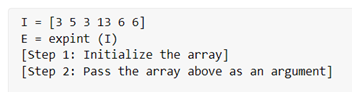
Output 1 (After commenting on the narrative lines):
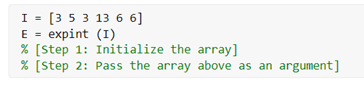
As we can see in the output, the narrative lines are now commented. This is achieved by pressing together “Ctrl” & “R” on our keyboard
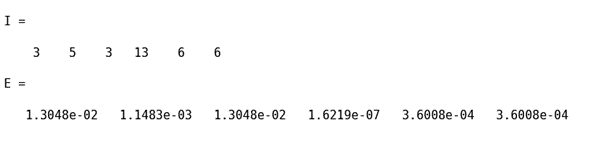
Output 2
Conclusion
- Comments are used in MATLAB to provide narrative lines for the code and prevent them from getting executed.
- Doing this prevents any run time errors from being thrown by the compiler as it does not understand human-friendly languages.
Recommended Articles
This is a guide to Matlab comments. Here we discuss how to provide comments in MATLAB along with the examples and outputs. You may also have a look at the following articles to learn more –

