


Introduction to GUIFormat
Have you tried formatting a large USB drive or SD card into FAT32 on Windows or Mac and encountered difficulty? Windows’ built-in formatter refuses to create FAT32 partitions larger than 32GB; that is where guiformat comes in, a quick and lightweight utility which quickly completes this task for you with no hassle whatsoever. This guide provides a comprehensive overview of GUIFormat, explaining how it works, when to use it, and which settings make the most impact when formatting drives to FAT32.
What is GUIFormat Used For?
GUIFormat is a simple Windows utility designed to convert USB drives, SD cards, and external hard disks with capacities exceeding 32GB to FAT32 format. It works almost instantly without requiring installation, with only an 18KB executable file. Its clean interface allows users to format drives without navigating complex menus or unnecessary options—just select a drive, adjust a few settings, and click “Start.”
Key Features of GUIFormat:
- Formats drives up to 2TB to FAT32
- Quick and full format options available
- Works with USB drives, SD cards, and external hard disks
Why Use FAT32 in 2025?
Although NTFS and exFAT are newer, FAT32 remains widely used because it is compatible with almost all devices and is relatively simple to use. Almost every device and operating system supports FAT32, making it ideal for cross-platform use.
When FAT32 Stands Out:
- Game Consoles and Retro Emulators: Many consoles and emulators prefer FAT32 for external drives.
- Cameras and Drones: Older firmware in cameras and drones often requires FAT32 SD cards.
- Smart TVs and Car Audio Systems: FAT32 ensures compatibility, unlike NTFS or exFAT.
- Cross-Platform File Sharing: Ensures seamless usage across Windows, Mac, and Linux.
Note:
FAT32 limits each individual file to a maximum size of 4GB. For everyday use, however, it remains a highly reliable option, which is why GUIFormat is still relevant.
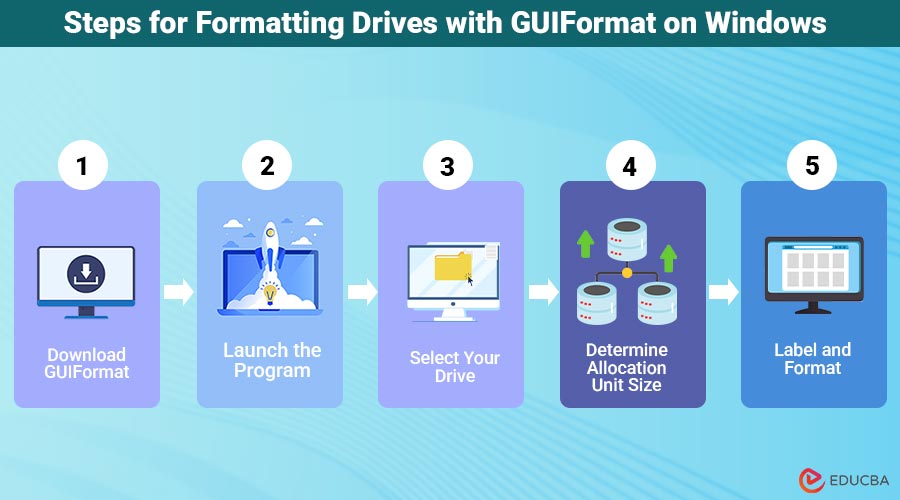
Steps for Formatting Drives with GUIFormat on Windows
Let us walk through the process together. It should go smoothly, though it does involve paying close attention to a few settings.
Step 1: Download GUIFormat
You can download the official version of Ridgecrop Consultants for free as a portable .exe file, which runs without requiring any installation or setup.
Step 2: Launch the Program
Right-click the program and select “Run as Administrator” to give GUIFormat the necessary access to your drives.
Step 3: Select Your Drive
Carefully choose your USB drive or SD card from the drop-down menu, as picking the wrong one may erase all its data.
Step 4: Determine Allocation Unit Size (Cluster Size)
This option specifies how the drive will store data. For most use cases, the default (32768 bytes) cluster size works best.
- Smaller cluster sizes waste less space but can temporarily slow access.
- Larger cluster sizes are more effective when working with larger files.
When formatting a flash drive for everyday use, select the default format option. For media storage (MP4s or photos), try using 64K instead.
Step 5: Label and Format
Give your drive an identifiable name under Volume Label; something descriptive, such as “MediaDrive” or “BackupUSB”.
- Choose Quick Format for a faster process, or leave it unchecked to perform a full, more thorough format.
- Click Start and accept the warning message before letting GUIFormat do its work.
It usually finishes within seconds.
Format an SD Card or Flash Drive for FAT32 Format
Formatting SD cards used in cameras requires extreme care; any discrepancies between file systems could render your device inaccessible and render its data meaningless.
Here is my usual approach when prepping SD cards for cameras or drones:
- Format the card using GUIFormat as FAT32.
- Optimally set cluster size at 32K for optimal performance.
- Name the volume corresponding to your device name (e.g., “CANON_SD”).
- Insert and reinitialize it back into the camera if required.
This step helps ensure your camera’s firmware can correctly structure folders such as DCIM or MISC. Flash drives follow similar guidelines; FAT32 remains compatible with TVs, car stereos, and older systems.
Comparing GUIFormat on Windows and Mac: What You Should Consider
GUIFormat is available exclusively on Windows computers; Mac users can get similar results using Disk Utility or the Terminal. On macOS, this process would be the equivalent:
Step 1: Launch Disk Utility
Visit Applications > Utilities > Disk Utility to make changes.
Step 2: Select Your Drive
Click on your USB or SD card in the sidebar to select it.
Step 3: Erase and Format
Click Erase and then choose MS-DOS (FAT) format as your scheme and Master Boot Record (MBR) scheme as the destination format.
Step 4: Confirm and Wait
After the process finishes, your drive will use the FAT32 file system. MacOS does not support FAT32 partitions larger than 32GB; therefore, if you need to format 128GB or 256GB drives using GUIFormat on a Windows system, you should do so.
Cluster Size in FAT32 Formatting
Cluster size significantly impacts performance and storage efficiency:
- Smaller clusters (8K–16K): Ideal for drives with many small files.
- Default clusters (32K): Balanced performance for general use.
- Large clusters (64K): Best for media-heavy drives with large files.
Choosing the correct cluster size ensures that your drive works efficiently with minimal wasted space.
Common Issues and Solutions to Fix Them
Let us address each one individually.
Issue 1: “Your Drive Is Write-Protected”
If this message appears, and your SD card contains a physical lock switch, slide it to unlock and return it to its unlocked position. For USB drives, use the Windows Diskpart utility to remove write protection.
Issue 2: GUIFormat Freezes or Closes
Error code 301 indicates a problem with your hard drive. Before using GUIFormat again, run Chkdsk X:/f in the Command Prompt to repair it.
Issue 3: Device Not Recognized
Unplug and reinsert the drive, or try switching to another USB port. Occasionally, the system may not assign a drive letter properly. To assign one manually, use the Disk Management tool.
Quick Tips for Safe Formatting of Data Files
- Always back up your files before formatting, as data loss can be permanent and irreversible.
- Unless suspecting bad sectors, use Quick Format instead.
- Avoid interrupting the process; although GUIFormat can be done quickly, an abrupt disconnect could still damage the partition table.
- Reformat your flash drive regularly if its performance begins to degrade; flash drives wear out over time.
Final Thoughts
GUIFormat is a lightweight, efficient, and reliable utility for formatting USB drives, SD cards, and external hard drives to the FAT32 file system. Its simplicity, portability, and ability to handle large drives make it an essential tool for photographers, gamers, and anyone who needs universal device compatibility. From formatting drives for cameras, smart TVs, or gaming consoles to preparing SD cards for drones, GUIFormat remains a trusted solution in any digital toolbox.
Frequently Asked Questions (FAQs)
Q1. Can GUIFormat format NTFS or exFAT files?
Answer: No, GUIFormat was developed specifically to work with FAT32 files.
Q2. Is GUIFormat safe to use?
Answer: Yes, GUIFormat has earned the trust of IT professionals and enthusiasts over many years.
Q3. What is the Maximum Size Supported by FAT32?
Answer: FAT32 can support files up to 2TB in size, although most people find that using it for storage of up to 512GB suffices comfortably.
Q4. Why can’t Windows format FAT32 beyond 32GB?
Answer: That is an artificial design limitation from Microsoft; GUIFormat offers a workaround.
Recommended Articles
We hope this guide on GUIFormat helps you easily format your drives to FAT32. Check out these recommended articles for more tips and tricks to manage your USB and SD storage effectively.

