
Updated November 23, 2023

Introduction to GIMP blur background
In this article, we are going to learn how to blur the background in GIMP. You might have used portrait mode in a mobile camera, which keeps the subject in focus and makes other things out of focus. Though the actual blur can be done by any blur method such as Gaussian blur, for example, but while performing blur on the background, the main thing is to keep the subject in focus while blurring the background. We will be doing this in GIMP with the help of a plugin named resynthesizer which will give us some filters to work with. This technique gives a professional look to your images and, at the same time, reduces distractions.
Steps of GIMP blur background
Different are steps mentioned below:
Step 1: First, we will need some stock images, which you can download from any stock image site like Freepik, Unsplash or Pixels. Download an image with the subject in the foreground with the background is in focus.
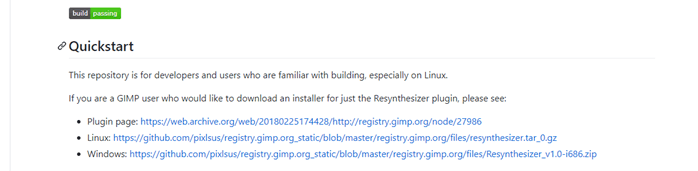
Step 2: Next, we will go to https://github.com/bootchk/resynthesizer/blob/master/README.md to download a GIMP plugin Resynthesizer_v1.0-i686.zip from the Windows link. Once the file is downloaded, extract it.
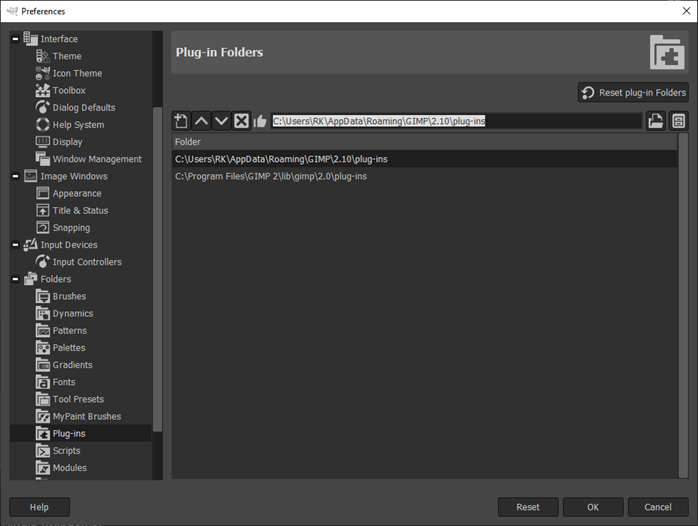
Step 3: Then open GIMP and go to Edit -> Preferences and navigate to the Plugin section to find the location of the plugins.
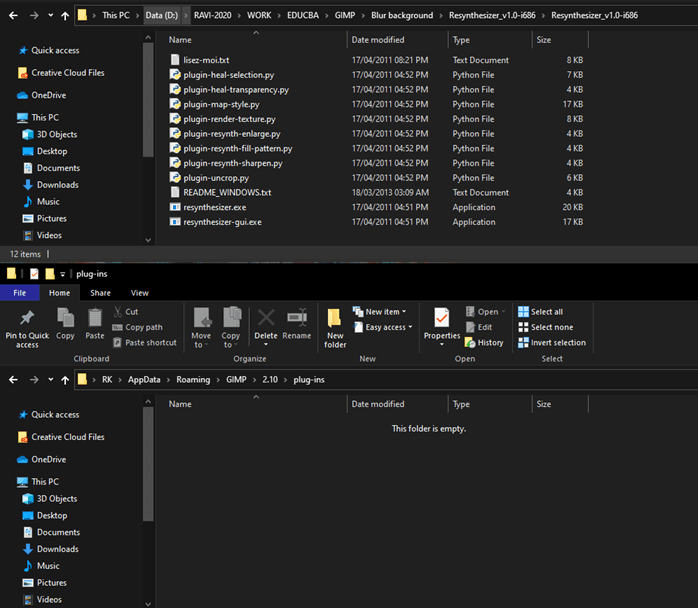
Step 4: Copy the path and paste into the explorer, and then copy the extracted files of the Resynthesizer plugin into the GIMP plugin path.
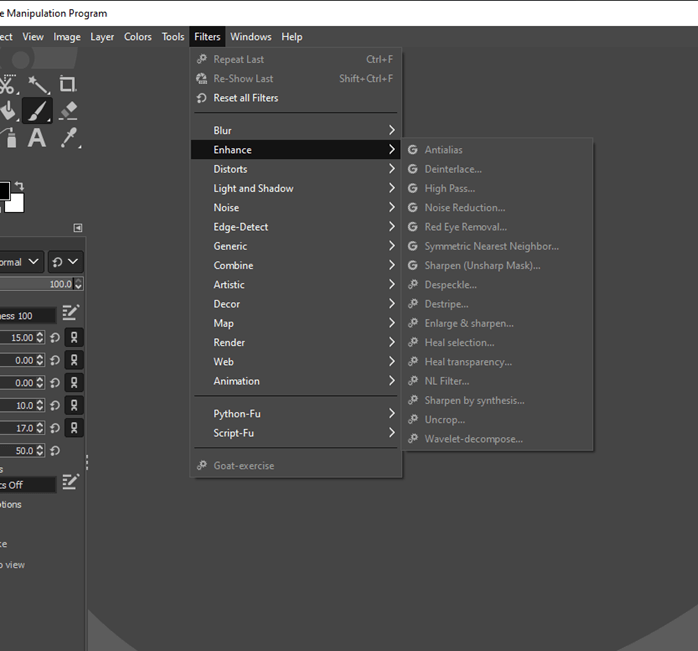
Step 5: Restart GIMP and check the Filter -> Enhance to find new options.
Step 6: Now, open the image in which you want to blur the background in GIMP
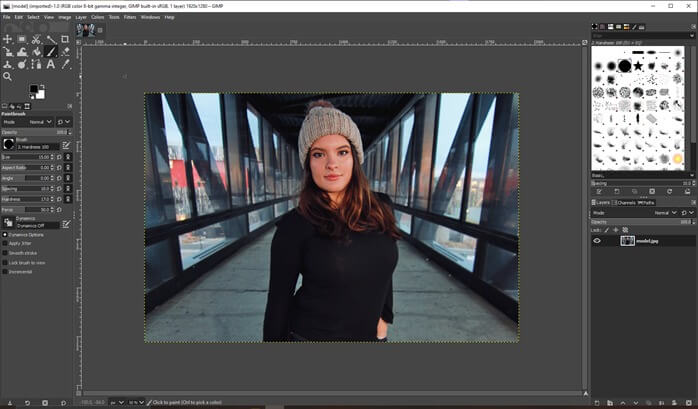
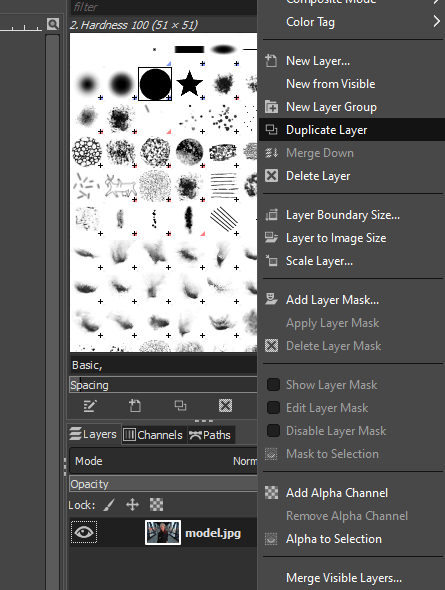
Step 7: Now duplicate the existing layer by right-clicking or clicking on the layers panel icon.
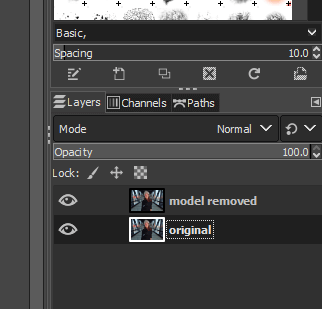
Step 8: Rename the first layer to “model removed” and the second to “original.”
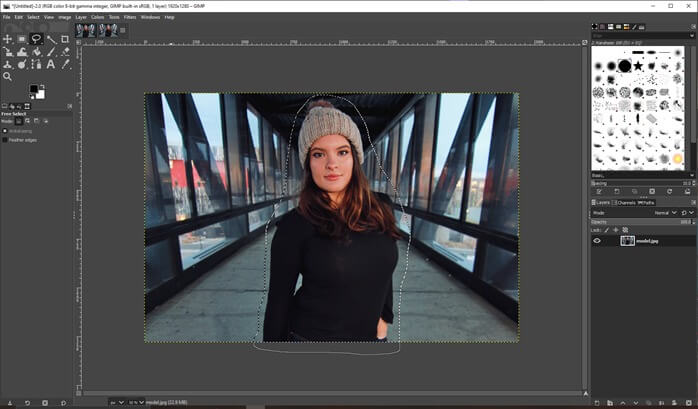
Step 9: Then, use the lasso or free select tool and draw the lasso loosely around the model. You can add and remove from selection by selecting other options if you have made a mistake.
Step 10: Then go to Filters -> Enhance -> Heal Selection. Note that if you do not install the plugin as shown in previous steps, this option will not be shown.
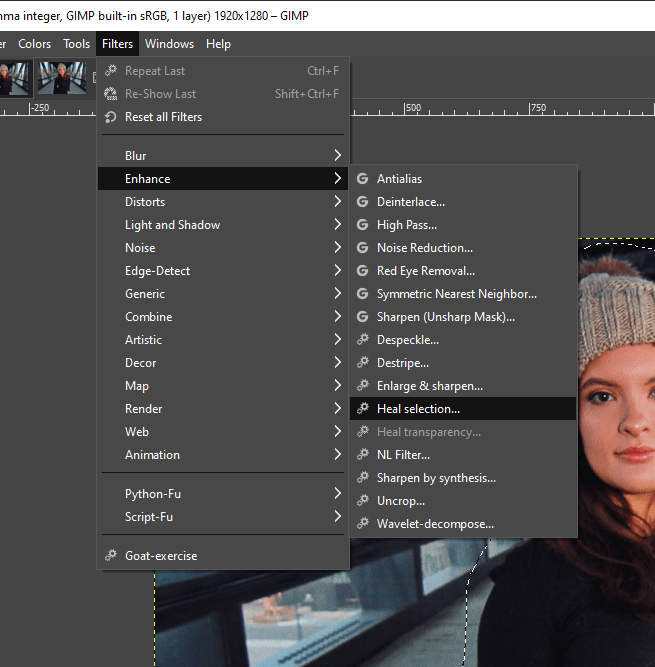
Step 11: Set the parameters as shown, which is context sampling width, to 150px, and the filling order will be inwards toward the center.
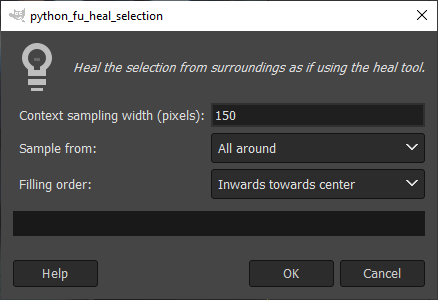
Step 12: Since we do not want the color from the model to blur outside of it, so we perform this step, which gives us a rough approximation of the background in this space.
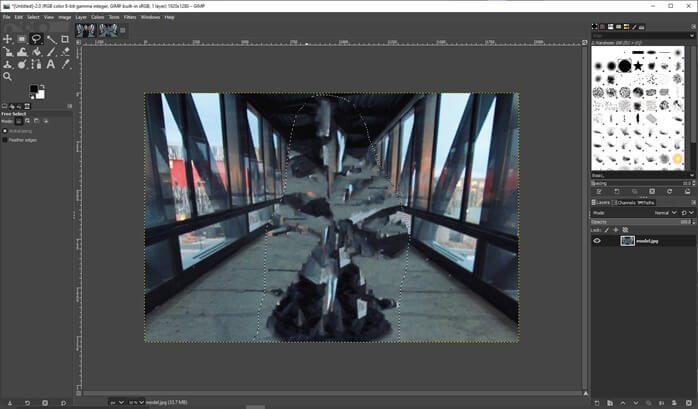
Step 13: Duplicate the original image on top of the model removed layer. Also, keep a copy of the original just in case if you want to compare it to the original image.
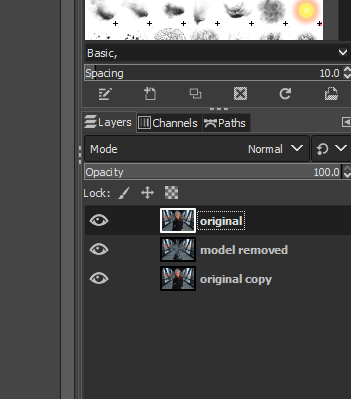
Step 14: Next, we use the foreground select tool to select the model loosely, as shown, and close the loop.
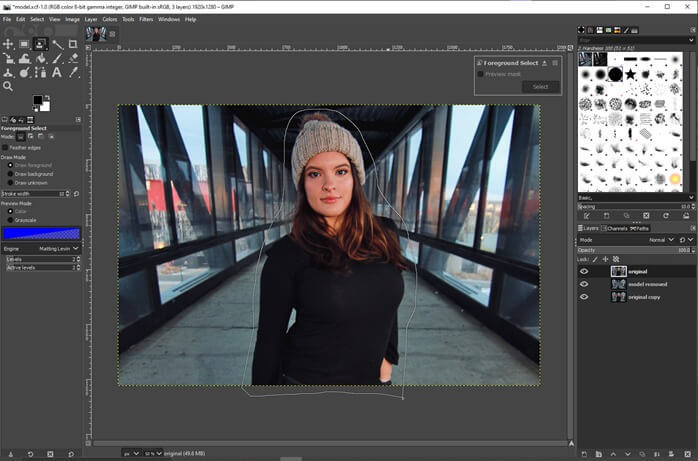
Step 15: Once the selection is made and you have covered the entire model, then press enter. You can see that now the mouse pointer is changed to a paint tool.
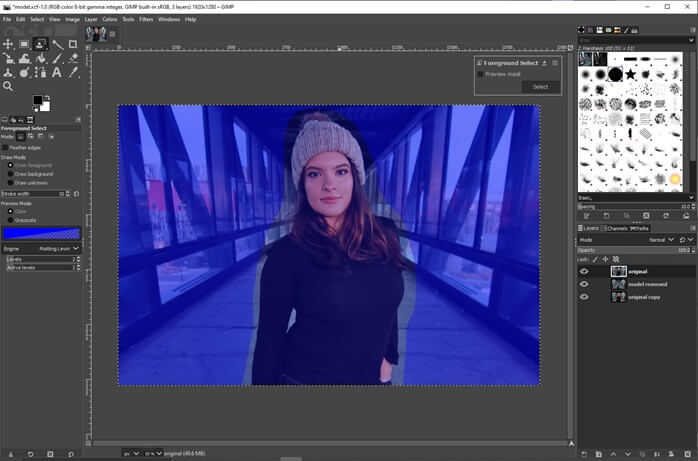
Step 16: Now start painting the model, which is the foreground object, and anything in the blue area is the background. Get a good coverage of the foreground, but it doesn’t need to be exact. Once done, press enter. Also, make sure that the brush has feathered edges selected, which will give a more realistic blend of background and foreground.
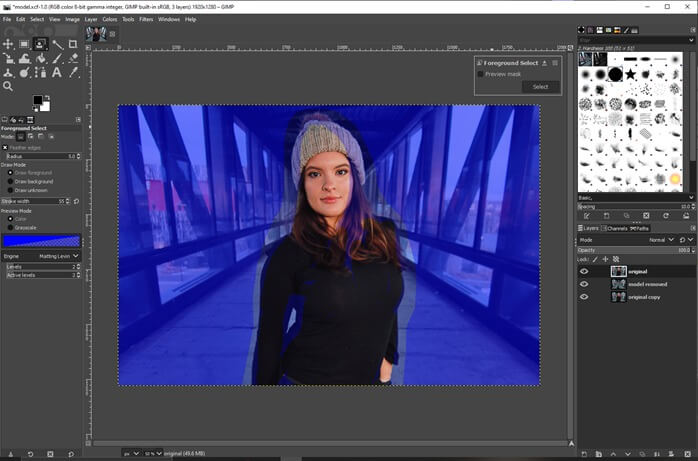
Step 17: You can do the fine adjustment now by adding the parts to the foreground if you have missed them.
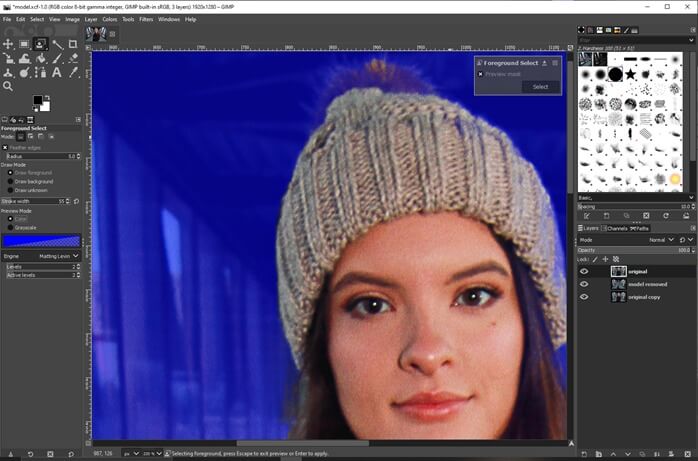
Step 18: You can also look at a grayscale version if you want to preview it like that.
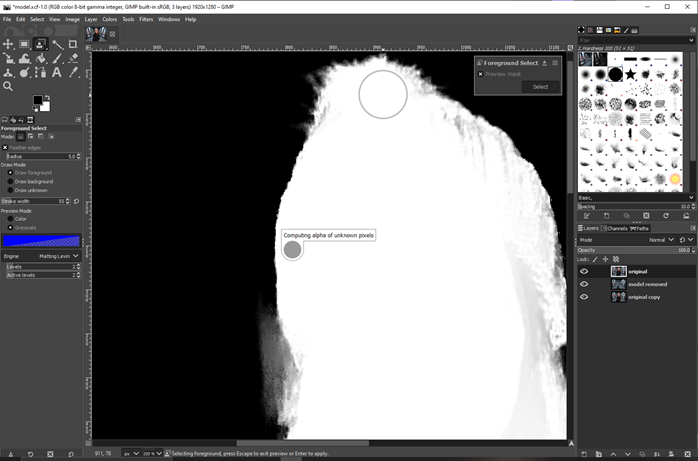
Step 19: You can also draw on the background if it is added in the foreground.
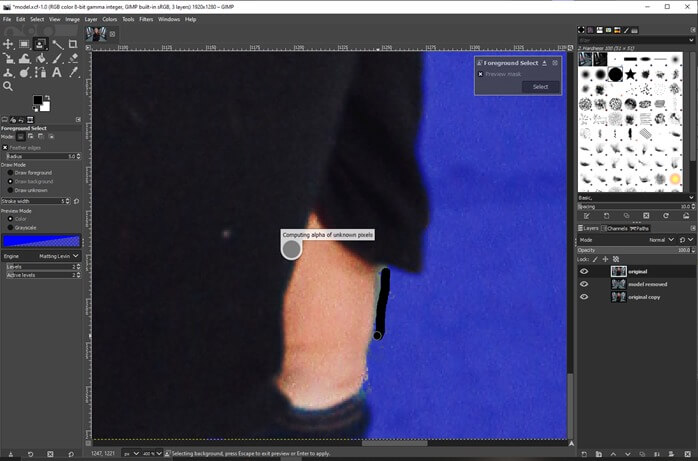
Step 20: Again, you can do fine adjustments using draw on the foreground and background options.
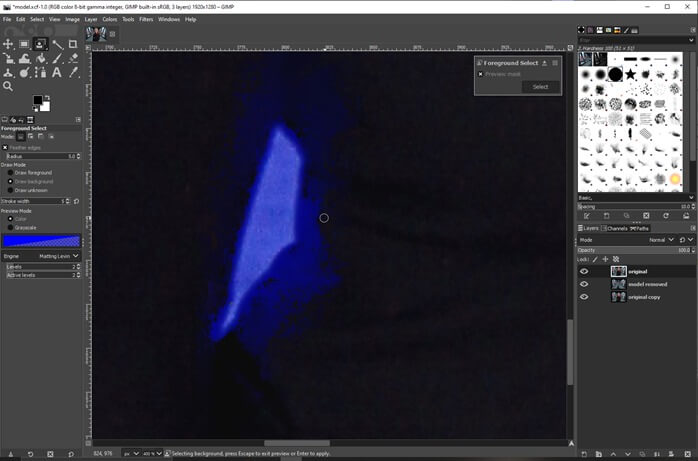
Step 21: As shown, first, the foreground select tool has selected more in the background than needed, so we have adjusted by drawing in the foreground. After you finish adjusting, press enter, and the foreground object will be selected.
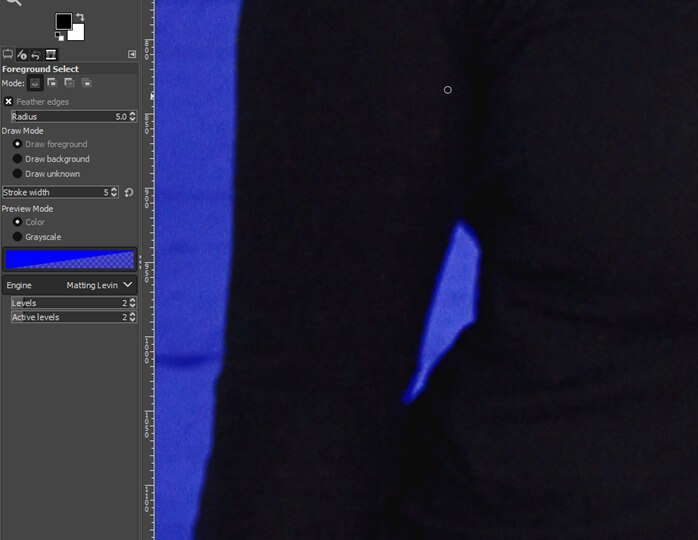
Step 22: Now select the original layer and right-click to add a layer mask.
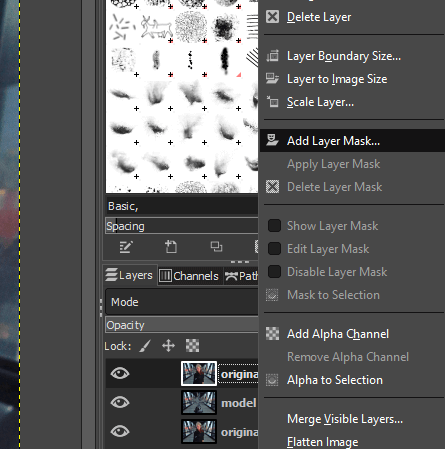
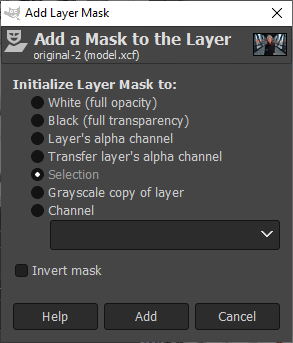
Step 23: Make sure the selection is checked in the options and the invert mask is unchecked. This will mask everything from this layer except the subject in the selection.
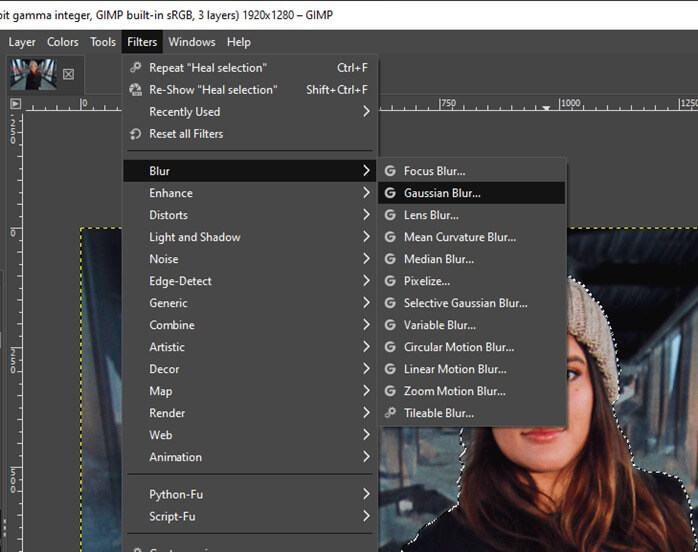
Step 24: Press ctrl + shift + and if you have still selected the subject, which will deselect it and then select the “model removed” layer and then add a blur using Filters -> Blur -> Gaussian Blur
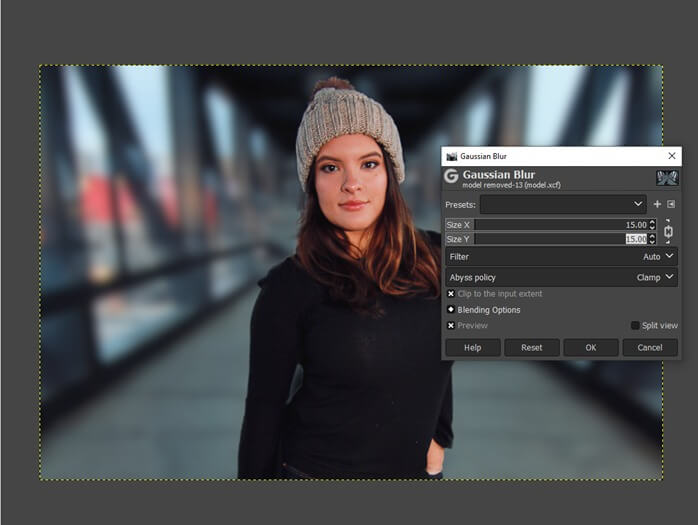
Step 25: Set size x and size y to 15 to get a proper background blur or shallow depth of field.
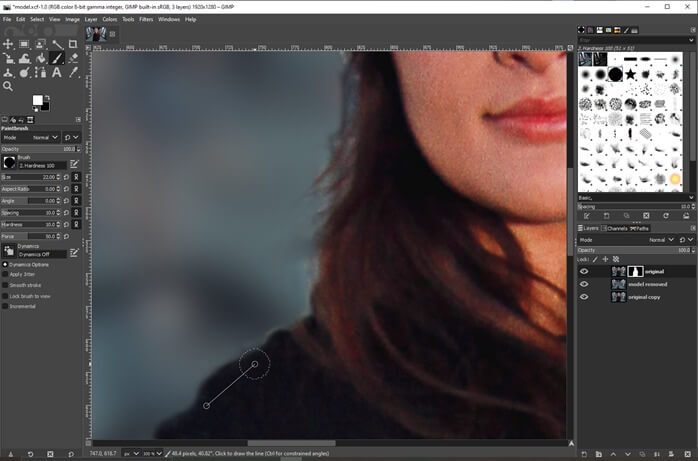
Step 26: Now select the mask to make some finer adjustments, and first make sure that the foreground and background are set it to their default values of white and black. Then, select black mask paint to add to the mask and white paint to remove from the mask.
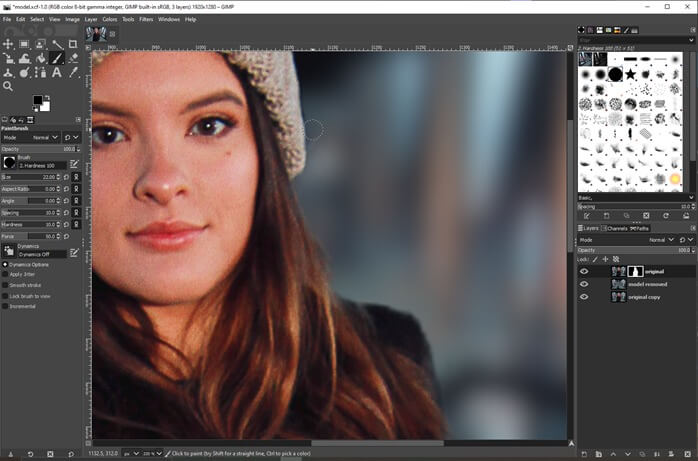
Step 27: You can press X to switch the background and foreground color and set what is masked out and what is not. So, the more time is spent on refining the layer mask and edge between the foreground and the background object; the better will be the final result for the blur background effect.
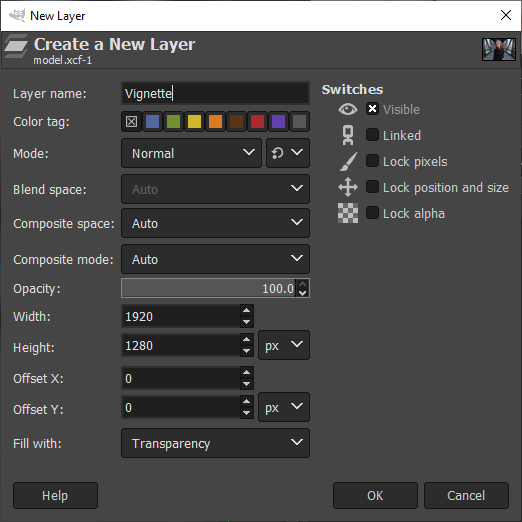
Step 28: Then create a new layer named vignette and fill it with set to transparency.
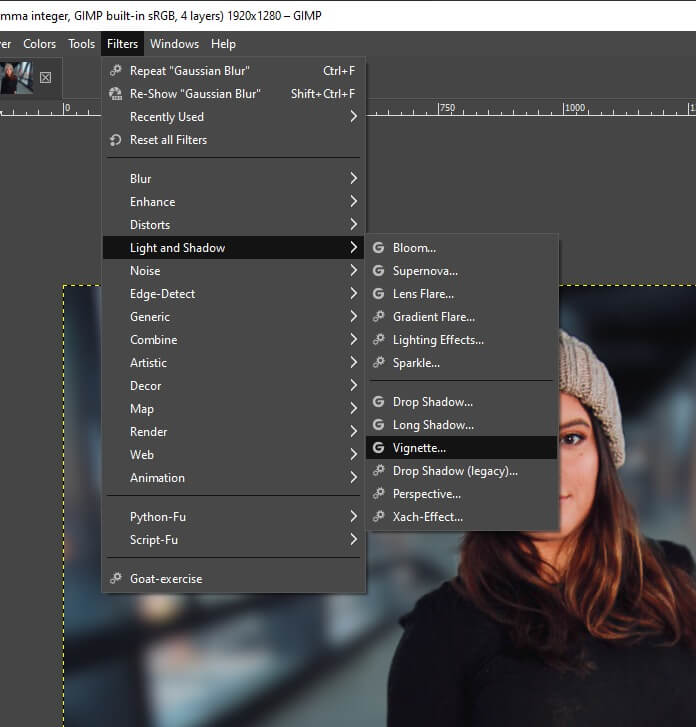
Step 29: Now go to Filters -> Light and Shadow -> Vignette
Step 30: You can change the radius, softness, gamma and other parameters depending on how prominent you want your subject in focus.
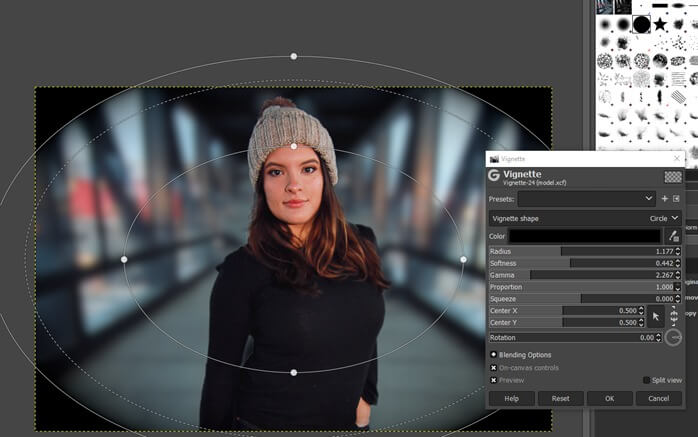
Step 31: Then reduce the opacity of the vignette layer to make it look decent.
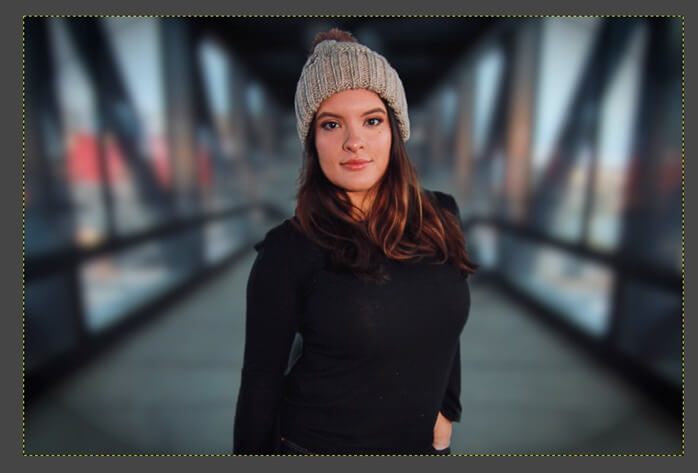
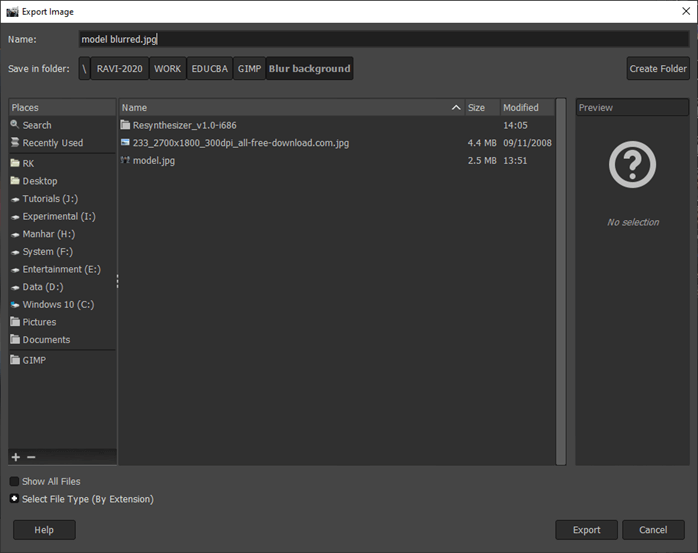
Step 33: Finally, we will export it as a jpg from the file menu to get the result.
Conclusion
In this article, we have learned how we can blur background using GIMP. First, we have seen how to use the install resynthesizer plugin, which provides us with the necessary tools and then we selected the subject with the foreground select tool and then applied the layer mask to the selection, and then enhanced the mask to match the subject as close as possible and then we have finished with some post-processing effects like a vignette.
Recommended Articles
This is a guide to GIMP blur background. Here we discuss the Steps of GIMP blur background and how we can do blur background. You may also have a look at the following articles to learn more –

