

Introduction to Figma Plugins
Figma plugins are a designing platform that provides additional tools to UI designers, and the plugins collections of it built by different communities. With Figma, you can extend your working capacity for designing work, and it also provides helpful features in the form of exciting plugins with their time to time update format. If you explore Figma on the internet, you will find a number of the plugin in it, and here we will see some of them with their proper explains. You will get knowledge about how you can connect with these plugins and use them in the right way for your design work.
Top Figma Plugins
Here in our list, we have the top 6 Figma plugins you must know to manage effective work in this field.
So let us go through these plugins one by one.
1. Content Reel
As we can understand by its name, content reel provides contents, but which type of content? It involves avatars, text strings, different type of icons which you can use in your designing work. You just have to select layers in your design file and export them in Figma (you may select one or more layers according to you), then choose avatars, text, and other things from this plugin that you want to use in your design.
2. Unsplash
Unsplash is a beautiful collection of almost every type of image with high resolution, and you can use images of it in your designing work without worry. You can also search for your specific type of image requirement in the search box of it. You can also do any manipulation work in an image taken by this plugin.
3. Image Palette
You can develop solid color from this for your UI design. When you extract color from any image in Figma by this plugin, it gives 5 color ranges from that extraction.
4. Figma Chat
As its name shows chat, that means it is like a chatting application so you can interact with people regarding your design file with it, and in this interaction, you can share elements of your design for getting solutions for your problems.
5. Super Tidy
In designing, there is an important role of alignment because we need the exact alignment of different elements of our design every time. Super Tidy is one of a plugin of Figma which align our design element very quickly on the basic of their distribution on canvas. It aligns our element and renames them during rendering of them on the layer in sequence, and this sequence based on their position or distribution on canvas.
6. Able
This plugin works for the differentiation of color contrast between layers. That means it automatically compares your chosen layer’s contrast and gives you knowledge about their color difference for the proper work flow of your design.
These were some important plugins of Figma, which we have seen above. You find more when you go on Figma.
Now let us see how we can install them in our personal computer for using them in our designing purposes.
7. UiChemy
While Figma plugins help streamline your design process, tools like UiChemy take it one step further, from design to a live website.
UiChemy is a Figma-to-WordPress toolkit that helps you convert your Figma designs into dynamic, responsive WordPress pages. It supports major builders, including Elementor, Bricks, and Gutenberg, with additional integrations on the way.
With UiChemy, you can:
- Instantly convert your Figma designs to 100% editable WordPress layouts
- Sync with Global Styles effortlessly.
- Use the Responsive Output Manager for perfect results across devices
- Import full websites using One Click Site Import
- Get support for over 50+ design widgets
Whether you’re building a light logo design or a full-featured website, UiChemy helps you save up to 70% of your design-to-development time, making it a must-have for designers working with WordPress.
You can explore UiChemy in the Figma Community and start building faster than ever.
How to Install Figma Plugins?
Now we will see the installation process of Figma plugins. You will find many plugins on Figm.com, but we will show you by installing of one plugin for your knowledge and by the same way, you can install other plugins of Figma.com according to your requirement.
The first thing you have to do is search for Figma.Com on any search engine, and you will find this website page, which is the Figma plugins home page.

Now go to the community tab of this page and click on the scroll down box’s plugins option.
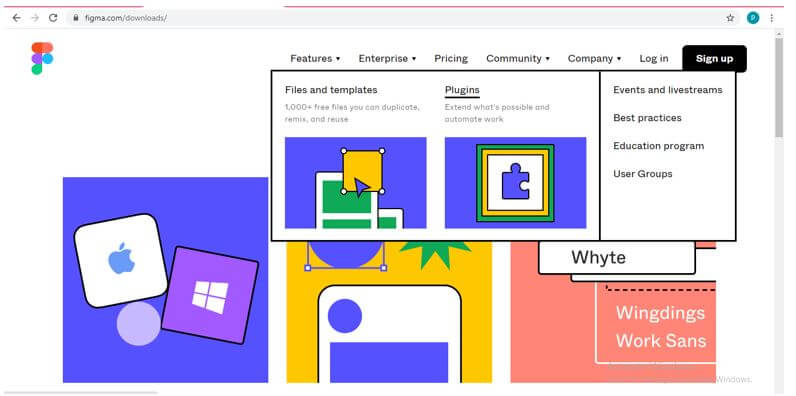
Now here you will find a number of list of plugins. We will install Unsplash for your understanding so click on the Install button of it.

If you are not logged in, then you have to login into Figma.com. If you have not created an account on it, click on the Sign Up button of this dialog box, or if you have already an account on figma.com, click on the Login button of this box.
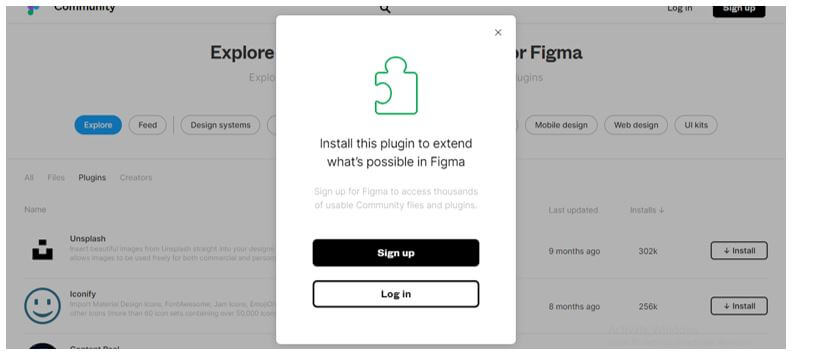
After login, you have to once again click on your desired plugin’s install button.
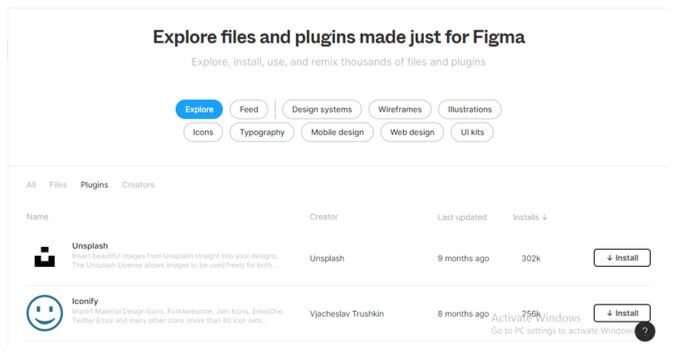
And once it installed, there will be an Installed button in place of the Install button.

This way, you can install any plugin of Figma for using it for your designing purpose.
How to Use?
Given below shows how to use Figma Plugins:
Now, after installation of your desired plugin, go to this scroll down list by clicking on this Search button and go to the Plugins option of this list, then click on your desired installed plugin.
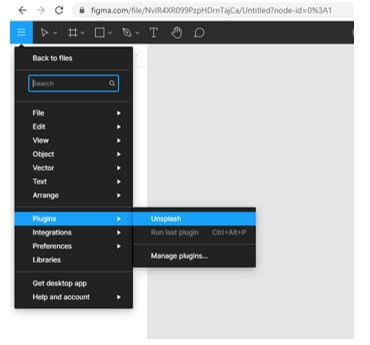
We opened Unsplash plugin, so it will open like this. Because Unsplash offers you images so here is the list of the image in the Unsplash plugin dialog box. You can choose anyone from this list, or you can search your desired image in the search box of it. Once your desired image open, you can use that opened image in an exported file of your design in Figma.
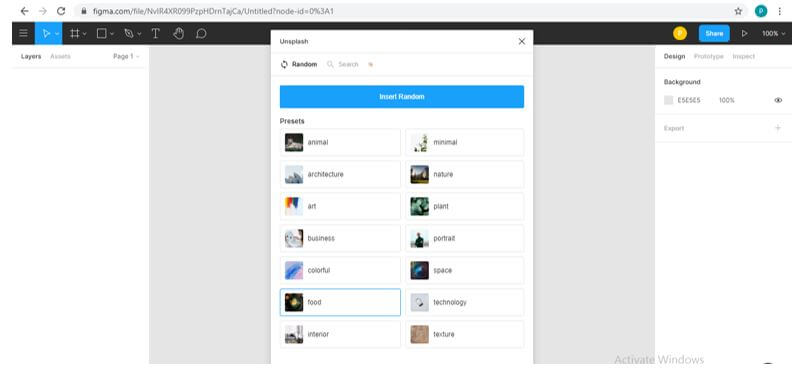
This way, you can install and use plugins of Figma for enhancing your designer work ability.
Recommended Articles
This is a guide to Figma Plugins. Here we discuss the introduction, top Figma plugins, installation and how to use plugins, respectively. You may also have a look at the following articles to learn more –

