


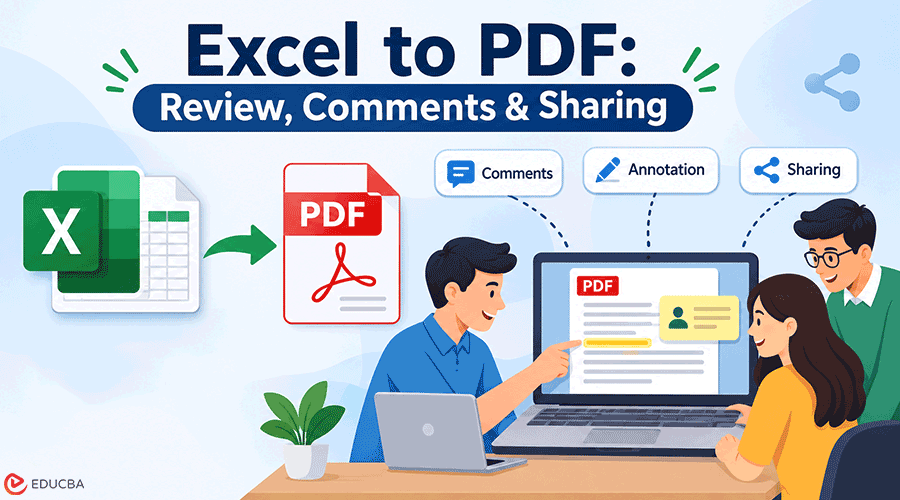
For collaboration, comments, and sharing, send reviewers a PDF and keep the editable workbook yourself. Adobe Acrobat’s Excel to PDF converts XLS and XLSX files online in any browser, keeps tables, rows, and columns, deletes files unless you sign in to save, and lets signed-in users share the PDF for review with comments, replies, and @mentions. This article is for professionals looking for top online services that turn spreadsheet documents into a format that supports review and sharing.
Excel to PDF: Share the PDF for Review
Convert a cleaned copy of the workbook, then share the PDF with named reviewers so they comment on the same pages. Adobe’s page says signed-in users can share the PDF for review with comments, replies, and @mentions, and that the converter keeps your tables, rows, and columns. A PDF suits a finished sheet because the layout stays fixed. Because reviewers cannot change formulas in a PDF, keep the editable workbook with you and send changes back into it. Sign in first so the link stays available.
- Sign in to keep it: Adobe deletes uploaded files unless users sign in to save them. Sign in to keep a shared PDF available.
- Layout: Set page breaks, orientation, margins, and the print area to prevent Adobe from cutting off pages.
- Clean first: Microsoft’s Document Inspector finds hidden data and personal information, so run it on the copy you convert.
- Link settings: Microsoft’s OneDrive help describes Block download, an expiration date, and a password, and says the password option applies to Anyone links.
- One master: collect comments in one place, because several annotated copies are hard to reconcile.
Best Tools to Convert Excel to PDF Online, Annotate, and Share
Convert Excel to PDF online, then annotate and share it for review. Adobe Acrobat, iLovePDF, PDF24, and ONLYOFFICE offer online conversion, while Nextcloud and ONLYOFFICE support self-hosted editing. Adobe also supports comments, replies, and mentions. Check other tools for annotation features.
| Platform | Best For | Key Details |
| Adobe Acrobat (Excel to PDF) | Converting and sharing for comments | Works in any browser; signed in users can share the PDF for comments, replies, and mentions; files are deleted unless you sign in to save |
| iLovePDF | Quick online conversion | Says files are deleted automatically within two hours, with a manual delete option; annotation is not part of the conversion |
| PDF24 | Free online conversion | Says files are deleted from its server after one hour and servers are in Germany; annotation is not part of the conversion |
| ONLYOFFICE | Converting and PDF work on your own server | Its converter handles XLSX, CSV, ODS, and PDF among 50+ formats, and its Docs editions list a PDF editor |
| Euro-Office in Nextcloud | Annotating and redacting a PDF | Nextcloud says its PDF editor can annotate PDF files and redact sensitive information, and that you can self host it |
| Microsoft Excel | Exporting a PDF on your own device | Saves a PDF with standard quality for printing or minimum size for online use; nothing is uploaded |
- Annotation after download: with converters that give you a file, annotation happens in the PDF viewer your reviewers use.
- Redaction: Euro-Office in Nextcloud and LibreOffice support PDF redaction to protect sensitive information.
- Self-hosting: ONLYOFFICE Community Edition supports Docker installation, while Nextcloud offers self-hosted Office solutions.
- Retention: Deletion times vary by provider, so test with a non-sensitive file first.
- Size: ONLYOFFICE limits uploads to 5 MB without registration, while Adobe states no file size limit.
Excel for the Web: How to Share, Collaborate, Handle Comments, and Use Version History?
In Excel for the web, share the workbook with named people, collaborate on the same sheet, discuss changes in comments, and use version history to see or restore earlier states. Microsoft says you can create, view, and edit workbooks stored on OneDrive or Dropbox and share them by entering email addresses or copying a link, and that people can view worksheets, sort, filter, and drill into PivotTables. Microsoft says the live presence and updates work only when everyone is working in Excel for the web.
- Who can see it: Microsoft says you can share a workbook with friends, coworkers, or the public, so choose named people for review.
- Comments: Microsoft says threaded comments let people mention colleagues, and people with write access can resolve and reopen threads.
- Version history: Microsoft’s SharePoint help says versioning shows when and by whom a file was changed, lets you view a previous version without overwriting the current one, and lets you restore it.
- Compare: the same help says that when you view version history in a Word or Excel file, you can compare two versions to see the differences.
- Check-in comments: the same help says check-in comments become part of the version history when versions are tracked.
- Where it works: a guide says version history works only for files stored in OneDrive or SharePoint in Microsoft 365.
- Not a change tracker: the guide says co-authoring does not offer track and review changes inside the workbook, so use version history and comments instead.
- Format: Microsoft says live co-authoring needs XLSX, XLSM, or XLSB.
Frequently Asked Questions (FAQs)
Q1. Can I see who changed a shared workbook?
Answer: Yes. Microsoft SharePoint version history records when a file was modified and who made the changes. It also lets you view earlier versions without changing the current file. A guide says co-authoring does not track and review changes cell by cell inside the workbook, so use version history to find the version, then compare it with the current file.
Q2. How do I restore an earlier version of a shared workbook?
Answer: Open the version history, view the earlier version, and restore it if it is the one you want. Microsoft says restoring replaces the current version with the previous one, and that you can view a previous version without overwriting your current one. Because a restore changes what everyone sees, tell collaborators first, and keep a downloaded copy of the current file.
Q3. What happens to a converted PDF if I do not sign in?
Answer: Adobe’s page says the converter deletes files unless you sign in to save. That means a reviewer link to an unsaved PDF may not stay available, so sign in before you share, and keep your own copy of the PDF. If you only need a one-time download, deletion is a privacy benefit, and you can email the downloaded file.
Q4. How do I choose between a PDF and a workbook link for review?
Answer: Choose based on review needs. Share a PDF for reading and commenting, or an Excel workbook link for collaboration, comments, and version history. You can also share both to support different reviewers.
Recommended Articles
We hope this Excel to PDF guide helps you convert, review, and share spreadsheets with ease. Discover these recommended articles for useful tips and practical guidance on managing Excel files and PDF documents more effectively.