

CODE Function (Table of Contents)
CODE in Excel
Excel CODE function returns the ASCII value of a character or the first character in a cell. It returns the numeric code. ASCII stands for American Standard Code for Information Interchange.
CODE Formula
Below is the CODE Formula:
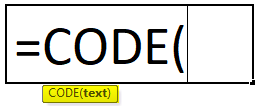
Where the supplied arguments are:
- Text: It is the text string for which we want the code of the first character.
It is a worksheet function in excel. As a worksheet function, the CODE function can be used as part of a formula.
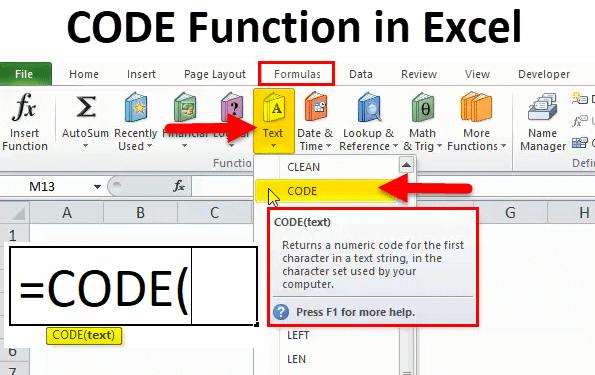
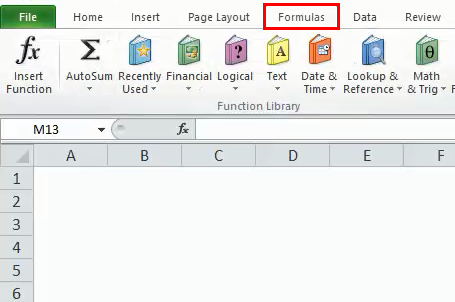
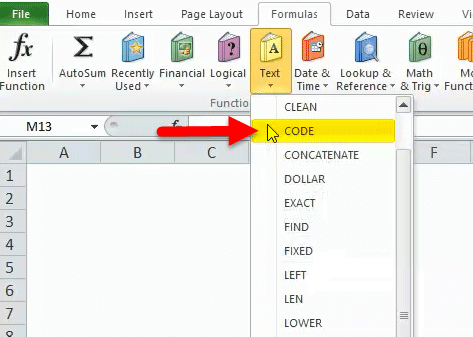
The CODE function is a built-in function in excel, and it falls under the TEXT Functions category. It found under the FORMULAS tab. Please follow the below steps:
- Click on the FORMULAS tab.
- Select the TEXT functions option. After clicking on the TEXT option tab, It will open a drop-down list of functions.
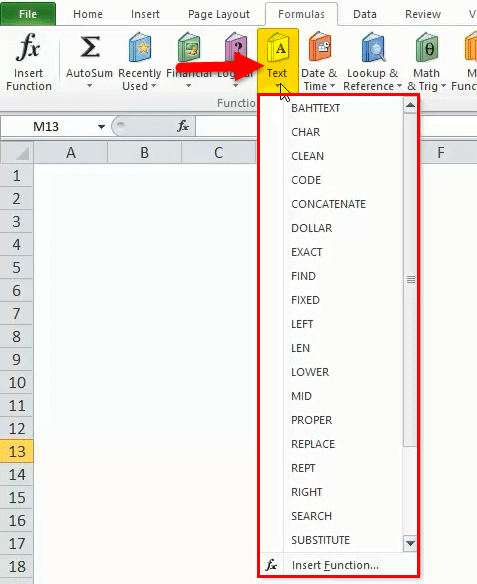
- Click on the CODE function from the drop-down list.
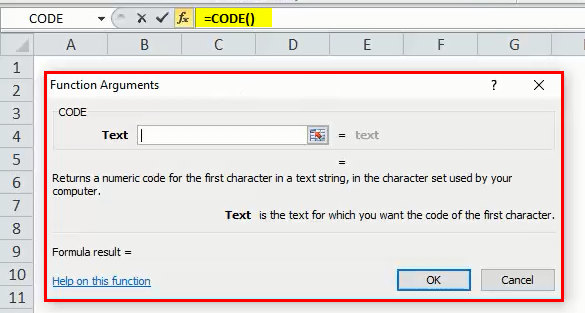
- It will open a dialog box for FUNCTION arguments.
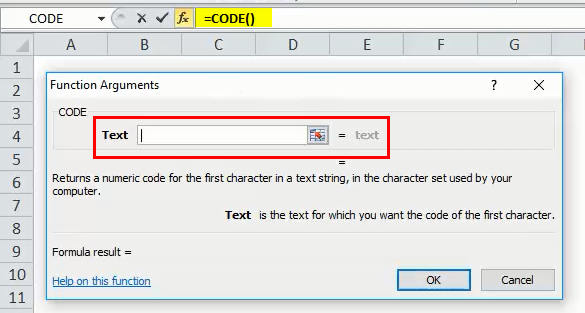
- Enter the text field with the required text for which you want the code of the first character.
Description of the CODE function in Excel:
- The returned code corresponds to the character set used by our computer may be different based on the operating systems used.
- Windows uses the ANSI character set.
- Macintosh uses the Macintosh character set.
How to use the CODE Function in Excel?
CODE Function is very simple to use. Let us now see how to use the CODE function in Excel with the help of some examples.
CODE in Excel – Example #1
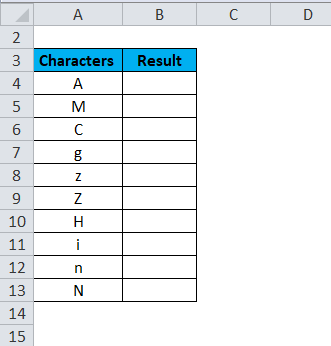
We will then apply the CODE formula and see the returning ASCII value of corresponding characters mentioned in the above data set.
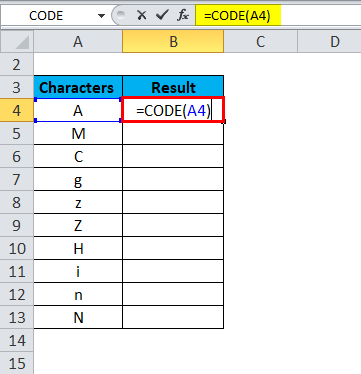
The Result is:
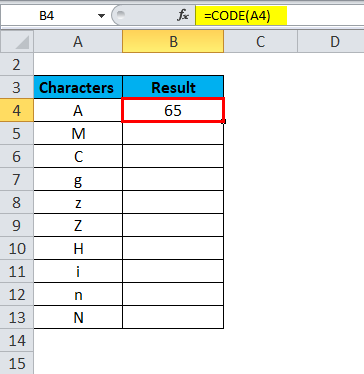
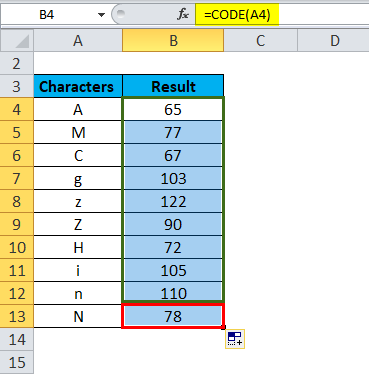
Drag & drop the formula for the rest values, and it will give the ASCII numeric values of every character.
The Final Results is:
CODE in Excel – Example #2
Now we will check the ASCII numeric values for numeric values, Mathematical operators.
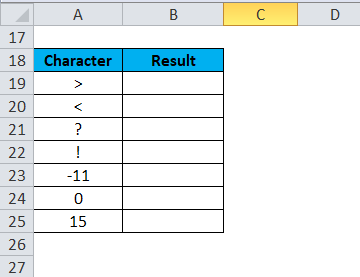
Now we will apply the CODE formula and will see the returning ASCII value
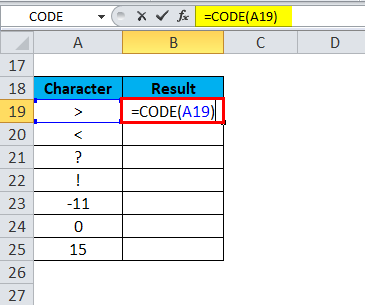
The Result is:
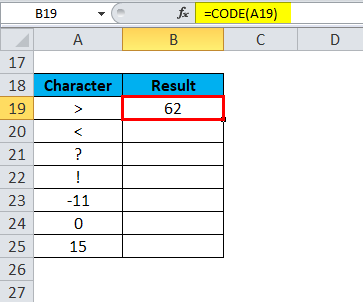
Drag & drop the formula for the rest values, and it will give the ASCII numeric values.
The Final Results is:
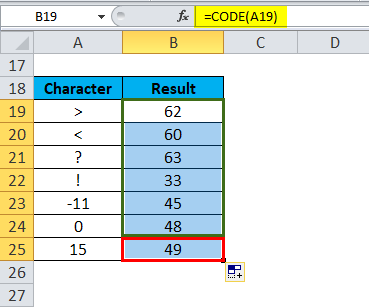
Explanation:
- ANSI code for negative values, it will ignore the “minus” symbol.
CODE in Excel – Example #3
If we pass more than one character or a sentence as an argument of the CODE function, it will take the first character of the text and provide the ANSI value and ignore the rest of them.
Check the below data for this:
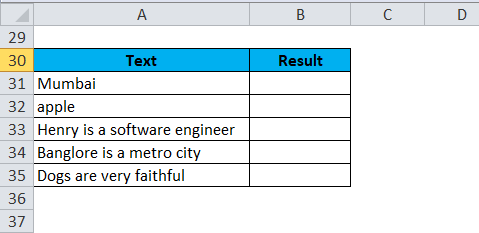
Now we will apply the CODE formula and will see the returning ASCII value
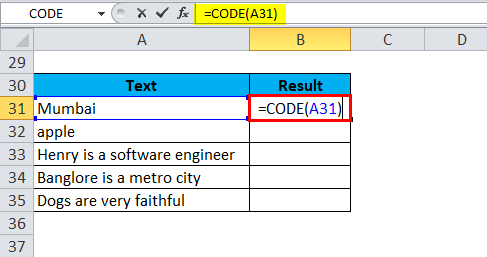
The Result is:
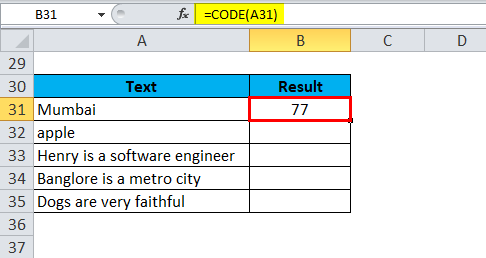
Drag & drop the formula for the rest values, and it will give the ASCII numeric values
The Final Results is:
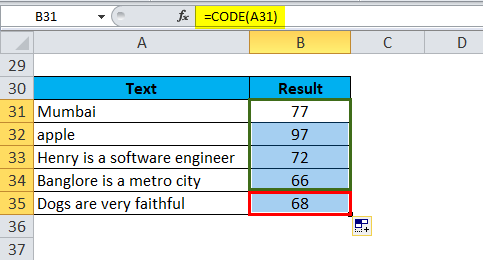
Explanation:
- 77 – it is the ANSI code for M.
- 97 – It is the ANSI code for a.
- The CODE function provides the ANSI code of the first character and ignores the rest text.
CODE in Excel – Example #4
Let’s assume the below data set:
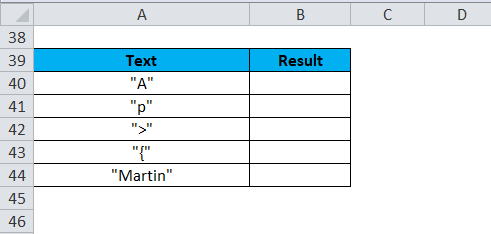
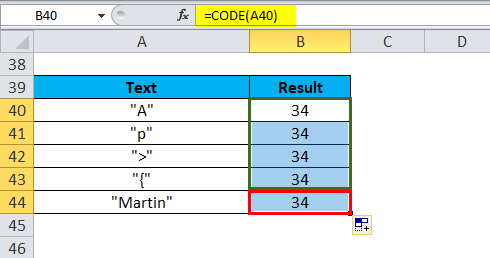
If we enclosed the text within inverted commas, then the CODE function will consider the first character “ (opening commas) and provide the ANSI value of this and will ignore the rest text.
Now we will apply the CODE formula and will see the returning ASCII value
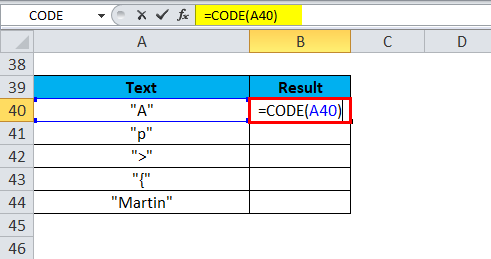
The Result is:
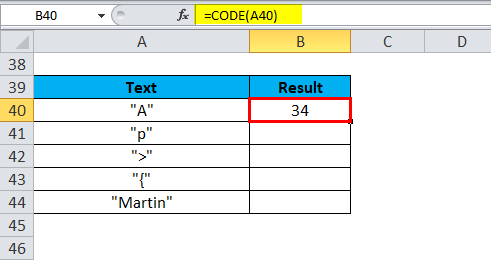
Drag & drop the formula for the rest values, and it will give the ASCII numeric values.
The Final Results is:
Things to Remember
- The CODE function gives the numeric value as a result
- If the passing argument is left empty, the function will return the VALUE# error.
- The CODE function in excel is introduced in Excel version 2000, and now it’s available in all versions of excel after that.
- This function is the inverse of the CHAR function in excel. The CHAR function returns the character from a numeric ASCII value.
- The output might be different based on the operating system.
- If we pass a text or sentence as the function argument, it should not be enclosed in inverted commas.
Recommended Articles
This has been a guide to the Excel CODE function. Here we discuss how to use the CODE function in Excel along with practical examples and a downloadable excel template. You can also go through our other suggested articles –