

Updated June 2, 2023
DAY Formula in Excel (Table of Contents)
Introduction to DAY Formula in Excel
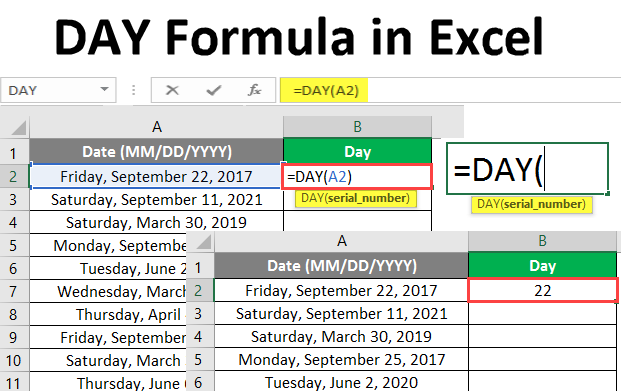
MS Excel provides several inbuilt functions; one of them is the user gives the DAY Formula, which is used to find the day of the month or date. It will return an integer value from 1 to 31. It belongs to the date and time function category in MS Excel. A user can use this function with other formulas and functions. It can be used in the worksheet formula as well as the VBA.
For example, if a user is given a date of 22nd May 2019 as input in the DAY, it will return 22, which is the 22nd May month.
Syntax
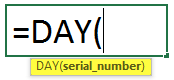
DAY () – It will return an integer value from 1 to 31, which represents the day of the month. There is only one parameter – serial_number.
The Argument in DAY Function:
serial_number: It is a mandatory parameter from where a user wants to get the day of the month.
How to Use DAY Formula in Excel?
DAY Formula is very simple and easy to use in Excel. Let’s get some examples of how to use DAY Formula in Excel.
Example #1 – Basic DAY Formula in Excel
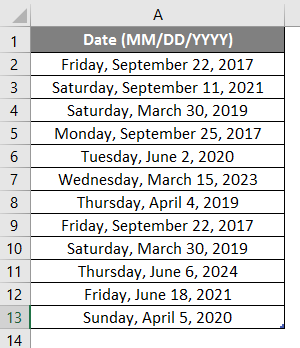
A shopkeeper has few Dates; He wants to get the day of the month. Let’s see how the DAY formula can solve his problem.
Open MS Excel and go to sheet1, where the user wants to display the day of the month.
Create one column header for the day of the month to show the function result in column B.
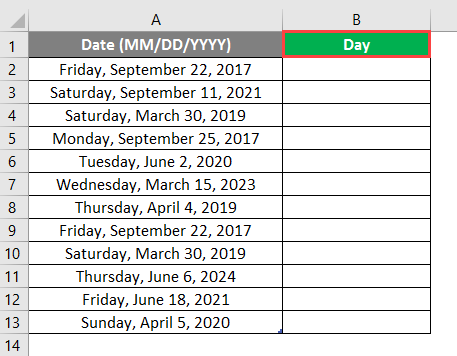
Click on cell B2 and apply the DAY formula.

Now it will ask for serial_number and select the date from where the user wants to see the day of the month, which is available in A2.
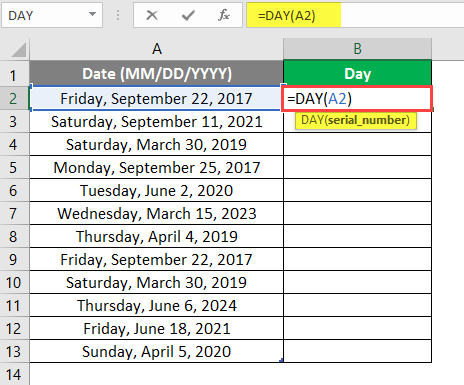
Press the Enter Key.
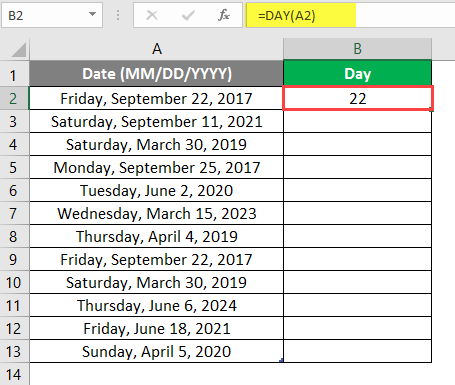
Drag the same formula to the other cells of column B to find out the month’s day.
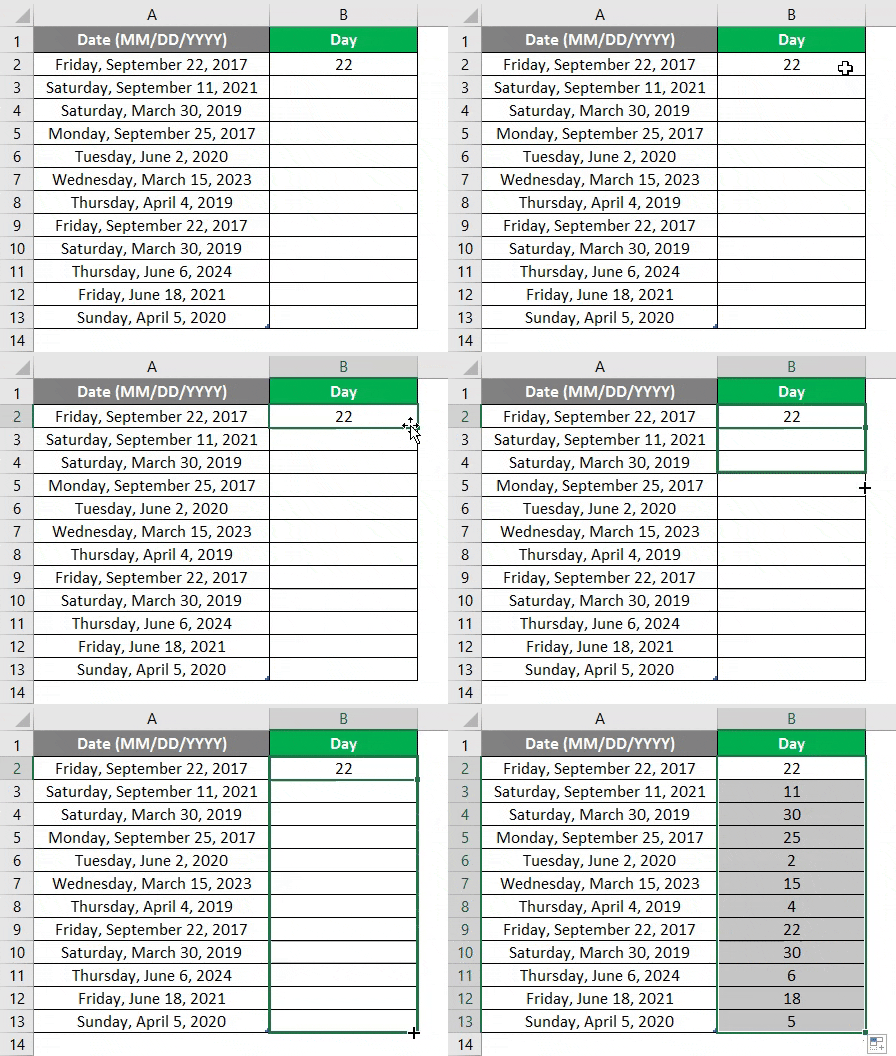
Summary of Example 1: As the user wants to find out the day of the month from the date by using the DAY formula, we have achieved the output. Which is displaying in column C.
Example #2 – Day of the Month from a Column Data
A company owner has personal details of his Employee where the Employee name, Airport city, Departure Date, and time are given. He wants to get the day of that month for the Departure Date.
Let’s see how the DAY function can solve his problem.
Open MS Excel and go to sheet2, where the user wants to display the day of the month from the Departure Date.
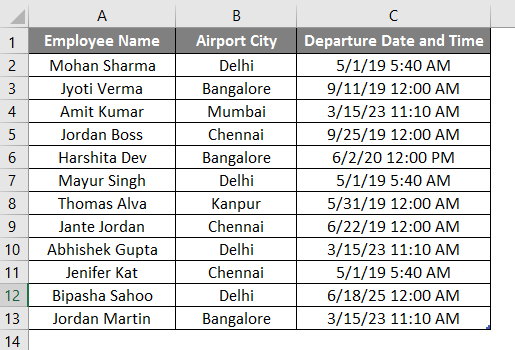
Create one column header for the day of the month to show the function result in column D.
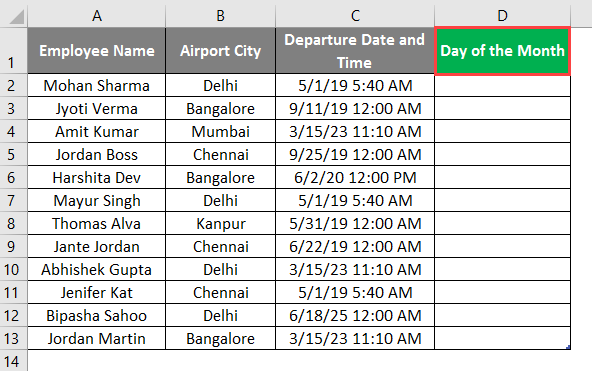
Click on cell D2 and apply the DAY formula.
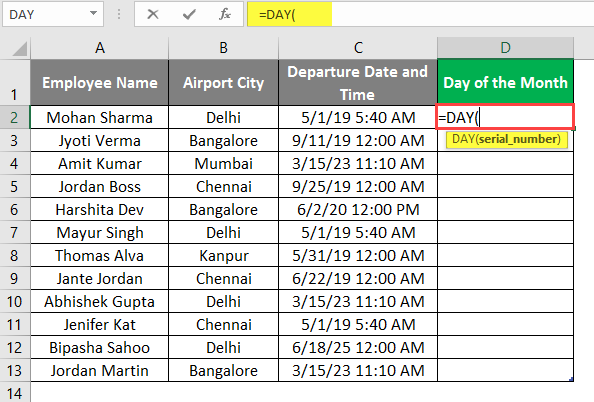
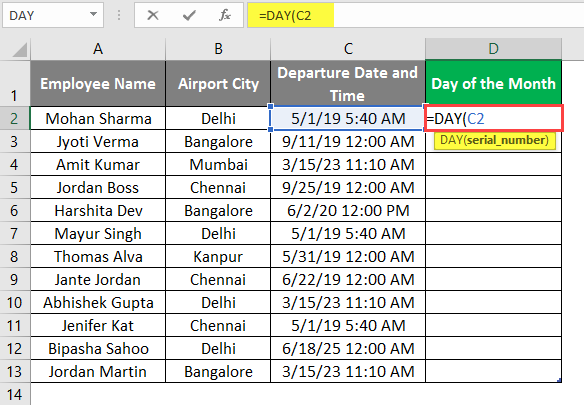
Now it will ask for serial_number; select the Departure date from where a company owner wants to see the day of the month, which is available in cell D2.
Press the Enter Key.
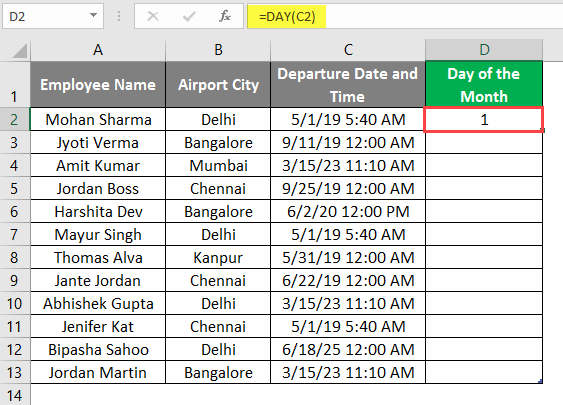
Drag the same formula to the other cells of column D to find out the month’s day.
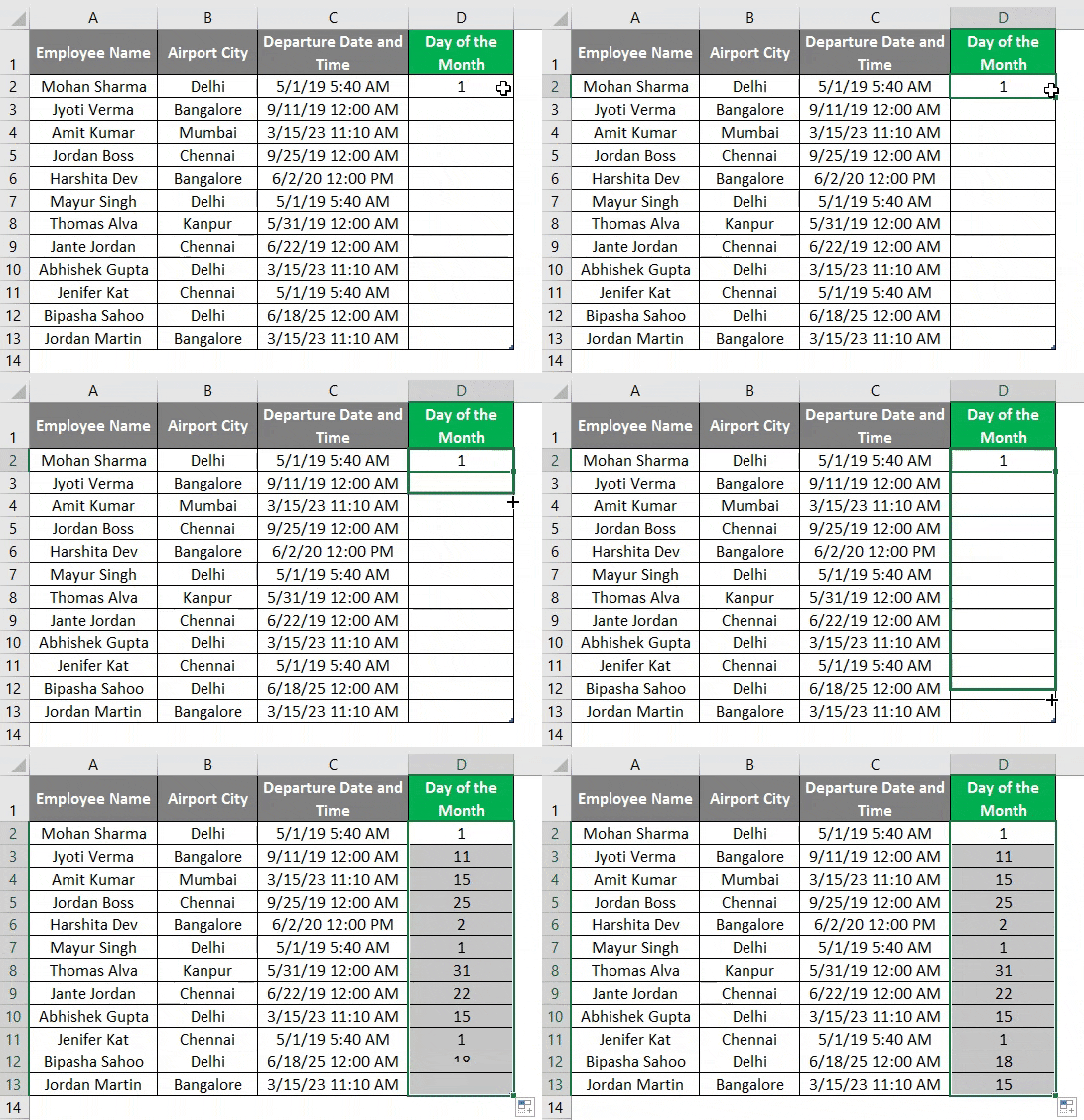
Summary of Example 2: As the company owner wants to find out the day of the month from the Departure Date by using the DAY function, we have achieved the output. Here, the result is available between 1 to 31 in column F.
Example #3 – Another Formula for Employee Details
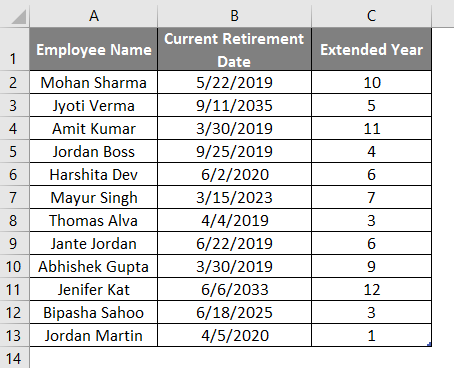
A company owner has personal details of his Employee where the Employee name, Current Retirement Date, and Extended Year in the retirement are given. He wants to get the new retirement date.
Let’s see how the DAY function can solve his problem. Open MS Excel and go to sheet3, where the user wants to display the new retirement date.
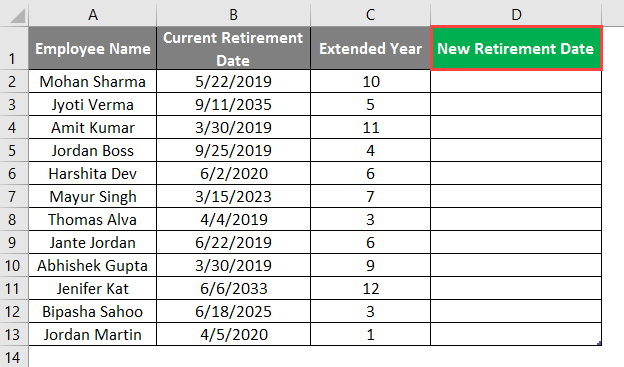
Create one column header for the day of the month to show the function result in column D.
Click on cell D2 and apply the DATE Formula.
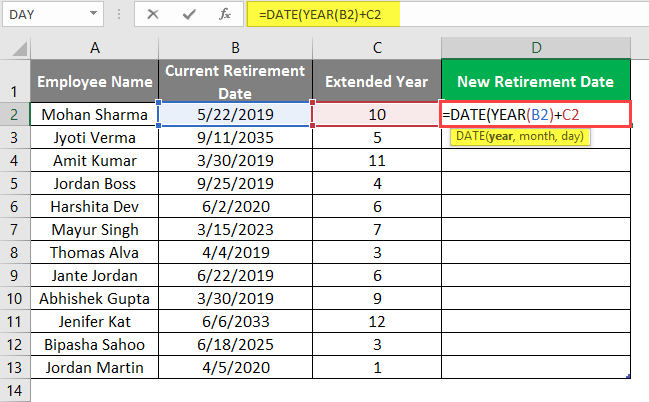
Now it will ask for the month and the day.
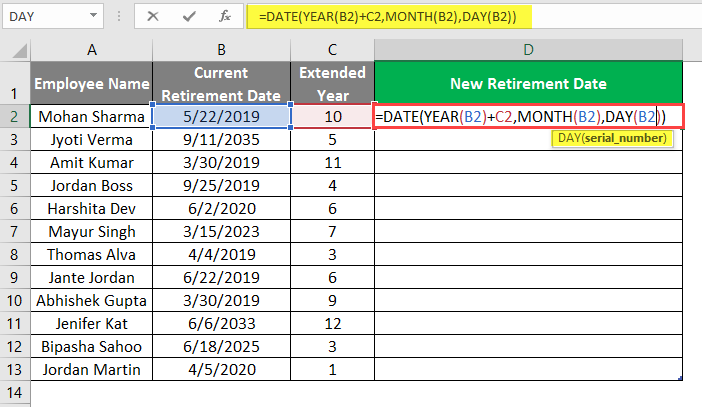
Press the Enter Key.
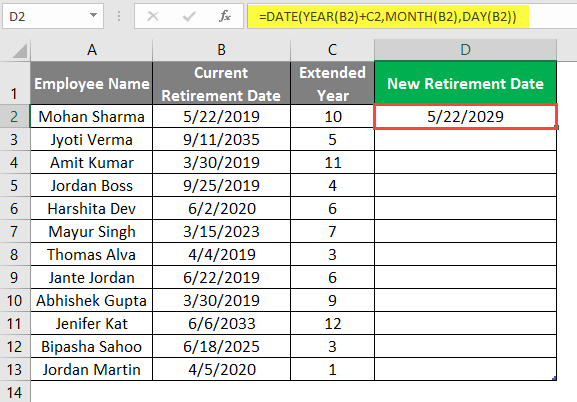
Apply the same formula to column D to find out the new retirement date.
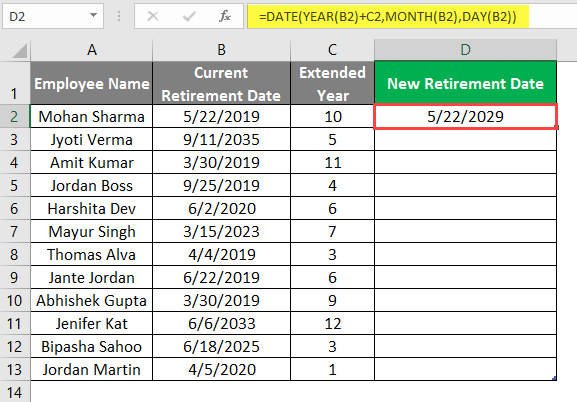
Drag the same formula to the other cells of column D to find out the new retirement date.
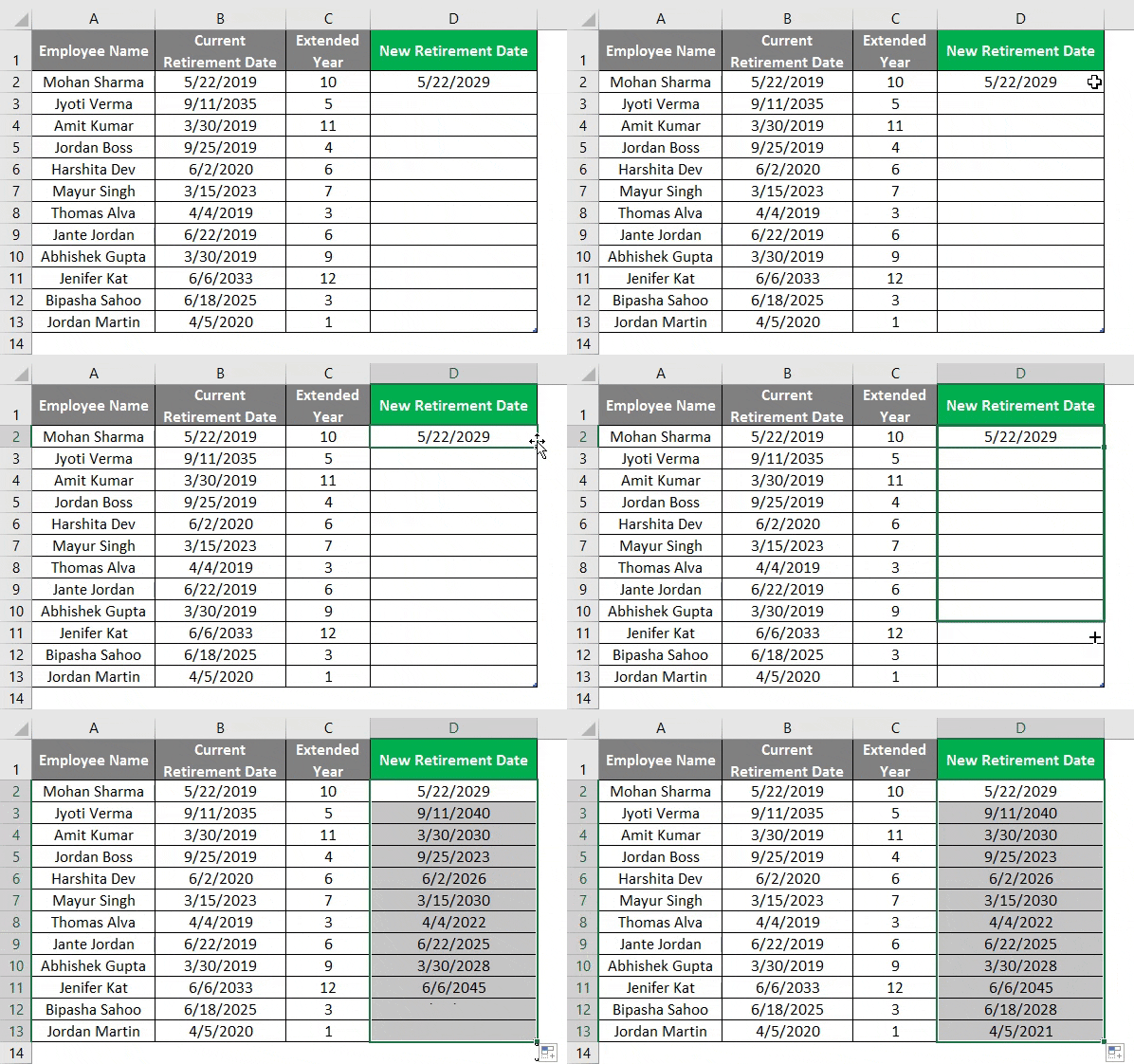
Summary of Example 3: As the company owner wants to find out the new retirement date after extended years in the older retirement date, the user has achieved this by using the date, Year, Month, and DAY formula together.
Things to Remember About DAY Formula in Excel
- The DAY function will return an integer value from 1 to 31. A user can use this function with other formulas and functions.
- In MS Excel, data is used to save as sequential serial numbers so that it can be used in calculations; as an example, 1st January 1900 was saved as serial number 1st and 3rd January 2008 was saved as serial number 39,450 in MS Excel, which is 39,448 days after 1st January 1900.
- The Day function belongs to the date and time function category in MS Excel.
- The given input in the DAY formula must be a valid date. You can use it in both the worksheet formula and VBA.
- If the serial number is a text value, it will throw an # VALUE!
- Users often face errors because of formatting issues in MS Excel, so they always prefer to select General in the home setting.
Recommended Articles
This has been a guide to DAY Formula in Excel. Here we discuss How to use DAY Formula in Excel, practical examples, and a downloadable Excel template. You can also go through our other suggested articles –

