


Updated June 6, 2023
Introduction to Database Function in Excel
The database function is an in-built function in MS Excel that will work only on the proper database or table. Excel database functions are designed so a user can use an Excel database to perform basic operations like Sum, Average, Count, Deviation, etc. These functions can use with some criteria also.
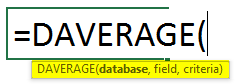
Syntax:
There are some specific in-built Database Functions which are listed below:
- DAVERAGE: It will return the average of the selected database, which satisfies the user criteria.
- DCOUNT: It will count the cells containing some number in the selected database and satisfy the user criteria.
- DCOUNTA: It will count the non-blank cells in the selected database which satisfy the user criteria.
- DGET will return a single value from the selected database, satisfying the user criteria.
- DMAX: It will return the maximum value of the selected database, which satisfies the user criteria.
- DMIN: It will return the minimum value of the selected database, which satisfies the user criteria.
- DPRODUCT: It will return the multiplication output of the selected database, which satisfies the user criteria.
- DSTDEV: It will return the estimated standard deviation of the population based on the entire population in the selected database, which satisfies the user criteria.
- DSTDEVP: It will return the standard deviation of the entire population based on the selected database, satisfying the user criteria.
- DSUM: It will return the summation of the value from the selected database, which satisfies the user criteria.
- DVAR: It will return the estimated population variance based on the entire population in the selected database, which satisfies the user criteria.
- DVARP: It will return the Estimates variance of the entire population in the selected database, which satisfies the user criteria.
How to Use Database Functions in Excel?
Database Functions in Excel are very simple and easy. Let’s understand how to use the Database Functions in Excel with some examples.
Example #1 – Using DAVERAGE Database Function in Excel
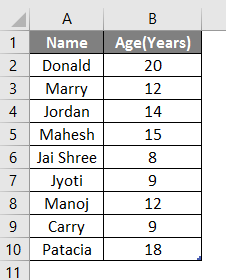
Let’s assume a user has some people’s personal data like Name and Age, where the user wants to calculate the average age of the people in the database. Let’s see how we can do this with the DAVERAGE function.
Open MS Excel from the Start menu, Go to Sheet where the user has kept the data.
Now create headers for DAVERAGE result where we will calculate the average of the people.
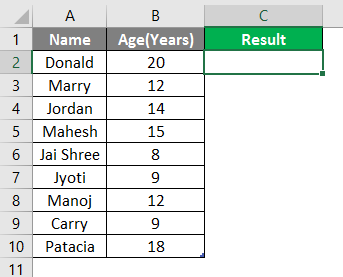
Now calculate the DAVERAGE of the given data using the DAVERAGE function, calculate the equal sign, and Write in C2 Cell.
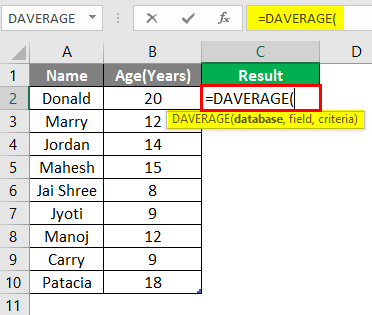
It will then ask for the database given in A1 to B10 cell. Select A1 to B10 cell.
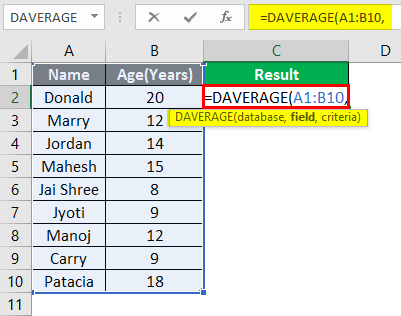
Now it will ask for the Age, so select C1 cell.
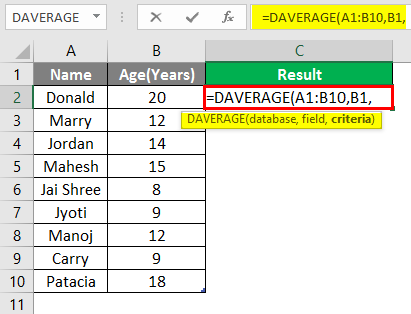
It will then ask for criteria from B2 to B10 cell where the condition will be applied and select B2 to B10 cell.
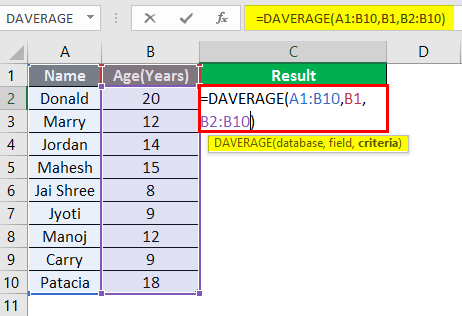
Press the Enter Key.
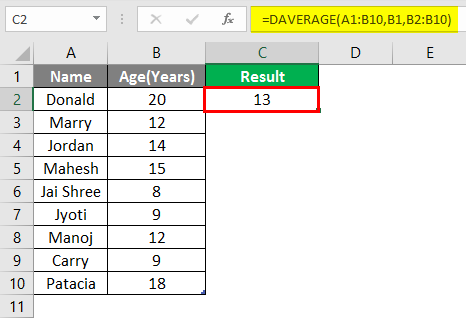
Summary of Example 1: The user wants to calculate the average age of the people in the database. Everything is calculated in the above Excel example, and the Average age is 13 for the group.
Example #2 – Use of DMAX and DMIN Database Function in Excel
Let’s assume a user has little personal data, like Name and Age, where the user wants to determine the maximum and minimum age of the people in the database. Let’s see how we can do this with the DMAX and DMIN functions. Open MS Excel from the Start menu, Go to Sheet where the user kept the data.
Now create headers for DMAX and DMIN results where we will calculate the maximum and minimum age of the people.
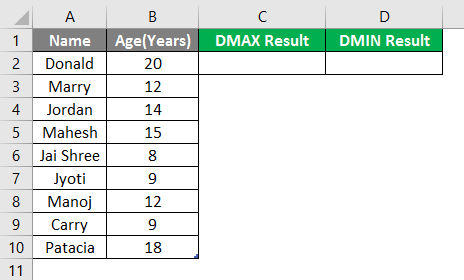
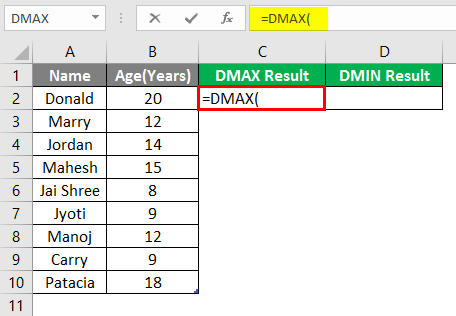
Now calculate the maximum age in the given age data by the DMAX function, use the equal sign to calculate, and Write in a formula in cell C2.
It will then ask for the database in cells A1 to B10 and select cells A1 to B10.
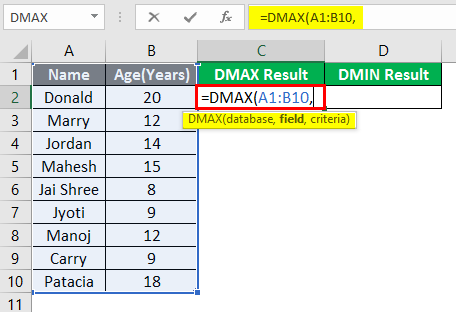
Now it will ask for Age. Select B1 cell.
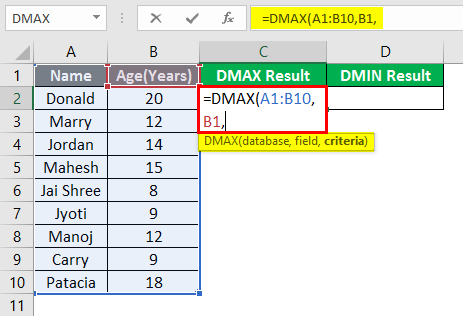
Now it will ask for criteria for cells B2 to B10; where the condition will be applied, select cell B2 to B10.
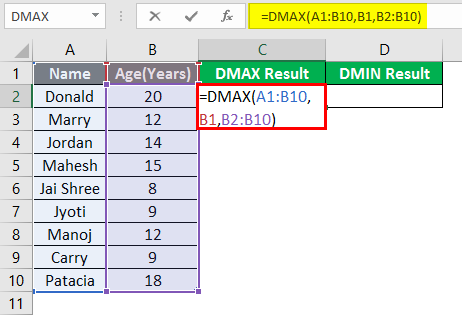
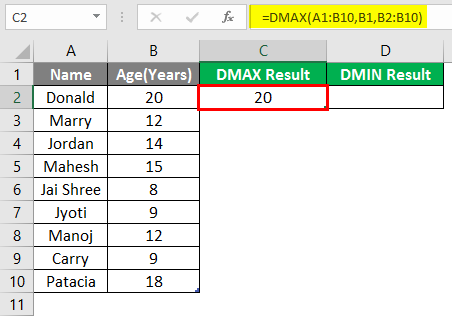
Press the Enter Key.
To find out the minimum age, use the DMAX function and follow steps 4 to 7. Use the DMIN formula.
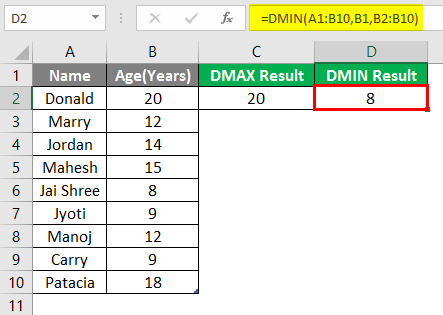
Summary of Example 2: The user wants to determine the maximum and minimum age of the people in the database. Easley, everything is calculated in the above Excel example, and the Maximum age is 20, and the minimum is 8 for the group.
Example #3 – Use of DCOUNT and DCOUNTA Database Function in Excel
A user wants to find the numeric data count and nonblank cell count in the height column in the database. Let’s see how we can do this with the DCOUNT and DCOUNTA functions. Open MS Excel from the Start menu; go to Sheet 3, where the user kept the data.
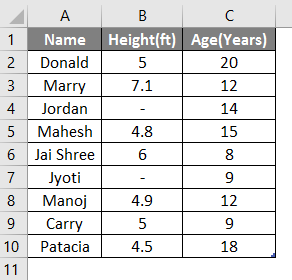
Now create headers for DCOUNT and DCOUNTA results.
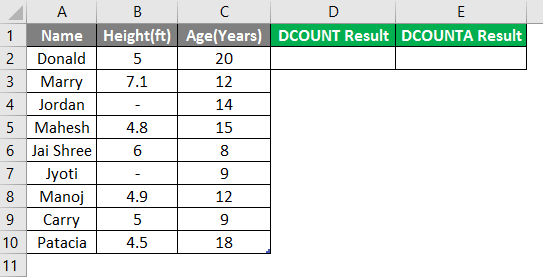
Write the formula in cell D2.
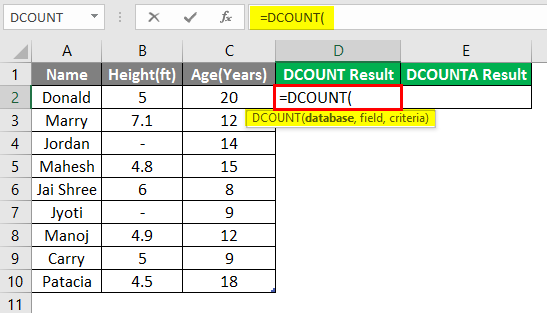
It will then ask for the database given in cells A1 to C10 and select cells A1 to C10.
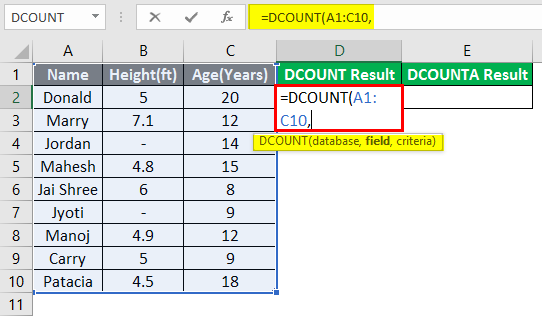
Now it will ask for the Height. Select cell B1.
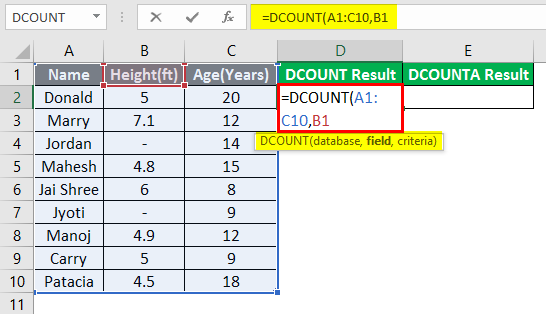
Now it will ask for criteria which are cell B2 to B10. Where the condition will be applied, select cell B2 to B10.
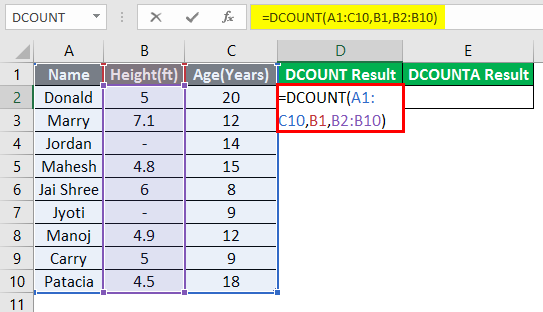
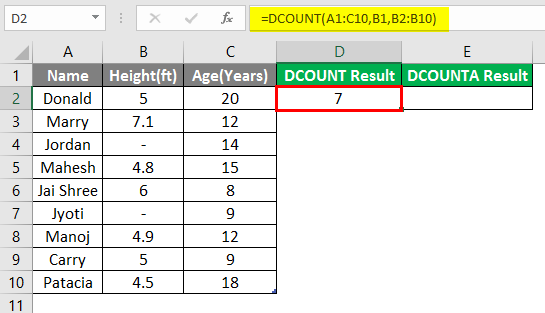
Press Enter key.
To find out the nonblank cell function, follow steps 4 to 7. Use the DCOUNTA formula.
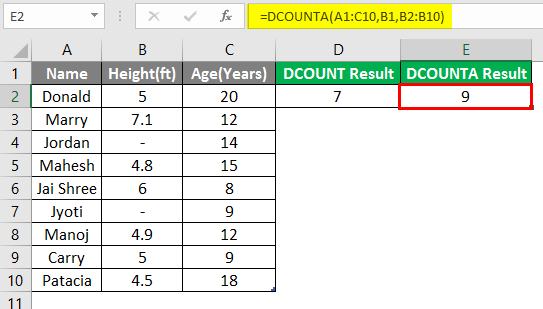
Summary of Example 3: The user wants to find the numeric data count and nonblank cell count in the height column. The numeric data count is 7, and the nonblank cell count is 9. Easley, everything is calculated in the above Excel example.
Things to Remember About Database Functions in Excel
- All database functions follow the same syntax, with 3 arguments: a database, field, and criteria.
- Database function will work only if the database has a proper table format, like it should have a header.
Recommended Articles
This is a guide to Database Functions in Excel. Here we discuss how to use Database Function in Excel, practical examples, and a downloadable Excel template. You can also go through our other suggested articles –

