

Updated August 23, 2023
COUNTIF Function with Multiple Criteria (Table of Contents)
- COUNTIF with Multiple Criteria
- COUNTIF Formula with Multiple Criteria
- How to Use COUNTIF Function with Multiple Criteria?
COUNTIF with Multiple Criteria
Countif function in Excel is used to count the cell numbers in any given range and specifying the criteria. But what if we have multiple criteria to be counted in the same set of data. This can be done when we use one CountIf function with another one separated by a plus sign. Plus, sign this allows us to use multiple CountIf functions in any way. Also, we use multiple criteria in a single Countif function in curly brackets separated by commas.
There can be two ways to multiple counting:
- COUNTIF Function with multiple criteria in the same column.
- COUNTIF Function with multiple criteria in multiple columns.
COUNTIF Formula with Multiple Criteria
Below is the COUNTIF Formula :
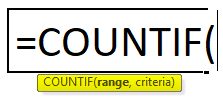
The COUNTIF Formula has two arguments, i.e., range and criteria.
- Range: The range of cells to count.
- Criteria: This defines the condition that tells the function of which cells to count. It can be a number, text string, cell reference, or expression.
Here in this article, we will discuss the COUNTIF Function with multiple criteria in the same column.
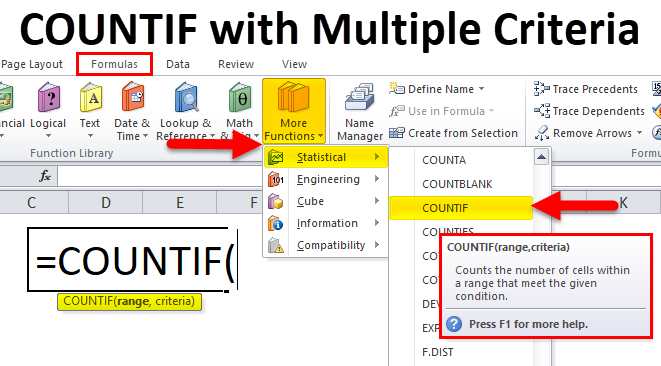
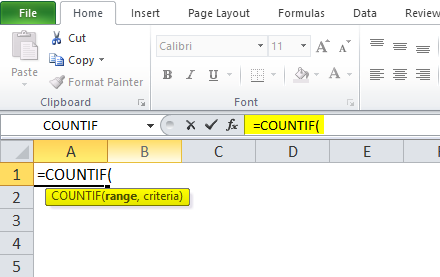
As we know, the COUNTIF function is a built-in function in Excel that falls under the FORMULAS tab. Thus, the COUNTIF function can be entered in the cell-like below screenshot:
How to Use COUNTIF Function with Multiple Criteria?
It is very simple and easy to use. Let us understand the working of the COUNTIF Function by some COUNTIF Formula examples.
Example #1
We have given some product lists:
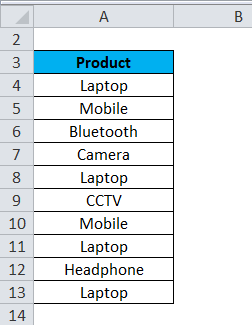
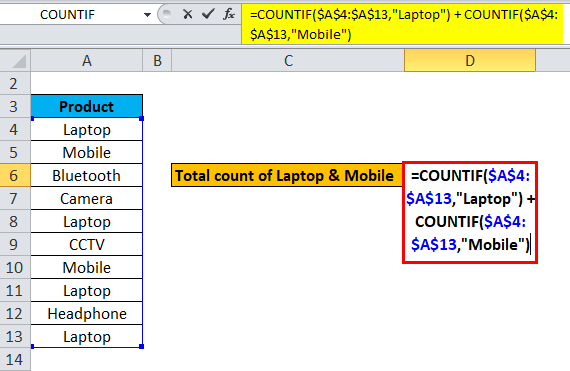
We need to find out the count of Laptop & Mobile. As these products are in the same column, hence we will use the COUNTIF function here.
We have given two conditions; hence the COUNTIF formula will apply as follows:
= COUNTIF(range, criteria1) + COUNTIF(range, criteria2) + …….
Please refer to the below screenshot:
Explanation:
- Here, we will apply the condition one by one. First will take the range and 1st condition under the COUNTIF function. Again will take the same range and 2nd condition under the COUNTIF function and so on…
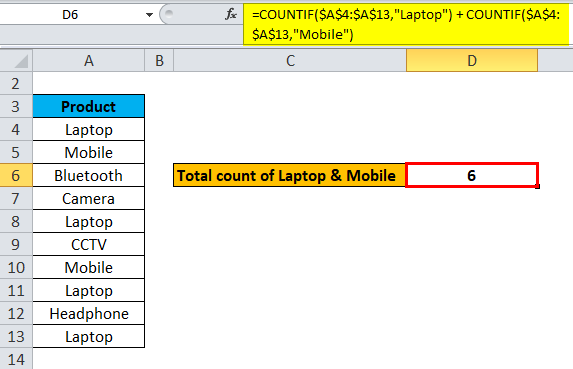
- After applying all the given conditions, sum up all the results to find out the final conclusion.
The final result is:
Example #2
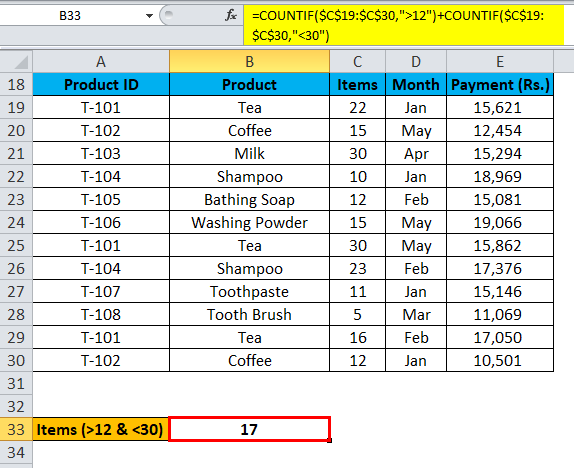
We have given some product details here. In this example, we will use a COUNTIF function between two numbers.
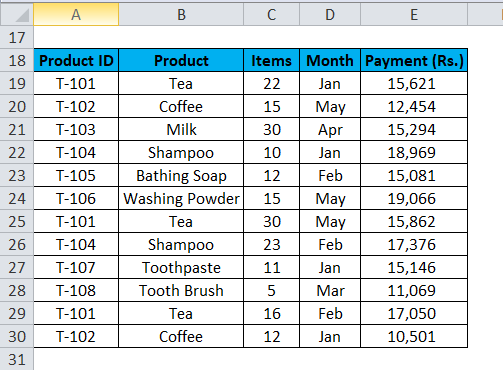
Here we will calculate the count of items greater than 12 and less than 30.
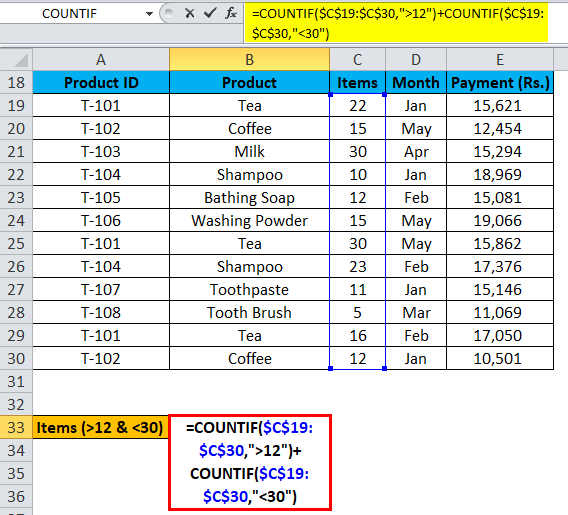
The COUNTIF formula will apply as follows:
=COUNTIF( $C$19:$C$30, “>12”) + COUNTIF($C$19:$C$30, “<30”)
Please refer to the below screenshot:
Explanation:
- We pass the condition one by one and, in the end, sum all the results.
Hence the final result is:
Example #3
Let’s take the same product details again.
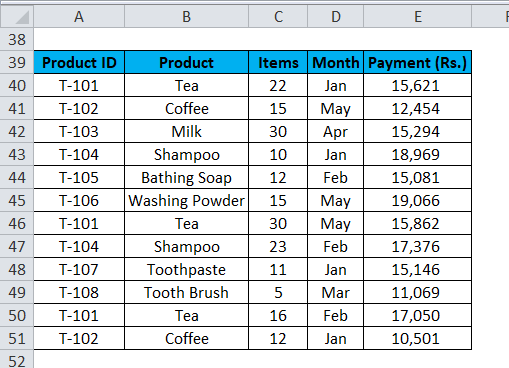
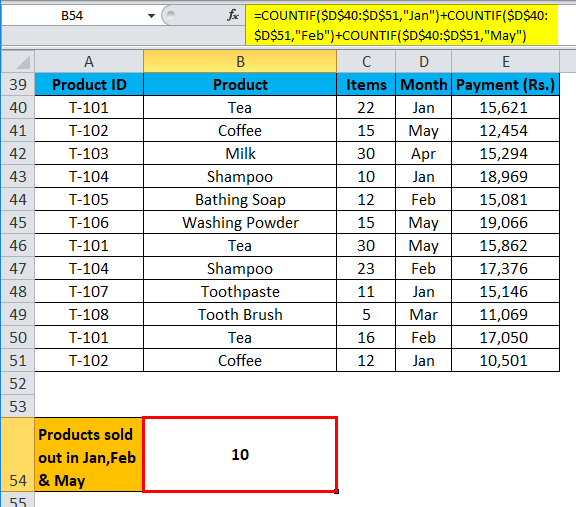
Here, we will calculate the sum of products sold out in the month of Jan, Feb & May.
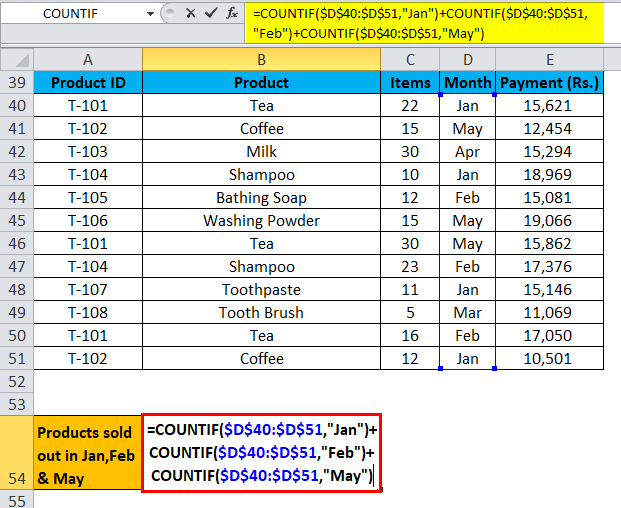
We will apply the COUNTIF formula as follows:
=COUNTIF($D$40: $D$51, “Jan”) + COUNTIF( $D$40:$D$51,”Feb”) + COUNTIF( $D$40:$D$51, “May”)
Explanation:
- First, we will select the range of cells from D40:D51 and pass 1st condition, “Jan.”
- Second, we will again select the range of cells from D40:D51 and will pass the 2nd condition, “Feb.”
- A third will again select the range of cells from D40:D51 and will pass the 3rd condition, “May.”
- After passing all the conditions one by one, in the end, add all the results.
The Final Result is:
Things to Remember
- First, analyze the problem and condition mentioned.
- If the conditions are related to one specific column, we will apply the COUNTIF function in a single column, as discussed in the above article.
- If conditions are related to multiple columns, we use the COUNTIFS function, which we will discuss later.
Recommended Articles
This has been a guide to COUNTIF with Multiple Criteria. Here we discuss the COUNTIF Formula with Multiple Criteria, how to use the COUNTIF Function, practical examples, and a downloadable Excel template. You can also go through our other suggested articles –

