


Updated May 30, 2023
CLEAN in Excel
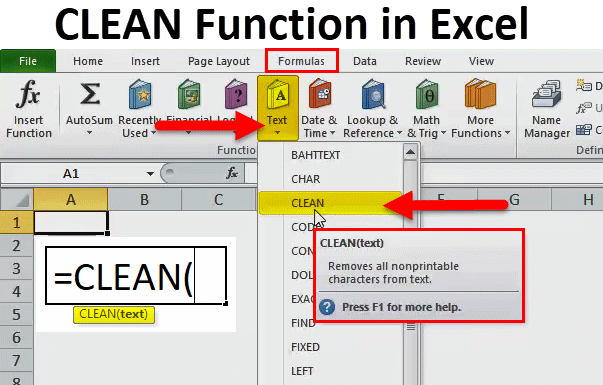
The clean function in Excel is used for cleaning the text. The clean function cleans the text line from start to end and eliminates the line breaks and the non-printable characters. This function helps if we use large lines of text and words where we see such different characters that we may not print, or we may face cases of getting non-printable characters and extra line breaks when we copy the text of some web pages.
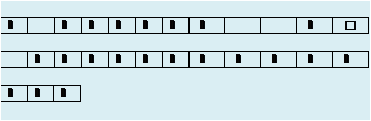
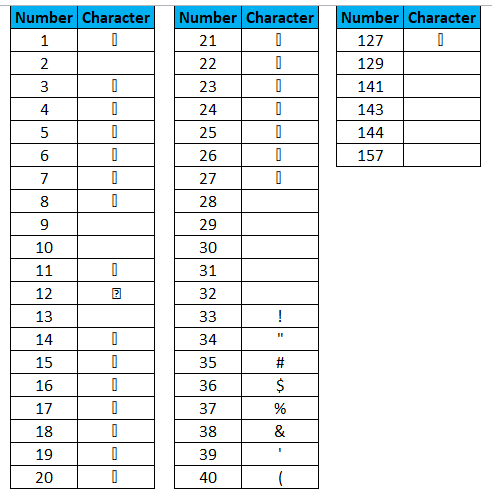
We can use a CLEAN function in Excel to remove all non-printable characters. Excel CLEAN function can remove the first 32 7-bit ASCII code characters from the text. First 32 characters. These characters are found at the start of the data imported into Excel from other web applications. There are 37 7-bit ASCll code characters, out of which the CLEAN function can clean the first 32 characters.
The remaining character values are 127, 129, 141, 143, 144 and 157. The CLEAN function cannot remove the characters generated by these codes. A CLEAN function can be applied to text, strings, numbers, etc.…. We need to notice that when a CLEAN function is applied to numbers, it automatically converts them to text format.
People in data-driven jobs frequently utilize CLEAN when working with research and development data. The marketing team uses the data to send campaigns and write content for their campaign. While writing the content for the campaign, they research more on the internet and copy directly from the web browsers, and they copy special characters along with the data. In the below examples, we will see the practical usage of the CLEAN function in the practical world.
CLEAN Formula in Excel
Below is the CLEAN Formula in Excel.
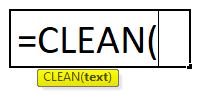
CLEAN Formula in Excel includes only one parameter, i.e. TEXT.
- TEXT: The desired text you wish to remove the non-printable characters. This parameter or argument can be applied by referencing a cell or entering the data directly into the argument using double quotes.
How to Use the CLEAN Function in Excel?
CLEAN Function in Excel is very simple and easy to use. Let us understand the working of the CLEAN Function in Excel with some examples.
Example #1
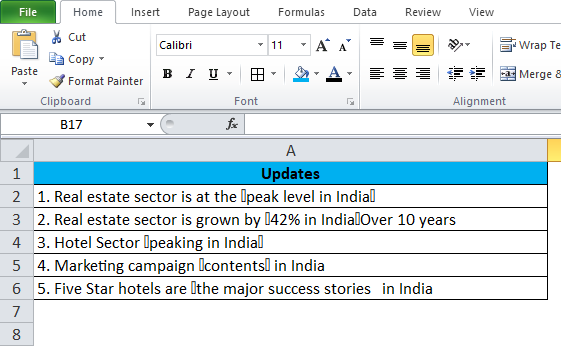
Suppose you are working in a marketing department as a Marketing Executive, and you, the manager, are asked to collect some of the important growth factors in the real estate sector in India. You have researched enough and collected the below data after surfing the internet for 2 days, and the data looks messier than usual.
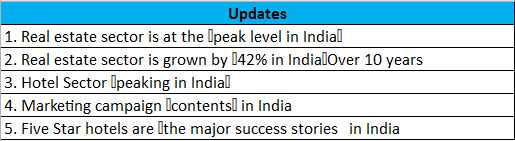
Since you have directly copied from the browser, you found these non-printable characters marked in the red boxes in the above image. It is a brainer that you need to remove those extra special characters before submitting the data to your manager. You cannot do this manually. Copy the data to an Excel file and apply a CLEAN function.
Step 1: Copy the data to the Excel sheet.
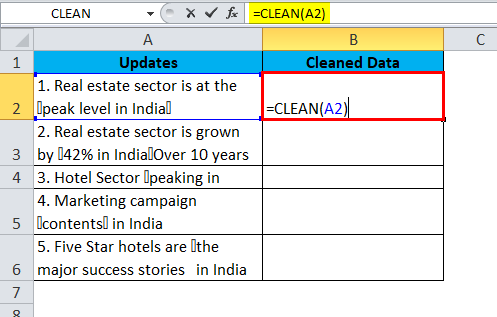
Step 2: Apply the CLEAN function in cell B2; the formula should be like the one below.
=CLEAN(A2)
So the output will be :
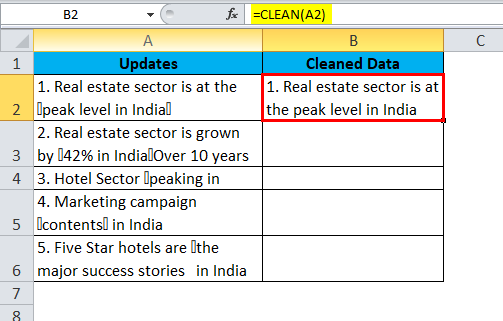
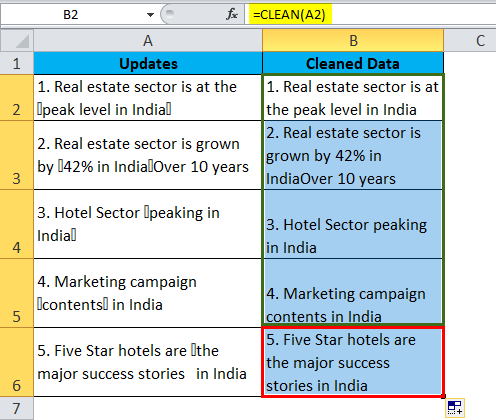
We have applied the CLEAN Function in column B by dragging it. All the special characters are 7-bit ASCll code characters. A CLEAN function can clean the text’s first 32 7-bit ASCll code characters.
Below is the list of ASCll characters.
Example #2
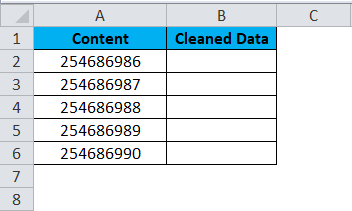
As a marketing executive, you work on research on so many things. While researching, you found below the important contact numbers of C-level executives. C level means CEO, CFO, COO, etc. Along with the contact numbers, you copied non-printable characters also.
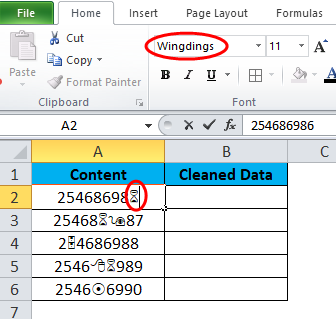
If you look at these telephone numbers, you cannot say the full numbers here. These are not special characters but rather a special font name. The font name Wingdings assigns a name to all special characters.
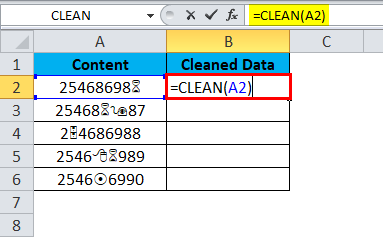
For these kinds of cases, also we can apply a CLEAN function to clean our data. So now, let us go ahead and apply a CLEAN function to our telephone numbers.
So the output will be :
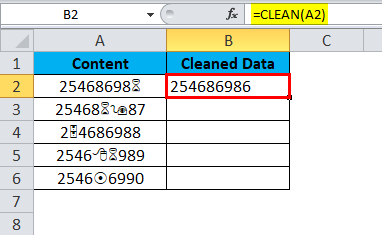
After applying the CLEAN function to our data, it converted to numbers, i.e., from special font characters to normal characters. So the final output will occur by dragging cell B2 :
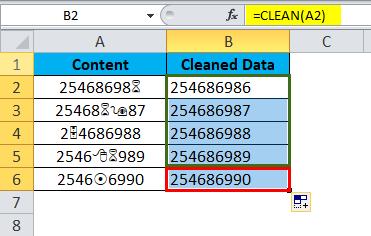
Applying the CLEAN function removes formatting associated with numbers and replaces it with text formatting. We must use the VALUE formula before the CLEAN function to retain the number format.
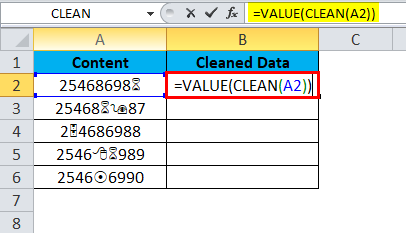
So the output will be :
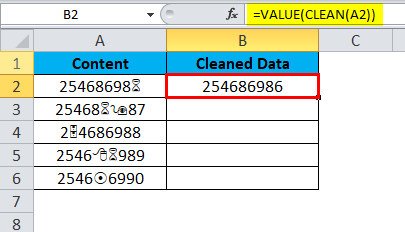
The final output will occur by dragging cell B2 :
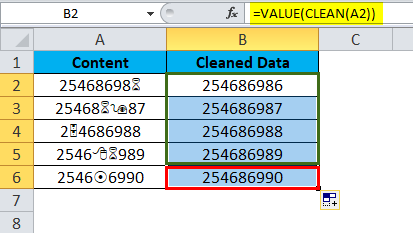
So, the VALUE function helps convert our supplied value to a number format. This is how CLEAN can be vital in cleaning our messy data into beautiful, presentable data.
Things to Remember
- CLEAN Function in Excel can remove 0 to 32 7-bit ASCll code characters from the list.
- CLEAN Function available in Excel 2003 and later versions.
- The codes 127, 129, 141, 143, 144, and 157 generated additional non-printable characters.
- Some non-printable characters are not visible at all, but a CLEAN function can find that non-visible character and helps to remove the same.
Recommended Articles
This has been a guide to CLEAN in Excel. Here we discuss how to use CLEAN Function in Excel, examples, and a downloadable Excel template. You may also look at these useful functions in Excel –

