
Updated August 28, 2023
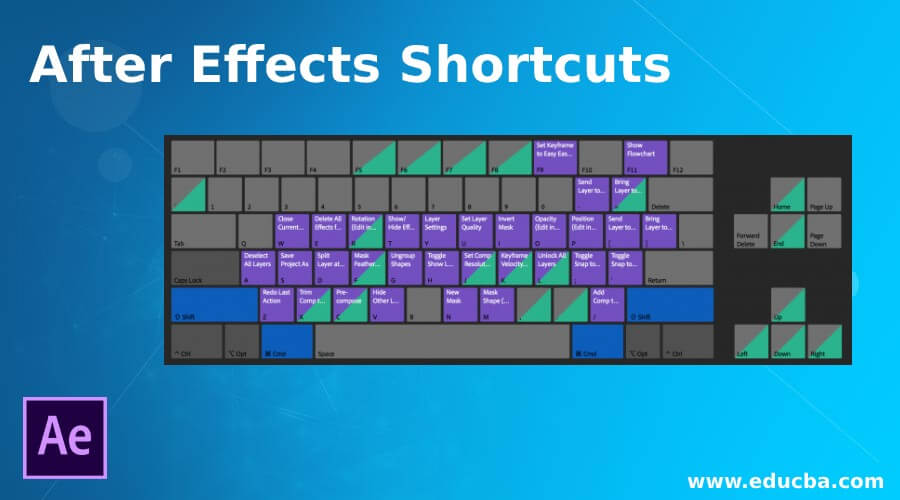
Overview of After Effects Shortcuts
Adobe After Effects Shortcuts can be defined as a program application designed for producing special effects and motion graphics utilized in the content, which is available online, in the video, and in presentations. Although After Effects shortcut is available on both Windows and Mac OS platforms, it is broadly utilized for digital post-production of movies, television, DVDs, video, animation, and the production of special effects After Effects forms part of the Adobe Creative Cloud.
It comes with an extensive set of 2D and 3D tools that can be used for animation, effects, and compositing that visual effects artists, motion graphics professionals, movies and video professionals, and web designers require. In addition, while using any software, shortcut keys help you in saving time, thereby increasing efficiency and speed. Many Adobe Effects shortcut keys are provided by After Effects.
Keyboard Shortcuts Keys for After Effects
| Results |
Shortcut Keys |
| Basic Shortcut Keys | |
| Allows you to choose all | CtrlA |
| Allows you to deselect all. | F2/CtrlShiftA |
| Allows you to make a duplicate of the chosen masks, layers, effects, etc | CtrlD |
| To quit the tool | CtrlQ |
| Rename the chosen folder, layer, etc. | Enter |
| Open chosen composition, layer, or footage item | numeric keypad |
| Move chosen layers or other elements forward or backward in an arranged order. | CtrlAltArrow Up |
| Elements forward or backward in an arranged order | CtrlAltShiftArrow UpArrow Down |
| You can open the preferences dialog box with this. | CtrlAlt; |
|
Transform Properties |
|
| Used for points of interest, lights, cameras, etc. | A |
| The position property is revealed using this key. | P |
| The scale property is revealed using this key | S |
| The opacity property is revealed for intensity and lights using this key | T |
| The audio level’s property can be shown using this key. | L |
| The mask feather property can be shown using this key | F |
| The mask path property can be shown using this key | M |
| Effects property group can be shown using this key | E |
| Properties only with expressions or keyframes are shown using this key | U |
| It helps you to hide your group or property. | ShiftH |
| Shortcuts for Workspaces, Viewers, Windows, and Panels | |
| This opens or closes the project panel. | Ctrl0 |
| This opens or closes the render queue panel. | CtrlAlt0 |
| This opens or closes the tools panel. | Ctrl1 |
| This opens or closes the info panel. | Ctrl2 |
| This opens or closes the preview panel | Ctrl3 |
| This opens or closes the audio panel | Ctrl4 |
| This opens or closes the presets and effects panel | Ctrl5 |
| This opens or closes the character panel | Ctrl6 |
| This opens or closes the paragraph panel | Ctrl7 |
| This opens or closes the painted panel | Ctrl8 |
| This opens or closes the brushes panel | Ctrl9 |
| This opens the flowchart panel to be used for the project flowchart | CtrlF11 |
| This closes the active panel or viewer | CtrlW |
|
Swift Access To The Hand Tool |
|
| Choosing the hand tool, you can just hold the spacebar and drag | Space bar |
|
Zoom Into The Timeline |
|
| You can zoom into or out of the vital areas on your timeline by pressing + or – | +- |
|
Work Area And Compositions |
|
| This opens a new composition | CtrlN |
| B sets the beginning, and N sets the end of the work region to the present time. | BN |
| This opens the composition settings dialog box for the chosen composition | CtrlK |
| This opens the mini composition flowchart for composition that is active | Tab |
|
Tool Activation |
|
| This helps you to cycle through the tools | Alt-click the tool button in the tools panel |
| This helps in the activation of the selection tool. | V |
| This helps in the activation of the hand tool | H |
| This helps in the activation of the rotation tool | W |
| This helps in the activation of the root brush tool | AltW |
| This helps in the activation and to move through the camera tools | C |
| This helps in the activation of the pan behind the tool | Y |
| This helps in the activation and to move through the mask and shape tools. | Q |
| This helps in the activation and to move through the type of tools | CtrlT |
| This helps in the activation and to move between the pen and mask feather tools. | G |
| This helps in the activation and to move through the clone stamp, brush, and eraser tools. | CtrlB |
| This helps in the activation and to move through the puppet tools. | CtrlP |
|
Time Navigation Shortcut Keys |
|
| If you want to reach out at a particular time, then you can use this shortcut. | AltShiftJ |
| It helps in reaching out to the beginning or the end of the work region. | ShiftHomeShiftEnd |
| It helps to reach out to the previous item in the time ruler. | J |
| It helps to reach out to the next item that is visible in the time ruler | K |
| Helps to reach out to the layer Out-Point | O |
| Helps to reach out to the layer In-Point | I |
| It helps to reach out to the present time in the timeline panel | D |
|
Shortcuts For Layers |
|
| It helps to create a new solid layer | CtrlY |
| It helps to create a new adjustment layer | CtrlAltY |
| Helps in deselecting all the layers | CtrlShiftA |
| It helps to create a new null layer | CtrlAltShiftY |
| It helps you to move to the uppermost chosen layer present | X |
|
3-Dimensional Layers |
|
| This switches to the 3D view 1 | F10 |
| This switches to the 3D view 2 | F11 |
| This switches to the 3D view 3 | F12 |
| It helps you to come back to the previous view | Esc |
| It helps in creating a new light. | CtrlAltShiftL |
| Helps in creating a new camera | CtrlAltShift C |
Conclusion
After Effects, Shortcuts serve many purposes, such as 3D tracking, 2D tracking, masking, keying, compositing, visual effects, animation, etc… To perform these tasks efficiently and save time, you can use the shortcut keys. Instead of using the mouse constantly, you can use these important shortcut keys to speed through the tasks at hand.
Recommended Articles
This has been a guide to After Effects Shortcut. Here we discuss the topmost Shortcut Keys for After Effects which we can use with the help of a Keyboard. You may also look at the following articles –

