
Introduction to After Effects Expressions
After Effect is graphics designing software used for video editing work and popular between video editing graphics professionals, we can animate any object in this software by using Expressions. The expression means a code through which you can define any effect on any object and save your time for giving a command in each frame for that effect. If you know Javascript, you can easily use expressions in this software to make the best animation of any object. You can learn expressions coding by practicing on it if you haven’t a computer background. So let us analyze the term Expression in this article and also have a look at ‘how we can handle its parameters?
How to Use Expression in After Effects?
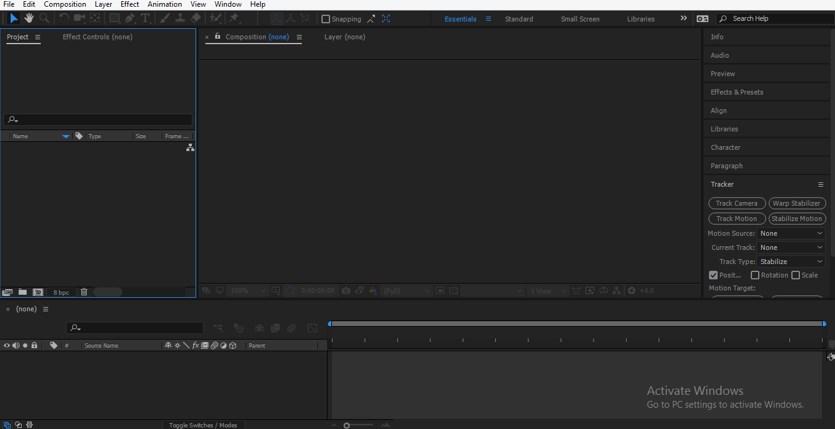
We will understand Expression in After Effect in a very interesting manner through any example. Before starting our article, let us have a brief look at the working screen of this software so that we can easily understand the working environment of this software throughout this article.
Step 1: At the top of the working screen, we have two ribbons that are Menu bar and Toolbar; the second topmost section have three main areas that are Project Panel at the left side, the Composition window at the middle, Some important parameters section at the right side, below these sections we have two another important sections that are Layer section at left end and Timeline section at the right side. You will understand the working of all these sections throughout this article, so keep with us from start to end for your better understanding.
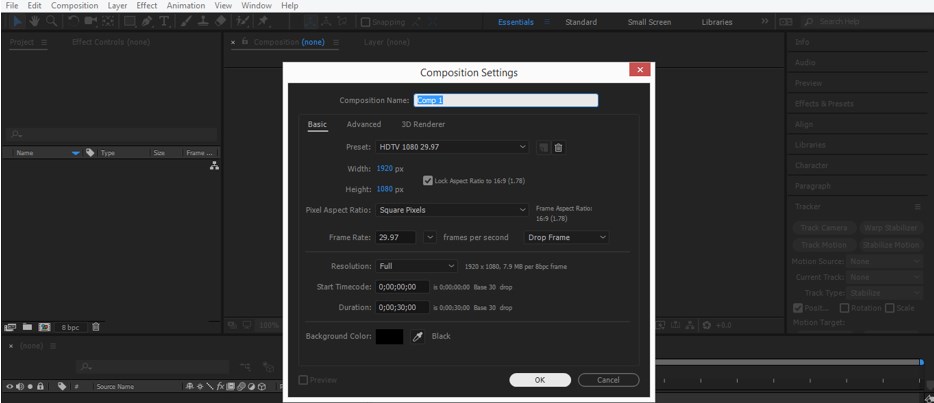
Step 2: Let us have a new composition first. For New Composition, go to File Menu of Menu bar and click on the ‘New Composition’ option of a drop-down list, or you can press Ctrl + N keys for a new composition.

Step 3: A dialog box for the new composition will be open. Make your desired setting here in this box, and then press the Ok button of this dialog box for applying the settings.
Step 4: Now, take the Text tool from the tool panel of this software, which is at the top of the working screen.

Step 5: Now, type your desired text in the composition window area with the text tool.
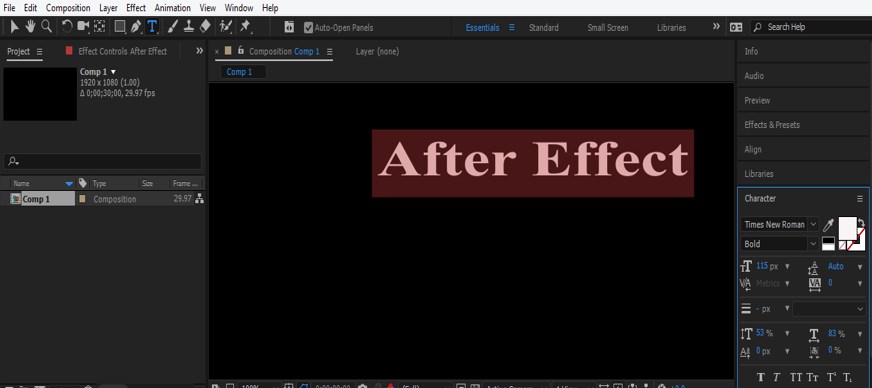
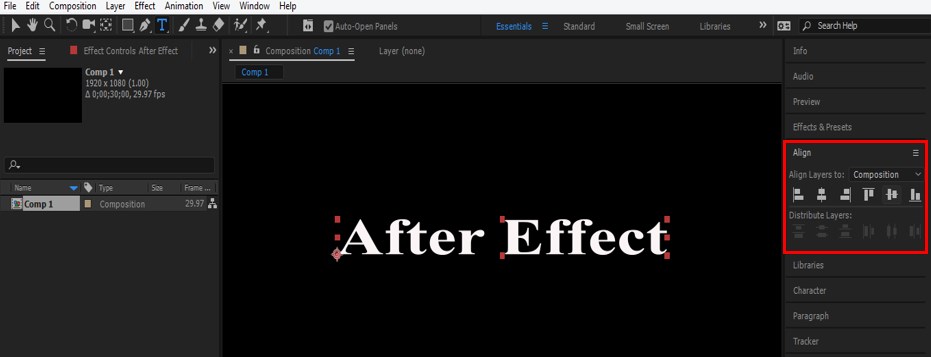
Step 6: Align it at the center of the composition window with the help of the Align tab, which is at the right side of the working area in the parameters section.
Step 7: Now go to the Layer section of this software and click on the small arrow icon of the text layer. Properties of the text layer will be open. Click on the Animate option of Text.
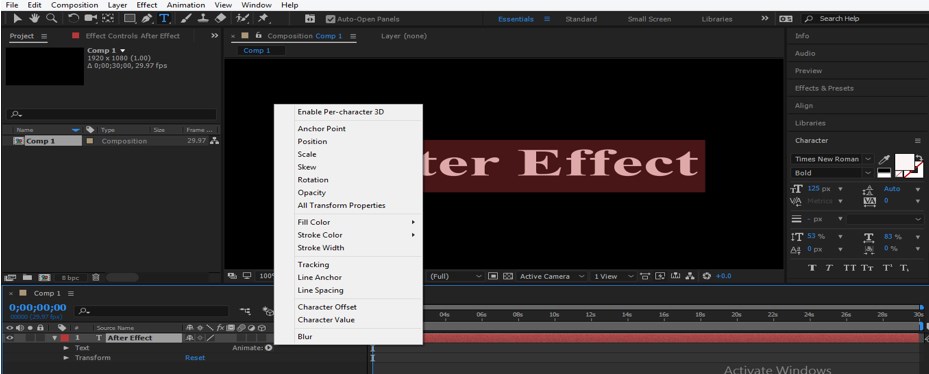
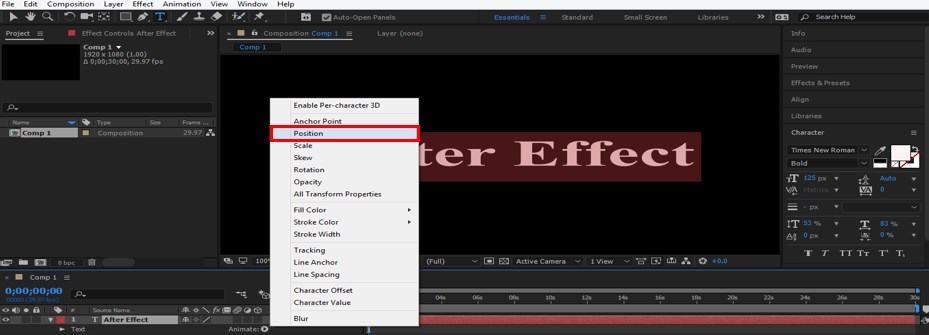
Step 8: Choose your desired property of Text on which you want to apply expression from the drop-down list of properties. I will choose the Position property of the text.
Step 9: Now click on the small arrow icon of Animator 1 and delete Range Selector 1 from here because we want the Expression selector here. For deleting Range Selector 1, click on it and press the ‘Delete’ button on the keyboard.

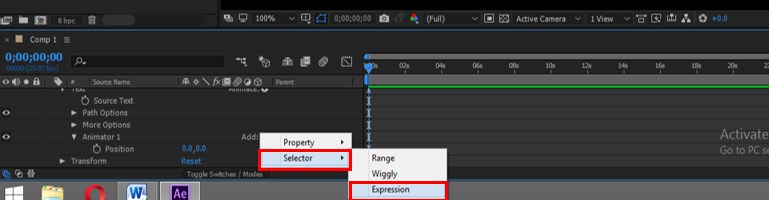
Step 10: Now click on Add button of Animator, go to Selector in the drop-down list and choose the Expression option from the new drop-down list.
Step 11: Now click on a small arrow icon of Expression Selector 1 and select on which you want to apply expression; for example, if you choose Characters, then the expression will work on characters of text only. So choose anyone from the drop-down list according to you.

Step 12: Now click on the small arrow icon of Amount for opening the expression code. You can see the expression code in the frame section of the timeline.

Step 13: Now select this expression by click on it.

Step 14: Type an expression like this. You will become an expert by practicing on it.

Step 15: This expression will work on any other expression which will be above Expression selector 1. So let us take Wiggly Expression. For the Wiggly expression, click on Add button of Animator 1; a drop-down list will be open; go to the selector and choose Wiggly from the new drop-down list.
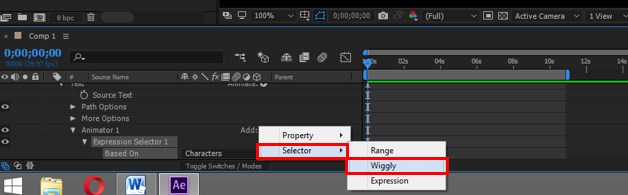
Step 16: Place Wiggly Selector 1 above Expression Selector 1.

Step 17: Now disable Expression selector 1 layer for seeing the effect of the Wiggly selector on our text. Now increase the value of the position. According to our expression, if the value of position is less than 50, then the character will remain in its position, and if the value of position is more than 50, then the position of the character will change.
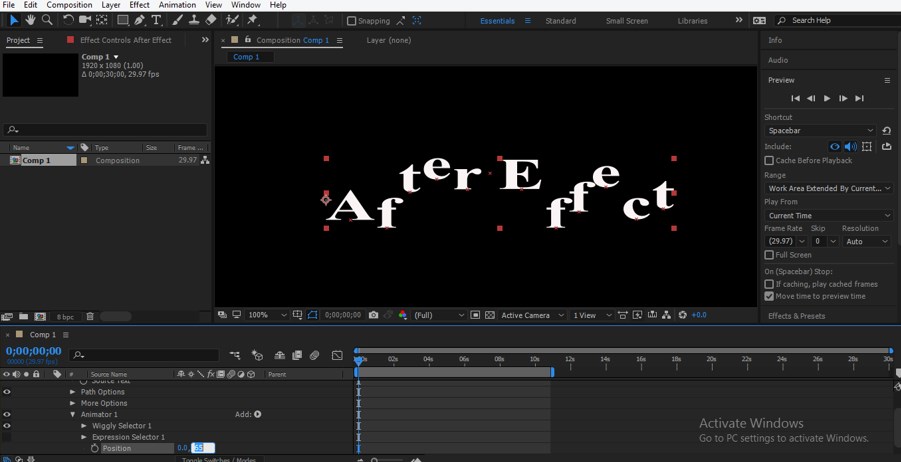
Step 18: Now, when you enable the expression selector 1 layer, the code of expression will show results.
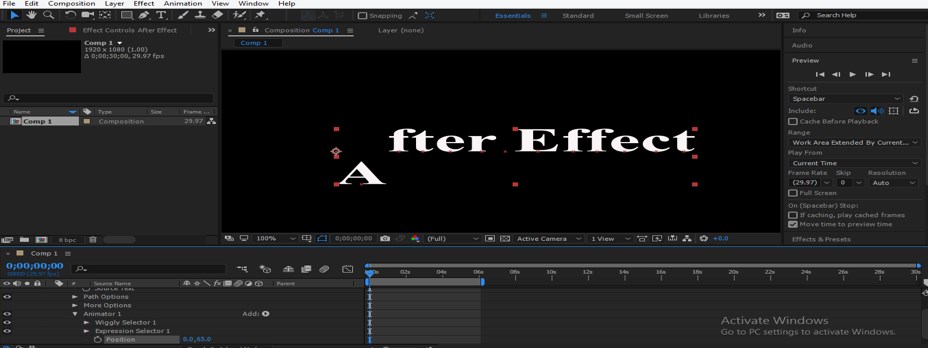
Step 19: You can take any property of text for adding expression on that property. Just go to the ‘Add’ button of Animator 1 and choose your desired property at any point in your work.
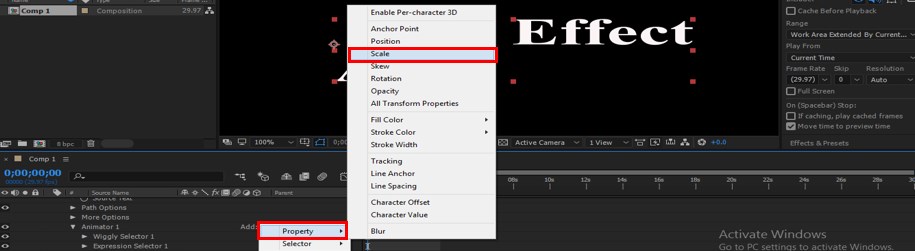
Step 20: You can add expression at the Source Text option of the text layer also.

Step 21: Just click on the small clock icon of the Source Text option by holding the Alt button of the keyboard. An expression will be open in the keyframe area of the Timeline.

Step 22: Suppose I will type Time in expression.

Step 23: Then, it will count time in the composition area.
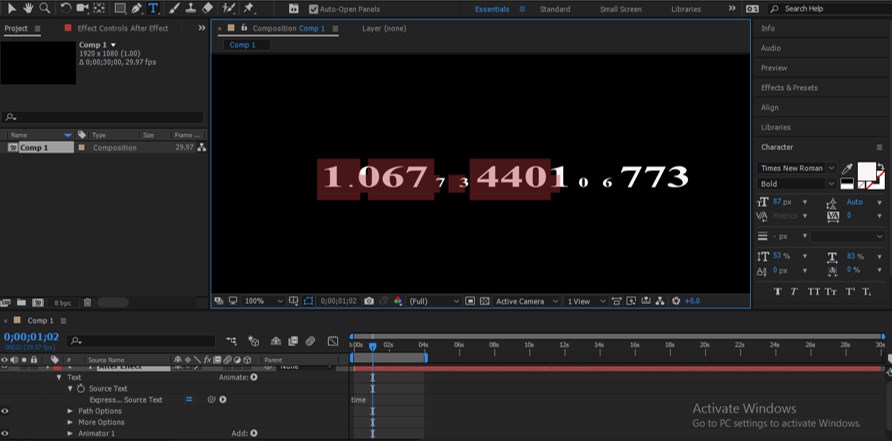
Step 24: If you have no knowledge about Javascript and are finding difficulties in making code of expression, then there is another option for you to use the pre-designed expression of After Effect software. For pre-designed expression, go to the Effects & Presets tab of this software which is on the right side of the working area.
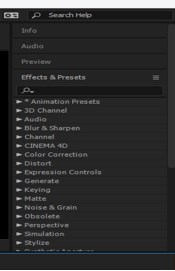
Step 25: Now click on the small arrow icon of Animator Presets. An A-List of presets will be open.

Step 26: Now click on the small arrow icon of Text Preset. The Number of presets expression will be open here.
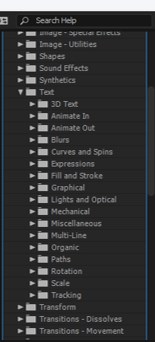
Step 27: Choose your desired expression here and pick it from there, then drop it on the text in the composition window area.
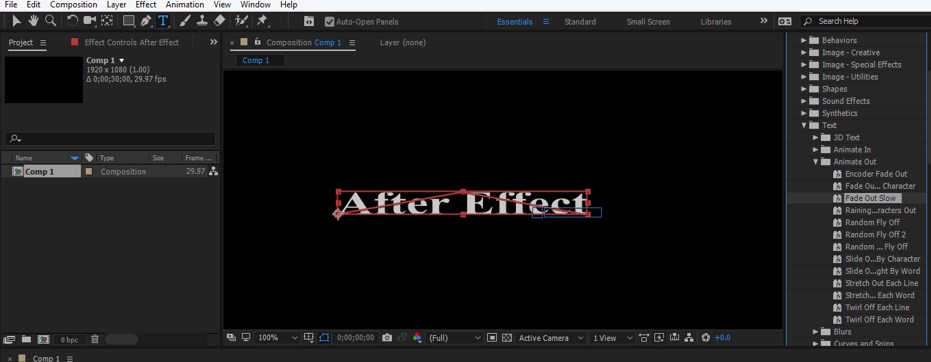
Step 28: Preset expression will be applied to your text layer like this.
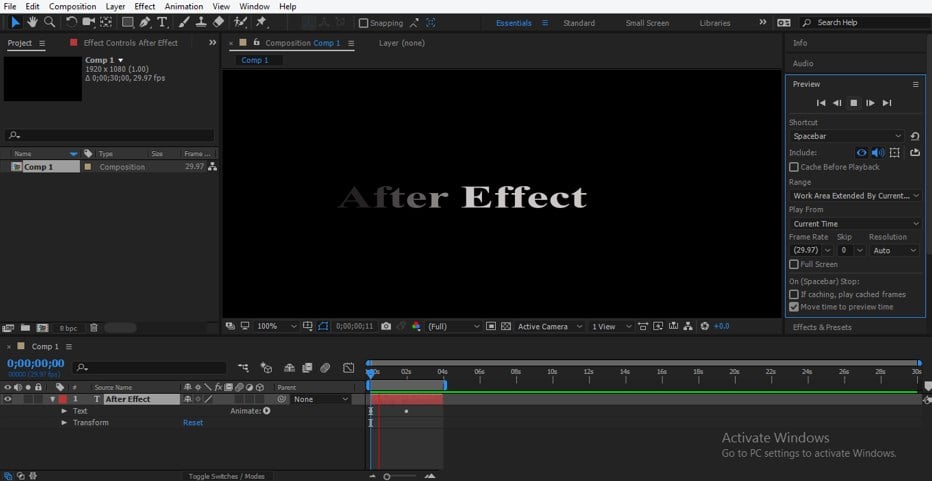
In this way, you can use Expression in After Effect and handle its parameter.
Conclusion – After Effects Expressions
After going through this article now, you can understand ‘what is Expression in After Effect’ and ‘how you can handle it without any difficulties for the best result in your graphics designing work. You can increase the area of using expression by practicing Javascript code writing.
Recommended Articles
This is a guide to After Effects Expressions. Here we discuss how to create Expression in After Effect in a step-by-step manner. You can also go through our other related articles to learn more –

