


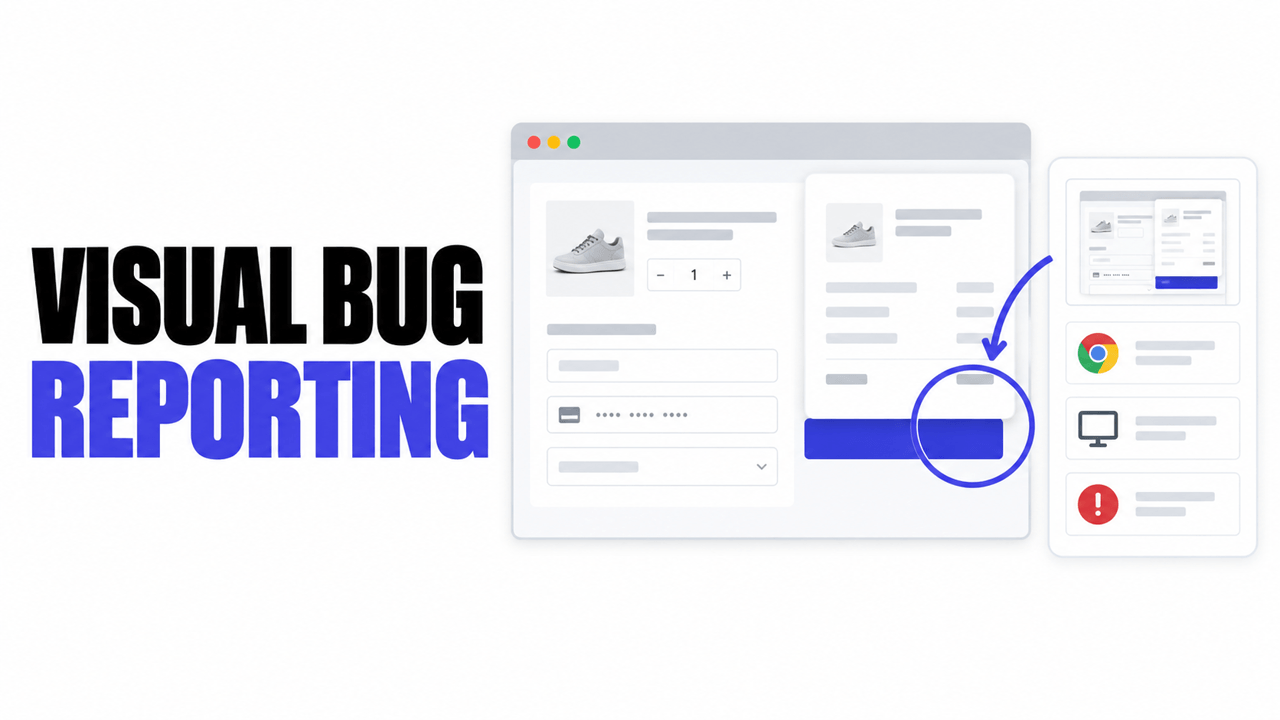
Visual bug reporting documents software defects with annotated screenshots, screen recordings, and automatically captured technical data instead of text-only descriptions; its main advantage is that developers can see and reproduce the problem without chasing the reporter for missing details.
Key Takeaways
- Visual bug reporting replaces vague written descriptions with visual evidence plus technical context, such as the page URL, browser, operating system, and screen size.
- A complete visual bug report still needs expected vs. actual behavior and steps to reproduce; the screenshot supports the description rather than replacing it.
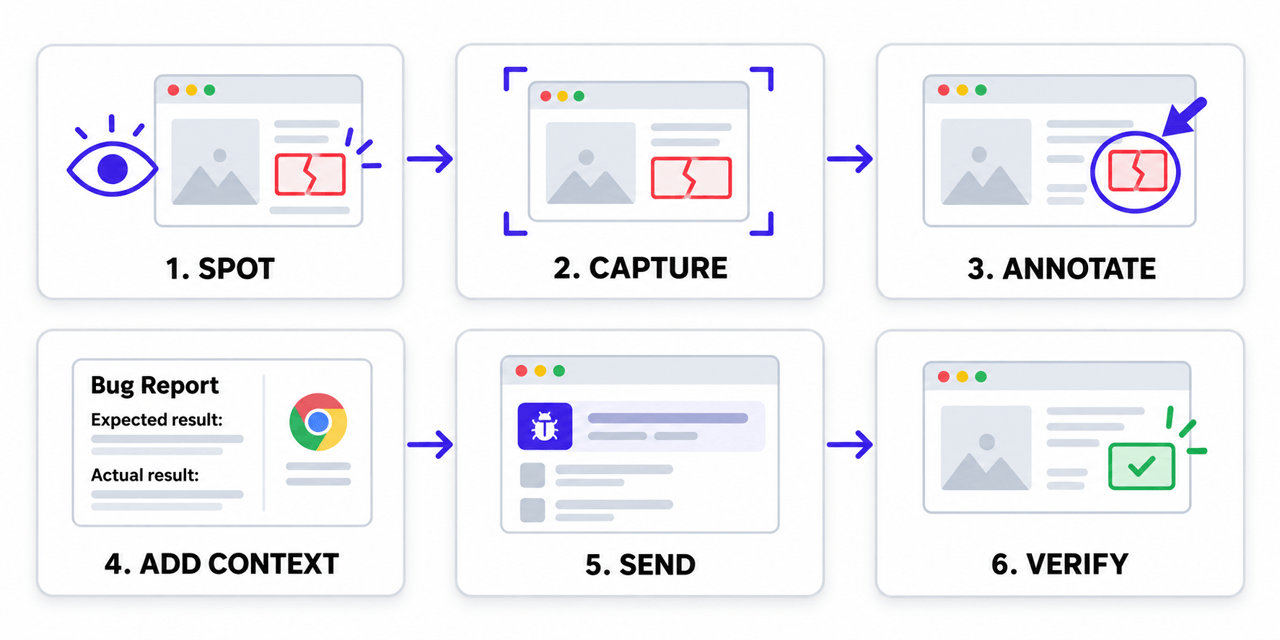
- The process has six stages: spot, capture, annotate, add context, send to a tracker, and verify the fix.
- Visual bug reporting tools fall into four main types: embedded feedback widgets, browser extensions, screenshot and annotation apps, and screen recorders.
- The method helps developers, QA testers, project managers, freelancers, and support teams, especially when non-technical people report issues.
For example, a client reviewing a new website writes, “The form on the contact page doesn’t work.” A visual bug report of the same issue shows a screenshot with the Submit button circled, the exact URL, the browser version, and a console error that appeared after the click. The developer can start fixing the issue right away instead of opening an email thread.
Why Do Text-Only Bug Reports Fail?
Text-only bug reports fail because they depend on the reporter remembering and describing technical details they often never noticed. Developers then have to guess the missing context or ask for it, which delays the fix.
Discussions among web developers and QA engineers point to the same recurring problems:
1. Missing Location
Reports such as “the button looks off” do not say which button, on which page, or in which state. Developers often have to ask the reporter to include the URL.
2. “Works on My Machine”
Many layout and JavaScript bugs appear only in a specific browser, device, or screen width. Non-technical reporters rarely know their browser version, so developers can not recreate the environment, and the ticket is closed as “cannot reproduce.”
3. Several Issues in One Message
Clients and stakeholders often send one long email listing five unrelated problems. Splitting that message into separate tasks is manual work, and individual issues easily get lost.
4. Screenshots Without Context
A cropped screenshot pasted into a chat shows the problem but not the page, the scroll position, or what happened before it. The image helps, but it still leaves questions open.
At Ybug, we’ve seen this pattern across many web projects: the fix itself is often quick, while collecting the missing information takes most of the time. Visual bug reporting addresses exactly that part of the workflow.
What Does a Visual Bug Report Include?
A visual bug report combines a visual record of the problem with the technical data needed to reproduce it. A tool captures some of the data automatically, and the reporter writes the rest.
| Element | What It Shows | Why It Matters |
| Annotated screenshot | The page with the problem highlighted, circled, or commented | Removes doubt about which element is affected |
| Screen recording | The series of steps that resulted in the bug. | Captures issues that a static image cannot show, such as animations or failed interactions |
| Page URL | The exact address where the issue occurred | Lets the developer open the same page immediately |
| Browser and operating system | Browser name, version, and OS | Explains bugs that appear only in certain environments |
| Screen resolution and viewport | The size of the visible browser area | Helps reproduce responsive layout issues |
| Console logs | JavaScript errors and warnings from the browser | Points developers directly to failing code |
| Expected vs. actual result | What should happen and what happened instead | Defines when the bug counts as fixed |
| Steps to reproduce | The actions that trigger the bug | Allows anyone on the team to recreate the issue |
Console logs are especially valuable for developers. The browser console records JavaScript errors and messages while a page runs, as described in the Chrome DevTools Console documentation. Most non-technical users never open it, so a tool that attaches these logs automatically gives developers information that the reporter could not provide.
How Does the Visual Bug Reporting Process Work?
The visual bug reporting process follows six stages, from spotting the problem to confirming the fix. Each stage adds context so the report is complete before it reaches a developer.
1. Spot the Issue
A tester, client, or user notices something wrong, such as a broken layout, a failing form, or incorrect content.
2. Capture the Screen
The reporter takes a screenshot or recording of the page in its current state. Dedicated tools capture the visible page and the technical data at the same moment.
3. Annotate the Problem
The reporter marks the problem directly on the image using arrows, highlights, rectangles, or short comments. Good annotation points to one specific element, not to the whole page.
4. Add Written Context
A short title, the expected result, the actual result, and steps to reproduce complete the report. This is where visual and traditional reporting meet: the image shows what, and the text explains when and why it’s wrong.
5. Send the Report to the Tracker
The report goes into the team’s issue tracker or project management tool, where it can be prioritized and assigned. Teams that use GitHub can also structure incoming reports with issue forms and templates that require fields such as environment and reproduction steps.
6. Fix and Verify
A developer fixes the bug, and the reporter or tester confirms that the result now matches expectations. From this point, the report follows the standard defect life cycle until it is closed.
How Do Different Roles Use Visual Bug Reporting?
The same report serves different needs depending on who reads it. Visual bug reporting works best when it matches each role’s priorities.
1. Web Developers
Developers need reproducibility. A report with the URL, environment data, and console errors turns a vague complaint into a solvable task.
2. QA Testers
Testers file many reports during each test cycle. Automatic screenshots and metadata let them document issues faster and keep reports consistent across the team.
3. Project Managers
Project managers need visibility. When every report lands in one tracker with a clear screenshot, they can see what blocks a release or client sign-off without reading long email threads.
4. Freelancers and Agencies
Freelancers and agencies collect feedback from clients who are rarely technical. A low-friction way to report issues, ideally without creating an account, means clients actually send feedback in a usable format.
5. Customer Support Teams
Support agents often receive problems described in a single sentence. A screenshot with technical details helps them confirm the issue and pass it to developers without asking the customer the same questions again.
“The best bug report is the one the reporter doesn’t have to think about. If a client needs to find their browser version or describe where a button sits on the page, you’ve already lost half the information. Let the tool capture the context and let people focus on telling you what went wrong,” says Radim Hernych, Founder of Ybug.
What Types of Visual Bug Reporting Tools Are There?
Visual bug reporting tools fall into four main types, each suited to a different stage of a project. Many teams combine two types, for example, a widget for client feedback and an extension for internal QA.
| Tool Type | How It Works | Best For | Limitations |
| Embedded feedback widget | A script adds a feedback button to the website; reporters click it on any page | Client reviews, UAT, feedback from real users | Requires adding code to the site |
| Browser extension | Installed in the reporter’s browser; works on any site they visit | Internal QA, developers, testers | Each reporter must install it |
| Screenshot and annotation app | Captures and marks up any screen area on the desktop | Quick one-off reports, design notes | Usually no automatic browser or console data |
| Screen recorder | Records video of the screen, often with voice | Complex interactions, intermittent bugs | Longer to review; video still needs written context |
When choosing a tool, start with the people who will report bugs. Non-technical clients need something they can use without installation, while testers benefit from deeper technical capture. For a more detailed comparison by workflow stage, the Ybug team has published a guide on how to choose a website visual feedback tool.
What Are the Best Practices for Visual Bug Reporting?
Visual tools make reporting easier, but report quality still depends on a few habits. These practices apply regardless of the tool a team uses.
1. Report One Issue per Report
Separate reports can be assigned, prioritized, and closed independently. Combining issues slows everyone down.
2. Annotate, Don’t Just Capture
An unmarked screenshot forces the developer to search for the problem. A single arrow or highlight removes the guesswork.
3. Keep the Full Page Context
Crop only when necessary. Surrounding elements often explain why a layout breaks.
4. Always State Expected vs. Actual Behavior
A screenshot shows the current state, but not what the reporter expected. One sentence for each makes the report clear.
5. Hide Sensitive Data
Screenshots can capture personal data, payment details, or internal information. Reporters should blur or crop such areas, and teams should check how their tool stores images.
6. Check for Duplicates
Before submitting, reporters should look at open issues on the same page. Adding a comment to an existing report is faster than creating a new one.
How Is Visual Bug Reporting Different from Traditional Bug Reporting?
The table below highlights the differences between the two approaches:
| Basis | Visual Bug Reporting | Traditional Bug Reporting |
| Main format | Annotated screenshots or recordings plus text | Written description, sometimes with an attachment |
| Technical data | Often captured automatically | Entered manually by the reporter |
| Skills required | Low; suitable for non-technical reporters | Higher; reporter must know what details matter |
| Reproducibility | High, thanks to environment data and visual proof | Depends on the reporter’s accuracy |
| Follow-up questions | Fewer | Frequent |
| Best suited for | Web and UI issues, client feedback, UAT | Back-end logic, API errors, issues without a visual element |
Frequently Asked Questions (FAQs)
Q1. What is the difference between a bug report and a visual bug report?
Answer: A visual bug report is a bug report that adds annotated screenshots or recordings and automatically captured technical data to the written description.
Q2. Can a screenshot replace steps to reproduce?
Answer: No, a screenshot shows what went wrong, but steps to reproduce and expected vs. actual behavior are still needed to recreate and verify the bug.
Q3. Do non-technical users need training to submit visual bug reports?
Answer: Usually not, because embedded feedback widgets let non-technical users report an issue by clicking a button, marking the problem, and typing a short comment.
Q4. How should teams handle sensitive data in bug screenshots?
Answer: Reporters should blur or crop personal and payment information before submitting, and teams should verify how their bug reporting tool stores screenshots.
Final Thoughts
Visual bug reporting helps teams move from vague complaints to reports that developers can act on immediately. By combining annotated visuals, automatically captured technical data, and a short written description, it removes much of the back-and-forth that slows down testing and client reviews. Teams get the most value when they match the tool type to the people reporting and keep simple habits such as one issue per report and clear expected vs. actual results.
Recommended Articles
We hope this guide helps you understand how visual bug reporting can simplify defect documentation, improve communication, and provide developers with actionable technical context. Explore our recommended articles for more insights on software testing, quality assurance, bug tracking, website feedback, and development workflows.

