

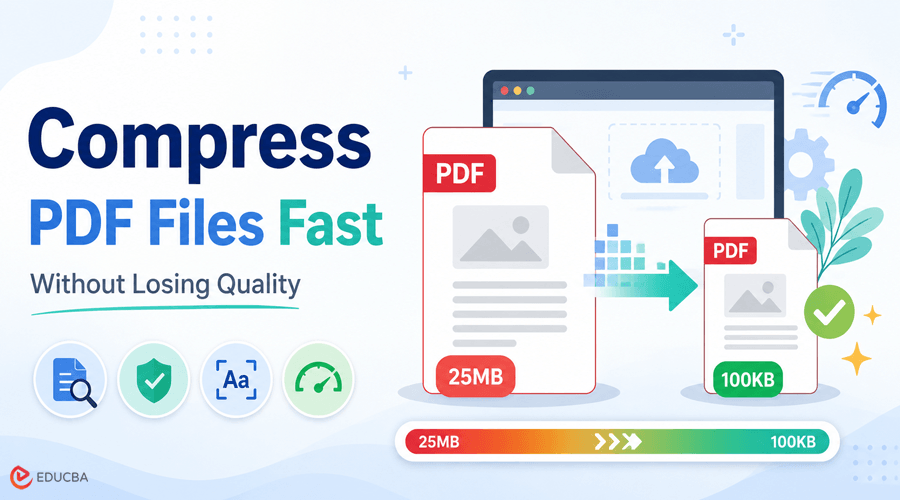
Plenty of online forms cap uploads at a size that feels almost impossibly small: a government portal, a job application, a scholarship form, all asking for a file under 100KB when a scanned page alone often runs several times that. Miss the limit, and the form usually rejects the upload outright, with no explanation beyond a file size error. Getting there without the document turning into a blurry mess is the actual challenge, not just shrinking the file.
This is where it helps to compress PDF Files without losing quality, rather than guessing at export settings and hoping the result still looks right. The rest of this guide covers what actually makes a PDF too large and what to do about it.
Why PDFs Get So Big in the First Place?
Most oversized PDFs come down to a handful of things: high-resolution images, fonts embedded directly in the file, and leftover metadata from every edit the document has been through.
A single scanned page saved at print resolution can weigh several megabytes. Multiply that across a multi-page document, and a small application form can suddenly become too large for the very portal that requested it. A page photographed on a phone is often worse, since the camera captures far more detail than a screen or a printed form ever needs.
You cannot see any of this just by opening the file and looking at it. The bloat lives in the data behind the page, not in anything a reader actually sees, which is exactly why you can compress PDF Files this much without the text or layout looking any different. Two documents that look identical on screen can differ by a factor of ten in file size, based purely on what sits underneath the visible page.
The Fastest Way to Compress PDF Files Automatically
With OnlyDoc, upload a file, and it will automatically compress the PDF to 100KB, with no settings to configure first. The process prioritizes text clarity, so paragraphs and headings stay sharp even as the overall file shrinks.
The whole thing runs in the browser and finishes in seconds, which matters when a form deadline is close and you do not have time to fight with export settings. No account or cost is required, so it works for a one-off application form and for someone compressing files every week. You can upload files up to 100MB, which covers most scanned documents even before compression starts.
Some portals phrase the requirement differently, asking you to reduce PDF size to 100KB rather than compress it, but the process and result are the same either way. If your goal is to compress PDF Files for an online application, the important thing is to meet the portal’s size limit while keeping the document readable.
When the Limit Is Even Smaller?
Some forms are stricter still, capping uploads at 50KB instead of 100KB. The same approach still works to compress a PDF to 50KB, though the trade-offs get more noticeable at that size.
Text-only documents handle a smaller target with barely any visible difference, since text compresses efficiently no matter how tight the limit gets. A document full of scanned images or photos has less room to work with, so a 50KB target may result in visibly softer images than a 100KB target would allow.
Either way, the file stays fully readable. The compression targets file size, not the words on the page, so nothing gets cut or blurred beyond recognition just to hit a number. If a document leans heavily on photos rather than scanned text, splitting it into two files, one for the text pages and one for the images, sometimes clears a strict limit more cleanly than compressing everything together.
A Few Things to Check Before You Compress PDF Files
A little cleanup beforehand often means less has to be compressed later, and it takes only a minute:
- Remove any blank or duplicate pages that do not need to be in the final file
- Convert scanned color pages to grayscale if color is not actually required
- Delete comments, tracked changes, or old edit history left in the document
- Flatten any form fields or annotations that are not needed after the document is finalized
- Confirm the final page count matches what the form actually asked for.
None of these steps require special software either, just a quick pass through the document before it goes anywhere near a compression tool.
Final Thoughts
Getting a PDF under a strict size limit does not require guessing at compression settings or accepting blurry text, even when the portal gives no guidance beyond a rejection message. Knowing what makes a file large in the first place, and learning how to compress PDF Files correctly, gets most documents under 100KB without visible quality loss.
For a stricter 50KB limit, a little cleanup beforehand makes the rest of the process just as easy. Whether you are preparing a job application, scholarship form, government document, or another online submission, the right PDF compression approach can help you meet strict upload requirements without sacrificing readability.
Recommended Articles
We hope this guide helps you understand how to compress PDF Files efficiently while maintaining readability and meeting strict upload size limits. Explore these recommended articles for more insights into PDF compression, PDF tools, document management, file optimization, productivity software, and digital workflows.