


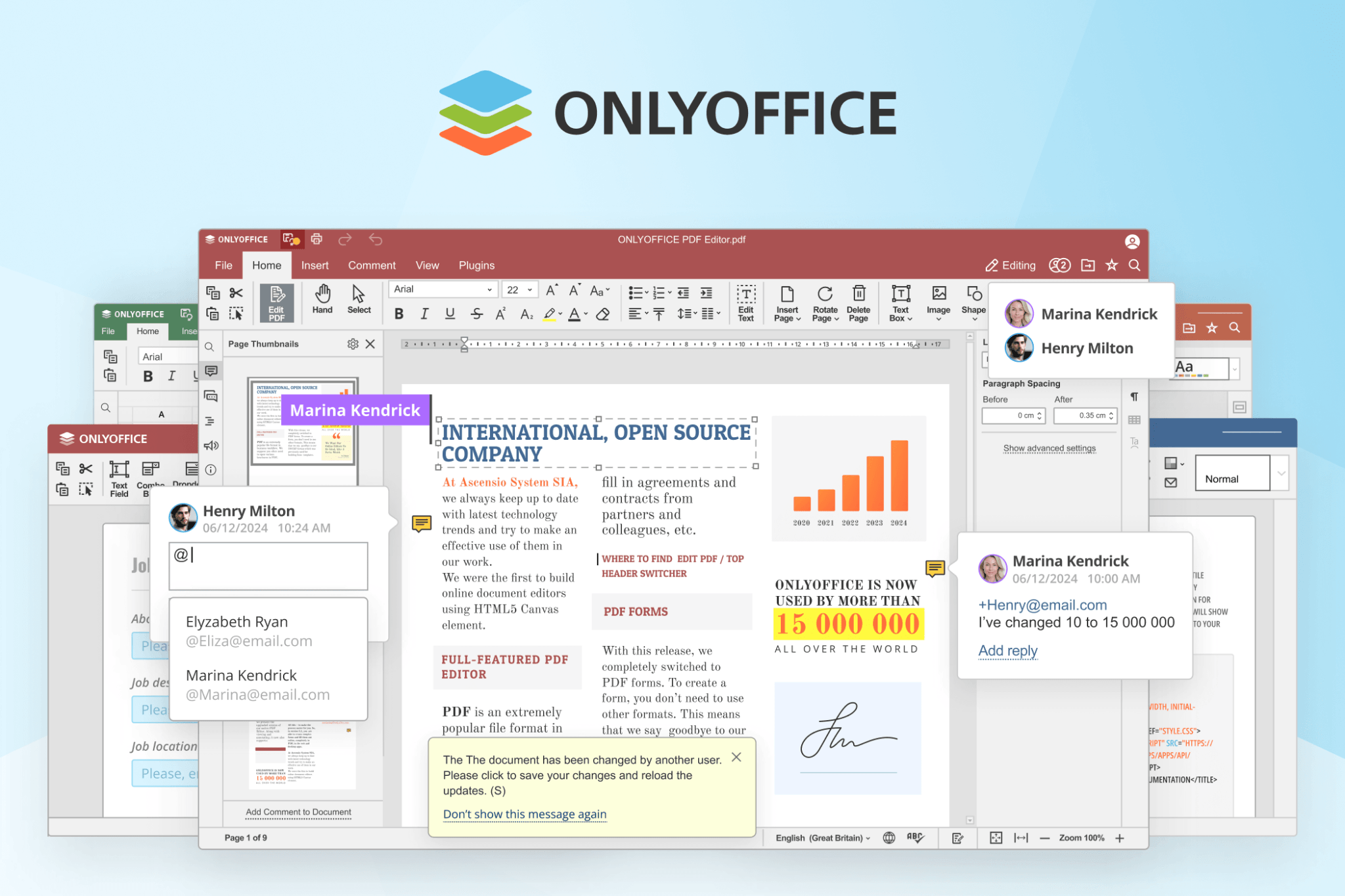
(Image Credit: ONLYOFFICE)
Start With What Your University Already Provides
A new semester can turn ordinary software into a deadline problem. An essay needs a DOCX template. A lab project arrives as an XLSX worksheet. Your group presentation is in PPTX. Then the final submission has to become a PDF that looks the same on somebody else’s screen.
Before paying for Microsoft Office, check your university IT page. Many universities provide Microsoft 365 Education to students; however, the digital benefits differ: Microsoft’s A1 tier is designed exclusively for web browsers, while A3 offers full desktop capabilities. It may be your lucky break if your college provides you with the exact suite you need.
ONLYOFFICE Desktop Editors deserves a legitimate trial if it falls short or if you need a trustworthy local solution for Windows, macOS, or Linux. This is not an appeal for all students to stop using Microsoft Office; it’s a useful scorecard to see whether a free suite can overcome common student obstacles, such as format conflicts, unreliable Wi-Fi, scattered programs, and formatting errors that cause panic right before a deadline.
First Problem: Will Your Coursework Survive File Sharing?
Students often notice compatibility issues too late. A document opens, but headings wrap differently. A table breaks across pages. A slide deck swaps fonts on a classmate’s computer. The assignment is still there, technically, but now it needs an hour of repairs.
ONLYOFFICE Desktop Editors works with common academic formats, including DOCX, XLSX, PPTX, ODT, ODS, CSV, and PDF. That matters because students rarely work alone. Tutors distribute templates, classmates share files, and submission portals often have narrow expectations. A tool that can only display a file is not enough if it changes the layout when you save it.
Test this before you commit. Open a real course template, not a blank document. Edit a paragraph, add a table, save a copy, and open it again. If possible, ask a classmate using Microsoft Office to check the copy. This small comparison is more useful than a long feature chart. It also avoids the usual trap: discovering a layout issue when the deadline is no longer flexible.
Second Problem: What Happens When Wi-Fi Lets You Down?
Cloud editors are handy until they are not. Campus Wi-Fi slows down in the library. A train loses signal. A browser session reloads after you have just fixed a difficult citation. Most students have some version of this story, and it is why local software still has a place.
Bid farewell to online dependencies and browser tabs! You may edit a report, make changes to a chart, create presentations, or view a PDF totally offline using ONLYOFFICE Desktop Editors, which operates alone on your local computer. You can also easily switch between documents, spreadsheets, and presentations with its slick tab-based design, without overcrowding your screen with windows.
That does not make cloud collaboration irrelevant. Microsoft 365 may be the better fit when your class already uses Teams, OneDrive, or shared live editing. However, a desktop editor gives you a fallback when the network is the weak link. For a student, that is not a technical philosophy. It is simply insurance against losing momentum during the final stretch.
Third Problem: Can One App Handle the Work Around the Assignment?
Students often collect software by accident. One tool is used for writing, another for a chart, a browser service handles PDFs, and a presentation app appears only when a seminar approaches. Each tool may be fine. The combined workflow is where things get messy, especially when folders start filling up with files called final-final-v2.
With ONLYOFFICE Desktop Editors, you can tackle your task without constantly moving between apps. Create an eye-catching lecture deck in the presentation studio, keep track of your research data or crunch figures in the spreadsheet hub, and draft your essay in the document processor. Its integrated PDF toolbox allows you to quickly fill out forms, rearrange pages, convert finished documents, and leave a remark whenever your workflow requires practical document management.
The point is not that every assignment needs every feature. Most do not. The advantage is having a straightforward default when coursework crosses formats. Keep the editable original, name versions clearly, and export a PDF when the layout must stay fixed. Software will not create that discipline for you, but fewer hand-offs make it easier to maintain.
Fourth Problem: Can AI Reduce Extra Work?
Students often jump between separate AI tools to summarize notes, rewrite text, translate content, or get help with spreadsheets. ONLYOFFICE Desktop Editors brings AI assistants into the workspace, where they can help with tasks such as summarizing, grammar checking, translation, rewriting, OCR, and spreadsheet formulas.
It also offers a Desktop AI Agent for broader document and file-related tasks, with support for different AI providers and local models.
The important part is how you use it. AI can save time, but students should still verify its output and follow their university’s rules on AI-assisted coursework. The best test is simple: does it remove unnecessary steps without compromising the quality or integrity of your work?
Fifth Problem: Is Free Actually Saving You Time?
Free software only saves time if it does not create cleanup work later. That is where broad claims about the “best Microsoft Office alternative” become unhelpful. A student needs a tool that works for their module, their device, and the files they receive, not a winner of an imaginary software contest.
Run a short test with three genuine files. Open a DOCX document with headings and tables. Check an XLSX sheet with formulas your course uses. Review a PPTX presentation, then export a PDF and inspect it on another device. Pay attention to the boring details: fonts, page breaks, formulas, speaker notes, and file names.
If ONLYOFFICE Desktop Editors handles those jobs cleanly, it may be enough for much of the semester. If a module relies on complex macros, specialist add-ins, or an institutional Microsoft workflow, use what the course requires. Finding that out early is still a win. The aim is to make an informed choice, rather than paying because unfamiliar software feels risky.
Make the Software Earn Its Place
You may already have access to Microsoft 365 Education through your campus, so check that first. ONLYOFFICE Desktop is worth a serious test drive for anyone without it, or for anyone looking for a genuine cross-platform desktop suite that works on Windows, macOS, and Linux.
It addresses the friction points that make office software feel necessary: opening standard files with ease, navigating offline without issues, switching from prose to spreadsheets, and consistently producing quality PDFs. It will not suit every specialist course. No office suite does.
Install it before deadlines pile up. Test it with the actual files that matter. Ask a collaborator to open one saved copy. If it works, keep your money for books, travel, or something less predictable than software. If it does not, you will know early, with time to choose another route.
Recommended Articles
We hope this guide helps you understand ONLYOFFICE Desktop Editors and decide if it meets your student productivity needs. Explore these recommended articles for more insights into office software, productivity tools, document editing, AI tools, and student resources.

