What is BIOS (Basic Input Output System)?
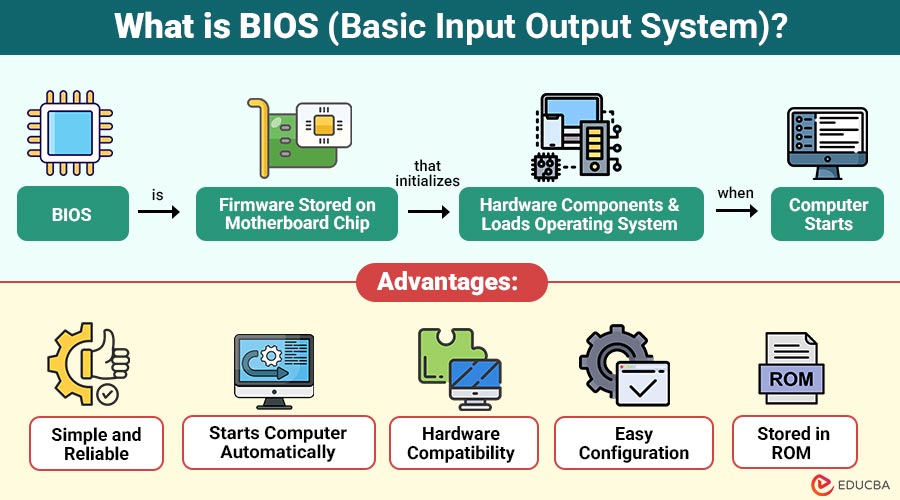
BIOS is the firmware stored on a motherboard chip that initializes hardware components and loads operating system when the computer starts.
BIOS is a type of firmware, meaning it is software permanently stored in hardware memory such as ROM, EEPROM, or flash memory. It controls basic input and output operations, such as the keyboard, mouse, hard disk, display, and CPU initialization.
Table of Contents:
- Meaning
- Functions
- Working
- Types
- Advantages
- Disadvantages
- Uses
- When Should you Update BIOS?
- Difference
Key Takeaways:
- BIOS is firmware stored on the motherboard that starts computer and loads the operating system during the boot process.
- The BIOS performs POST, initializes hardware, selects a boot device, and provides a setup utility for configuring basic system settings.
- Modern computers use UEFI instead of legacy BIOS for faster boot times, improved security, and support for large storage devices.
- BIOS updates are required only for hardware compatibility, bug fixes, security patches, or when recommended by the manufacturer.
Functions of BIOS
BIOS performs several important functions that allow the computer to start and operate correctly.
1. Power-On Self Test (POST)
When the computer starts, the BIOS runs POST to check hardware components such as RAM, the CPU, the keyboard, and storage devices for proper operation.
2. Bootstrapping
Bootstrapping is the process by which the BIOS locates the boot device, loads the operating system into memory, and starts the system.
3. Hardware Initialization
Initializes and prepares hardware components such as hard drives, the keyboard, the mouse, and the display so that the operating system can communicate properly with them.
4. Setup Utility
Provides a setup utility screen that allows users to configure system settings like boot order, hardware options, date, and time.
5. Device Drivers Support
Includes basic built-in drivers that help the operating system communicate properly with essential devices such as the keyboard, monitor, and storage hardware.
6. CMOS Setup
Stores important system configuration data in CMOS memory, including the system date and time, boot sequence, and hardware configuration settings, permanently.
How does BIOS work?
The BIOS operates in a step-by-step process when the computer starts.
Step 1: Power On
When the power button is pressed, the CPU starts and searches for BIOS instructions stored in ROM to begin the startup process.
Step 2: POST Execution
Performs a Power-On Self-Test to verify RAM, the processor, the keyboard, storage devices, and other hardware, ensuring proper operation before startup.
Step 3: Hardware Detection
Detects and identifies connected hardware devices, such as hard disks, USB devices, keyboards, mouse, and displays, to prepare the system for initialization.
Step 4: Boot Device Selection
Checks the boot order stored in CMOS settings to find the correct bootable device containing the required operating system files.
Step 5: Load Operating System
After finding the boot device, it loads the operating system into RAM and transfers control to it for execution.
Step 6: System Ready
Once the operating system finishes loading, system drivers start, hardware becomes functional, and the computer is ready for user interaction and tasks.
Types of BIOS
There are different types of BIOS used in computers.
1. Legacy
It is the traditional firmware used in older computers, providing basic hardware control, a simple interface, and limited configuration and boot features.
2. UEFI
It is a modern firmware interface that supports faster boot times, large storage drives, a graphical user interface, networking features, and improved security options.
3. Flash
It is stored in flash memory and can be updated via software, allowing manufacturers to fix bugs and improve hardware compatibility easily.
4. BIOS Chips by Manufacturers
Different companies develop BIOS firmware for computers, including AMI BIOS, Phoenix BIOS, and Award BIOS, each providing hardware control and configuration features.
Advantages of BIOS
Below are the main advantages that help the computer start properly and manage hardware functions correctly.
1. Simple and Reliable
It is small, reliable firmware stored on the motherboard, designed to run consistently without errors during the computer startup process.
2. Starts Computer Automatically
Runs automatically when the computer power is turned on, performing hardware checks and loading the operating system without user intervention.
3. Hardware Compatibility
Provides support for many hardware devices, allowing the computer to recognize keyboards, storage drives, monitors, and other essential components during startup.
4. Easy Configuration
The setup utility allows users to easily change system settings, such as boot order, date, time, and hardware configuration, at any time.
5. Stored in ROM
Stored in ROM on the motherboard, so it remains stored even when the computer is turned off.
Disadvantages of BIOS
Below are the main disadvantages of BIOS that may affect system performance, security, and compatibility in modern computers.
1. Limited User Interface
Traditional BIOS provides only a text-based interface, which is difficult to navigate, lacks graphics support, and is not user-friendly for beginners.
2. Slow Boot Time
Takes longer to start because hardware initialization and the boot process are slower than in modern UEFI firmware used in computers.
3. Limited Disk Support
Older BIOS systems cannot support enormous hard drives, usually limited to smaller storage sizes due to partition and addressing restrictions.
4. Difficult to Update
Updating BIOS firmware is risky because an incorrect update or a power failure during installation can damage the motherboard and prevent the computer from booting.
5. Less Security
Provides limited security features, lacking advanced protections like secure boot, encryption support, and authentication methods available in modern firmware systems today.
Real-World Uses of BIOS
Below are some common real-world uses in computers and electronic systems.
1. Starting Personal Computers
Every personal computer uses BIOS firmware to start the system, check hardware components, and load the operating system during the boot process.
2. Laptop Boot Process
In laptops, BIOS checks hardware devices and system settings before loading operating systems like Windows or Linux to ensure a proper startup process.
3. Server Systems
Servers use BIOS or UEFI firmware to initialize hardware, verify system components, and start operating systems required to manage network services properly.
4. Embedded Systems
Many embedded systems, such as ATMs, printers, and routers, use BIOS-like firmware to automatically control hardware startup and basic device operations.
5. Troubleshooting
Technicians use the setup utility to check hardware status, change boot settings, test components, and diagnose system problems during the computer repair process.
When Should You Update BIOS?
Updating BIOS is not always required, but it may be needed when:
1. New Hardware is Not Detected
When the system fails to recognize new hardware, like RAM, a graphics card, or a storage device, you should update the BIOS.
2. System Has Bugs
An update may be required when the computer has stability issues, errors, or compatibility problems that are fixed in newer firmware versions.
3. Security Update is Released
When manufacturers offer security patches to address vulnerabilities and shield the system from potential attacks or unauthorized access, updating is crucial.
4. Manufacturer Recommends Update
You should update when the motherboard or laptop manufacturer officially recommends installing a new version to improve performance, stability, or compatibility.
Difference Between BIOS and Operating System
Below is a comparison in terms of function, storage, and operation.
| Feature | BIOS | Operating System |
| Type | Firmware | Software |
| Runs First | Yes | No |
| Stored In | ROM / Flash | Hard Disk / SSD |
| Function | Start hardware | Run programs |
| Example | BIOS Setup | Windows, Linux |
Final Thoughts
BIOS is a fundamental part of every computer system. It is responsible for starting the computer, checking hardware, and loading the operating system. Even though modern systems use UEFI, the concept of BIOS remains essential for understanding how computers work. Knowing about BIOS helps users troubleshoot problems, configure hardware, and understand the boot process more clearly.
Frequently Asked Questions (FAQs)
Q1. Where is BIOS stored?
Answer: BIOS is stored on a chip on the motherboard.
Q2. What is POST in BIOS?
Answer: POST is a test that checks hardware during startup.
Q3. Is BIOS software or hardware?
Answer: BIOS is firmware, which is between hardware and software.
Q4. What replaced BIOS?
Answer: UEFI replaced BIOS in modern computers.
Recommended Articles
We hope that this EDUCBA information on “BIOS” was beneficial to you. You can view EDUCBA’s recommended articles for more information.