


Overview
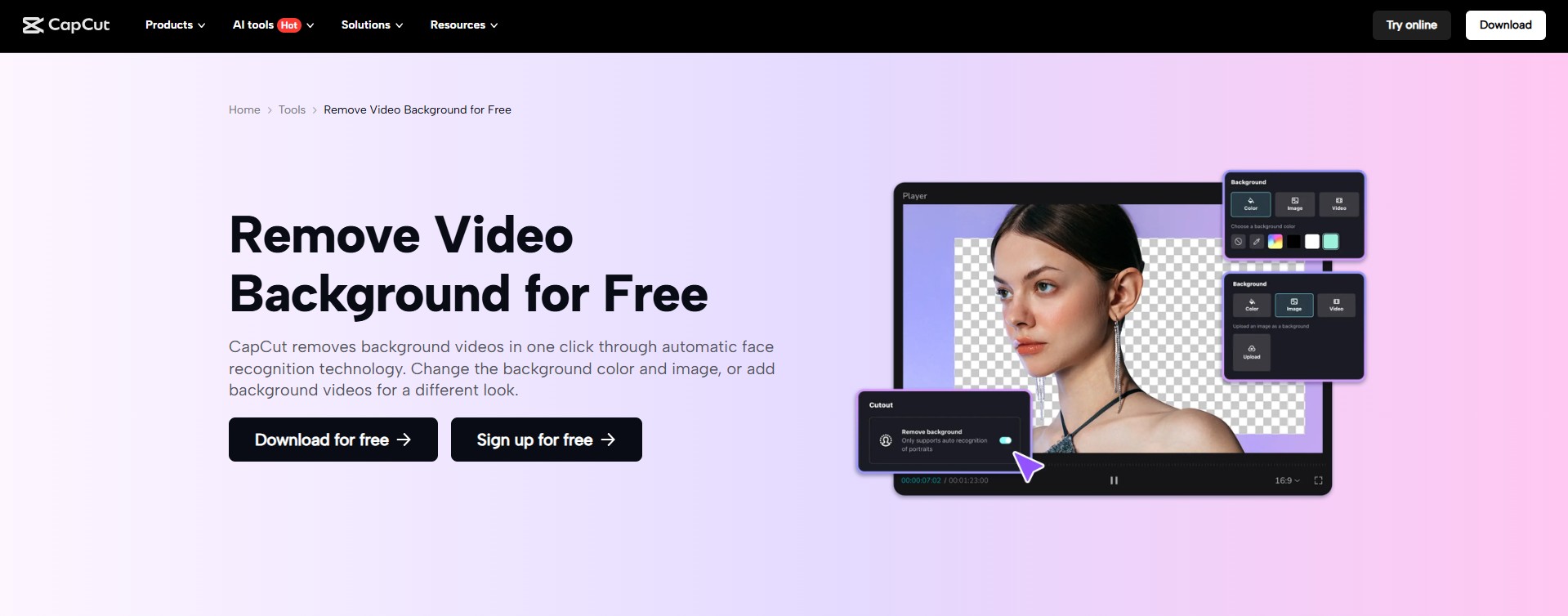
Vacation videos are supposed to record your best moments. However, sometimes the backgrounds are cluttered or messy, which causes people to focus on something other than what matters most. Too many distracting things in the background can make your videos less fun to watch. The good news is that with CapCut PC Background Removal, you can instantly eliminate distracting elements and create clean, professional-looking vacation videos. This feature makes your holiday memories stand out while keeping the focus on the story you want to tell. Here, we will observe how CapCut PC can help you easily remove cluttered backgrounds from your holiday videos and give them a new look.
Why Remove Cluttered Backgrounds from Vacation Videos?
Cluttered backgrounds may ruin the atmosphere of your holiday videos. When there are numerous individuals, objects, or crowded backgrounds behind you, it is difficult for viewers to focus on important moments. For instance, a passing stranger or cluttered tables can draw attention away from your smile and nice scenery.
A plain and clean background tells your story more effectively. It maintains your attention to you, your friends, or the subjects you desire to highlight. By eliminating messy backgrounds, your video is cleaner and more professional. The CapCut PC has a robust background remover that does this with ease. This feature helps you remove unwanted sections with ease. A couple of quick clicks are all it takes to turn your clips into beautifully polished memories.
Why CapCut PC Background Removal is Ideal for Vacation Videos?
CapCut PC makes it effortless to clean up your holiday videos by removing messy backgrounds in seconds. Powered by smart AI technology, it eliminates the need for tedious manual clipping. In a single click, you can erase distractions and replace them with a solid color, a stunning image, or even another video—giving you crisp, polished clips that truly stand out.
This application saves time when you have several clips to edit. The user interface is easy to use, and hence, newbies and intermittent editors can edit their videos without difficulties.
It is essential to learn that CapCut PC is not entirely free. Although it provides elementary tools for free, advanced features such as background removal and special effects might require a paid subscription.
One advantage is that you can export your videos without watermarks, depending on your subscription. This gives your vacation videos a more professional appearance. CapCut PC helps you create high-quality videos that are perfect for sharing on social media or preserving as personal keepsakes. It is a flexible video editor admired by many for creating excellent videos with ease.
How to Use CapCut PC Background Removal in Vacation Videos?
Step 1: Download and Install CapCut PC
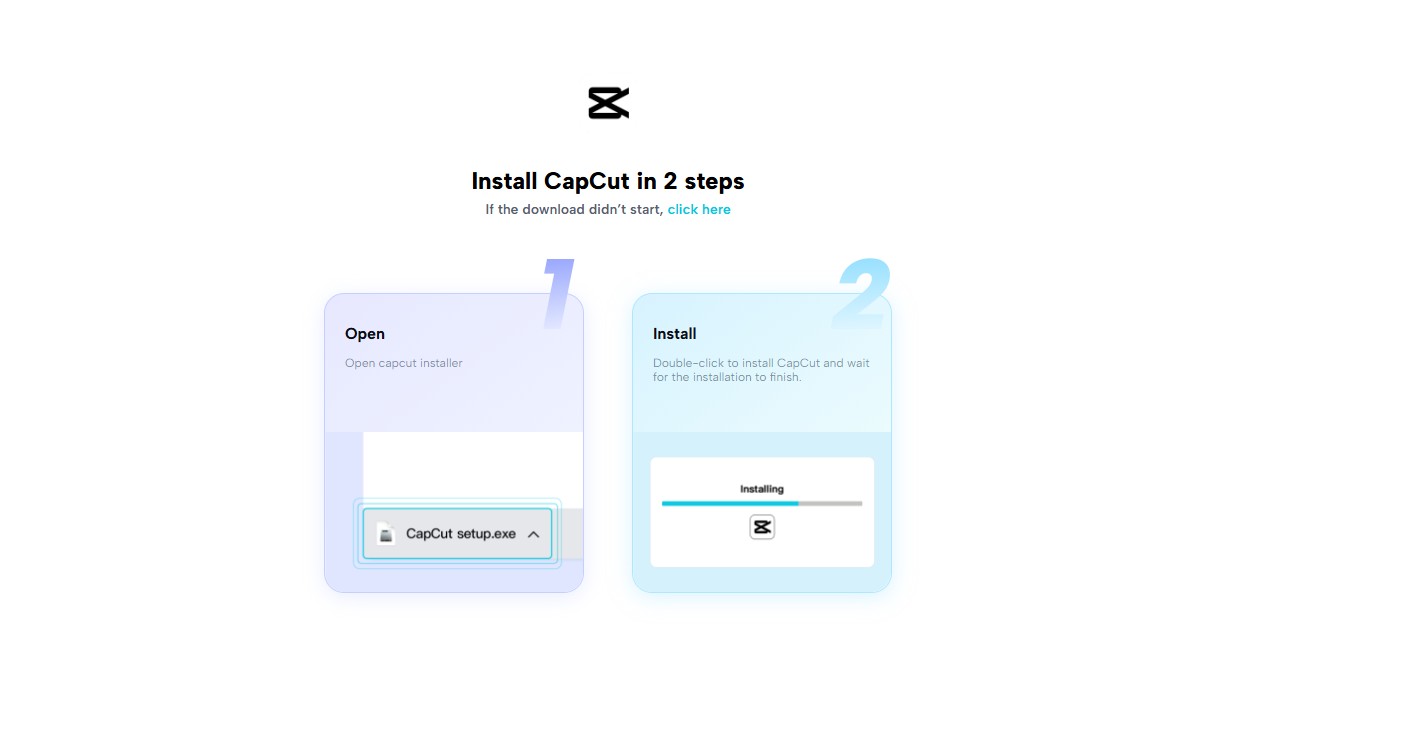
First, go to the official CapCut website and download the CapCut Desktop Video Editor. Do not download from other websites to avoid compromising your device. Once the download is complete, open the setup file and complete the straightforward installation process on your PC. It runs smoothly on Windows 10 and newer versions. Remember, CapCut PC provides free basic tools, but some advanced features like AI background generator or background removal might require a paid subscription or a one-time payment.
Step 2: Import Your Vacation Video
Launch the CapCut Desktop Video Editor once installed. Simply click the ‘Import’ button to add your vacation video to the editor. The software accommodates common video formats such as MP4, MOV, and AVI, so you shouldn’t have a problem loading your files.

Step 3: Remove and Replace the Background
Select your clip in the timeline and open the “Remove BG” option from the right-side panel. Click “Auto removal” to delete the current background instantly. Once it is cleared, go to the AI Image Generator tool and type a short prompt or choose from preset themes. CapCut PC will create a background based on your choice. Insert the generated image or video on the layer behind your subject to complete the new scene.

Step 4: Finalize, Export, and Share Your Edited Video
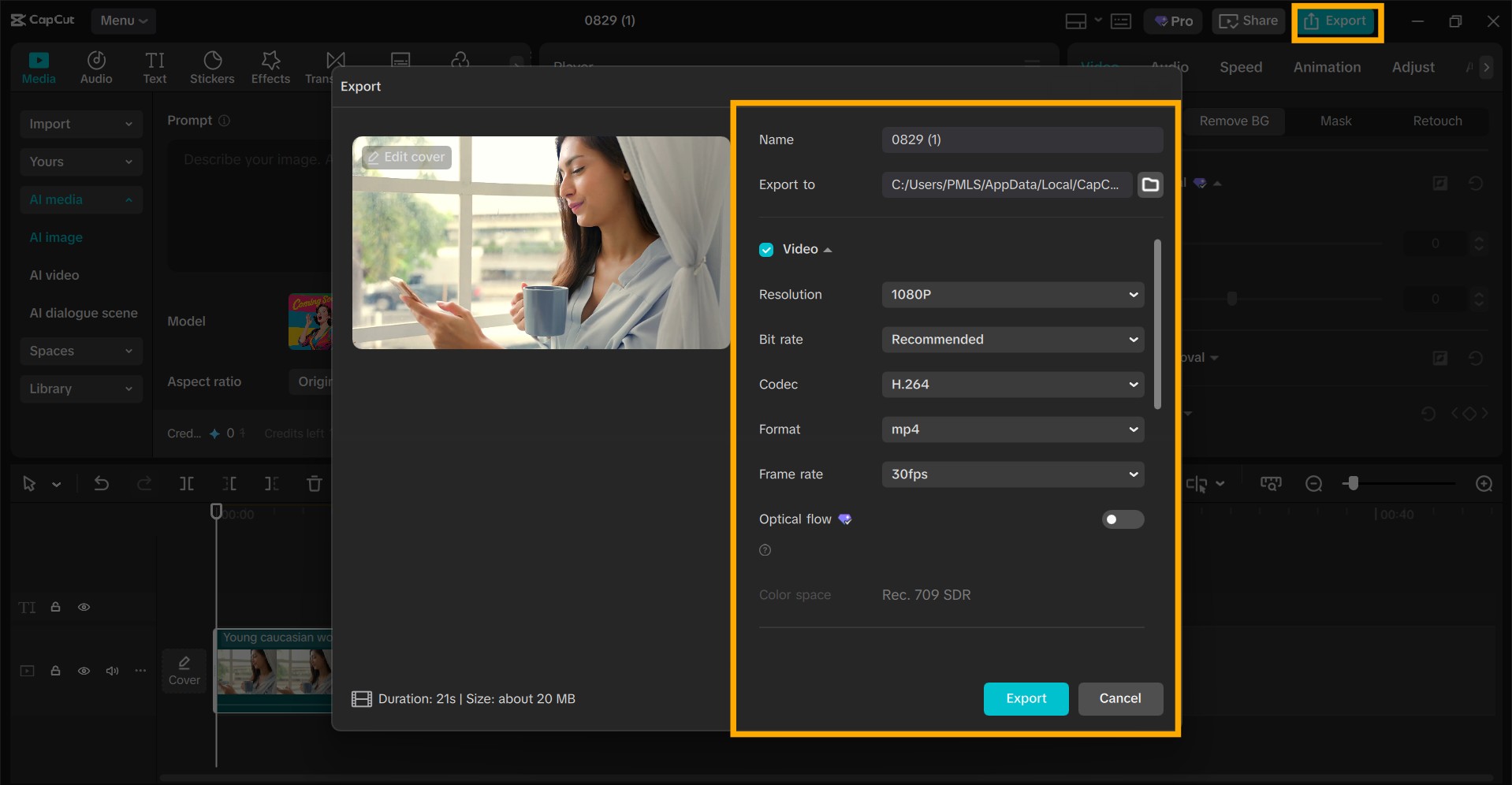
Once you are satisfied with the edits, head over to export settings and adjust the video quality and resolution. Click “Export” to export the final video to your device. Your vacation video is now ready to upload to social media or save as a memory.
Conclusion
Cleaning up backgrounds in your vacation videos can make all the difference. With CapCut PC Background Removal, you can transform cluttered clips into storytelling masterpieces. This makes your videos look cleaner and maintains focus on the key moments. With CapCut Desktop Video Editor, background removal becomes effortless — making it a go-to tool for both beginners and casual editors. Keep in mind that most basic functions are free of charge, while some sophisticated features might cost you money. Ensure a secure and smooth experience by downloading the application exclusively from the official website. Try the background removal feature to clarify your holiday videos to be more entertaining. Within a few minutes, you can convert your hectic clips into beautiful memories that you will repeatedly want to view.
Recommended Articles
We hope this information on “CapCut PC Background Removal” was helpful. You can view EDUCBA’s recommended articles for more insights.

