
Updated August 8, 2025
Introduction to PowerShell Version Command
The following article provides an outline of the PowerShell version command. PowerShell is an advanced command-line interface that has evolved beyond the traditional command prompt. It now includes a wide variety of cmdlets and features an enhanced user interface.
It enables C# and .NET framework as an advanced option along with Windows GUI tool, and ISE PowerShell that allows the user to debug Script, and edit productively. When Windows 10 is introduced with PowerShell 5.0, the component acts so superior and it works a dynamic way. But people are curious to know the difference in versions and want to find the version that suits fell for the business requirement. In this article, the version number of PowerShell in various operating systems is discussed.
Key Takeaways
- If the issue is on a laptop or notebook, the user can choose Restore repair options.
- Restore option scans the entire repository and replaces the missing and corrupt files.
- To fix version issues, the user can enable ENABLE_MU = 0 as it doesn’t remove any existing settings. It can be fixed by group policy settings.
Overview of PowerShell Version Command
There is a simple command available to find the version of PowerShell and that is the $PSVersion table. Once it is entered it directly fetches the output of the PowerShell version. By launching the PowerShell in the start menu, the user can give the PS version command even in any version which gives the version number of PowerShell.
Initially, PowerShell was introduced in 2006 as a standalone package for Windows Server 2003 SP1, Windows Vista, and Windows XP SP2. The next version, PowerShell v3, was bundled with Windows 8 and was also made available for Windows 7 SP1 and Windows Server 2008 SP1. However, it could not be installed on Windows XP. Windows 8.1 came with the more advanced PowerShell version 4, which was also available for Windows Server 2008 SP1.
PowerShell 7.0, a significant update to the Windows management framework, was launched in March 2020. Far from being the final version, it marked a new era for PowerShell, which is now open-source and under active development with a regular release schedule. The entire edition is clubbed with a nano server launched on Windows 2021. The desktop edition focus on the server edition in OS and the traditional version of the client. When Microsoft announced that to make the product a cross-platform one that has no dependent on Linux, mac, and Windows and has their lifecycle support. It plans to release the minor version every six months.
How to Check PowerShell Version Command?
In Windows, to find the PowerShell command, follow the instructions below. You can add an “Open PowerShell as Administrator” option to the context menu.
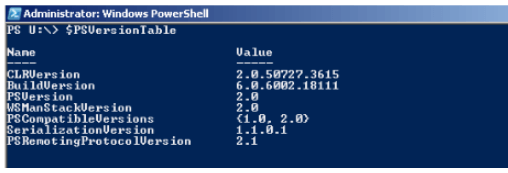
Then type the command:
Code:
Get – Host | Select – object versionOutput:

Now as an output, the version of PowerShell is printed. Alternatively, give the $PSVersion table and press the enter key. We can find the PSVersion line. When the default version leads the user to the quick check on versions of PowerShell.
To open the run command prompt window, press the Windows key and R. Then type PowerShell and press Enter.. Hence new prompt window is opened.
In the newly opened window, enter the PowerShell command $PSVersionTable and press Enter.
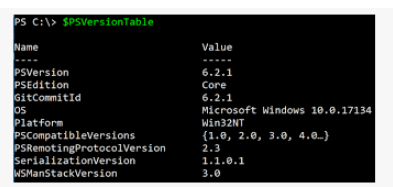
The list of PowerShell utility detail is explained in this window. Through the Windows console, click on the pending updates and install them.
PowerShell Version Command for Windows, Mac
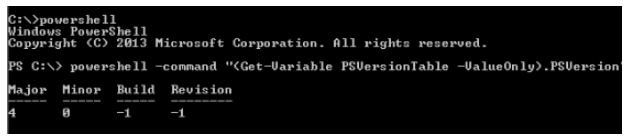
In order to know the engine version, use $PSVersion table PS version and if the variable is not present, then the user can assume that the version of the current engine is 1.0. We have to take note that the $Host version and the version with getting host are not reliable ones. It can help to review the version of the host, but it doesn’t give a message about the engine. All the hosted applications, PowerShell Plus, PowerShell GUI will fix the version of the host to reflect the product version. It is also another method to find the version details.
Install PowerShell Version Command
There are different methods available to install PowerShell in Windows. Every install option is customized to support different workflows and scenarios. It is the choice of the user to fix it according to the requirement.
Winget is the method to install the PowerShell option on Windows client and it is the most recommended one.

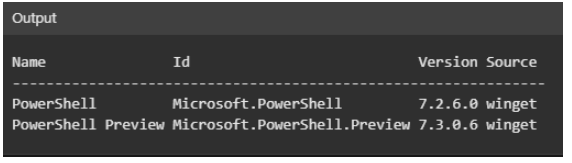
MSI package is the optimal choice for enterprise deployment cases and is suitable for Windows servers.
ZIP package is an adaptive method to sideload or Parallel method to install different versions.
On Windows Nano Server, ARM-based systems, and Windows IoT, the user can use this method.
.NET Global tool is the best choice for .NET developers to install and work on other global tools.

Microsoft store package is a friendly way to install for standard users but has few limitations.
FAQ
Given below are the FAQs mentioned:
Q1. How to check the version of PowerShell on Mac?
Answer: Mostly in Mac, the PowerShell version would be 2.0 or 1.0. So the user has to check the registry or key location by giving the following command. HKEY _ LOCAL_MACHINE \software\powershell\microsoft\1- PowerShell engine.
Value name: PowerShell version and value type would be Reg-SZ.
Q2. It’s possible to execute multiple versions on PowerShell?
Answer: Yes. it is possible by starting version 3 and for the down-level version, it can be used along with the version parameter. The version is executed with the specified version on Windows PowerShell. The version number can be a parameter which can be “-version 2.0”.
Q3. How to change the version of PowerShell?
Answer: The Windows management framework should be installed on the 5.1 MSU file. Once the server is restarted, the PS console should be opened and ensure that the version of PowerShell is updated to 5.1. If the user doesn’t work on support Windows 7 or Windows Server R2 and then it can be upgraded to PowerShell version from 2.0 to 5.1.
Conclusion
The PowerShell version command is simple and can be executed as per requirement. Hence this article helps the user to work on the PowerShell version command.
Recommended Articles
This is a guide to the PowerShell version command. Here, we discuss the introduction, how to check the PowerShell version, and how to verify the installed PowerShell version. You may also have a look at the following articles to learn more –

