


Updated August 22, 2023
Excel Automation (Table of Contents)
Introduction to Automation in Excel
Automation in Excel generally involves coding in VBA (Visual Basic for Applications), a variation of Visual Basic Language to integrate with Microsoft Office applications. It is an Excel-based programming language that helps users automate tasks by writing or recording macros. A macro is a code that runs in an Excel environment and is used to automate repetitive tasks, such as when you must repeat a set of actions multiple times. Excel can record these actions and generate a macro containing code to repeat those steps. After recording the macro, the set of actions can be repeated by running the recorded macro. The macro produces VBA code users can view via VBE in a module.
Users employ Automation Add-Ins like XLTools and AutoMacro to automate their routine Excel tasks without relying on macros.
Examples of Excel Automation
Let us see below how a recorded macro can automate a daily report.
Example #1 – Automation via Macro Recording
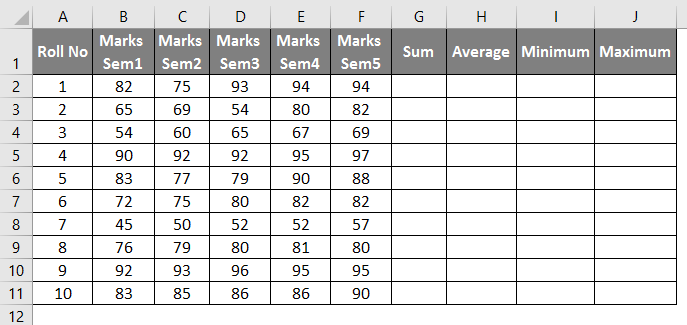
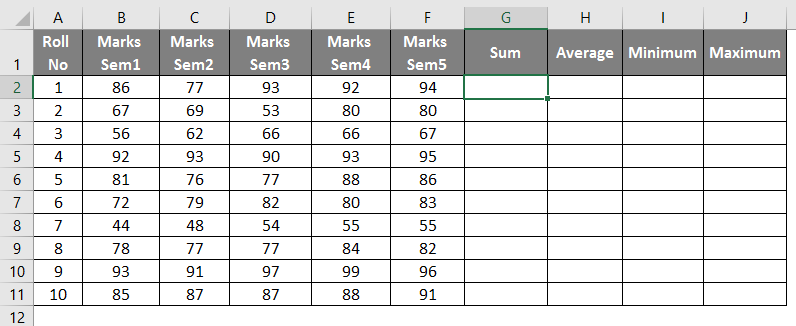
We have a dataset of some numbers and wish to have row-wise summary statistics (like sum, average, minimum, and maximum) for these. Also, we wish to apply some formatting styles to the dataset. We record these steps in a macro so that whenever we have a new dataset that requires the same operations, we can run this recorded macro to accomplish the task.
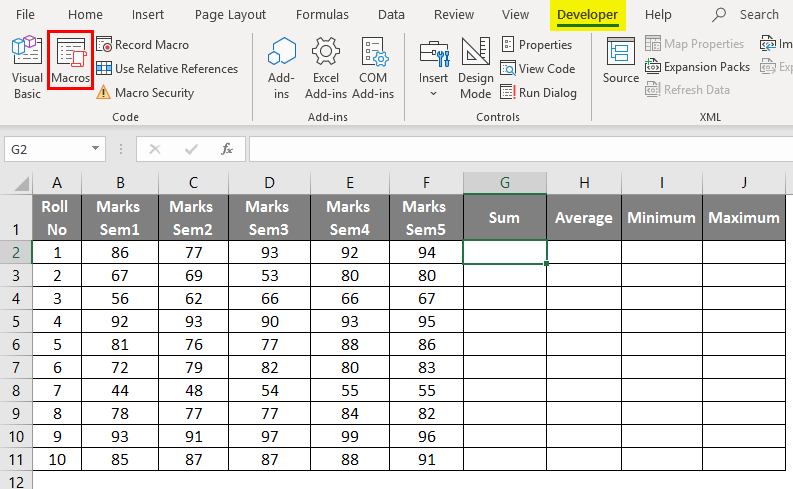
Let’s see what the dataset looks like:
Now to do the required operations and record it in a macro, we will follow the below process:
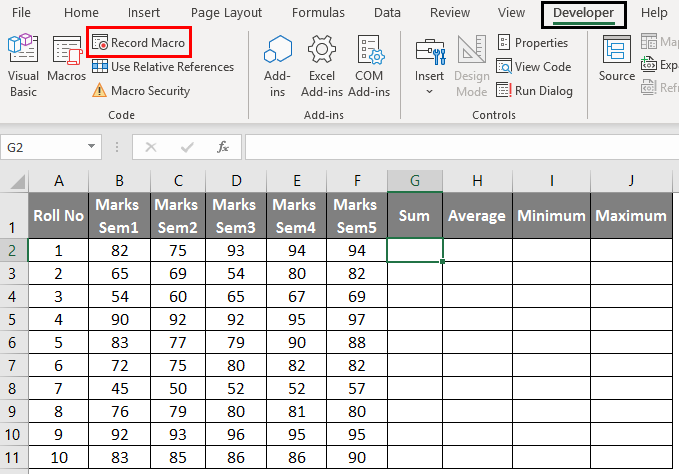
- Go to ‘Developer’, and click on ‘Record Macro’:
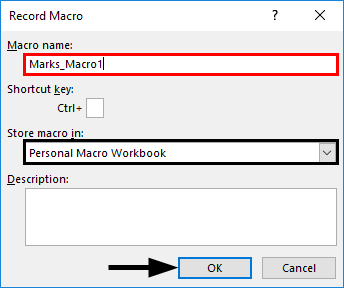
- On doing this, a pop-up window opens as follows.
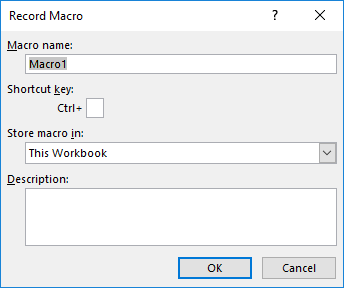
- Give the macro an appropriate name, select ‘Personal Macro Workbook’ under the ‘Store macro In’ dropdown, and click OK.
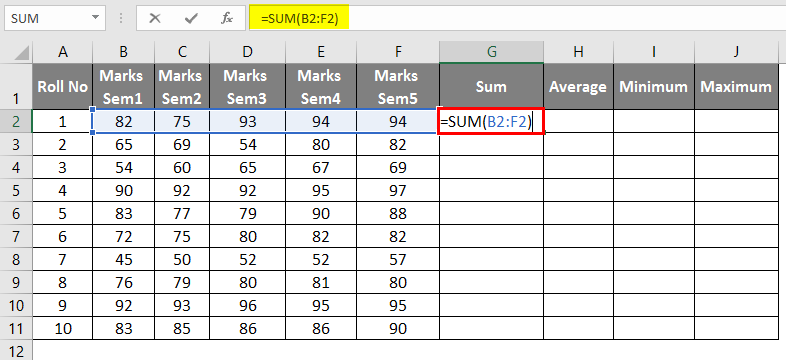
- Now we can perform the required operations on the dataset as follows.
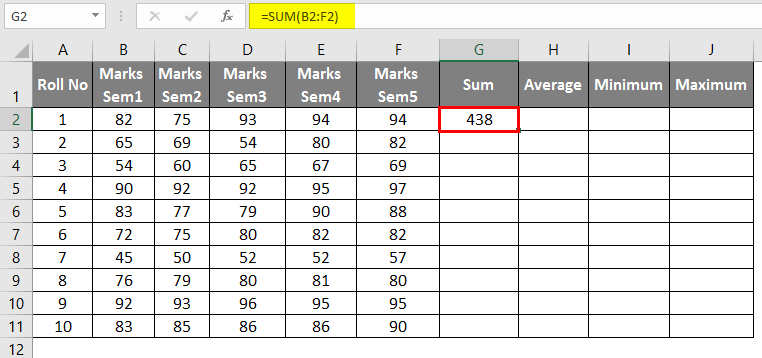
- After using the formula, the result is shown below.
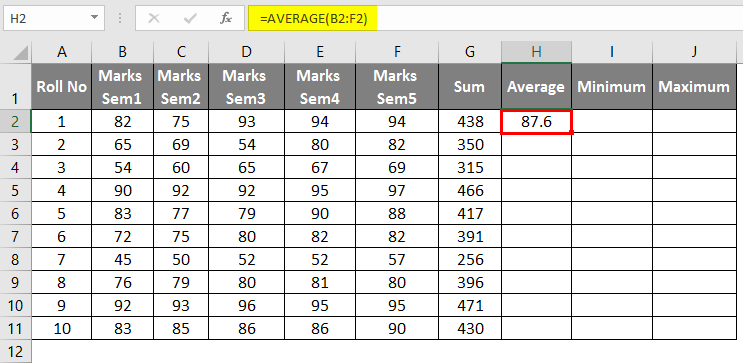
- Applying the Average Formula in cell H2, the result is shown below.
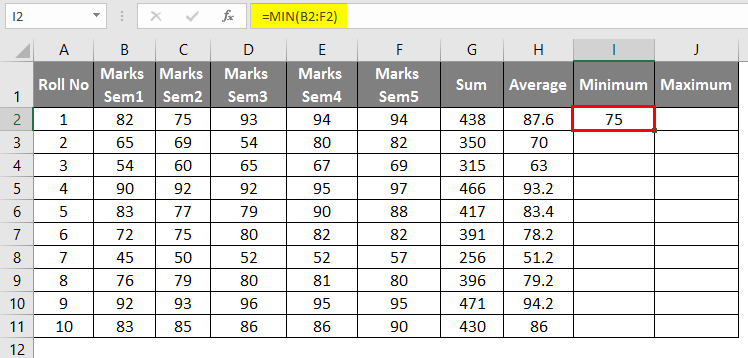
- Applying MIN Formula in cell I2, the result is shown below.
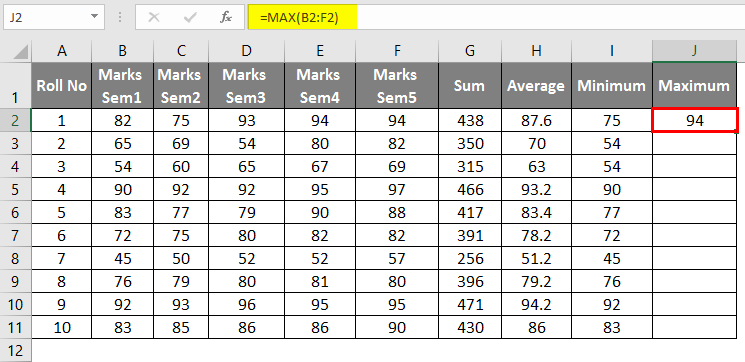
- Applying the MAX formula in cell J2, the result is shown below.
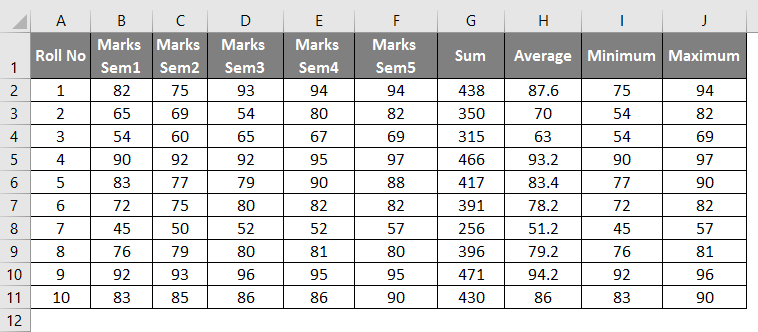
- Now drag these to get these statistics for all the rows.
- Now when all these operations are performed, we stop recording the macro as below.
Example #2 – Using the Recorded Macros
Now let’s say we have another similar dataset like this in ‘Example #2’ of the Excel file, which requires the same operations and formatting. So to do this, we just run the above-recorded macro, and our task will be accomplished.
- Go to ‘Developer’ and click on ‘Macros’.
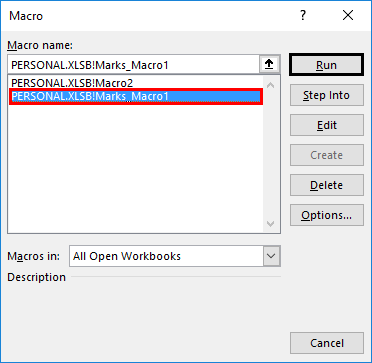
- Now select the macro: “Marks_Macro1′ and click on Run.
- Now on clicking Run, the dataset will be as follows.
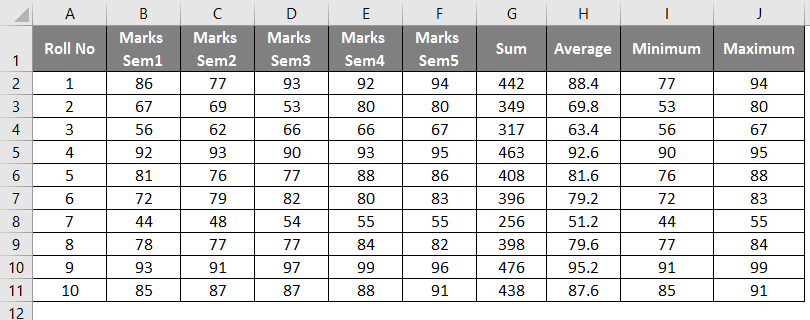
So we can see in the above screenshot that on running the recorded macro named ‘Marks_macro1’, we have automated and hence replicated the operations done on Sheet1 in Example1 to Sheet2. This is automation via recording a macro.
This kind of automation is use for simple repetitive operations such as daily report formatting, database communication, file merging, document creation, data manipulation, and more.
How Macros are Saved as VBA Code Procedures in VBE
- Access the Visual Basic Editor by pressing Alt+F11 to open the Visual Basic Editor window.
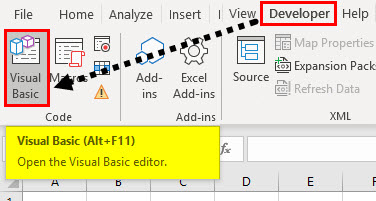
- On doing this, a window opens. Under the ‘Project-VBAProject’ pane, we will store the macro in one module.
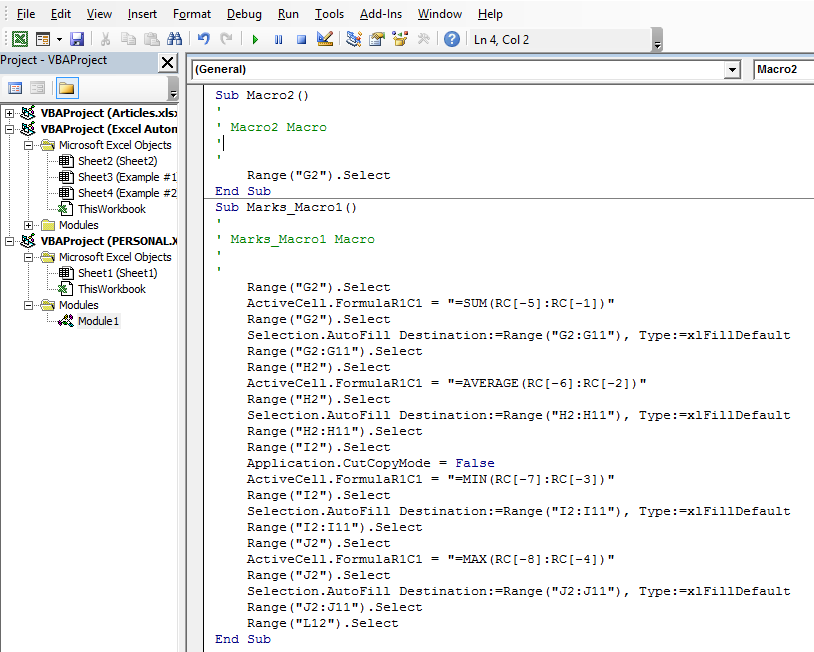
- With VBA Macro Recorder, we do not need to code the macro; instead, we just record it.
- Users can store the macros in a personal workbook, a hidden workbook that opens in the background whenever Excel is started. Saving the macros in a Personal workbook makes the macro always available since the Personal Workbook is not system or file specified.
- Excel always produces a sub-procedure (not a function procedure) when recording macros. So, recorded codes are only useful for simple macros. More complex macros can be generated by writing VBA codes by enabling the “Developer’ menu in Excel.
- Recording macros to automate tasks can have some limitations. It may not always be possible to record macros that work exactly as we wish. The macro code often requires some manual updates, so in that case, AutoMacro can be used, which is an Add-In that directly installs into VBE. It requires very little knowledge of VBA coding.
Things to Remember about Excel Automation
- Some tools used for Excel automation without coding knowledge are Power Query, VBA Macro Recorder, and Automation Add-Ins like Auto Macro and XLTools. XLTools is an automation Add-In that can integrate Excel with other applications and tools like SQL and Python. It can use to write commands in simple Excel tables.
- Users can add macros to the Excel function menu with a button available, similar to Excel’s built-in functions.
- Recording a macro helps us perform simple repetitive tasks and also when we are writing complex macro codes by editing the recorded codes.
Recommended Articles
This is a guide to Excel Automation. Here we discuss how to automate tasks by writing or recording macros, practical examples, and a downloadable Excel template. You can also go through our other suggested articles –

