

Excel VBA UserForm
In Excel VBA, we have a very useful tool which is known as UserForm. It is a practical way of getting information from a user. What is a UserForm in VBA? UserForm is like a wizard box or a dialog box in which we ask users to input data, and it has some instructions on it.
VBA UserForm is also inbuilt in excel and can be created by the developers. To use the VBA userform first, we need to activate the developer tab from the Options tab. Once the developer tab is activated, we can go ahead in Excel VBA and create UserForms. Userforms are used to store data in excel. It can be compared to google forms, where we have a specific set of instructions and ask the user to input data as per the instructions.
UserForm is widely used everywhere. In UserForm, the data entered by the user gets stored in the corresponding column. It is the most practical way in excel to take input from the user and store the data in excel relatively in the correct location.
How to Create UserForm in Excel VBA?
Below are the different examples to create UserForm in Excel using VBA code.
Excel VBA UserForm – Example #1
First, let us get to the basic of the UserForm. How to view a UserForm and what a UserForm is.
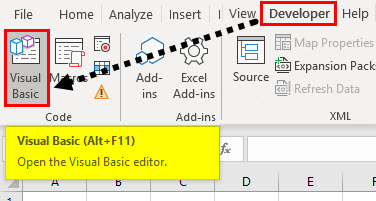
- In the Excel worksheet, go to the Developer’s tab and click on the Visual Basic editor.
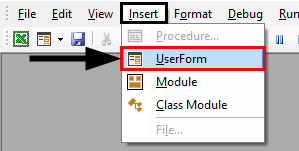
- Now how do we add a userform to this blank screen? In the insert tool, click on UserForms.
- A new wizard box opens up, and it is blank, which is our blank userform.
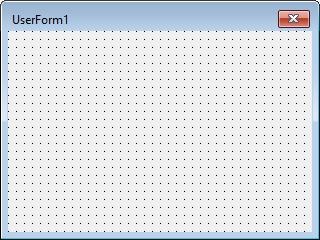
- It is currently named as userform1 as we have not given it any name. We can do that by changing its name from the properties option on the left-hand side of the screen.
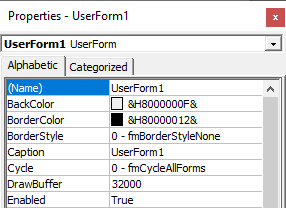
- Let us change the name to the sample form and see the result.
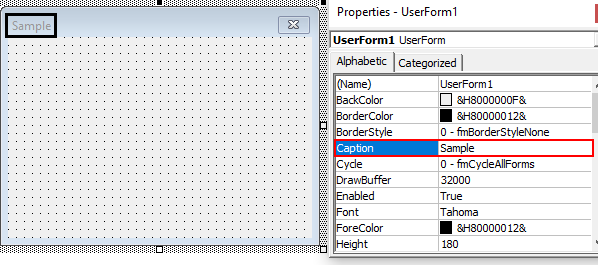
Our userform is named as a sample now.
- Now let us try to change the color of the userform. In the properties toolbox, we have a dropdown provided to us named as back color; we can select any set of colors we want.
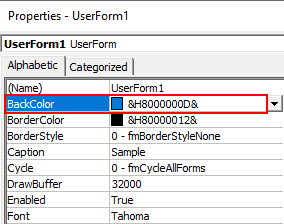
- After I have selected the option for black color, my sample UserForm’s color has been changed as follows,
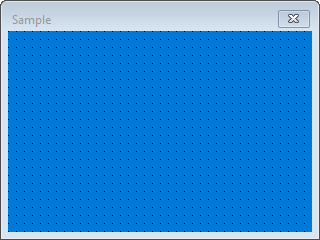
- How do we run this userform? Make sure that we have clicked on the userform itself and click on the run button shown in the screenshot below. When we click on the run button, we can see that a blank form appears on the excel screen.
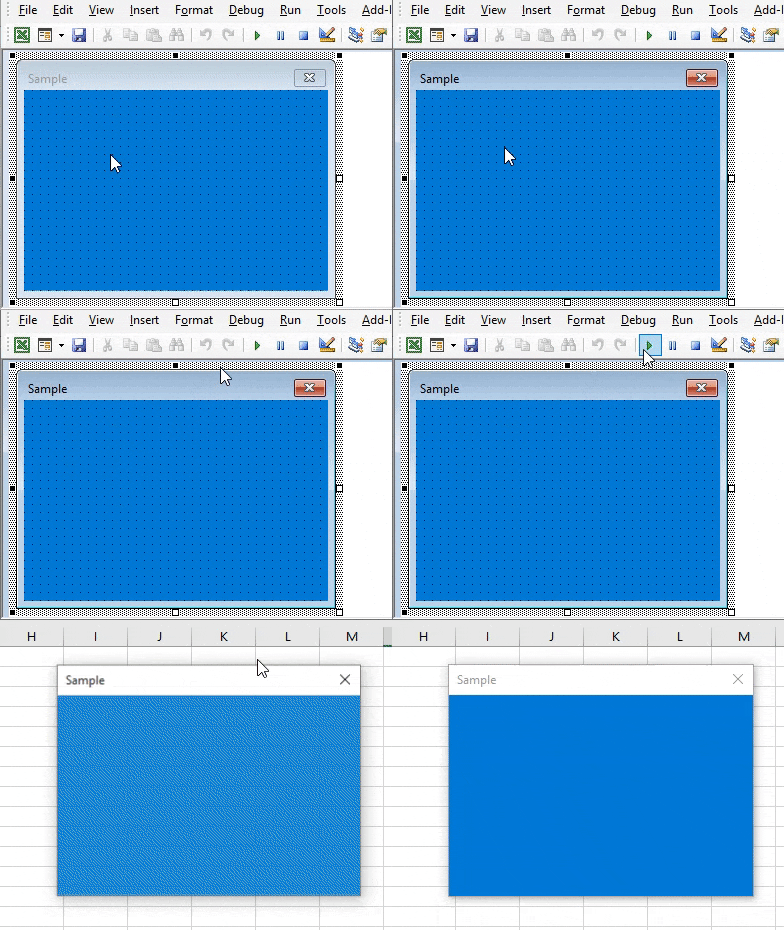
It has no other options than to close it because we have not added any other buttons to it.
Excel VBA UserForm – Example #2
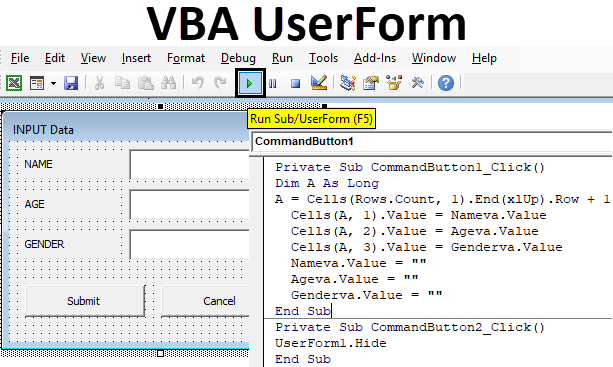
Let’s see how to add buttons to a userform to input the data in Excel VBA. We will make a simple VBA userform in which we will ask the user to enter his name, age, and sex. The steps involved in making such userform is as follows.
- In the Excel worksheet, go to the developer’s tab and click on the visual basic editor.
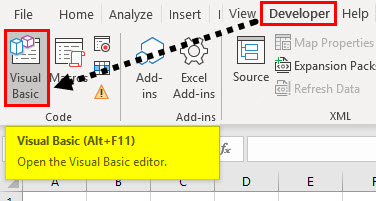
- Now in the insert tab, click on userform to open a userform window.
- We need to add buttons to this userform in order to get input from the user. We can see that a toolbox is also opened beside our userform, which has the control buttons.
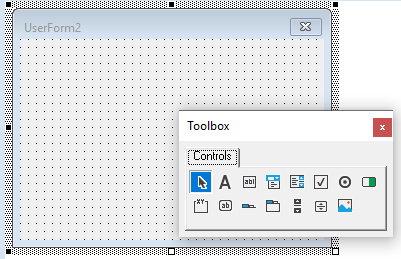
This toolbox has various controls in it, which is used in UserForms.
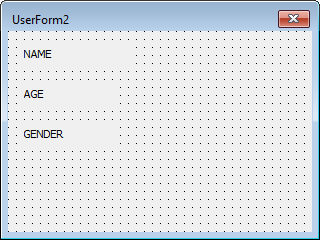
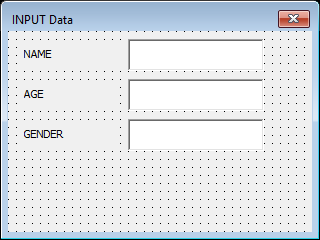
- So for our example, we need a name, age, and gender to be input by the user. We Basically need three labels which will represent our instructions. Click on Labels.
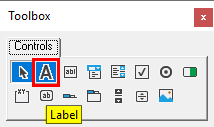
- Hover the mouse on userform and click and drag to insert a label in the userform.
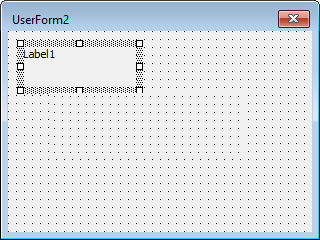
- Currently, it is named as label 1; we need to change the label name to “Name” for the instruction to the user. Click on the label and delete the default name provided and insert the new name.
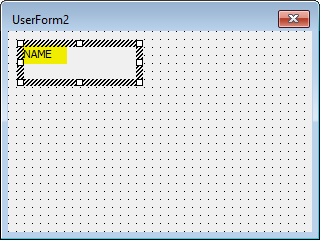
- Now insert the label for Age and Gender in a similar way and rename them.
- Now adjacent to the labels, we need to insert a text box so that the user can input values. From the toolbox controls, click on TextBox.
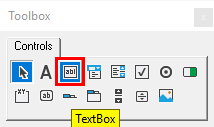
- Hover the mouse adjacent to the labels and click on the form.
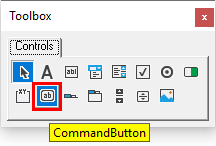
- Now let us insert the command button in the userform, which will store the data for us. From the toolbox controls, click on CommandButton.
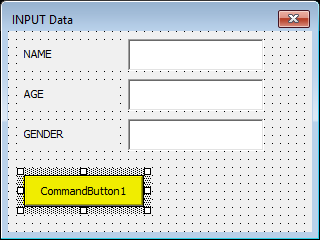
- Hover the mouse on the form.
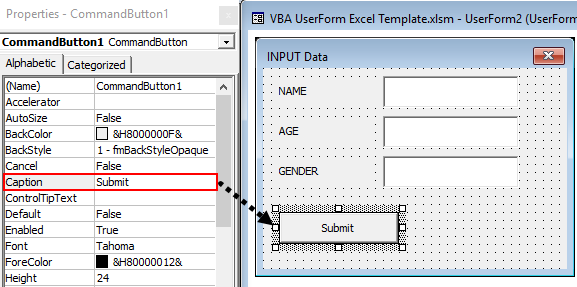
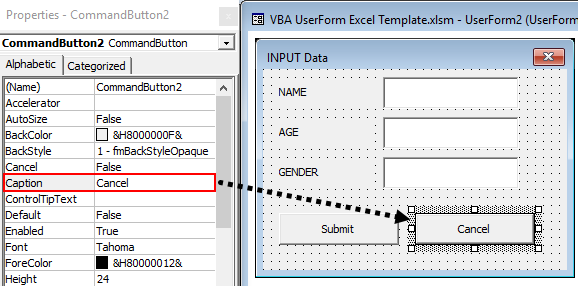
- Change the caption of CommandButton1 to “Submit”.
- Insert one CommandButton and call it as “Cancel”.
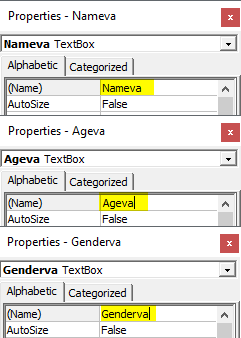
- The next step is to rename each of the Textboxes so that we can easily use them in our codes; for name rename the textbox against it as Nameva for name value and for age as Ageva similarly for gender as Genderva for gender value,
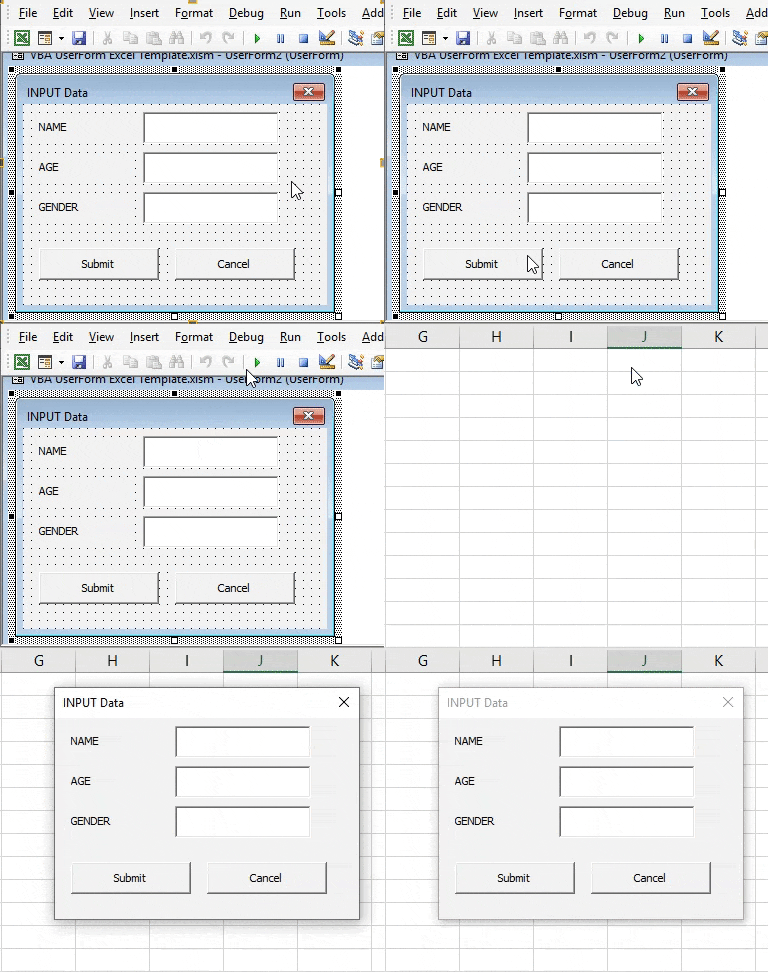
- Run the UserForm by clicking on the play button or by pressing the F5 key.
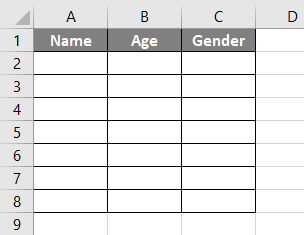
- In the Excel Sheet, write the header for the data has to be entered as follows.
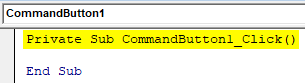
- Double click on the submit button, which will open the code window for us for the submit button as follows.
Code:
Private Sub CommandButton1_Click()

End Sub
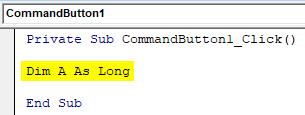
- In the code window, Declare a variable as long as shown below.
Code:
Private Sub CommandButton1_Click()

Dim A As Long

End Sub
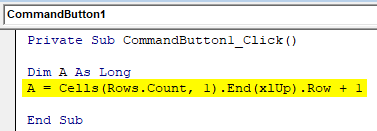
- Now let us move the first vacant cell in the first column with the following code.
Code:
Private Sub CommandButton1_Click()

Dim A As Long
A = Cells(Rows.Count, 1).End(xlUp).Row + 1

End Sub
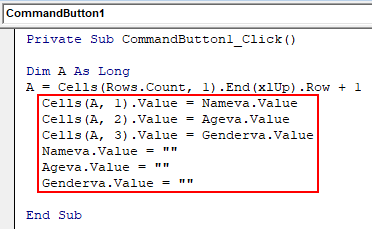
- Let us store the value provided by the user in the worksheet by the following code.
Code:
Private Sub CommandButton1_Click()

Dim A As Long
A = Cells(Rows.Count, 1).End(xlUp).Row + 1
  Cells(A, 1).Value = Nameva.Value
  Cells(A, 2).Value = Ageva.Value
  Cells(A, 3).Value = Genderva.Value
  Nameva.Value = ""
  Ageva.Value = ""
  Genderva.Value = ""

End Sub
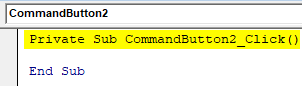
- Now double click on the Cancel button; this will also show you the auto macro name like this.
Code:
Private Sub CommandButton2_Click()

End Sub
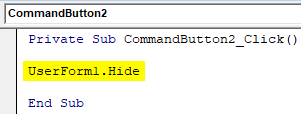
- Use the below code.
Code:
Private Sub CommandButton2_Click()

UserForm1.Hide

End Sub
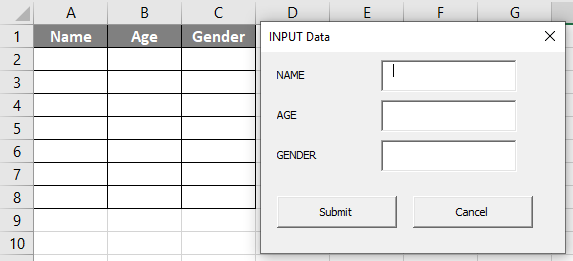
- Run the userform from the run button provided or by pressing the F5 key, and we get the following result.
- Enter the values in the text boxes as follows.
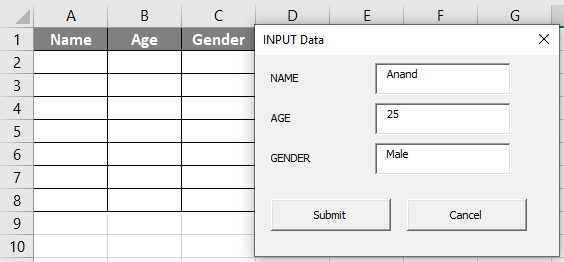
- Press the Submit button to see the result in the excel sheet as follows.
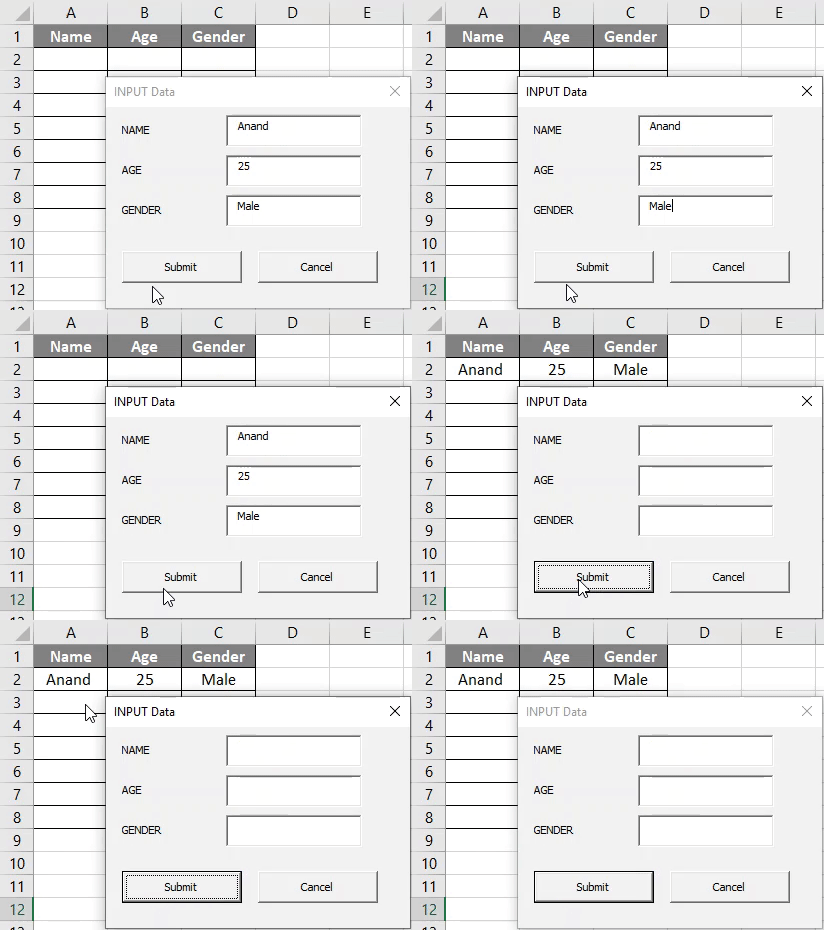
This is how we create a userform to get the data from the user.
Things to Remember
- Userforms are inbuilt or can be created by the developer in VBA.
- The properties of userform can be changed from the properties wizard box in VBA.
- Userforms need to have buttons in order to fetch data from the user.
- To run a userform, make sure that the userform is selected.
Recommended Articles
This is a guide to VBA UserForm. Here we discuss how to Create UserForm in Excel using VBA code along with some practical examples and a downloadable excel template. You can also go through our other suggested articles –

