
Introduction to Pencil Tool in Photoshop
The pencil tool can be used to create designs or lines in Photoshop, and by default, the Pencil tool has hard edges. Photoshop is a raster image editor developed and created by Adobe Inc. for Windows and Mac OS. Photoshop is one of its kind photo editor used by everyone from every field of creative and designing world. Even people outside the designing areas also use photoshop for some or other purposes. Photoshop can even compose raster images using multiple layers and even supports Masks, alpha compositing, and various color models such as RGB, CMYK, spot color, duotone, and CIELAB.
The pencil tool is located in the toolbar on the left of Photoshop, and users can activate it from there and bring their creativity to come out alive in the canvas; the pencil tool in Photoshop is like a virtual pencil that the users can use to create designs or lines, with options to change the color, opacity intensity, and pencil diameter and so on and also work with various modes to enhance the outlook of your project and create unique design artworks that have a feel of hand-drawn or that comes with a human element in it.
How to Use Pencil Tool in Adobe Photoshop?
- The pencil tool is situated in the tools panel. The user can activate the pencil tool by selecting the option from the panel. Also, like said earlier, the tools present in the software can perform multiple functions. So is the pencil tool. The pencil tool can also be used as a brush tool. The user can even press Shift + B to make the pencil tool appear.
- The default tip size of the tool is 1 pixel that appears in the Brush Preset Picker option on the Options Bar. The user can change the tip size of the Pencil Brush by clicking the thumbnail or the arrow in the Brush Box.
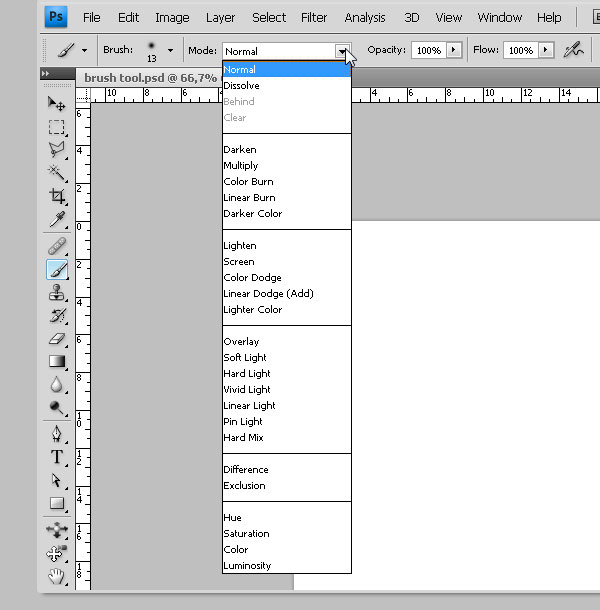
- The user can change the Modes to either Blend or Other than Normal Mode from the Mode Menu. Blend Mode lets the colors to blend in with different techniques. The user needs to set the mode and opacity of the brush pencil on the drawing layer in the Layers Panel. This helps the user on having full control over the layer and can edit the same at any time.
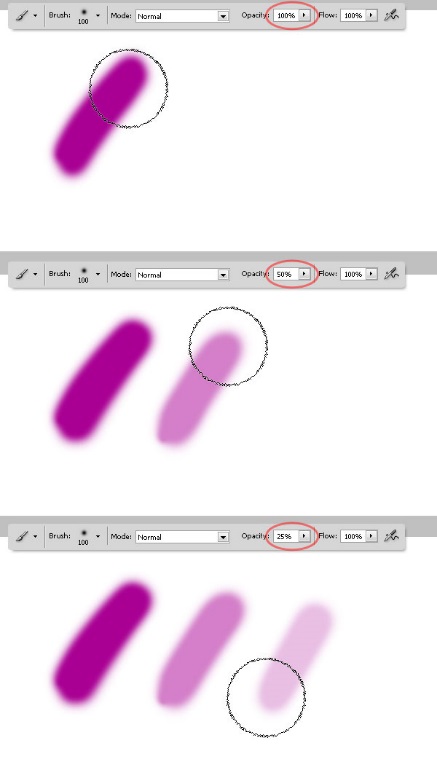
- The opacity of the pencil can also be controlled by using the slider on the layer menu or by typing the opacity percentage on the text box. The use of opacity is to show or hide the background completely or partially.
- The brush tool and the pencil tool share very similar settings in photoshop. The only difference between the two tools is that the edges of the pencil tool are much harder than the brush tool. The brush has softer and smoother edges. The pencil tool can also be used as an eraser.
- With a pencil tool, the user can draw freehand lines.
- The tool also lets the user create a straight line between two points. Click at one point and release the mouse button, then press shift + Click at a second point and the result is a straight line.
- By pressing the Alt Key + Click anywhere on the artboard changes the foreground color to Hue.
- Photoshop has many small shortcuts that make the work of the user very easy and simple. If the user wants to activate the move tool in between, then he can do it by pressing the V key. This can be undone by releasing the Key. This effortless shortcut helps the user to a lot of extents and saves time without going to the tools panel and accessing the move tool.
Steps to Use the Pencil Tool
Using the Pencil Tool is simple and easy; we’ll be looking at the following steps to use Pencil Tool in Photoshop.
Step 1: Go to file – New document.
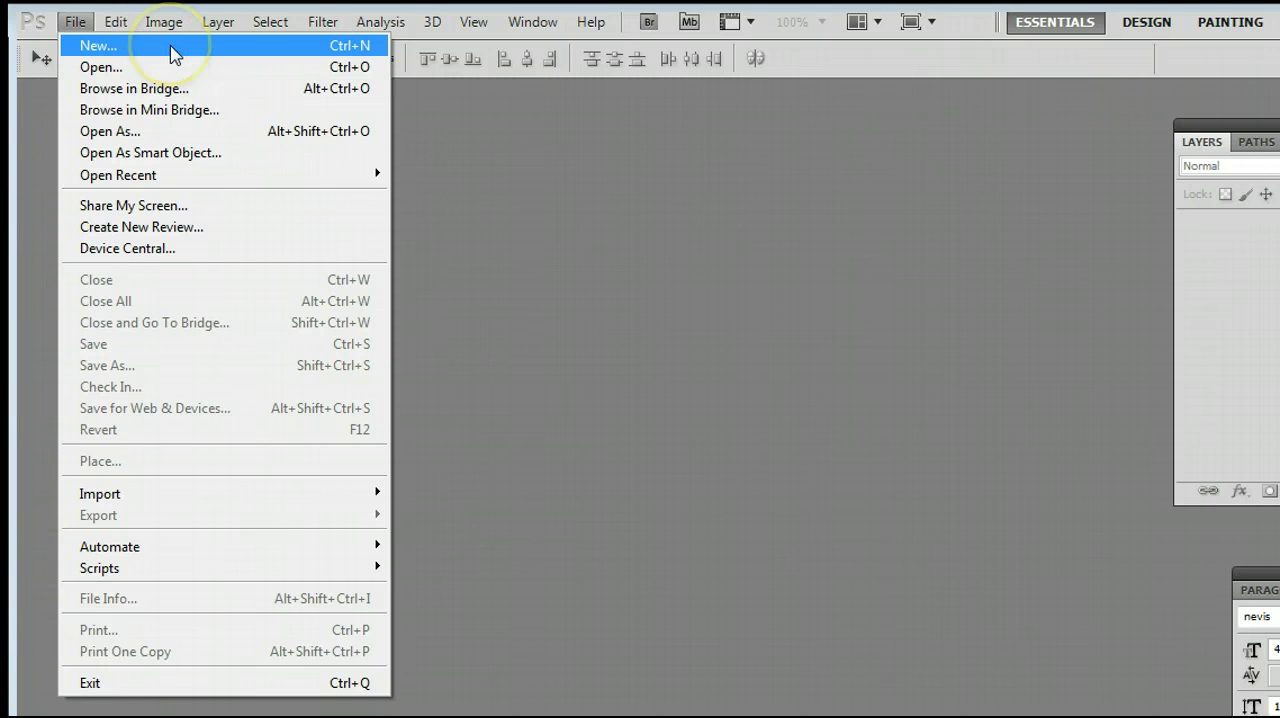
Step 2: Select the settings for the new document.
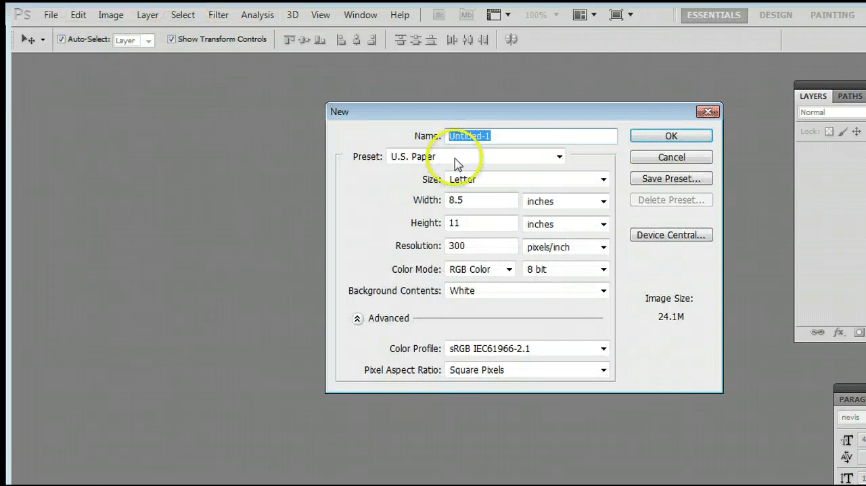
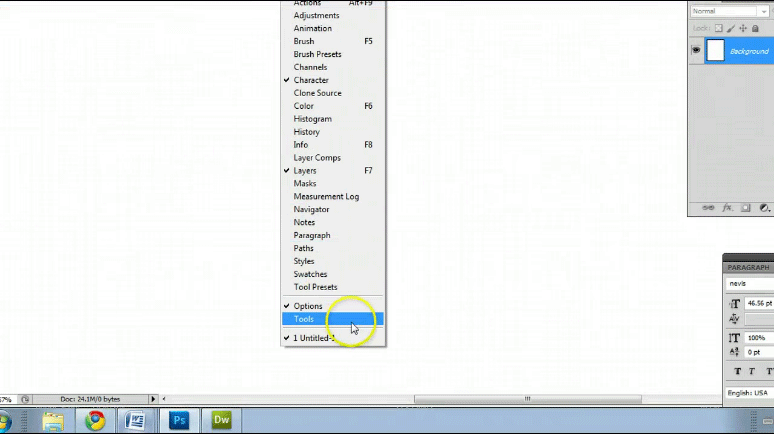
Step 3: Go to Windows – Tools. If Toolbar isn’t available.
Step 4: Go to Toolbar and select the Pencil Tool.
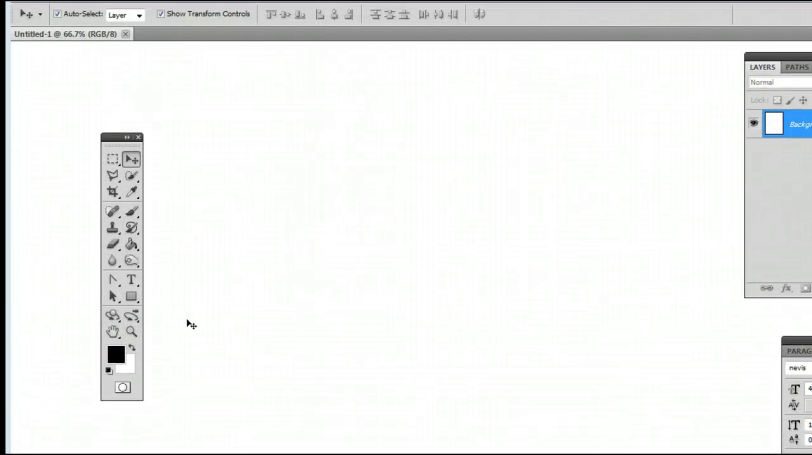
Step 5: Try and use the Pencil Tool.
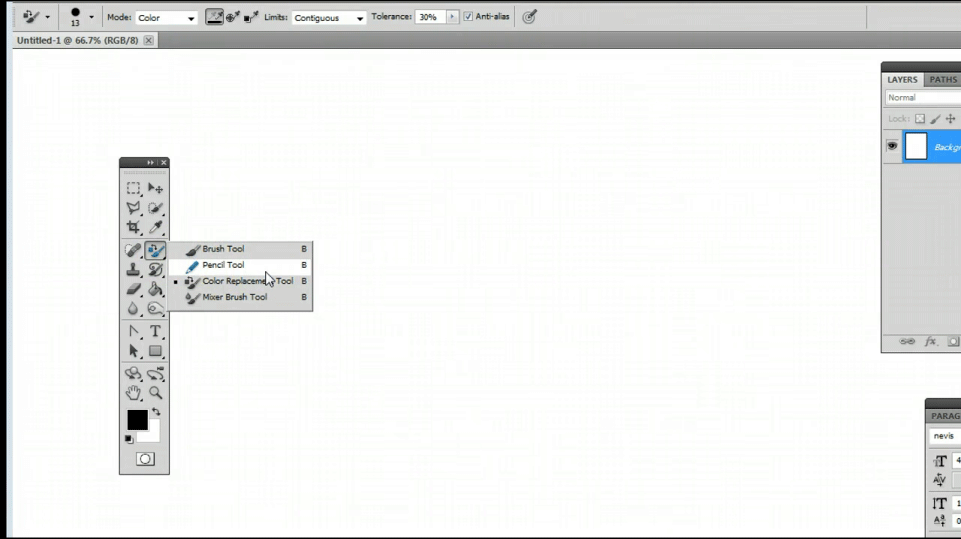
Step 6: You can go to the Brush Preset Panel to modify the size and shape of the Brush.
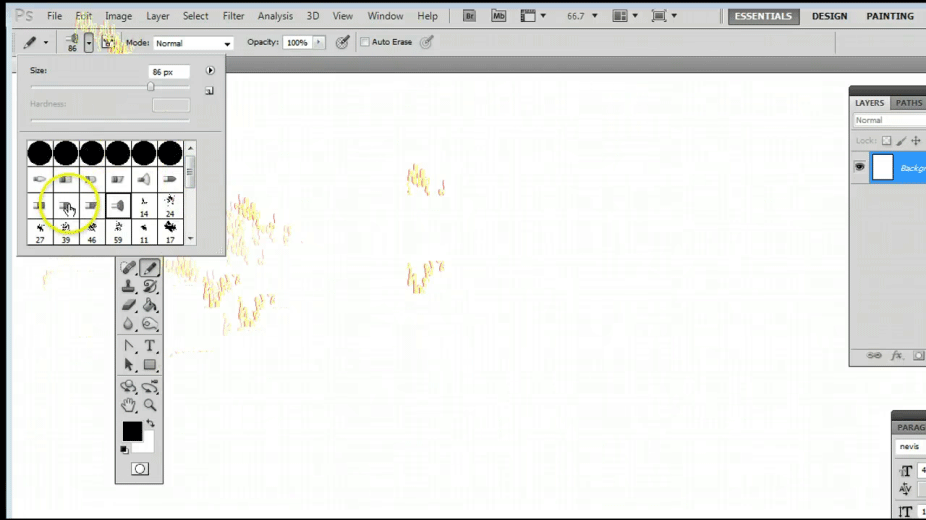
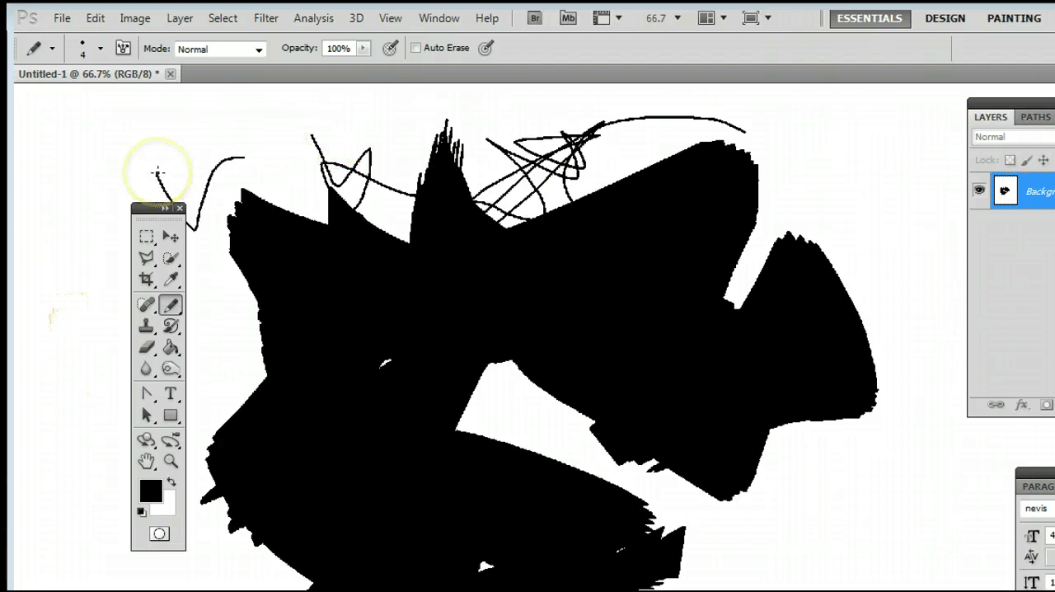
Step 7: Use the Pencil tool by selecting different Brush Styles.
Conclusion
Learning Tools in photoshop is not at all difficult. Photoshop is definitely a huge program, but once learned and practiced, the techniques and methods will never go to waste. The designer can use the skills anywhere and everywhere. These simple techniques of using the Pencil tool will help the user to a lot of extents. The user can take help from these easy steps and learn the basics of photoshop.
Adobe Photoshop is an evergreen application that everyone can use. It is because Adobe Photoshop focuses on creativity and thoughts. Students can learn a lot of skills that keep them engaging and focused on their creative works.
Recommended Articles
This has been a guide to Pencil Tool in Photoshop. Here we discuss how to use Pencil Tool in Photoshop and its Steps with Screenshots for better understanding. You can also go through our other suggested articles to learn more –

