

Excel Formula of Percentage (Table of Contents)
- The formula of Percentage in Excel
- How to Implement Formula of Percentage in Excel?
- Examples of Formula of Percentage in Excel
The formula of Percentage in Excel
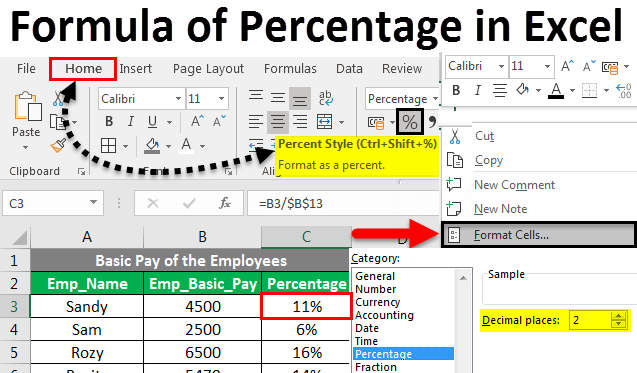
The percentage of any number is the value out of 100. Suppose we want to calculate the percentage in Excel. In that case, we must divide the smaller numerical value by a bigger numerical value and then click on Percentage style, which is available Home menu ribbon under the Number section. There are a few more ways by which we can calculate Increase By Percentage, in which we need to subtract the total value from 1 to get an actual percentage, and Percentage Change, where we need to subtract values from each other and then divide it by a bigger number to get a percentage.
The mathematical formula of Percentage is: (Numerator / Denominator) * 100
How to Implement Formula of Percentage in Excel?
Implementing the Formula of Percentage in Excel is very easy and useful, especially when working on restaurant spreadsheets, reseller commissions, income taxes, or interest rates.
We can implement the Formula of the Percentage option by 3 methods.
Method #1 – Percentage Icon under Home Tab
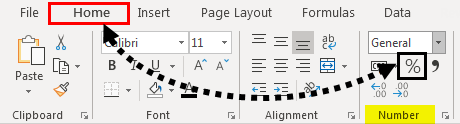
- Under the Home tab,>> under Number Group >> Click on the % icon to convert the numerical value of the cell into the Percent value.
Method #2 – Using Dialog Box Launcher
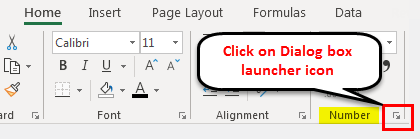
- Under Home tab >> under Number Group >> Click the Dialog box launcher icon.
- A dialog box of Format Cells will open. First, we need to select the Percentage option.
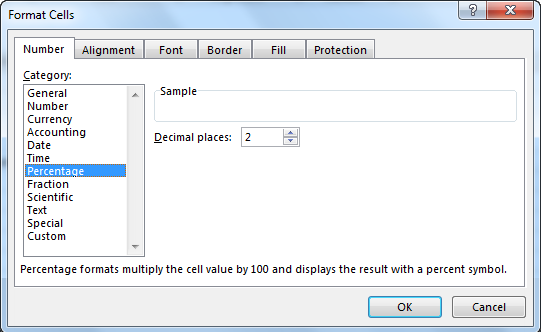
- Select the Number of decimal places as required. By default, it is 2. Then press OK.
Method #3 – Using Format Cells
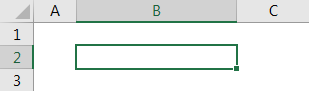
- Select any cell.
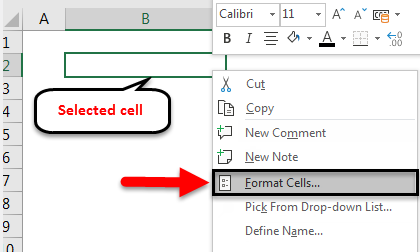
- Right-click on it and select the Format Cell option.
- A dialog box of Format Cells will open. First, we need to select the Percentage option.
- Select the Number of decimal places as required. By default, it is 2. Then press OK.
Examples of Formula of Percentage in Excel
Let’s understand how to implement the Formula of Percentage in Excel with some examples:
Example #1
If we want to find the value of the percentage of a number, we have to multiply the percentage value by the number.
For example, if we want to calculate 50% of 1000, just multiply 1000 by 50%.
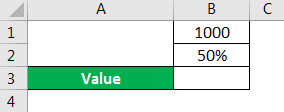
In the above figure, we need to determine the percentage in the value box.
Step 1: Select cell B3.
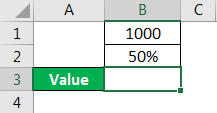
Step 2: Write the formula as = PRODUCT ( B1, B2)
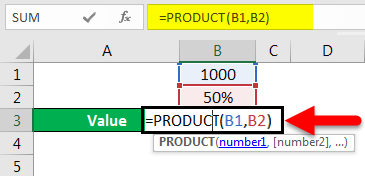
Step 3: Press the Enter key.
Step 4: The result will show as 500.
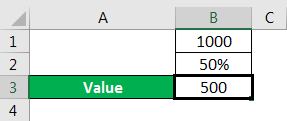
This can be done alternately too:
Step 1: Select cell B3.
Step 2: Write the formula as = B1* B2.
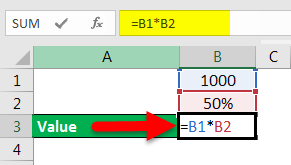
Step 3: Press the Enter key.
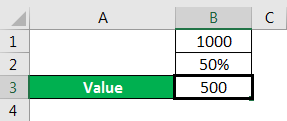
- The result will show as 500.
Example #2
We can also find the percentage from the value and a number. We have to just use the mathematical formula as Value divided by Number.
For example, What is the percentage of 500 from 1000?
In the figure, we have the Number 1000, the value of 500, and we have to find out the Percentage.
Step 1: Select the Cell B3.
Step 2: Write the formula as = B2/B1.
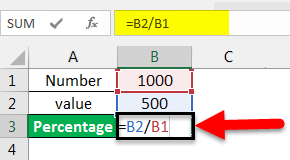
Step 3: Press the Enter key.
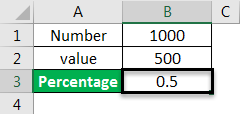
Step 4: The result may be Decimal if the cell is not converted to a percentage. We have to convert the cell to Percentage.
Step 5: Select cell B3.
Step 6: Under Home tab >> under Number Group >> Click on the % button to convert the numerical value of the cell into the percent value.
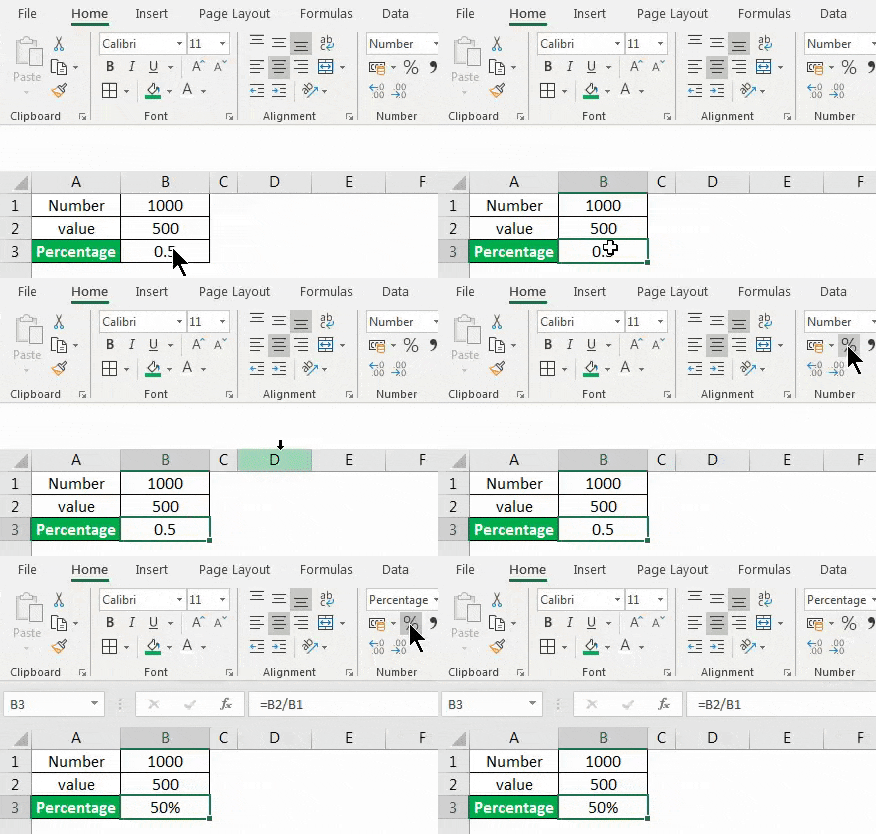
- The result is now converted to a percentage value.
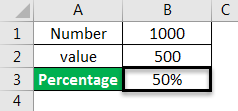
Example #3
We can find the percentage of each number from the total value of the data sets. We have just to use the mathematical formula as Each Number of the Data Set is divided by the Sum of the total Data Set.
For Example, We need to determine the percentage of each employee’s basic pay.
Let us consider the example of the Basic pay of the employees’ table.
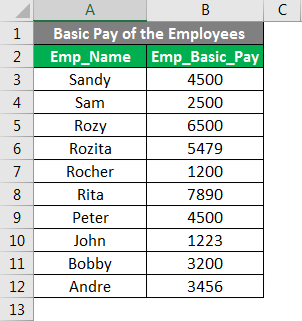
Step 1: Select cell A13 and Write Total Basic Pay.
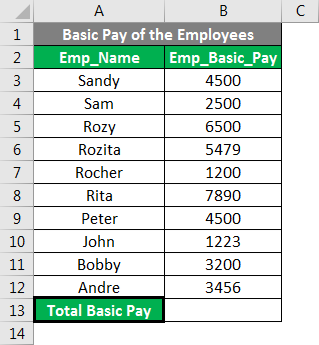
Step 2: Select cell B13.
Step 3: Write the summation formula as = Sum (B3:B12) or =SUM(B3,B4,B5,B6,B7,B8,B9,B10,B11,B12,)
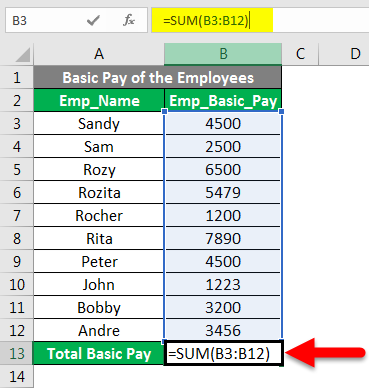
Step 4: Press Enter.
Step 5: The result of the total basic Pay will appear.
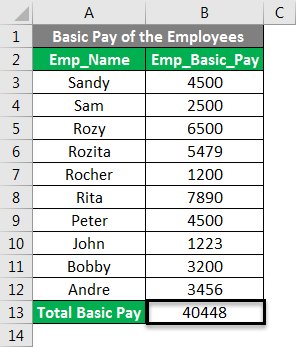
Step 6: Select cell C2 and Write the Percentage.
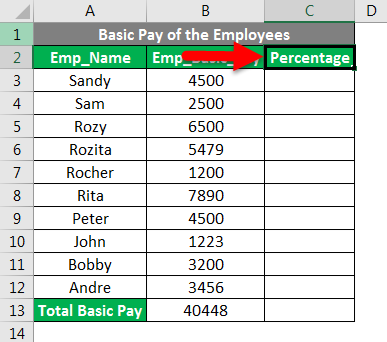
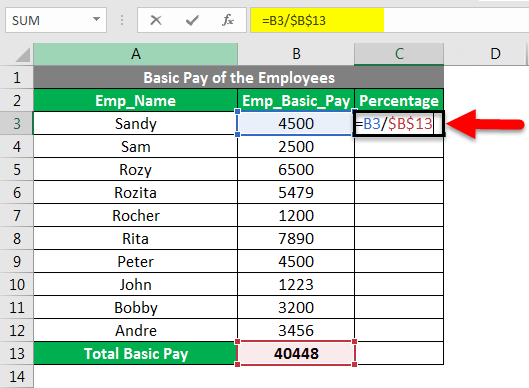
Step 7: Select cell C3.
Step 8: Write down the formula as =B3/$B$13. Fix cell B13 using the $ sign or pressing F4 after selecting cell B13.
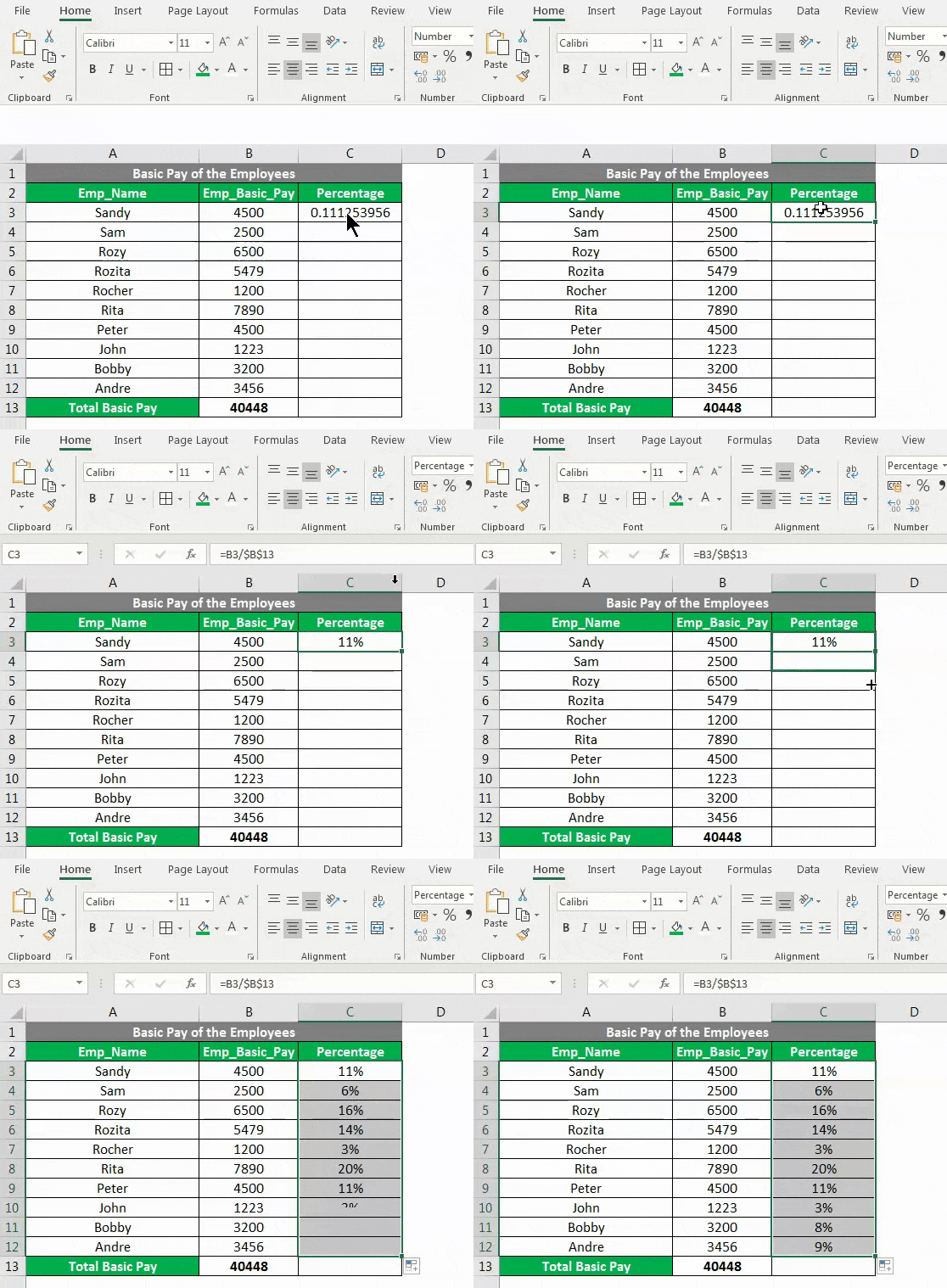
Step 9: The result may be Decimal if the cell is not converted to a percentage. We have to convert the cell to Percentage.
Step 10: Under Home tab >> under Number Group >> Click on the % button to convert the numerical value of the cell into the percent value.
Step 11: Select cell C3.
Step 12: Either copy the cell C3 and paste in the range C4: C12 or drag down the formula from C3 to C12 cell to copy the formula in all the cells with the required Percentage format.
Example #4
We can also find an increase or decrease in the change in percentage between the two values. We have to just use the mathematical formula as the difference between the Numbers divided by the first number.
For example, We need to find the profit percentage on the cost price.
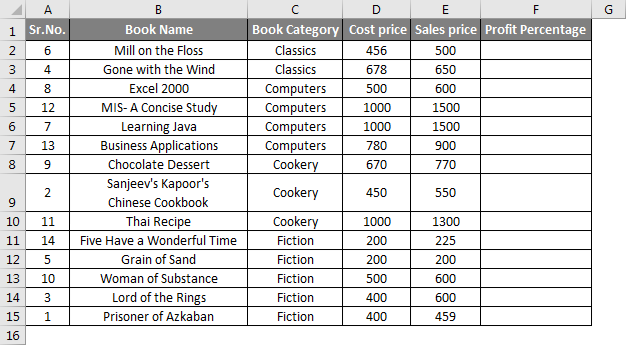
Step 1: Select the cell F2 and write the formula as = (E2-D2)/D2
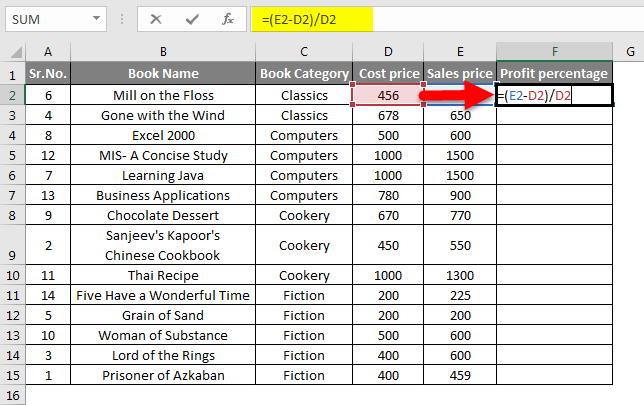
Step 2: Press the Enter key.

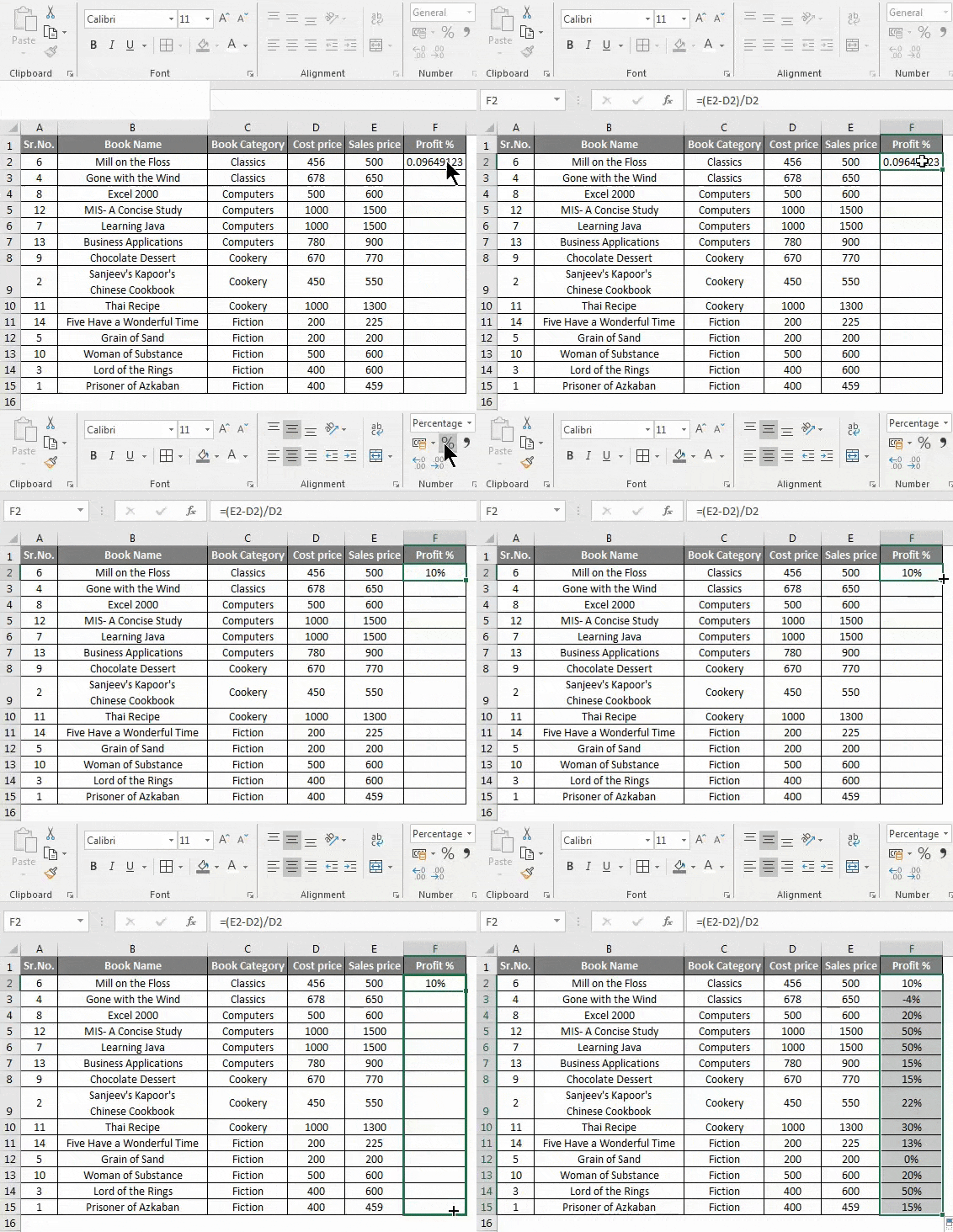
Step 3: Under Home tab >> under Number Group >> Click on the % button to convert the numerical value of the cell into percent value.
Step 4: Drag down the formula from F2 to F15.
Things to Remember
- Suppose the numerator is zero, an error named #DIV/0! will appear.
- While we compare and find the increase or decrease in the percentage change, we will get a result as a negative percentage value if the numerator or denominator value is less than zero.
- By using the IFERROR function, we can avoid getting any errors in the percentage calculation.
- We need to change the formatting of the cells or range to convert the result from decimal to a percentage value.
Note: There are many certifications to help you become a pro at various tools like Excel, Axure, and DevOps. Alongside Microsoft certification training and Microsoft Azure DP-203, certifications like AWS Certified DevOps Engineer can boost your skills. To ace these exams, practicing with questions and using resources like Microsoft DP-203 Exam Dumps and practice tests specific to each certification can be incredibly helpful.
Recommended Articles
This has been a guide to the Formula of Percentage in Excel. Here we discussed methods to Implement the Formula of Percentage in Excel, practical examples, and a downloadable Excel template. You can also go through our other suggested articles to learn more –

