


Updated May 2, 2023

YIELD Function in Excel
Yield function is any financial function used to calculate the yield value of a deposit for security for a fixed period rate of interest. For example, we have a security deposit for some reason somewhere. We apply the payment of mutually agreed-upon interest. With the help of the Yield function, we can find what the yield would apply to the security deposit asset.
YIELD Formula in Excel:
Below is the YIELD Formula in Excel.

Explanation of YIELD Function in Excel
YIELD formula in Excel has the following arguments:
- Settlement: The buyer is provided with the date of purchase for bonds or securities or the date of issue when they are traded.
Note: Users should always enter settlement dates using the DATE function in Excel instead of entering them as text values.
E.g. =DATE(2018,6,14) is used for the 14th day of June 2018
- Maturity: When the coupon will be purchased back, or It is the maturity date when the security or bond expires
Note: Users should always input the maturity date using the DATE function in Excel instead of as text. For example, the formula =DATE(2018,6,14) would represent June 14th, 2018.
- Rate: The guaranteed annual interest rate (%) offered.
- Pr: The price the bond was purchased at.
- Redemption: The face value of the bond that it will be purchased back at or is the security’s redemption value per $100 face value.
- Frequency: It is the number of payments per year. Usually, for annual payments, the frequency will be 1. For semiannual, the frequency is 2 & for quarterly. A frequency is 4.
- Basis: It’s an optional parameter. It is an optional integer parameter that specifies the day count basis used by the bond or security.
The YIELD function in Excel allows any of the values between 0 to 4 mentioned below:
- 0 or omitted US (NASD) 30/360
- 1 Actual/actual
- 2 Actual/360
- 3 Actual/365
- 4 European 30/360
How to Use YIELD Function in Excel?
The YIELD function in Excel is very simple and easy to use. Let us understand the working of the YIELD function in Excel by some YIELD Formula in Excel examples.
Example #1 – Bond YIELD For QuarterlyPayment
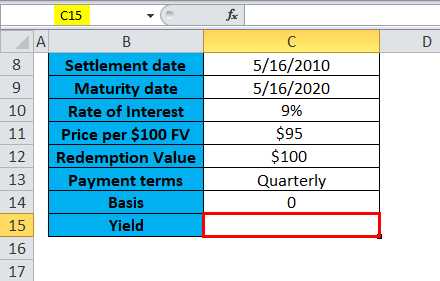
I need to calculate bond yield in this YIELD function in the Excel example. Here the bond is purchased on 16-May-2010, with a maturity date of 16-May-2020 (10 years from the date of settlement), and a rate of interest is 9%. The bond is bought at a price of 95, and the redemption value is 100; here, it pays interest every quarter.
- Select the cell “C15,” where the YIELD function needs to be applied.
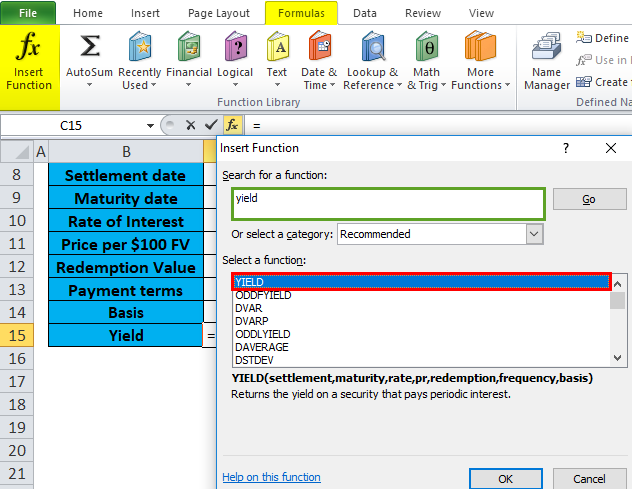
- Click the insert function button (fx) under the formula toolbar. A dialog box will appear, type the keyword “YIELD” in the search for a function box, and the YIELD function will appear in the select a function box. Double-click on the YIELD function.
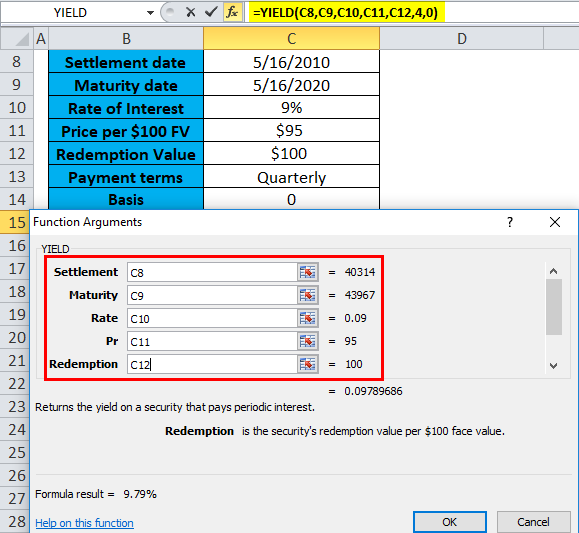
- A dialog box appears where arguments for the YIELD function need to be filled or entered. (Note: Settlement & maturity date arguments are entered in the cell using the Excel DATE function) i.e. =YIELD(C8,C9,C10,C11,C12,4,0).
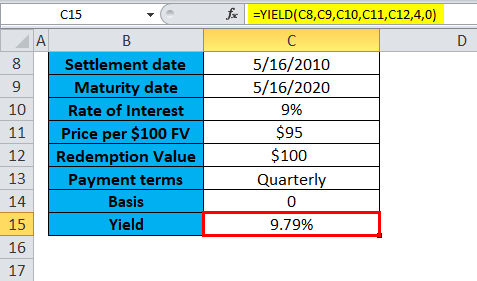
- The yield for the bond with the above terms will be 9.79%. It returns a value of 9.79%.
Example #2 – Semiannual or Half-Yearly Payment
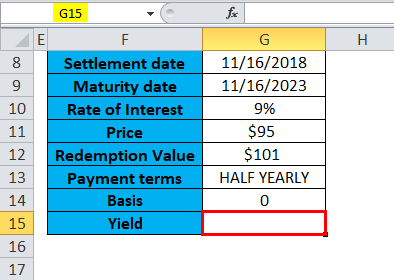
I need to calculate bond yield in this YIELD function in the Excel example. Here, the bond was purchased on 16th November 2018, with a maturity date of 16th November 2023 (5 years from the date of settlement), and a rate of interest is 9%. The bond is bought at a price of 95, and the redemption value is 101; here, it pays the interest on a half-yearly or semiannual basis.
- Select the cell “G15,” where the YIELD function needs to be applied.
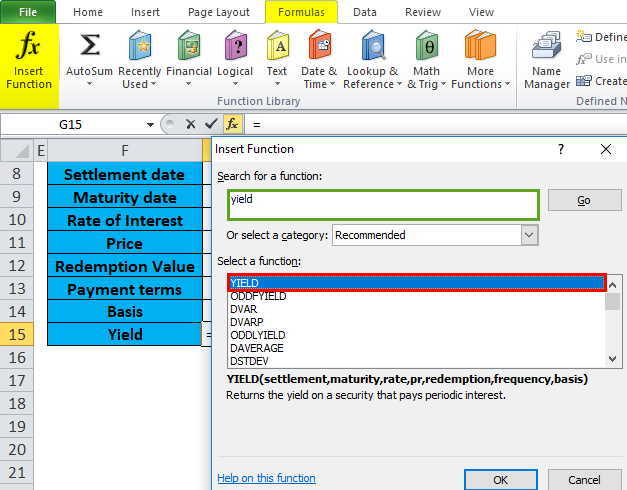
- Click the insert function button (fx) under the formula toolbar. A dialog box will appear, type the keyword “YIELD” in the search for a function box, and the YIELD function will appear in the select a function box. Double-click on the YIELD function.
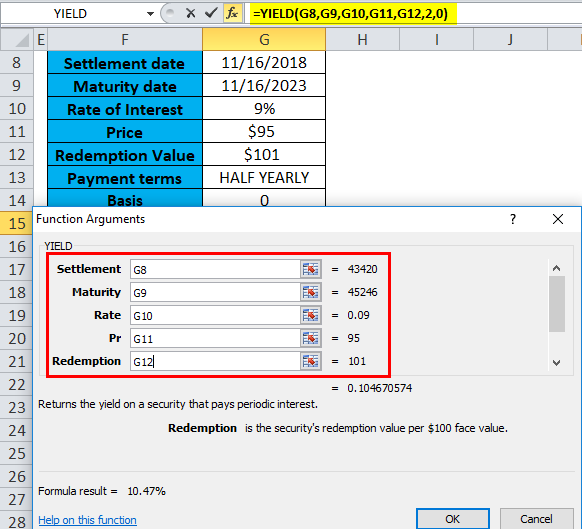
- A dialog box appears where arguments for the YIELD function need to be filled or entered (Note: Settlement & maturity date argument are entered in the cell using the Excel DATE function), i.e. =YIELD(G8,G9,G10,G11, G12,2,0).
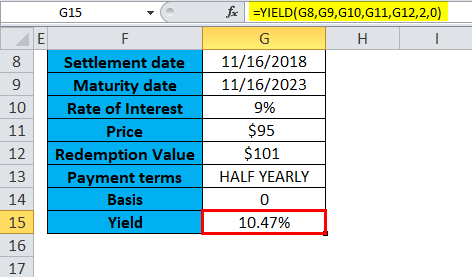
- The yield for the bond with the above terms will be 10.47%. It returns a value of 10.47%.
Example #3 – Annual or Yearly Payment
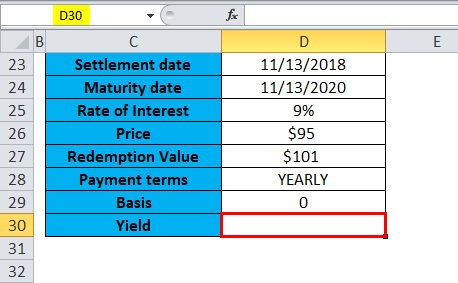
I need to calculate bond yield in this YIELD function in the Excel example. Here, the bond was purchased on 13th November 2018, with a maturity date of 13th November 2020 (2 years from the date of settlement) rate of interest is 9%. The bond is bought at a price of 95, and the redemption value is 101; here, it pays the interest yearly or annually.
- Select the cell “D30,” where the YIELD function needs to be applied.
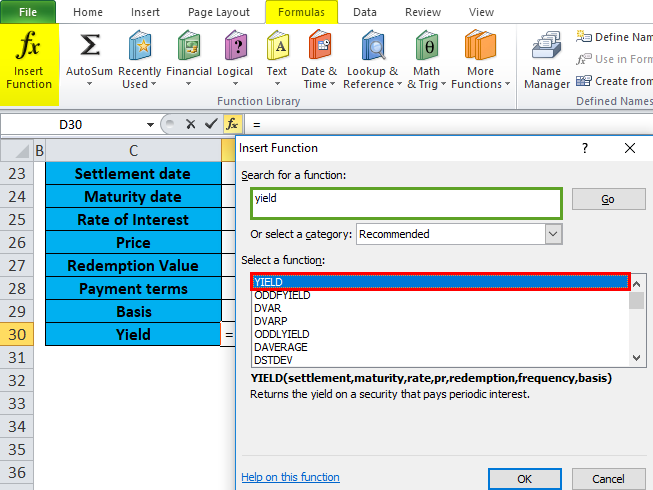
- Click the insert function button (fx) under the formula toolbar. A dialog box will appear, type the keyword “YIELD” in the search for a function box, and the YIELD function will appear in the select a function box. Double-click on the YIELD function.
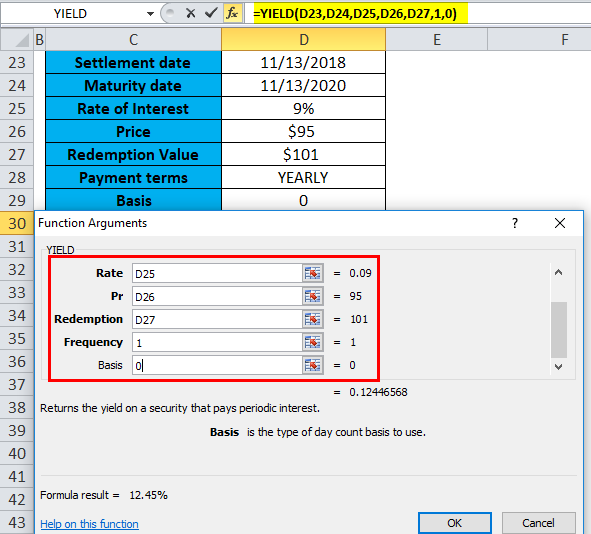
- A dialog box appears where arguments for the YIELD function need to be filled or entered (Note: Settlement & maturity date argument is entered in the cell using the Excel DATE function) i.e. =YIELD(D23,D24,D25,D26,D27,1,0).
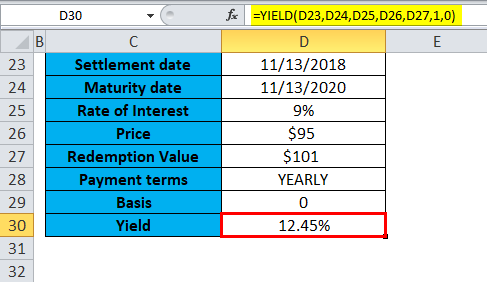
- The yield for the bond with the above terms will be 12.45%. It returns a value of 12.45%.
Things to Remember
- #VALUE! Error: It occurs if the settlement & maturity dates are not in the correct format (If it is entered as text value instead of using the date function) or if any of the other values are not a numeric value, i.e. Non-numeric.
- #NUM! Error: It occurs if the settlement date exceeds the maturity date or if any other numbers are entered incorrectly. i.e. When rate, price, redemption, or frequency value is less than or equal to zero.
The Yield & rate of interest cells is formatted to show a percentage with decimal places.
Recommended Articles
This has been a guide to the YIELD function in Excel. Here we discuss the YIELD Formula in Excel and How to use the YIELD Function in Exel, along with practical examples and a downloadable Excel template. You can also go through our other suggested articles –