

Updated August 10, 2023
Introduction to VLOOKUP Errors
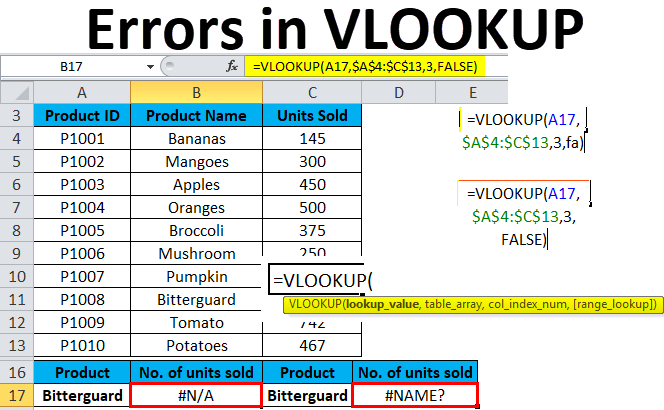
While we use the Vlookup function, there are some instances when we may get an error(vlookup errors) like #N/A. #Value and #Name, which commonly occur in Vlookup. This to avoid such errors, there are 2 ways. First, use the properly formatted data with no blank cells and values in incorrect format and remove the formulas. And another way is by using the IFERROR Function before VLookup. THE IFERROR function ignores the error and returns anything in place of the error, whatever we place for the error.
The common errors when VLOOKUP doesn’t work are:
- VLOOKUP #N/A error
- #VALUE error in VLOOKUP formulas
- VLOOKUP #NAME error
- VLOOKUP not working (problems, limitations, and solutions)
#1 – Fixing VLOOKUP #N/A Error
This #N/A error means Not Available. This error comes with the following reasons:
- Due to misspelled a lookup value argument in the function
We should always first check the most obvious thing. Misprint or type errors occur when working with large datasets or when a lookup value is typed directly in the formula.
- The lookup column is not the first column in the table range
One constraint of the VLOOKUP is that it can only look for values on the leftmost column in the table array. If your lookup value is not in the first column of the array, it will display the #N/A error.
Examples of Vlookup errors
Example #1
Let’s take an example to understand this problem.
We have given the product details.
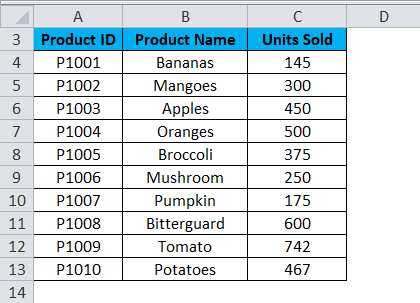
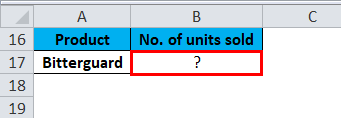
Let’s assume we want to retrieve the number of units sold for Bitterguard.
Now we will apply the VLOOKUP formula for this as shown below:
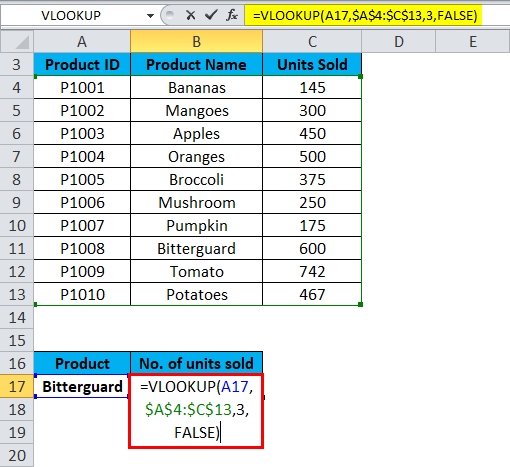
And it will return the #N/A error in the result.
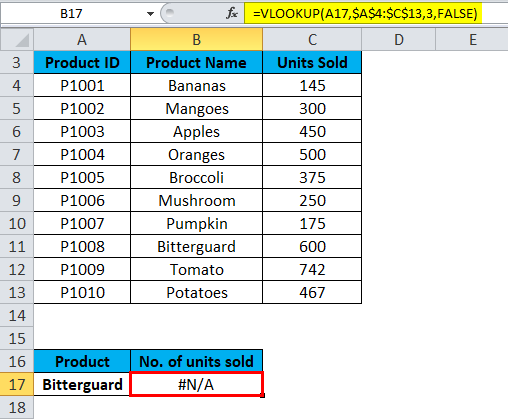
Because the lookup value “Bitterguard” appears in the second column (Product) of the table_array range A4:C13. In this condition, a formula looks for the lookup value in Column A, not Column B.
Solution For VLOOKUP #N/A Error
We can fix this problem by adjusting the VLOOKUP to reference the correct column. If that’s not possible, try to move the columns so that the lookup column is the leftmost column in the table_array.
#2 – Fixing #VALUE Error in VLOOKUP formula
The VLOOKUP formula displays the #VALUE error if a value used in the formula is of the wrong data type. There can be two reasons for this #VALUE error:
The lookup value should not be more than 255 characters. If it exceeds this limit, this will end up with the #VALUE error.
Solution For VLOOKUP #VALUE Error
By using INDEX/MATCH functions instead of the VLOOKUP function, we can overcome this problem.
- The correct path is not passed as the second argument
If you want to pick the records from another workbook, you must conclude the full path to that file. It will include the workbook’s name (with extension) in square brackets [], then specify the sheet’s name followed by the exclamation mark. Use apostrophes around all this in case a workbook or Excel sheet name contains spaces.
The syntax of the complete formula to do a VLOOKUP from another workbook:
=VLOOKUP(lookup_value, ‘[workbook name] sheet name’ !table_array, col_index_num, FALSE)
If anything is missing or any part of the formula is missing, the VLOOKUP formula won’t work, and it will return the #VALUE error in the result.
#3 – Fixing #NAME Error in the VLOOKUP formula
This problem occurs when you have accidentally misspelled the function’s name or argument.
Example #2
Let’s again take the product table details. We need to find out the number of units sold for the product.
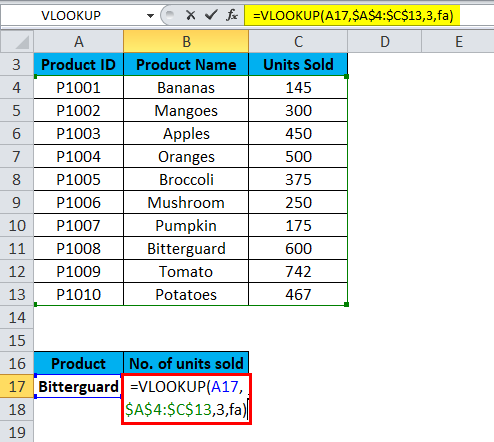
As we can see that we have misspelled the spelling of FALSE. We type “fa” in place of false. It will return the #NAME error as a result.
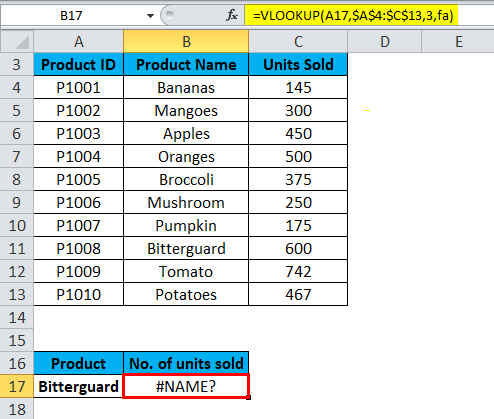
Solution For VLOOKUP #NAME Error
Check the spelling of the formula before hitting enter.
#4 – Fixing VLOOKUP not Working (Problems, Limitations, and Solutions)
VLOOKUP formula has more limitations than any other Excel function. Because of these limitations, it might often return results different from what you expect. This section will discuss a few common scenarios when the VLOOKUP function fails.
- VLOOKUP is case-insensitive
If your data contains several entries in the UPPER and LOWER letter case, then the VLOOKUP function works the same for both cases.
- A Column has been inserted or removed from the table
If you were reusing the VLOOKUP formula and made some changes in the dataset. Like inserting a new column or deleting any column, it will impact the VLOOKUP function results and won’t work now.
Whenever you add or delete any column in the dataset, it impacts the arguments table_array and col_index_num.
- While copying the formula, it can lead to an error
Always use absolute cell references with the $ sign in table_array. This you can use by pressing the F4 key. That means locking the table reference so that while copying the formula to another cell, it won’t create a problem.
Things to Remember about VLOOKUP Errors
- In the table, cells with numbers should be formatted as numbers, not text.
- If your data contains spaces, it can also lead to an error because we can not spot those extra spaces available in the dataset, especially when working with a large amount of data. Hence you can use the TRIM function by wrapping the Lookup_value argument.
Recommended Articles
This has been a guide to VLOOKUP Errors. Here we discuss how to fix the VLOOKUP errors, practical examples, and a downloadable Excel template. You can also go through our other suggested articles –

