

VBA Data Types and Declare VBA in Excel
The VBA Data Types article will provide you with the outline for VBA Data Types. You might have defined different variables during your VBA journey till now. But have you ever given thought to the data types those variables have? A Data Type of a variable tells your system the kind of data you store with the help of some variables. You let your compiler know how to store the data and its size with this method (Different data types inherently have different storage capacities). This seems to be the most essential part you may come up with. But believe me. It’s equally important to have hands-on. Moreover, it’s easy to grasp as well.
Data Type = Type of your data.
There are roughly more than 15 data types present under VBA. However, this article will discuss the most commonly used data types (almost surely used more than 90% of the time).
Please see the below table, where you will get the list of data types that are widely used and are always good to have as a reference:
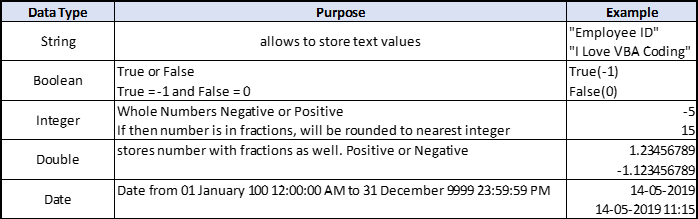
We will see how each data type gets used in defining a variable and storing data.
When you define a variable, you reserve some memory in your computer to be assigned to some specific data type with a name. Consider a variable as a token, ticket, or voucher you can redeem when assigning a value to it.
As in most conventional languages like C and C++, you must declare a variable before assigning a specific type value. It can be done as below:
Dim VariableName As DataType
Here, Dim stands for a dimension of the variable.
Let’s see how different data types are stored using variables.
How to Use Excel VBA Data Types Declare?
We will learn how to use VBA Data Types with a few examples in Excel.
Example #1 – VBA String Data Type
A string is the data type stored as text in the computer’s memory.
Follow the below steps to use String data type in Excel VBA.
Step 1: Open a new module and insert a sub-procedure to access the macro.
Code:
Sub Ex1()

End Sub
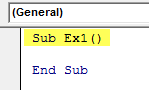
Step 2: Declare a new variable with String as a data type to hold a string value.
Code:
Sub Ex1()

Dim stringVar As String

End Sub
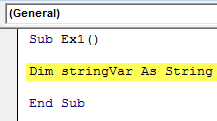
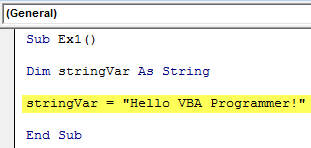
Step 3: Use the assignment operator to assign the text “Hello VBA Programmer!” to a variable named “stringVar.”
Code:
Sub Ex1()

Dim stringVar As String

stringVar = "Hello VBA Programmer!"

End Sub
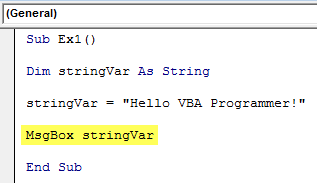
Step 4: Use the MsgBox function from VBA to see the output of this macro code.
Code:
Sub Ex1()

Dim stringVar As String

stringVar = "Hello VBA Programmer!"

MsgBox stringVar

End Sub
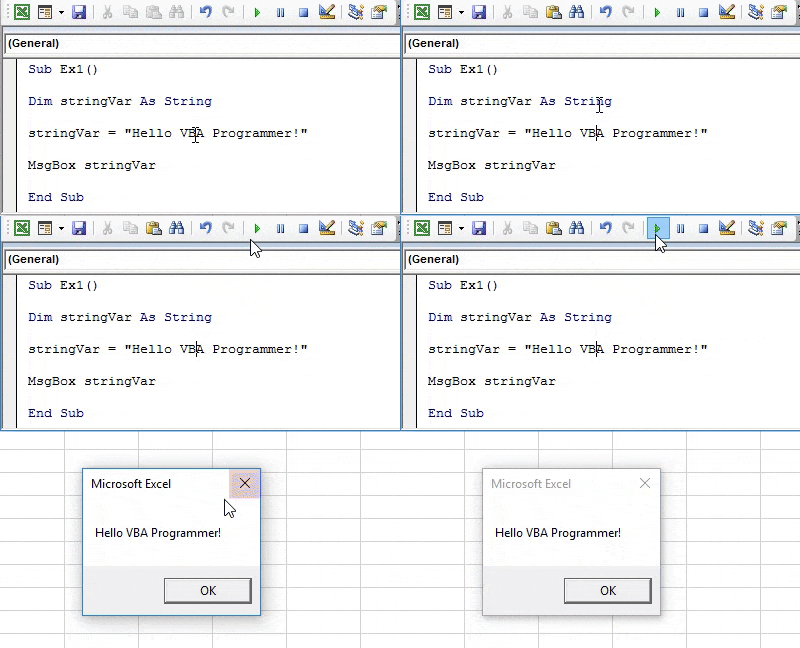
Step 5: Hit the F5 or Run button under VBE to run this code and see the output.
Example #2 – VBA Boolean Data Type
Boolean data type consists of either True or False as values. It can be mainly used to check whether certain logical conditions are met.
Follow the below steps to use Boolean data type in Excel VBA.
Step 1: Define a new variable as Boolean under a new sub-procedure in a module.
Code:
Sub Ex2()

Dim boolVar As Boolean

End Sub

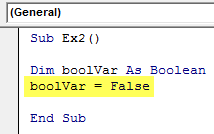
Step 2: Assign a True or False value (True = -1 and False = 0 can also be used instead) to the variable “boolVar”.
Code:
Sub Ex2()

Dim boolVar As Boolean
boolVar = False

End Sub
Step 3: Use If-Then… Else loop to decide what happens when boolVar = True and False.
Code:
Sub Ex2()

Dim boolVar As Boolean
boolVar = False
If boolVar = True Then
  Sheets("Data_Type").Range("A1") = "Bulls Eye! You Rock"
Else
  Sheets("Data_Type").Range("A1") = "Sorry Mate!"
End If

End Sub

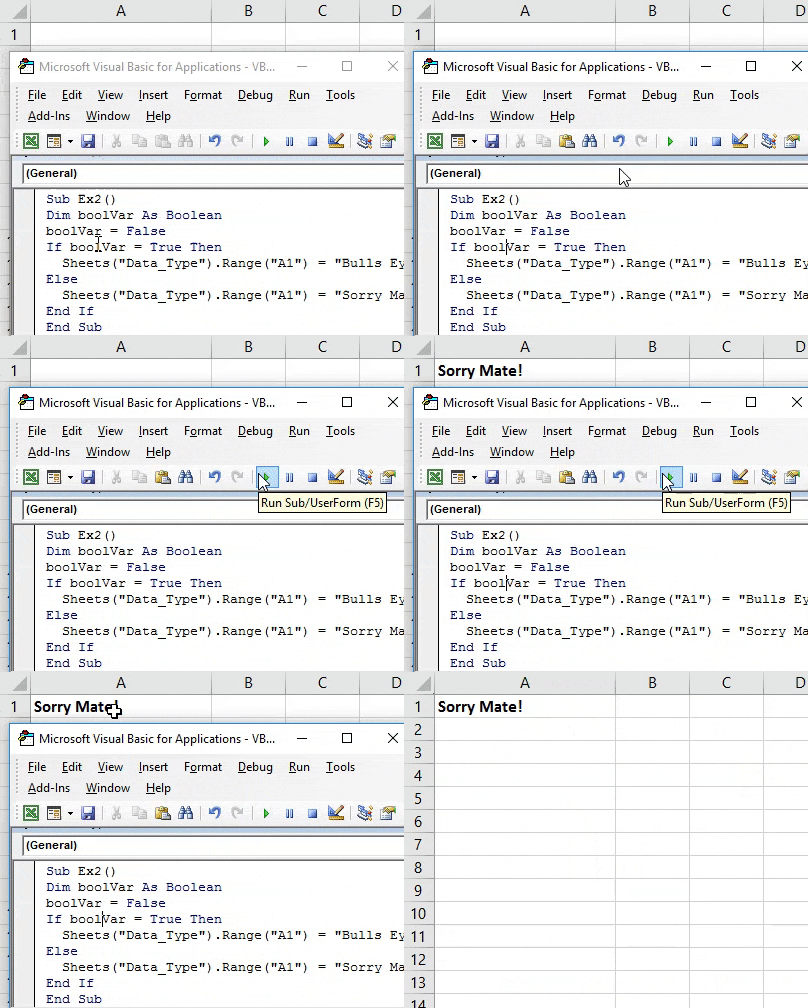
In this loop, if boolVar = True, the value that should get printed in cell A1 of sheet Data_Type is “Bulls Eye! You Rock”. If boolVar =False, the value that should get printed is “Sorry Mate!”
Now, logically speaking, what do you think will get printed under cell A1?
You probably have guessed correctly. The text that gets printed will be “Sorry Mate!”.
Step 4: Run this code and see the output.
Example #3 – VBA Integer Data Type
An integer data type can store numbers as a whole. If you provide any number with a fraction, it gets rounded to the nearest integer.
Follow the below steps to use the Integer data type in Excel VBA.
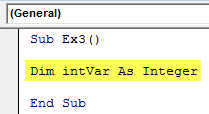
Step 1: Define a new variable with data type as an integer to store integer value under a new sub-procedure.
Code:
Sub Ex3()

Dim intVar As Integer

End Sub
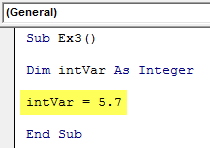
Step 2: Assign value as 5.7 to a variable named “intVar” using the assignment operator.
Code:
Sub Ex3()

Dim intVar As Integer

intVar = 5.7

End Sub
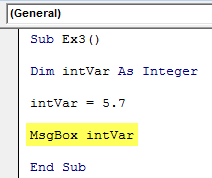
Step 3: Use the VBA MsgBox function to see the value of the variable “intVar” as a message box.
Code:
Sub Ex3()

Dim intVar As Integer

intVar = 5.7

MsgBox intVar

End Sub
Step 4: Run this code using the F5 or Run button simultaneously to see the output. You can see an output message box below.
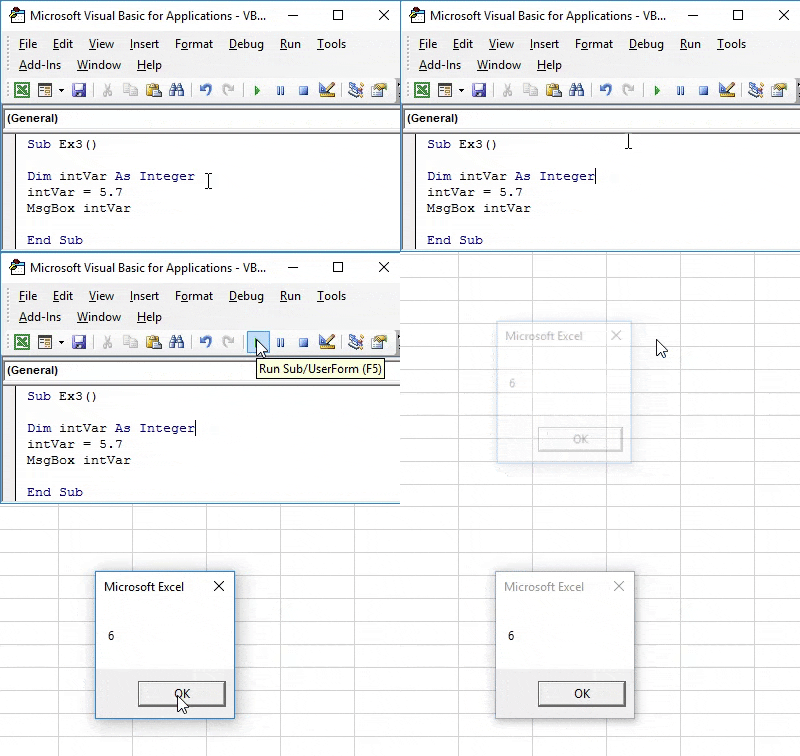
Hold on a sec! Have you noticed something fishy here in the output?
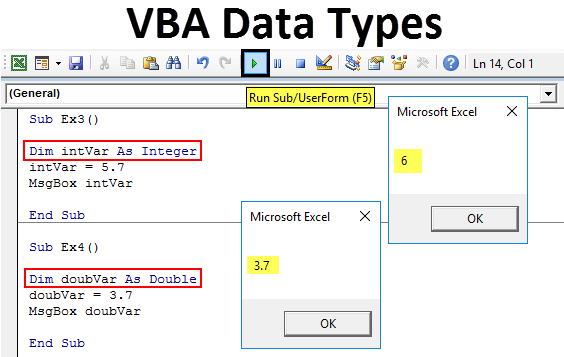
You have assigned 5.7 as a value to the variable “intVar”. How does it print 6 under the message box? It happened due to the data type of the variable you defined. The integer data type can only hold whole numbers. As the number assigned is not a whole number, it has been rounded to the nearest integer (i.e., 6).
Example #4 – VBA Double Data Type
The above example leads to the inclusion of data type double under VBA. This data type stores any number with fractions and the whole number as a value.
Follow the below steps to use Double data type in Excel VBA.
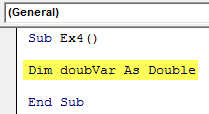
Step 1: Declare a variable as double under the new sub-procedure.
Code:
Sub Ex4()

Dim doubVar As Double

End Sub
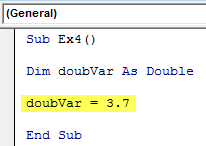
Step 2: Assign a value to the variable “doubVar” using an assignment operator.
Code:
Sub Ex4()

Dim doubVar As Double

doubVar = 3.7

End Sub
Step 3: Use the VBA MsgBox function to see the output as a message box in VBA.
Code:
Sub Ex4()

Dim doubVar As Double

doubVar = 3.7

MsgBox doubVar

End Sub

Step 4: Run this code by hitting the F5 or Run button and see the output.
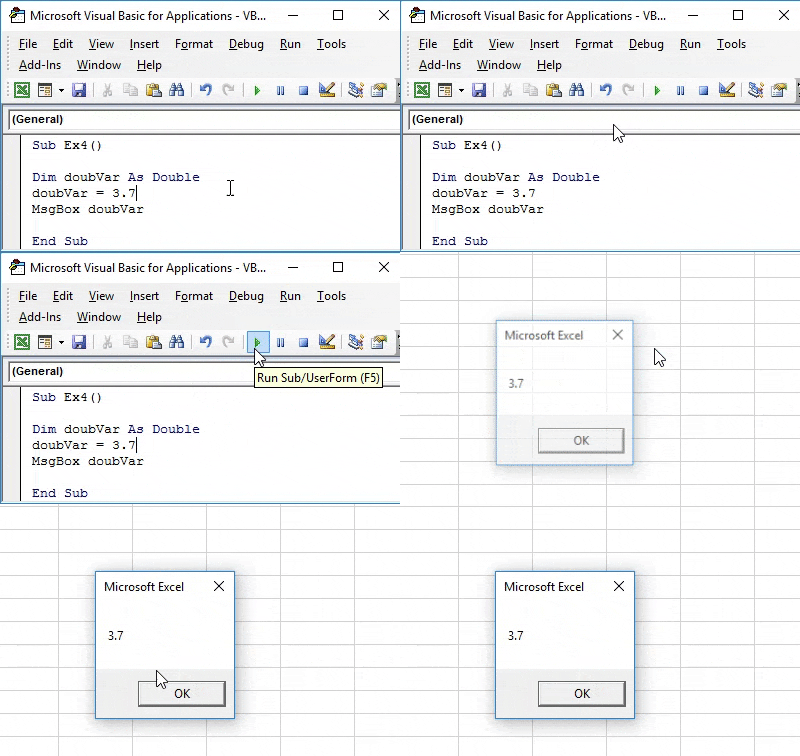
Not surprisingly, a double variable can store an integer value as well. The backend will automatically store that value as a double. Ex. If you assign 6 as a value to variable doubVar, it will get stored as 6.0 in the backend due to a variable data type as double.
Example #5 – VBA Date Data Type
The date is a data type that can store any date value within the range 01 January 100 12:00:00 AM to 31 December 9999 11:59:59 PM.
Follow the below steps to use the Date data type in Excel VBA.
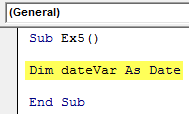
Step 1: Define a variable with data type as a date in a new sub-procedure.
Code:
Sub Ex5()

Dim dateVar As Date

End Sub
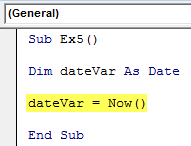
Step 2: Assign a date value to this variable using a combination of the assignment operator and VBA NOW () function.
Code:
Sub Ex5()

Dim dateVar As Date

dateVar = Now()

End Sub
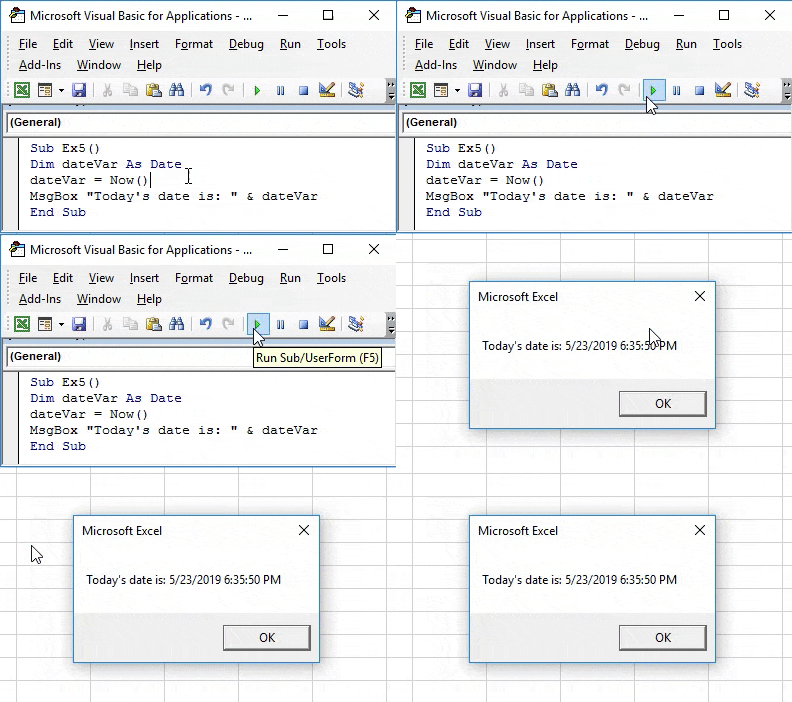
Step 3: Use MsgBox to see this date value as a message.
Code:
Sub Ex5()

Dim dateVar As Date

dateVar = Now()

MsgBox "Today's date is: " & dateVar

End Sub

Step 4: Hit F5 or the Run button to see the output of this code.
You will use These data types 9 out of 10 times while working in VBA. Let’s wrap things up with some points to be remembered.
Things to Remember
- Suppose you assign any numeric/Boolean/Date value to a variable with data type as a string. In that case, it will automatically convert that value into a string (thanks to type conversion functions available under VBA) and store it under that variable. However, vice versa is not always possible. You can’t assign any string value to a variable with an integer or double data type.
- The default value for a string is the empty string “.
- The default value for integer and double is zero.
- When converting numeric date values into dates, the values to the left of the decimal point represent dates, while the values to the right of the decimal point represent time.
- Negative whole numbers represent dates before 30 December 1899.
Recommended Articles
This has been a guide to VBA Data Types. Here we discussed the top 5 data types (i.e., String, Boolean, Integer, Double, Date) in Excel VBA, along with practical examples and a downloadable Excel template. You can also go through our other suggested articles –