
What is Unified Extensible Firmware Interface (UEFI)?
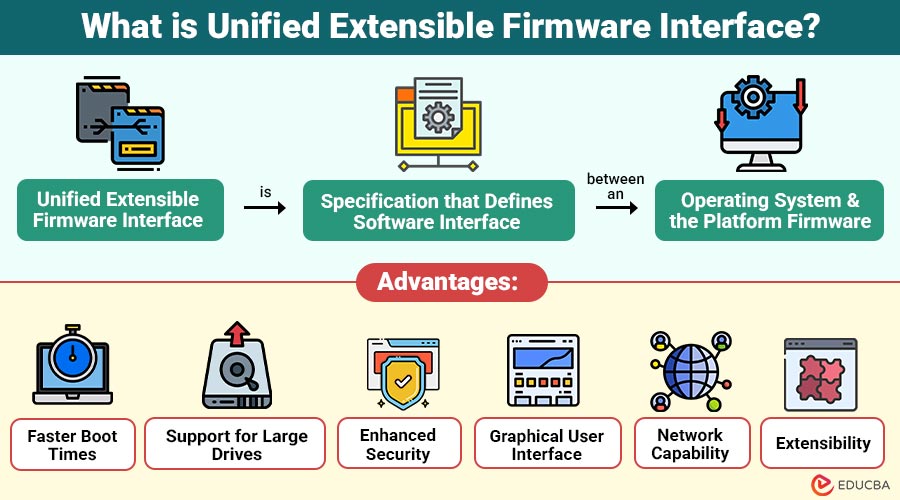
Unified Extensible Firmware Interface is specification that defines the software interface between an operating system and the platform firmware. Unlike BIOS (Basic Input/Output System), which has been around since the 1980s, UEFI is designed to support modern hardware and provide a flexible, scalable, and secure boot environment.
In simpler terms, UEFI is a program stored on your computer’s motherboard that starts the operating system and manages low-level hardware functions—but it is much smarter and faster than the old BIOS, allowing for quicker boot times and support for larger hard drives and more advanced security features.
Key Points:
- The UEFI Forum, a consortium of major tech companies, developed UEFI.
- Acts as bridge between hardware and the operating system, facilitating boot and enabling the operating system to communicate effectively with hardware components.
- The GUID Partition Table (GPT) supports large drives exceeding 2 TB.
- Includes security features like Secure Boot to prevent malware during startup.
Table of Contents:
- Meaning
- Working
- Advantages
- Applications
- UEFI Secure Boot
- Disadvantages
- Common Configurations
- Example
Key Takeaways:
- The Unified Extensible Firmware Interface replaces the traditional BIOS, offering faster boot times, better hardware compatibility, stronger security, and flexibility.
- UEFI supports GPT partitioning, enabling systems to use storage drives larger than two terabytes efficiently.
- Secure Boot verifies digital signatures during startup, preventing malware, rootkits, and unauthorized bootloaders from running.
- UEFI provides a graphical firmware interface, mouse support, network booting, diagnostics, updates, and easier system configuration.
How Does Unified Extensible Firmware Interface Work?
UEFI provides a pre-boot environment that initializes the computer hardware and hands control to the operating system. Here is a simplified step-by-step overview:
1. Power-On Self Test (POST)
UEFI first performs POST to verify hardware components such as RAM, CPU, motherboard, and storage devices, ensuring everything works properly.
2. UEFI Boot Manager
The UEFI boot manager reads stored boot entries and, based on the system configuration, decides which operating system or boot device to start.
3. Device Initialization
UEFI loads the required firmware drivers and initializes connected hardware devices, such as graphics, storage controllers, keyboards, mice, and network interfaces.
4. Secure Boot Verification
UEFI Secure Boot verifies the bootloader’s digital signature to ensure it is trusted and not modified by malware.
5. Hand-Off to Operating System
After verification, UEFI transfers control to the operating system kernel, allowing the system to continue booting and start normal operations.
This process is much faster and more secure compared to legacy BIOS booting.
Advantages of Unified Extensible Firmware Interface
Here are some key advantages of UEFI that improve system performance, security, and hardware compatibility.
1. Faster Boot Times
UEFI removes many legacy BIOS steps and enables parallel hardware initialization, significantly reducing system startup time and improving boot efficiency.
2. Support for Large Drives
UEFI supports the GUID Partition Table, allowing systems to use storage drives larger than 2 TB and manage more partitions.
3. Enhanced Security
UEFI includes a Secure Boot feature that verifies trusted digital signatures, preventing unauthorized software, rootkits, or malicious bootloaders from running.
4. Graphical User Interface
UEFI provides graphical interface with mouse support, making firmware configuration easier and more user-friendly compared to traditional text-based BIOS (Basic Input/Output System).
5. Network Capability
UEFI includes built-in network support, enabling remote troubleshooting, diagnostics, and operating system installation without external software.
6. Extensibility
UEFI architecture allows manufacturers to add custom tools, firmware updates, diagnostics utilities, and recovery applications within the firmware environment.
Real-World Applications of Unified Extensible Firmware Interface
Here are some common real-world applications that use UEFI to improve system performance, security, and hardware management.
1. Consumer PCs and Laptops
Most modern desktops and laptops use UEFI firmware to provide faster boot times, improved hardware compatibility, and stronger security features.
2. Enterprise Servers
Enterprise servers use UEFI for faster hardware initialization, secure boot protection, improved scalability, and better remote management in data centers.
3. Virtualization Platforms
Virtualization platforms support UEFI firmware for guest operating systems, enabling better compatibility, secure boot support, and improved performance.
4. IoT and Embedded Devices
UEFI modular design allows integration into embedded systems and IoT devices, providing secure, flexible, and fast boot environments.
UEFI Secure Boot: How Does it Work?
One of UEFI’s standout features is Secure Boot, which protects your system from malware during startup.
1. Trusted Certificate Database
The motherboard stores a database of trusted digital certificates used to verify whether boot software and drivers are legitimate.
2. Bootloader Verification
During system startup, UEFI compares the operating system bootloader’s digital signature with the trusted certificates stored in firmware.
3. Trusted Boot Process
If the bootloader signature matches trusted certificates, UEFI allows the operating system to load and continue the normal boot process.
4. Malware Prevention
If the bootloader is unsigned, altered, or untrusted, UEFI blocks the boot process, preventing malware from loading during startup.
Secure Boot is particularly important in enterprise systems to prevent ransomware or rootkits from compromising sensitive data.
Disadvantages of Unified Extensible Firmware Interface
Although UEFI provides many improvements over traditional BIOS, it also has some disadvantages.
1. Increased Complexity
UEFI is more complex than traditional BIOS, making troubleshooting and firmware configuration more difficult for some users.
2. Compatibility Issues with Older Systems
Compatibility issues during installation or upgrades may arise from older hardware and operating systems that provide incomplete support for UEFI.
3. Secure Boot Restrictions
While Secure Boot improves security, it can sometimes prevent users from installing alternative operating systems or custom bootloaders.
4. Larger Firmware Size
UEFI firmware requires more storage space than BIOS, which may increase hardware requirements for system manufacturers.
5. Vendor-Specific Implementations
Different hardware manufacturers may implement UEFI features differently, leading to inconsistencies in firmware interfaces and settings.
Common Unified Extensible Firmware Interface Configurations
Here are some common UEFI configuration settings that users can adjust to manage system boot, security, and hardware features.
1. Enable or Disable Secure Boot
Users can enable or disable Secure Boot to control whether only trusted, digitally signed operating systems and bootloaders are allowed.
2. Configure Boot Order of Devices
UEFI allows users to set the boot priority, deciding whether the system starts from the hard drive, USB, CD/DVD, or network.
3. Enable or Disable Virtualization Features
Users can enable or disable CPU virtualization technologies, allowing virtual machines and hypervisors to run efficiently on the system.
4. Update Firmware or Drivers
UEFI provides options to update system firmware and hardware drivers, ensuring improved compatibility, security patches, and better performance.
5. Restore Default Factory Settings
Users can reset UEFI settings to factory defaults, which helps resolve configuration issues or restore the original system firmware settings.
6. Access Diagnostics or Recovery Tools
UEFI includes built-in diagnostic and recovery utilities that help troubleshoot hardware issues, repair systems, and recover operating systems.
Real-World Example
Imagine a modern gaming PC with multiple storage drives, SSDs, and a large HDD:
- BIOS might struggle to recognize all drives and partitions over 2 TB.
- UEFI, with GPT, can boot from large SSDs, prioritize drives, and even boot multiple operating systems securely.
- Secure Boot ensures that malware cannot load at startup, keeping both the OS and personal data safe.
Enterprises often use this setup in servers, where UEFI allows remote management and ensures rapid, secure, and reliable system deployment.
Final Thoughts
The Unified Extensible Firmware Interface is modern replacement for traditional BIOS, offering faster boot speeds, stronger security, and support for large storage drives. It improves compatibility with modern hardware and operating systems. Used in personal computers, laptops, and enterprise servers, UEFI helps users and IT professionals enhance system performance, security, and overall hardware management efficiency.
Frequently Asked Questions (FAQs)
Q1. Is UEFI backward compatible with BIOS?
Answer: Yes. UEFI supports a “Legacy BIOS” mode for older operating systems that cannot boot from GPT drives.
Q2. Can I switch from BIOS to UEFI?
Answer: Yes, but it often requires reinstalling the operating system with GPT partitioning enabled.
Q3. Does UEFI improve system performance?
Answer: Yes, boot times are generally faster, and it allows for more efficient hardware initialization.
Q4. Can Secure Boot be disabled?
Answer: Yes, UEFI allows users to disable Secure Boot if needed, but doing so may reduce security.
Recommended Articles
We hope that this EDUCBA information on “Unified Extensible Firmware Interface” was beneficial to you. You can view EDUCBA’s recommended articles for more information.

