


Updated May 5, 2023
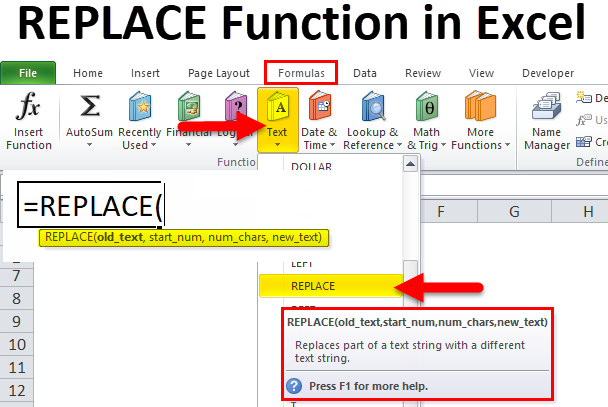
REPLACE in Excel
Replace function in Excel by which we can replace any portion of a cell content by selecting the start and last word till we want to replace it with the word in the same syntax. This is as easy as using Find and Replace operational function.
REPLACE Formula in Excel
Below is the REPLACE Formula in Excel:
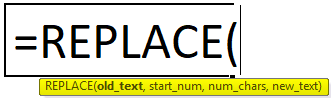
The REPLACE function in Excel has the following arguments:
- Old_text (Compulsory or required parameter): The cell reference contains the text you want to replace. (It may contain text or numeric data)
- Start_Num (Compulsory or required parameter): It is the starting position from where the search should begin, i.e., From the left side of the character in the old_text argument
- Num_chars (Compulsory or required parameter): The number of characters you want to replace.
- new_text (Compulsory or required parameter): It is the new text that you’d like to replace the old_text
How to use REPLACE Function in Excel?
REPLACE Function is very simple to use. Let us now see how to use REPLACE function in Excel with the help of some examples.
Example #1 – REPLACE Function for Name Change
The below-mentioned example, Cell “B8”, contains the name “Andrew Edward”. Here I need to REPLACE that name with the correct name, i.e., John Edward, with the help of REPLACE function.
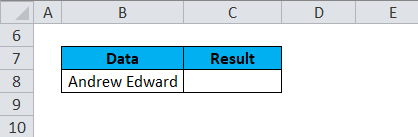
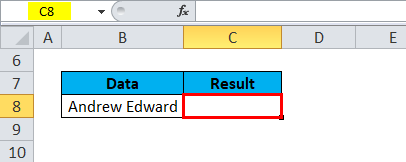
Let’s apply to REPLACE function in cell “C8”. Select the cell “C8” where REPLACE function needs to be applied.
Click the insert function button (fx) under the formula toolbar, and a dialog box will appear, type the keyword “REPLACE” in the search for a function box, REPLACE function will appear in the select a function box. Double click on REPLACE function.
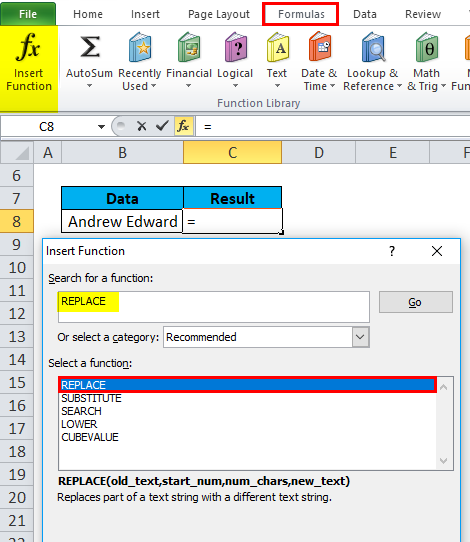
A dialog box appears where arguments for REPLACE function need to be filled or entered i.e.
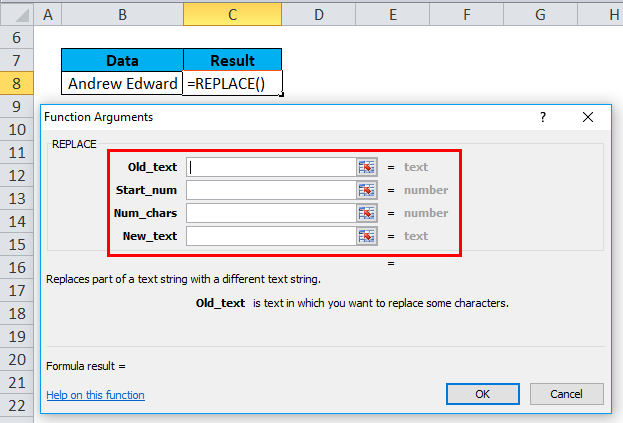
=REPLACE(old_text, start_num, num_chars, new_text)
- Old_text: is the cell reference containing the text you want to replace. i.e., “B8” or “Andrew Edward.”
- Start_Num: It is the starting position from where the search should begin, i.e., From the left side of the character in the old_text argument, i.e., 1
- Num_chars or Number_of_chars: It is the number of characters you want to replace. i.e., The word ANDREW contains 6 letters which I need to replace; therefore, it is 6
- new_text: The new text you’d like to replace the old_text, here “John” is a new string & “Andrew” is the old string. i.e., Here, we have to enter a new string, i.e., “John.”
Click ok after entering all the replace function arguments.
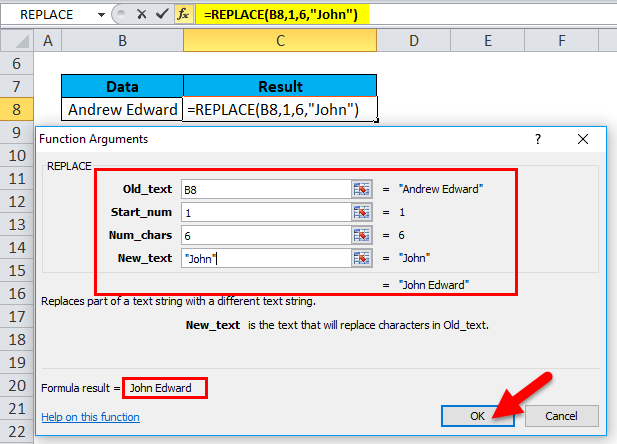
=REPLACE(B8,1,6,”John”)
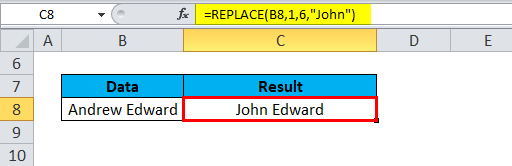
It replaces text in a specified position of a given or supplied string, i.e., John Edward in cell C8.
Example #2 – Addition Of Missing Word In A Text
In the below-mentioned example, In cell “B12” contains the word “News”. Here I need to add the missing word, i.e., “Paper,” with the help of REPLACE function.
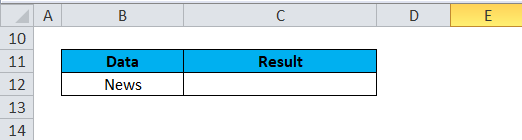
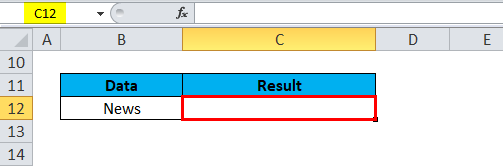
Let’s apply to REPLACE function in cell “C12”. Select the cell “C12” where REPLACE function needs to be applied,
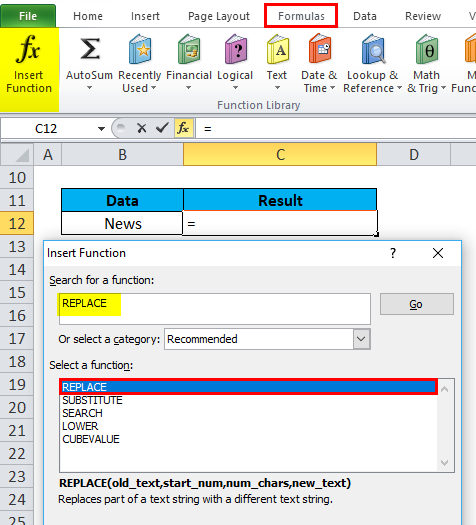
Click the insert function button (fx) under the formula toolbar, and a dialog box will appear, type the keyword “REPLACE” in the search for a function box, REPLACE function will appear in the select a function box. Double click on REPLACE function.
A dialog box appears where arguments for REPLACE function need to be filled or entered i.e.
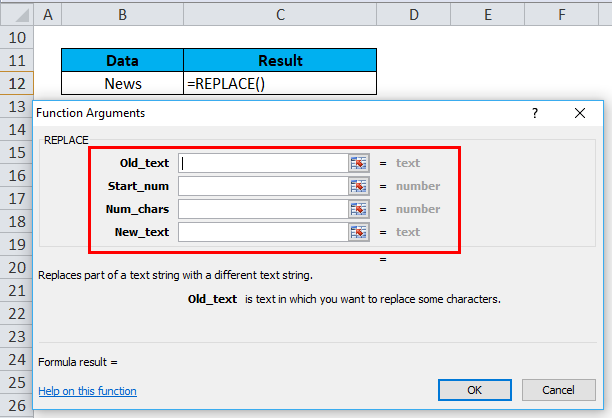
=REPLACE(old_text, start_num, num_chars, new_text)
- Old_text: is the cell reference containing the text you want to replace. i.e., “B12” or “News.”
- Start_Num: From the left side of the character in old_text argument (News), i.e. 5, from 5th position, add a New_text
- Num_chars or Number_of_chars: Here, it is left blank. i.e., We are not replacing anything here, as we are adding a missing word to old_text.
- New_text: We are not replacing anything here; “Paper” is a new string. Therefore, we have to enter a new string to be added to that old text. i.e., “Paper”
Click ok after entering all the replace function arguments.
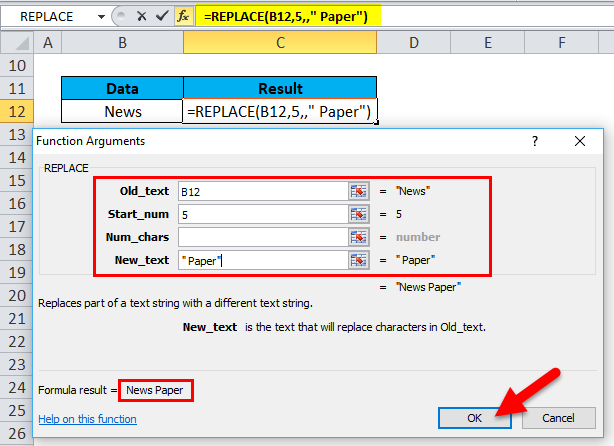
=REPLACE(B12,5,,” Paper”)
It adds the new text in a specified position, i.e., “News Paper” in cell C12.

Example #3 – Addition Of Hyphen In Phone Number
In the below-mentioned example, Cell “G8” contains a contact number with state code “0224038991”. Here I need to add a hyphen after the state code with the help of replace function. i.e., “022-4038991.”
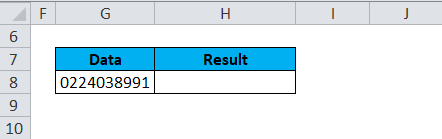
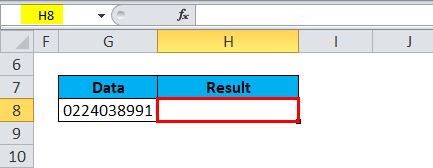
Let’s apply to REPLACE function in cell “H8”. Select the cell “H8” where REPLACE function needs to be applied.
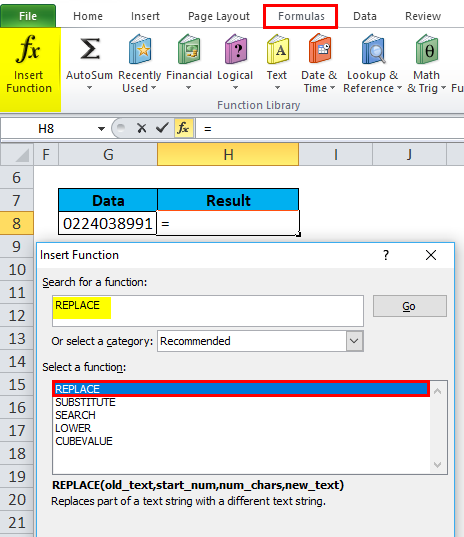
Click the insert function button (fx) under the formula toolbar, and a dialog box will appear, type the keyword “REPLACE” in the search for a function box, REPLACE function will appear in the select a function box. Double click on REPLACE function.
A dialog box appears where arguments for REPLACE function need to be filled or entered i.e.
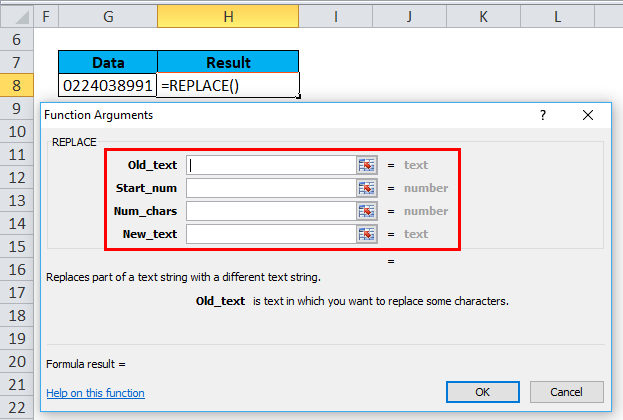
=REPLACE(old_text, start_num, num_chars, new_text)
- Old_text: is the cell reference containing the text you want to replace. i.e., “G8” or “0224038991.”
- Start_Num: From the character’s left side in the old_text argument, i.e., 4. At the 4th position, add the hyphen “-“
- Num_chars or Number_of_chars: Here, it is left blank. i.e., We are not replacing anything here, as we are adding Hyphen in between the contact number
- New_text: We are not replacing anything here, “-” i.e., Hyphen is a special character or new string Which has to be added in between an old string
Click ok, after entering all the arguments in replace function.
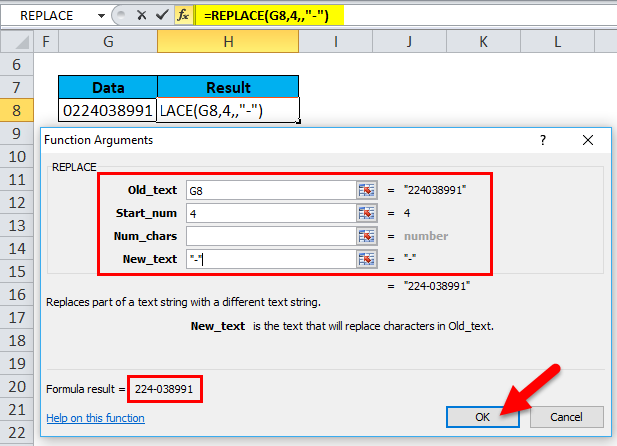
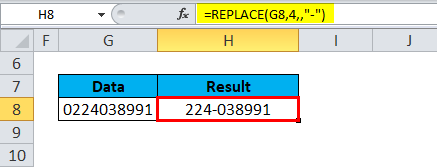
=REPLACE(“0224038991″,4,,” – “)
It replaces the hyphen “-” in a specified position, i.e., “022-4038991” in cell C12.
Things to Remember
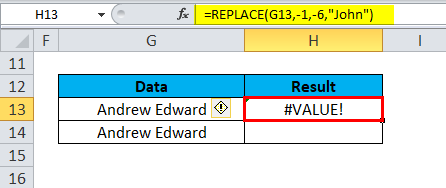
#VALUE error occurs if the start_num or num_chars argument is a non-numeric or negative value.
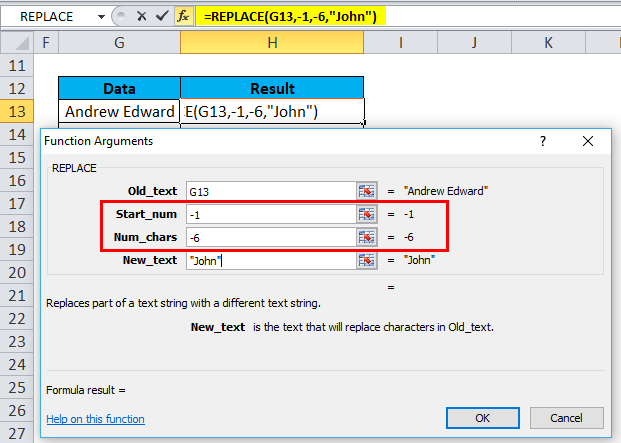
It will throw a Value Error.
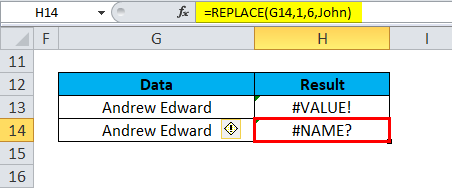
#NAME error Occurs if the Old_text argument is not enclosed in double quotation marks
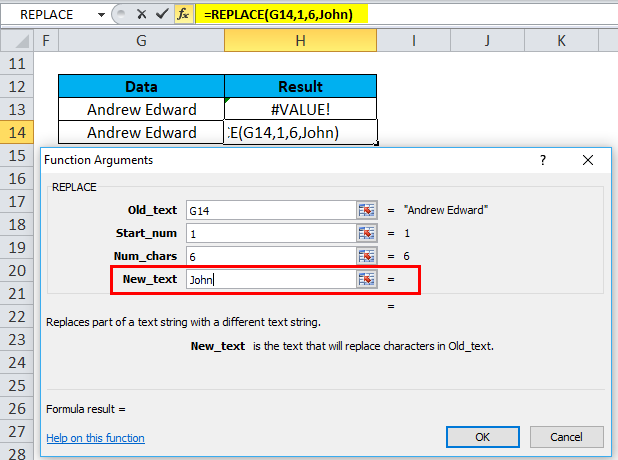
It will throw a Name Error.
Recommended Articles
This has been a guide to REPLACE in Excel. Here we discuss the REPLACE Formula and how to use REPLACE function in Excel, along with practical examples and a downloadable Excel template. You can also go through our other suggested articles –

