


Excel Remove Spaces (Table of Contents)
- Introduction to Remove Spaces in Excel
- Different Types Of Spaces
- How to Remove Extra Spaces in Excel?
Introduction to Remove Spaces in Excel
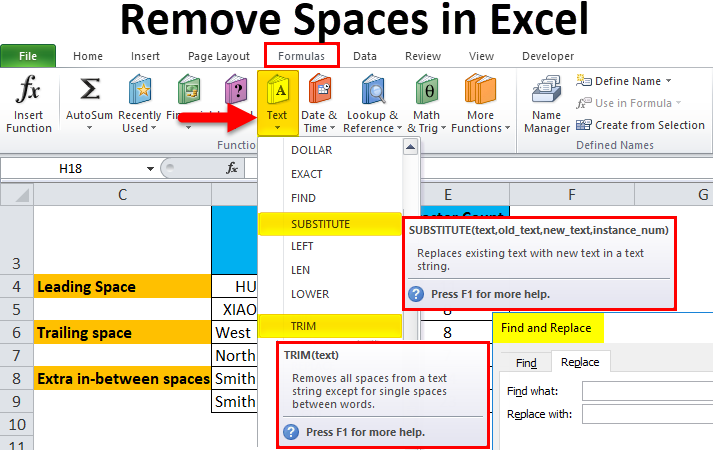
There are multiple ways to remove spaces in Excel. The first way we can remove the extra unwanted spaces is with the help of the FIND and REPLACE options (Ctrl + H). We must put a space and replace that with a Blank (Nothing kept). This removes the spaces anywhere from the selected cells. Alternatively, we can remove the spaces using a TRIM function. This removes the spaces at the start and end of the selected cell content. And we can also use the SUBSTITUTE function, where we can substitute space with blank to remove spaces completely.
Different Types of Spaces
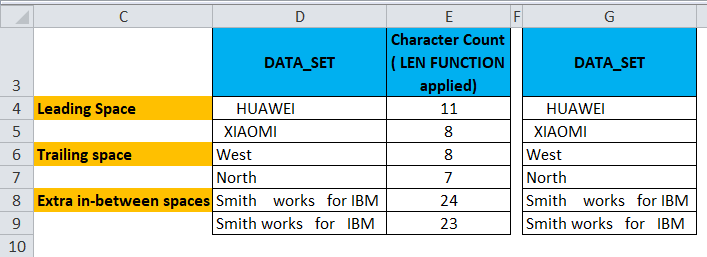
- It may contain extra spaces before text strings in cells, called Leading spaces.
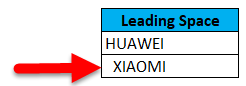
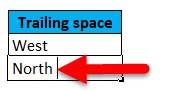
- It may contain extra spaces after text strings in cells, called Trailing spaces.
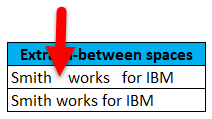
- Datasets may contain extra in-between spaces, i.e.additional spaces in between text.
- Datasets may also contain Line breaks with extra space.
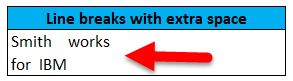
We can get rid of these types of spaces quickly & easily with the below-mentioned options:
- FIND AND REPLACE
- TRIM Function
- SUBSTITUTE Function
- CLEAN and TRIM function to Remove Extra Space of Line Break in Excel
TRIM Function
TRIM function is a prebuilt integrated function categorized under Text functions. It Removes all extra spaces from text except a single space between words in Excel.
The syntax or formula for the TRIM function in Excel is:
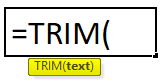
The trim function in Excel has only one compulsory argument or parameter, i.e., text.
- Text: It is cell content from where you need to remove extra spaces in Excel.
The TRIM function removes the text’s ASCII space character (32).
How to Remove Extra Spaces in Excel?
Removing extra spaces in Excel is very simple and easy. Let’s understand the working of removing extra spaces in Excel with the help of some examples.
Example #1 – Remove Excel Spaces with the help of Find and Replace
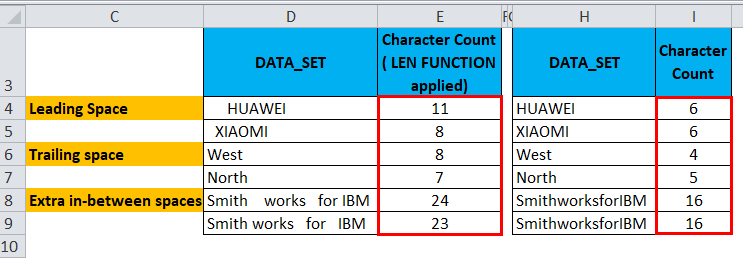
In the below-mentioned example, I have a dataset in column D that contains all three types of extra spaces, i.e., Leading spaces, Trailing spaces & Extra in-between spaces.
I have done several character counts for the column D datasets for reference. With the help of the LEN function in column E., I have taken this raw data to another new column (column H) to apply the Find and Replace task.
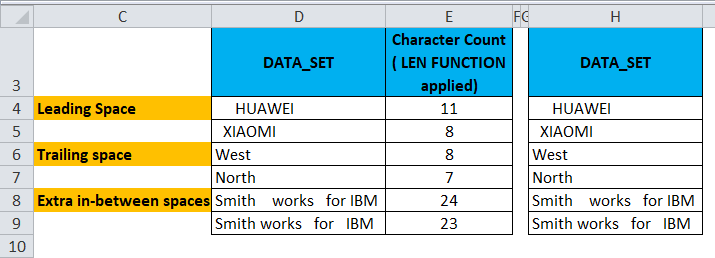
Now, I have to select the cell range where the Find and Replace parameter needs to be applied to remove extra spaces in Excel.
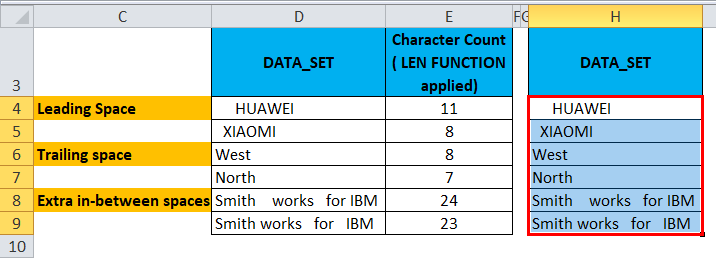
To activate the find and replace option, press the shortcut key Ctrl + H, find and replace window appears.
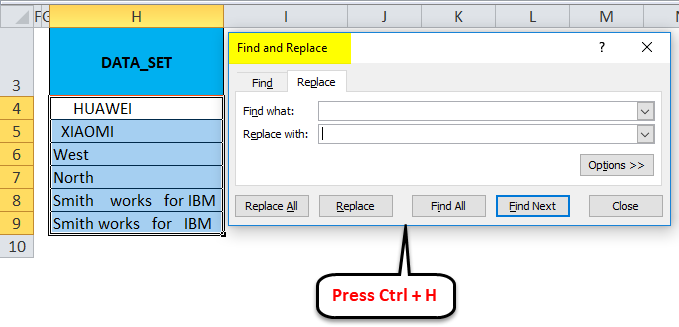
In Find what: input bar, insert a blank space with the help of the space bar once, and in Replace with no need to input anything, it should remain blank. Click on the Replace All button.
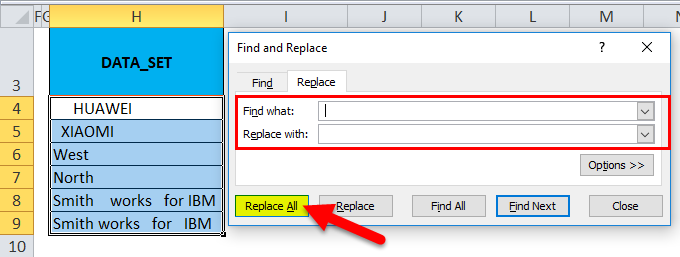
It replaces all the blank spaces in the cell.
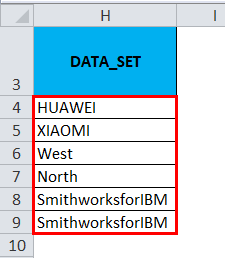
You can find a difference in character count between both datasets. Where Find and Replace, remove all the blank spaces. In extra in-between spaces content also, it has removed all the blank spaces without retaining a single space between words (This can be rectified with the help of the TRIM function).
Example #2 – Remove Excel Spaces with the Help of the TRIM Function
In the below-mentioned example, I have a dataset in column D that contains all three types of extra spaces, i.e., leading spaces, trailing spaces & extra in-between spaces.
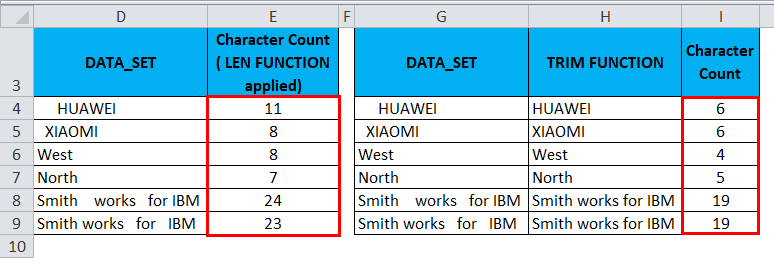
For reference, I have done several characters counts for the column D datasets. With the help of the LEN function in column E., I have taken this raw data to another new column (column G) to apply the TRIM Function. The Excel TRIM function removes all spaces from text except a single space between words.
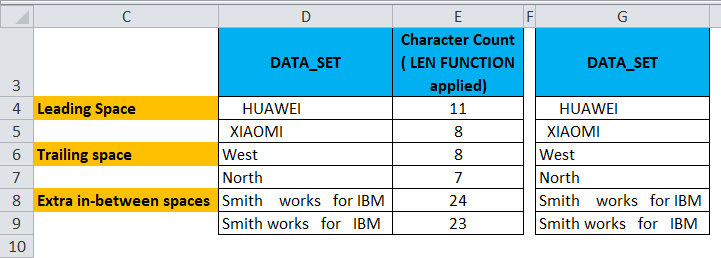
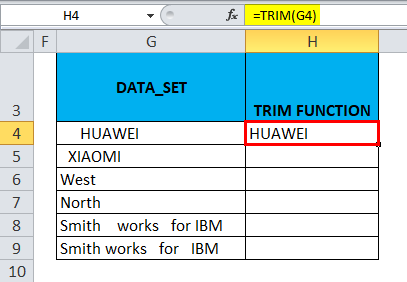
Now, In cell H4, let’s apply a TRIM function.
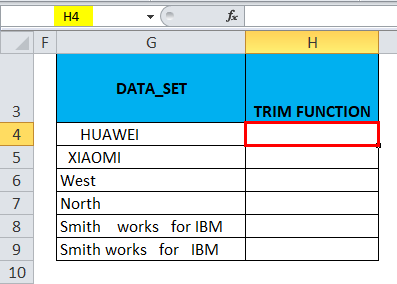
In the Formulas tab, click the Text drop-down menu in the Functions section and select TRIM.
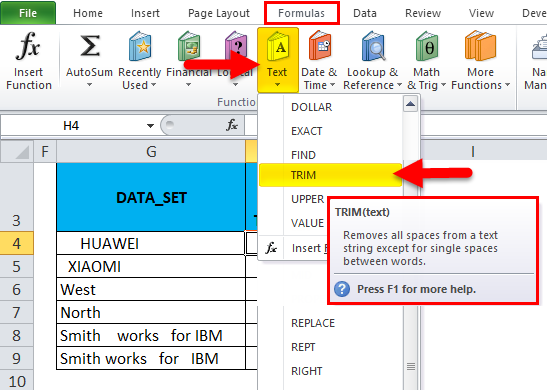
Now the function argument dialog box appears; click on cell G4, which contains the text where I would like to remove spaces to complete the function, then click OK.
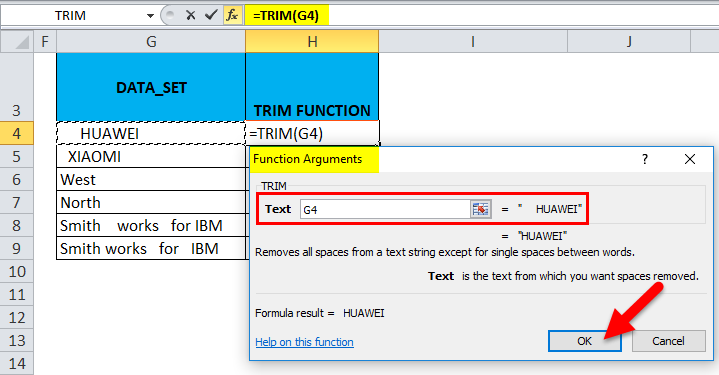
Now, you can observe in cell H4, where the trim function removes the leading space in that cell.
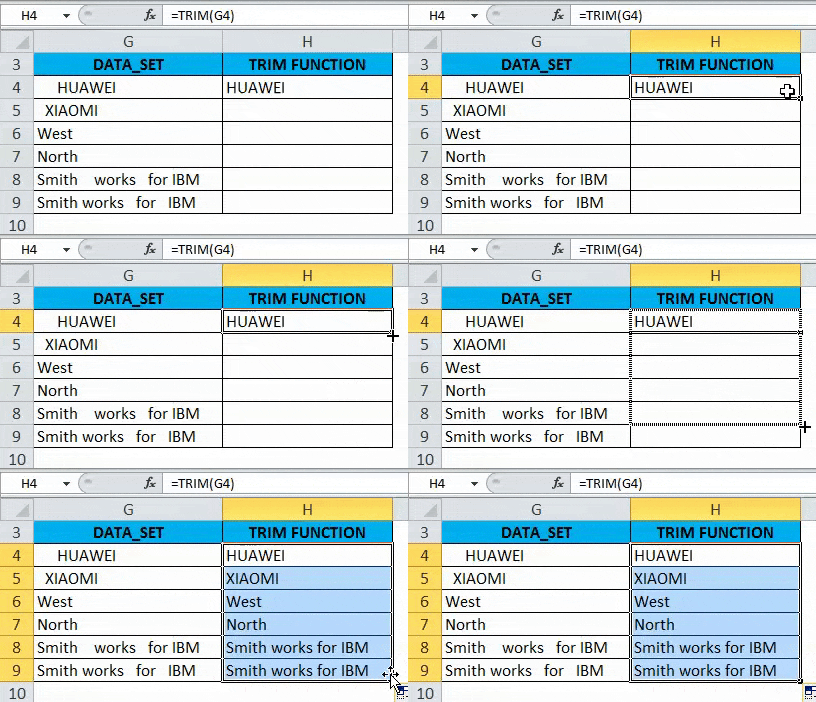
Similarly, a TRIM function is applied to other ranges by selecting the cell H4, dragging it to H9, and clicking Ctrl+D to apply it to the rest of the cells.
You can find a difference in character count between both datasets where the TRIM Function removes all spaces before and after the text in the cell (i.e., G4, G5, G6 & G7) & consecutive spaces in the middle of a string in the cell G8 & G9.
Example #3 – Remove Excel Spaces with the help of the SUBSTITUTE Function
It will remove all the extra Excel spaces, including single spaces between words or numbers.
In the below-mentioned example, I have a dataset in column D that contains all three types of extra spaces, i.e., leading spaces, trailing spaces & extra in-between spaces.
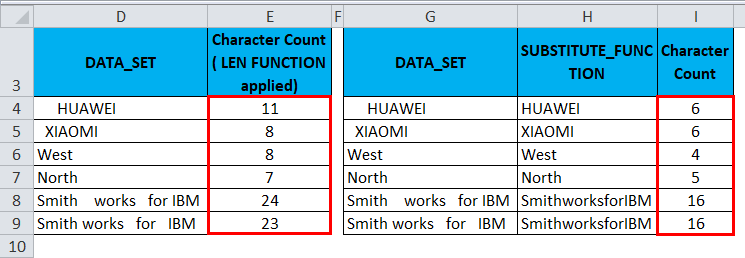
For reference, I have done several characters counts for the column D datasets. With the help of the LEN function in column E., I have taken this raw data to another new column (column G) to apply the SUBSTITUTE Function.
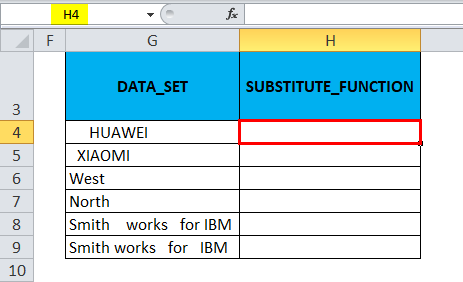
Now, In cell H4, let’s apply the SUBSTITUTE Function.
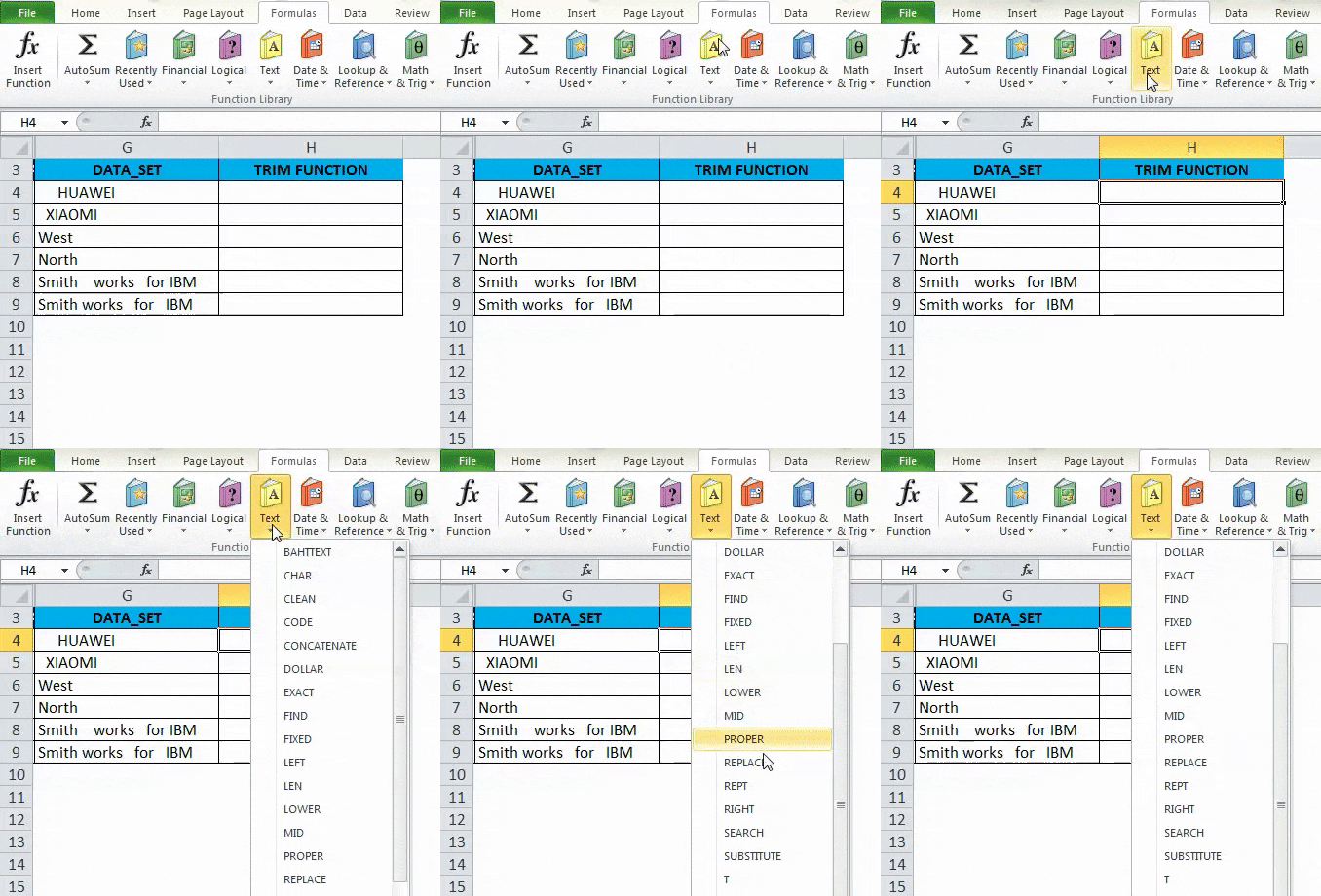
In the Formulas tab, click the Text drop-down menu in the Functions section and select SUBSTITUTE.
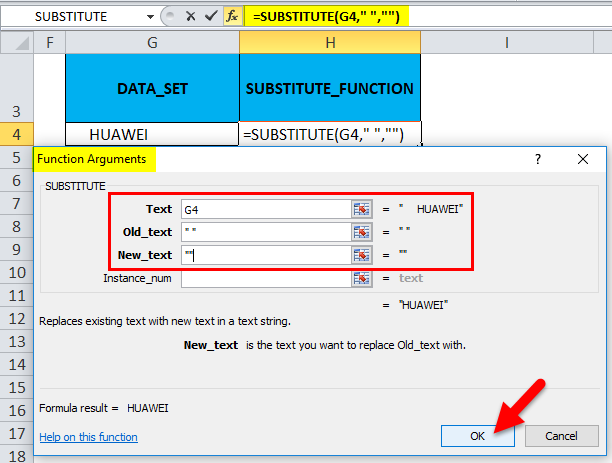
Now the function argument dialog box appears:
- Text Click on the first cell in the column that you need to be changed.
- In the Old_text, I need to enter the character that needs to be replaced; it should be entered between double quotes. i.e., for removal of spaces, it will be” “.
- Here, in the New text, I don’t want to replace anything; therefore, it is typed as “.
Now, you can observe in cell H4, where the Substitute function removes leading space in that cell.
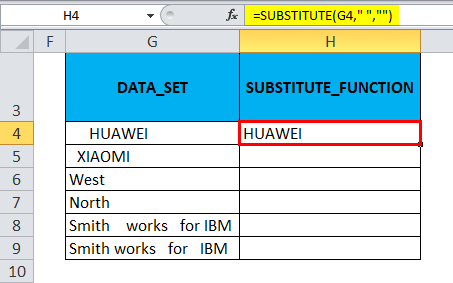
SUBSTITUTE Function is applied to other ranges by selecting the cell H4 and dragging it to H9, and clicking Ctrl+D so that it is applied to other cells.
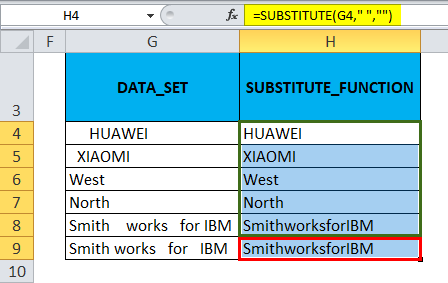
You can find a difference in character count between both datasets. Substitute Function removes all the blank spaces; in extra in-between spaces content, it has removed them without retaining a single space between words.
Things to Remember about Excel Remove Spaces
- Since the extra space is also a character, therefore in ASCII (American Standard Code for Information Interchange) encoding, it has code number 32.
- Sometimes, the data appears as line breaks which may contain extra spaces between words; To remove those extra spaces, we can combine Excel TRIM and CLEAN functions to Remove the Extra Space of Line breaks.
Recommended Articles
This has been a guide to Remove Spaces in Excel. Here we discuss how to Remove Extra Spaces in Excel, practical examples, and a downloadable Excel template. You can also go through our other suggested articles –

