


A missing spreadsheet or client proposal can disrupt an entire afternoon’s work. Before recreating it, confirm whether you deleted the file, moved it, or saved it to a different account. If it was permanently deleted, reduce activity on the affected drive while checking for another copy.
You can often recover deleted files on Mac through Trash, a backup, or a cloud service’s recovery options. Without those copies, Mac data recovery software can scan accessible storage for recoverable local files. The result depends on the drive, permissions, and whether the data still exists. Modern Mac SSDs can sharply limit what software can retrieve.
This guide explains how to recover deleted files on Mac that were previously saved, including Word documents, Excel spreadsheets, PDFs, presentations, and project files. If a document was never saved, you will need a different starting point.
Part 1: Identify What Happened Before Recovering Deleted Files on Mac
Use Finder to check the original folder and search This Mac for part of the filename. Look at likely locations such as Documents, Desktop, Downloads, an external drive, and the folder used by the relevant application. Search by file type if the name is uncertain.
Open the application’s recent-file list as another clue. An entry may show the previous location, but it does not prove that the file is still there. If a cloud folder looks empty, check that you are signed into the correct account before treating the problem as local deletion.
Keep these situations separate: a saved file removed from a folder; an older version replaced by a newer one; a file available only online; and work lost before its first save. A local recovery scan does not address all four in the same way.
If deletion is likely, stop editing, downloading, installing updates, or saving exports to that drive. For an affected external disk, safely disconnect it until you have prepared another location for the recovery software and output. If the startup disk is internal, continuing to use macOS also creates writes.
Do not download or install a recovery program onto the affected volume. With an external source disk, use the Mac’s healthy internal storage. With an affected internal disk, an already prepared external macOS startup environment may reduce writes, but compatibility and security requirements vary. If the files are irreplaceable and you do not have a suitable setup, get qualified advice before installing anything.
Part 2: Check Free Ways to Recover Deleted Files on Mac
Restore a File That Is Still in Trash
Click Trash in the Dock and locate the document. Control-click it and choose Put Back, or drag it to a suitable folder. Open the restored file and check its contents. This route requires the item to remain in Trash; it does not retrieve a file after Trash has been emptied.
Check Cloud Copies and Recently Deleted Files
Use another device to inspect the relevant cloud account where possible. Look for the document, deleted-items area, and version history in the service that originally stored it. A colleague may also have a submitted copy or email attachment. Keep a recovered copy separate before making further edits.
For iCloud Drive, sign in to iCloud.com and check Recently Deleted, or use Data Recovery and Restore Files when available. Apple allows recovery of eligible files deleted within the last 30 days, excluding permanently removed files. Cloud-only content that was never downloaded to the Mac cannot be reconstructed by scanning its local disk.
Use a Backup or Document History
If Time Machine was configured, connect its backup disk, open the folder that held the file, enter Time Machine, browse a date before deletion, and select Restore. Check the restored document before assuming the task is complete. A backup created after the deletion may not contain the version you need.
Not having a connected backup disk does not always mean there is no history. If Time Machine was previously enabled, available local snapshots may be worth checking through Time Machine; their presence and retention are not guaranteed. Turning on Time Machine now does not create a copy of a file already lost.
For an existing document in a compatible app, choose File > Revert To > Browse All Versions. This can retrieve earlier content when versions exist. It is not a universal undelete feature, and the menu may differ in Microsoft Office or other applications.
| Recovery Route | When it Fits | Important Limit |
| Trash and Put Back | File remains in Trash | Unavailable after permanent deletion |
| Cloud recovery or version history | Service retained a copy or version | Retention and account access apply |
| Time Machine | Backup or usable snapshot predates loss | Cannot create past copies retroactively |
| Application recovery | Unsaved or overwritten work | App-specific and not always available |
Part 3: How to Recover Deleted Files on Mac Without Time Machine
When there is no usable backup, software looks for remaining file information and contents on accessible storage. A scan may help with deleted documents on an external hard drive or other readable media. It cannot recreate bytes that have been overwritten or cleared.
On a Mac SSD, TRIM marks deleted storage blocks as no longer needed, and the storage system may clear them. This can quickly make permanently deleted files unrecoverable. Stopping writes is sensible, but it does not guarantee that TRIM has not already taken effect. Disabling TRIM after the loss cannot bring cleared data back.
Encryption and access restrictions also matter. An encrypted volume needs valid credentials to unlock. A drive that cannot be unlocked or read is not made recoverable simply by installing another application. Physical failure calls for specialist assessment rather than repeated scans.
Why Choose Recoverit for Mac Data Recovery?
Recoverit’s graphical workflow combines location selection, scanning, supported document previews, filtering, and selective recovery. It works with accessible Mac storage and external drives, letting you inspect candidates instead of restoring every result indiscriminately.
For students and freelancers whose work includes creative assets, Recoverit also supports recovery of camera photos and videos, SD card media, Final Cut Pro project files, iMovie projects, and Photos libraries. This extends the workflow beyond office documents to the source material and projects used for presentations, coursework, and client deliveries.
You can also save recovered files directly to iCloud, reducing local storage pressure and avoiding writes back to the source. This is useful for large videos and project assets. Check your iCloud storage and connection, then confirm that the saved files are available across your devices.
Check your macOS version, storage access, and file formats before starting. Preview is useful evidence, but the final check is whether the recovered document or project opens correctly in its original application. Recovery of a project file does not by itself establish that all its linked media has survived.
Step 1: Open Recoverit and Select the Original Location
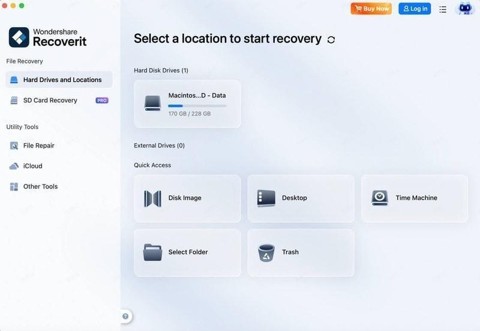
Use a recovery setup that avoids installing onto the affected volume. Open Hard Drives and Locations and select the drive or folder where the saved file was deleted. For internal user documents, the relevant location may be the Data volume. Review the available locations before starting the scan; confirming the source prevents scanning an unrelated disk.
If macOS requests access, follow the legitimate permission prompt. In recent macOS versions, Full Disk Access is under System Settings > Privacy & Security. Unlock the source volume if required. Restart the application if prompted. Do not treat disabling System Integrity Protection as a routine first step.
(Image Source: Wondershare)
Step 2: Scan and Narrow the Deleted File Results
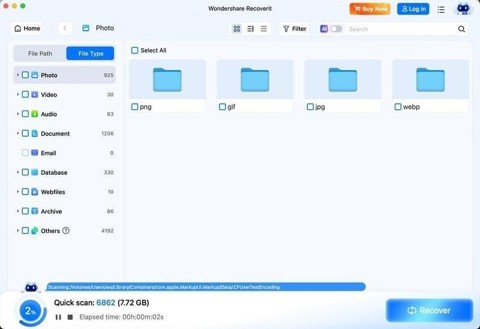
Start the scan for the selected location. Review candidates by available type, name, or folder filters, including DOCX, XLSX, PDF, and PPTX where relevant. The results indicate files the scanner has found, not a verified collection of usable documents. Broaden the search if the original name or folder structure has not survived.
(Image Source: Wondershare)
Step 3: Preview and Save Recovered Files to Another Device or iCloud
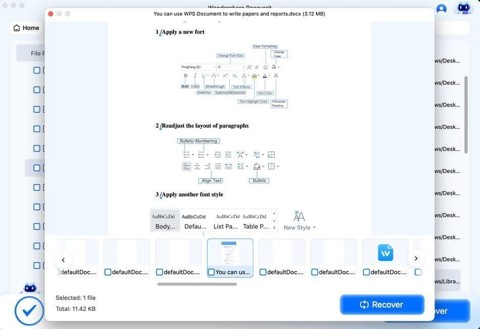
Preview supported documents and select the files you need. Click Recover and choose a healthy external drive, rather than the source disk or another folder on that disk. Alternatively, save recovered files directly to iCloud. Saving elsewhere prevents overwriting additional missing data. Open the output in the intended application and check the actual pages, formulas, slides, and linked assets.
(Image Source: Wondershare)
You can preview supported files as often as needed, with no limit on the number of previews. Use that opportunity to inspect important documents before selecting them for recovery.
Final Thoughts
To recover deleted files on Mac, confirm the file’s status, then check Trash, cloud recovery, document history, and available backups. If no copy exists and the storage is readable, Recoverit can help assess what remains. Save recovered work to another device or directly to iCloud, and verify it before resuming normal use of the source drive.
Frequently Asked Questions (FAQs)
Q1. Can I Recover Deleted Files on Mac After Emptying Trash?
Answer: Possibly, but it depends on what data remains. Cloud recovery and backups should come first. Internal SSD TRIM can prevent software recovery even when Trash was emptied only recently. A scan cannot guarantee success.
Q2. What if the document was never saved?
Answer: Check the application’s AutoRecover, recovery panel, or temporary draft features. These depend on the application and its settings. This guide’s deleted-file workflow assumes a file had already been written to storage.
Q3. Why does a scanned file fail to open?
Answer: A scanner may find a name or partial file while essential contents are missing, overwritten, or cleared. V15 evaluates file structure and preview status and offers repair for supported damaged files. Neither a scan result nor repair guarantees completeness; open and check the saved output.
Recommended Articles
We hope this guide helps you recover deleted files on Mac and restore important documents with confidence. Explore our recommended articles for more tips on Mac data recovery, file management, and data protection.

