
Updated March 15, 2023
Introduction to PowerShell Start-Service
Start-Service is a cmdlet in PowerShell which starts the stopped services in PowerShell. If the service is already running, this command is ignored without any error message. You can provide the service name, display name, or the service as an input object to start the service.
Syntax:
Start-Service

[-Name] <String[]>

[-DisplayName] <String[]>

[-InputObject] <ServiceController[]>

[-PassThru]
[-Include <String[]>]
[-Exclude <String[]>]
[-WhatIf]
[-Confirm]
[<CommonParameters>]
Parameters in PowerShell Start-Service
Some of the parameters are given below:
–Name: This parameter specifies the service names to start. You can use the service name or alias. Wildcard character (*) is accepted.
DisplayName: This parameter is useful to start the services with their display name. Wildcard characters are permitted.
–InputObject: This parameter specifies the service controller objects representing the services to start. Objects can be a variable.
–Passthru: This parameter returns the output in the service console. By default, this Start-Service doesn’t generate any output.
–Include: This parameter generally works with the name parameter or the input object. It specifies the services to start. Wildcard character (*) is permitted.
–Exclude: This parameter generally works with the name parameter or the input object. It specifies the services which need to exclude from the start. Wildcard character (*) is permitted.
–Whatif: This parameter shows what happens when the cmdlet runs without executing the command.
–Confirm: Prompt for the user action before running the cmdlet.
Examples of PowerShell Start-Service
The examples of PowerShell are shown below:
1. Starting a single service with a name or alias.
Starting the spooler service. The below command doesn’t give any output unless an error generates.
Start-Service -Name Spooler
To check if the service is started, run the below command.
Get-Service -Name Spooler
Output:

2. Starting multiple services with a service name or alias.
You can start the multiple services with the service names by separating each service by a comma.
Start-Service -Name Spooler,Schedule
3. Start service with the Display Name.
To start the service with the service display name(s), use the –DisplayName parameter.
Start-Service -DisplayName "Print Spooler","Task Scheduler"
Output:

4. Start-Service with –Passthru.
When you start the service with the –Passthru parameter, it displays the output in the console, and you don’t need to write the Get-Service command to get the service information.
Start-Service Spooler -PassThru
Output:

5. Start-Service with –Whatif.
When you write the start-service cmdlet with –whatif, it shows the command will perform the particular action without executing it. So you can say this command acts as a Pre-Verbose.
Start-Service Spooler -WhatIf
Output:

6. Start-Service with –InputObject.
You can pass the service names as an input object. For example, multiple service names can be passed with an alias.
$services = "Spooler","Task Scheduler"

Get-Service -InputObject $services
7. Start-Service with –Confirm.
When you use the –confirm parameter, the PowerShell console first confirms with the user before starting the service.
Start-Service Spooler -Confirm
Output:

If you select ‘Y,’ then the given service will be restarted with the confirmation, and if there are multiple services, then a check will be performed for the next service. If you select ‘A,’ multiple given services will be restarted without confirmation. Finally, if you click ‘N,’ the given service will not restart, and ‘L’ for all the services are not restarted with the user concert.
8. Start-Service with –Include parameter.
When there are multiple services as an input object, and you want to start the specific set of services to be restarted, then you need to use –The include parameter. Wildcard character (*) is permitted.
In the below example, we are taking all the services as the input object, and we will include only Spooler and Plugplay services to start.
Start-Service $services -Include Spooler,Plugplay -PassThru
Output:

You can use the wildcard character (*) as given in the below example.
Start-Service $services -Include Spoo* -PassThru
Output:

9. Start-Service with –Exclude parameter.
When you use the exclude parameter, a specific set of services will be excluded, and the rest will be restarted. Wildcard character (*) is permitted in this parameter.
For example, from the given set of services, we need to exclude the Spooler service and need to restart the remaining services.
$services = "Spooler","WSearch","winmgmt"

Get-Services $services

Start-Service -InputObject $services -Exclude "Spooler" -PassThru
Output:
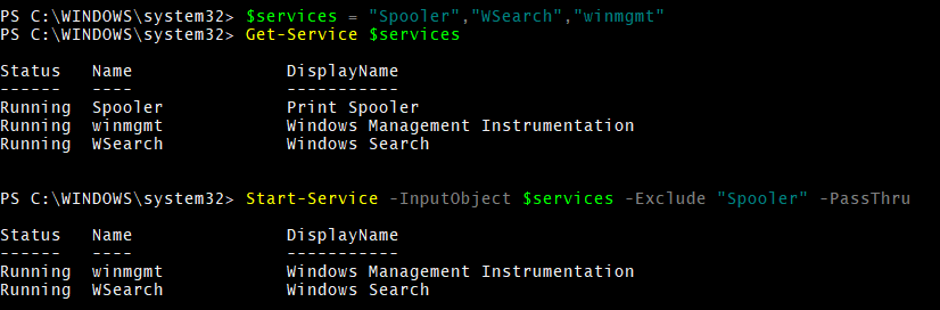
The above output can also be achieved with the wildcard character (*).
Start-Service -InputObject $services -Exclude spoo* -PassThru
10. Pipelining Start-Service command.
You can also pipeline the Start-Service command with the Get-Service cmdlet. This is mostly helpful when you are working with remote systems. For example,
Get-Service spooler,TermService | Start-Service -PassThru
Output:

11. Start-Service on remote computers.
There is no parameter in Start-Service which supports the remote connection directly. Instead, you must pipeline the Start-Service to the Get-Service cmdlet as it supports the –ComputerName parameter, or use the Invoke-Command cmdlet with the –ComputerName parameter.
For example,
Get-Service spooler,TermService -ComputerName Test-PC | Start-Service -PassThru
The above command will restart the services on the remote computer named Test-PC. You can also provide multiple computer names to restart the same services on the remote computers.
In the below example, Invoke-Command can also be useful to restart the service on remote computers.
Invoke-Command -ComputerName Test-PC, Test2-PC -ScriptBlock{Get-Service Spooler,TermService | Start-Service}
12. Start-Service with ErrorAction
When you try to start the service on a computer or the remote computer, and if any error occurs like the service is not present or the remote connection error, then error output will be displayed. You can ignore those alerts using the ErrorAction parameter.
For example, below, we will try to start the service ABC that doesn’t exist, throwing the error output.
Start-Service ABC -PassThru
Output:

When you add –the ErrorAction parameter, the error will be ignored.
Start-Service ABC -PassThru -ErrorAction Ignore
Output:

-The errorAction parameter is useful when you are working with a script, and you want to ignore if the error occurs and want to continue to the next step of execution.
Recommended Articles
This is a guide to PowerShell Start-Service. Here we discuss the introduction, Examples of Start-Service in Powershell, and the Parameters along with Syntax & outputs. You can also go through our other suggested articles to learn more –

